
If your iPhone 17 camera won't open or shows a black screen, start with a simple restart. Press and quickly release the Volume Up button, press and quickly release the Volume Down button, then press and hold the Side button until you see the Apple logo. This clears temporary software glitches that can freeze the camera app.
It takes seconds to confirm the camera works with an online quick webcam test. If the preview stays black there too, keep reading, because the steps below target exactly that.
Key Points
- Force Quit and Reopen the Camera App: Swipe up from the bottom of the screen and hold, then swipe the Camera app up to close it.
- Check for Software Updates: iOS 26 updates often include camera stability fixes.
- Free Up Storage Space: A full iPhone can prevent the camera from saving new photos or videos.
- Clean the Camera Lenses: Smudges on the lenses will cause blurry or hazy photos.
- Reset All Settings: This can fix conflicts without erasing your personal data.
- Check for Physical Damage or Obstructions: A cracked lens or a case blocking the camera will cause issues.
Give your phone a moment to reboot completely, then try opening the Camera app again from the Lock Screen or Home Screen.
Force Quit and Reopen the Camera App
Sometimes the Camera app itself gets stuck. To force quit it, swipe up from the very bottom of your screen and hold in the middle. You'll see your app switcher view.
Find the Camera app preview and swipe it up off the top of the screen to close it. Wait a couple of seconds, then tap the Camera icon to relaunch it. I've found this instantly fixes the black screen issue more often than not.
Check for Software Updates
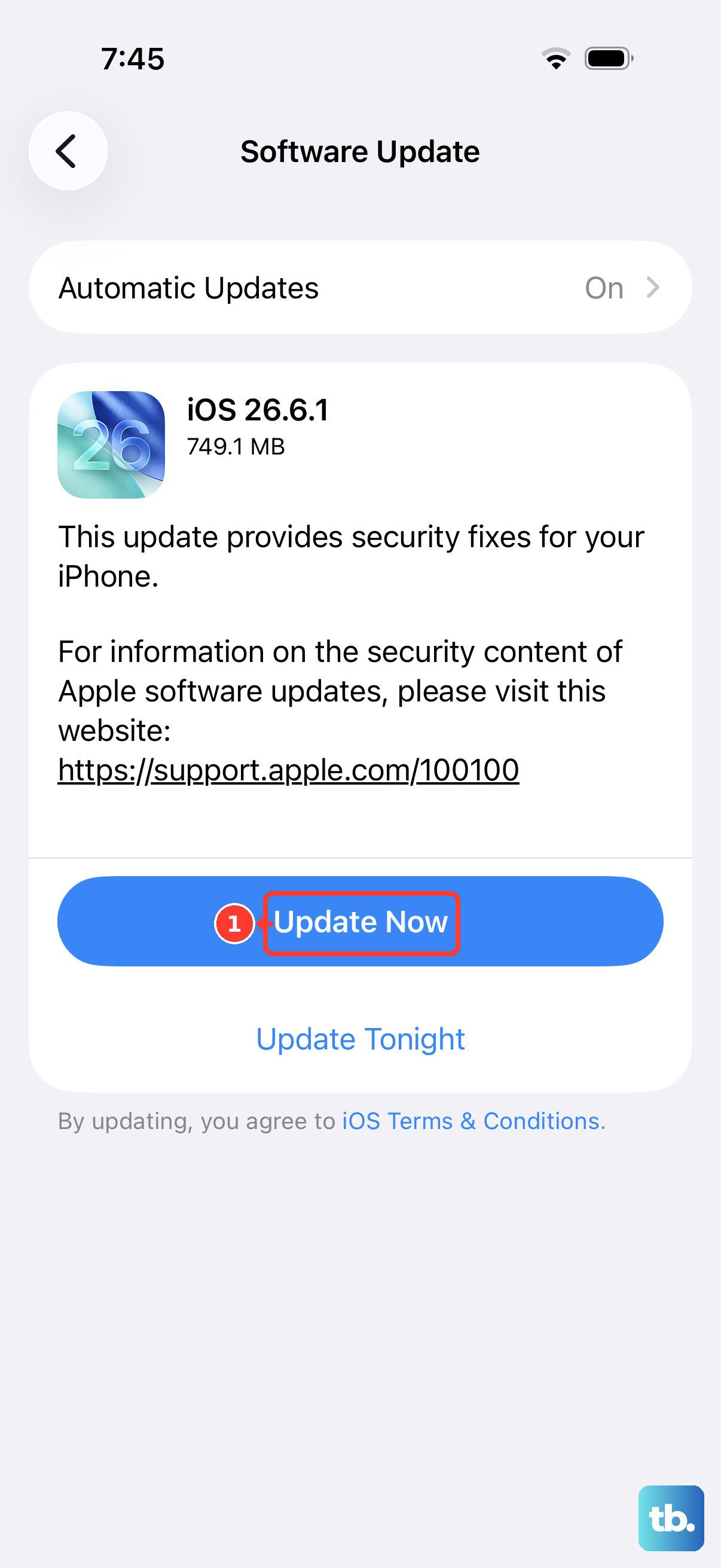
Apple frequently releases updates for iOS that address bugs, including camera performance. Go to Settings > General > Software Update.
If an update is available, tap Download and Install. Make sure your iPhone 17 is connected to Wi-Fi and has at least 50% battery, or plug it into a charger. After the update installs, restart your phone once more and test the camera.
Free Up Storage Space
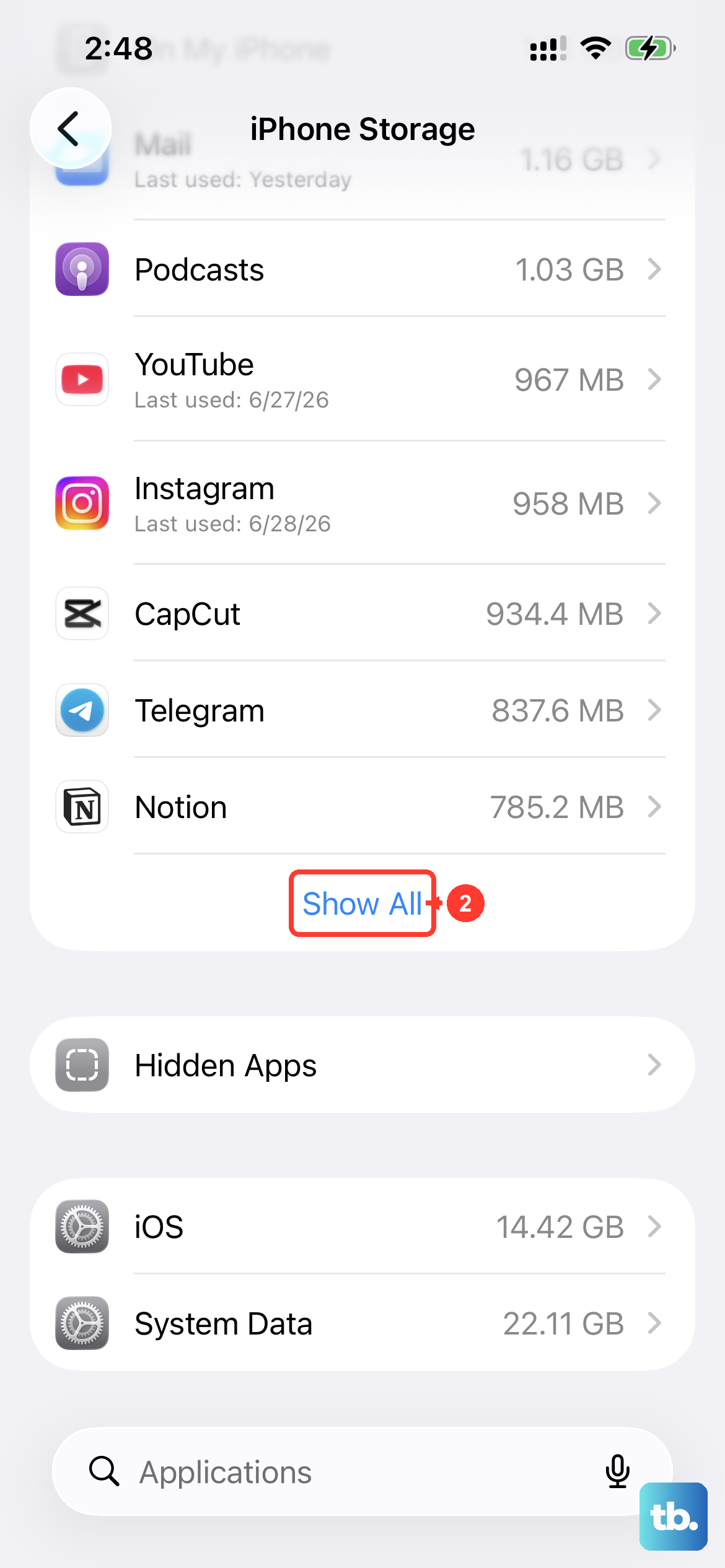
Your camera needs free space to process and save images. If your iPhone storage is completely full, the camera may fail to open or function. Go to Settings > General > iPhone Storage to see how much space you have left.
If you're critically low, you'll need to delete some items. Start by offloading unused apps or reviewing large video files in your Photos library. Aim to clear at least a few gigabytes of space.
Clean the Camera Lenses
It sounds obvious, but fingerprints and dirt on the camera lenses are a common cause of blurry photos. Use a clean, dry microfiber cloth to gently wipe the large camera array on the back of your iPhone 17.
Pay special attention to the individual lenses. Avoid using any liquids or abrasive materials. After cleaning, open the Camera app and point it at a well-lit subject to see if the image is clear.
Reset All Settings
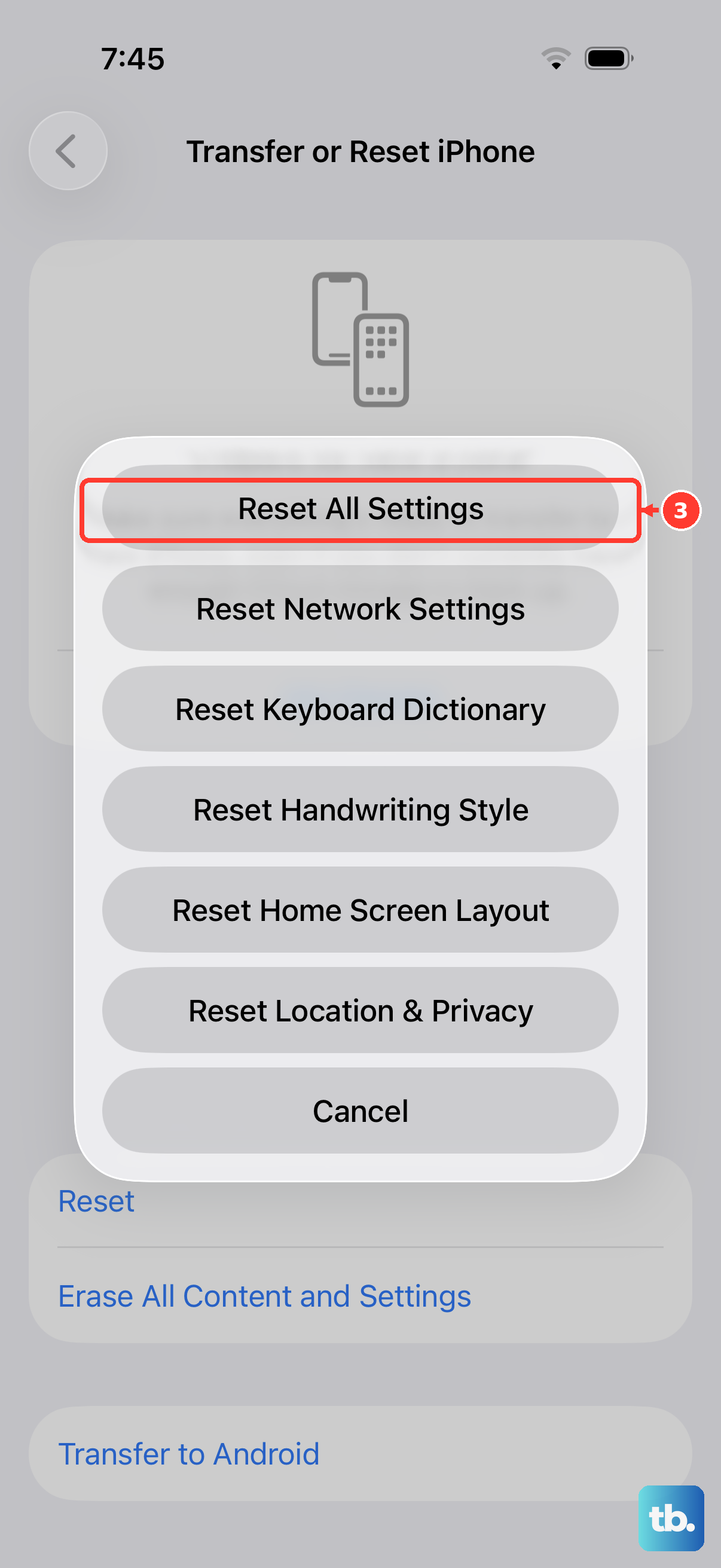
If the camera is still malfunctioning, a deeper software reset can help. This won't delete your photos, messages, or apps, but it will revert all your preferences back to default. Go to Settings > General > Transfer or Reset iPhone.
Tap Reset and then choose Reset All Settings. You'll need to enter your passcode. Your iPhone will restart, and you'll have to reconfigure things like Wi-Fi passwords and wallpaper, but it often resolves persistent camera bugs.
Check for Physical Damage or Obstructions
Inspect the camera module on the back of your phone. Look for any cracks over the lenses or deep scratches. Even a small crack can distort images. Also, check if your phone case is properly aligned.
Some thicker cases can have a lip that slightly covers the edge of the camera bump, potentially blocking the field of view or the sensors. Try removing the case and testing the camera without it.
Disable Camera-Related Restrictions
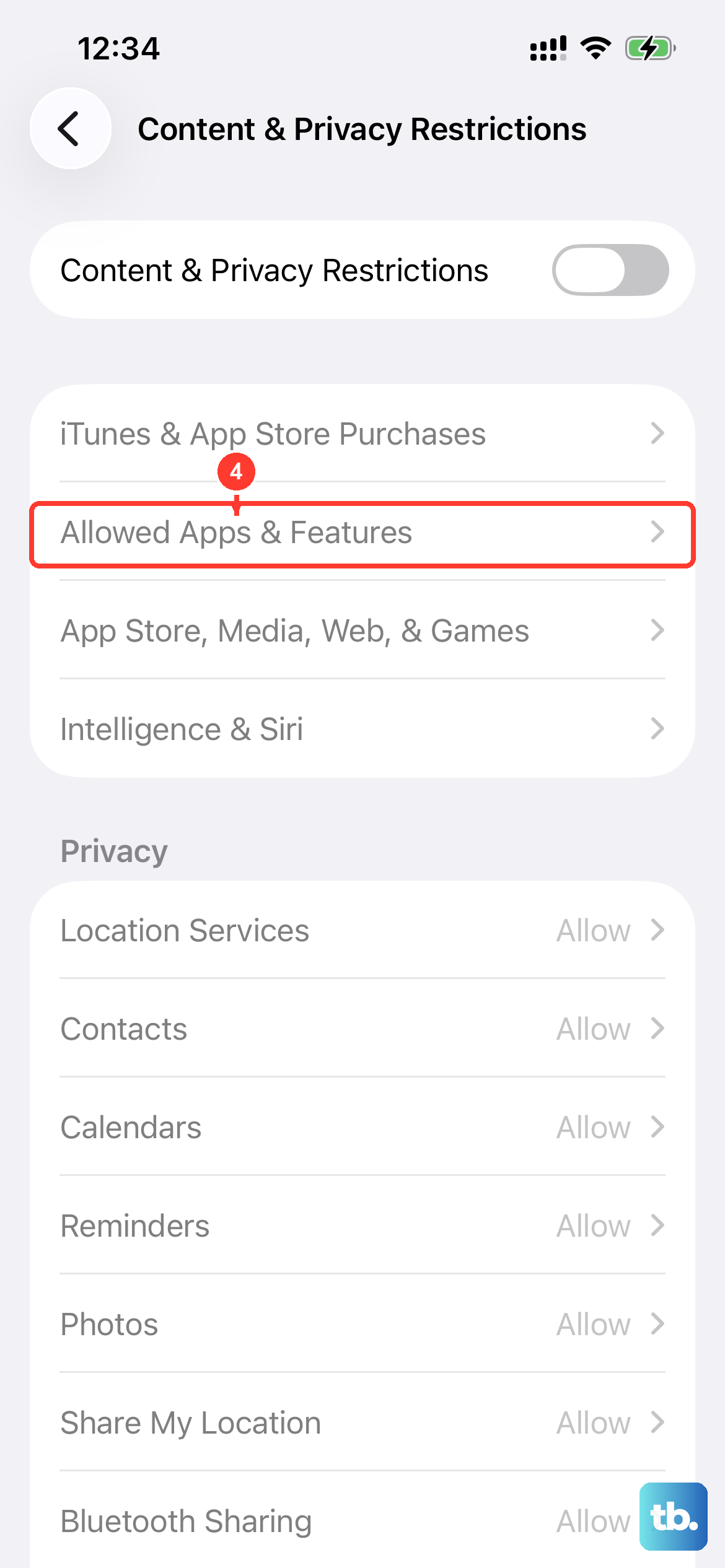
Screen Time or other parental controls can block camera access. Go to Settings > Screen Time > Content & Privacy Restrictions.
If restrictions are enabled, tap Allowed Apps & Features and make sure the toggle for Camera is green and turned on. If you're using a managed device from a workplace or school, you may need to contact your IT administrator to enable the camera.
Test with a Third-Party Camera App
Download a free camera app from the App Store, like Halide or even Instagram. Try taking a photo with the third-party app. If it works perfectly, the problem is likely isolated to the stock iOS Camera app.
The built-in Camera app is a core system app, so it can't be offloaded or reinstalled from iPhone Storage. If the stock Camera fails while third-party camera apps work fine, back up your iPhone and try Reset All Settings, install the latest version of iOS, or contact Apple Support for hardware or software service.