
Your iPhone Air screen goes black and stays black, even when you try to press the side button. You plug it in and nothing happens. Before you panic, there's a quick fix that works most of the time.
Before trying the fixes, map the problem with a touch screen tester in your browser. Dragging a finger across the grid reveals exactly which areas of the screen respond and which do not.
Force Restart Your iPhone Air
This is the first thing to try when the screen isn't responding. Quickly press and release the Volume Up button, then quickly press and release the Volume Down button, then press and hold the Side button until the Apple logo appears. Keep holding even if the screen stays dark at first.
I've seen this wake up iPhones that seemed completely bricked, especially after the battery drained to zero. The whole process takes about 15 seconds, so don't give up too early.
If the logo shows up, you're good. If not, move on to the next fix.
Wake the Battery with a Magnetic Pack
One quirk of the iPhone Air is that after a full battery depletion, the phone sometimes won't respond to a cable at all. The black screen stays black even when plugged in. The trick here is to attach a MagSafe or Qi2 magnetic battery pack to the back of the phone.
The magnetic field and wireless charging signal can wake the battery management system enough to get a response. Leave the pack on for a few minutes, then try cable charging again. This has been reported as a reliable workaround for the iPhone Air's post-drain unresponsiveness.
Once the screen shows the charging indicator, you can switch back to a wired charger if you prefer.
Check Your Cable and Charging Block
The iPhone Air uses a USB‑C port, but not all USB‑C cables are compatible. Damaged or uncertified cables can cause the phone to appear dead because it's not receiving power at all. Look for the Apple MFi logo on your cable or adapter.
Try a different Apple‑certified cable and a different power adapter. If you have a MacBook or iPad charger, those work fine too. The iPhone Air supports up to 40W wired charging, so a higher‑wattage adapter won't hurt.
Also inspect the USB‑C port on the phone for lint or debris. A flashlight helps spot anything stuck inside. Gently clean it with a dry toothpick or a small non‑conductive tool.
Let It Charge for a While
Sometimes the battery is so flat that the phone can't even show a charging icon for the first 15 30 minutes. Plug it into a known working charger and leave it alone for an hour. If the screen remains black, try the force restart again while it's still plugged in.
A deep discharge can confuse the battery controller, and it just needs time to build up enough voltage to boot. Don't interrupt the charging session with repeated button presses.
Update to the Latest iOS 26
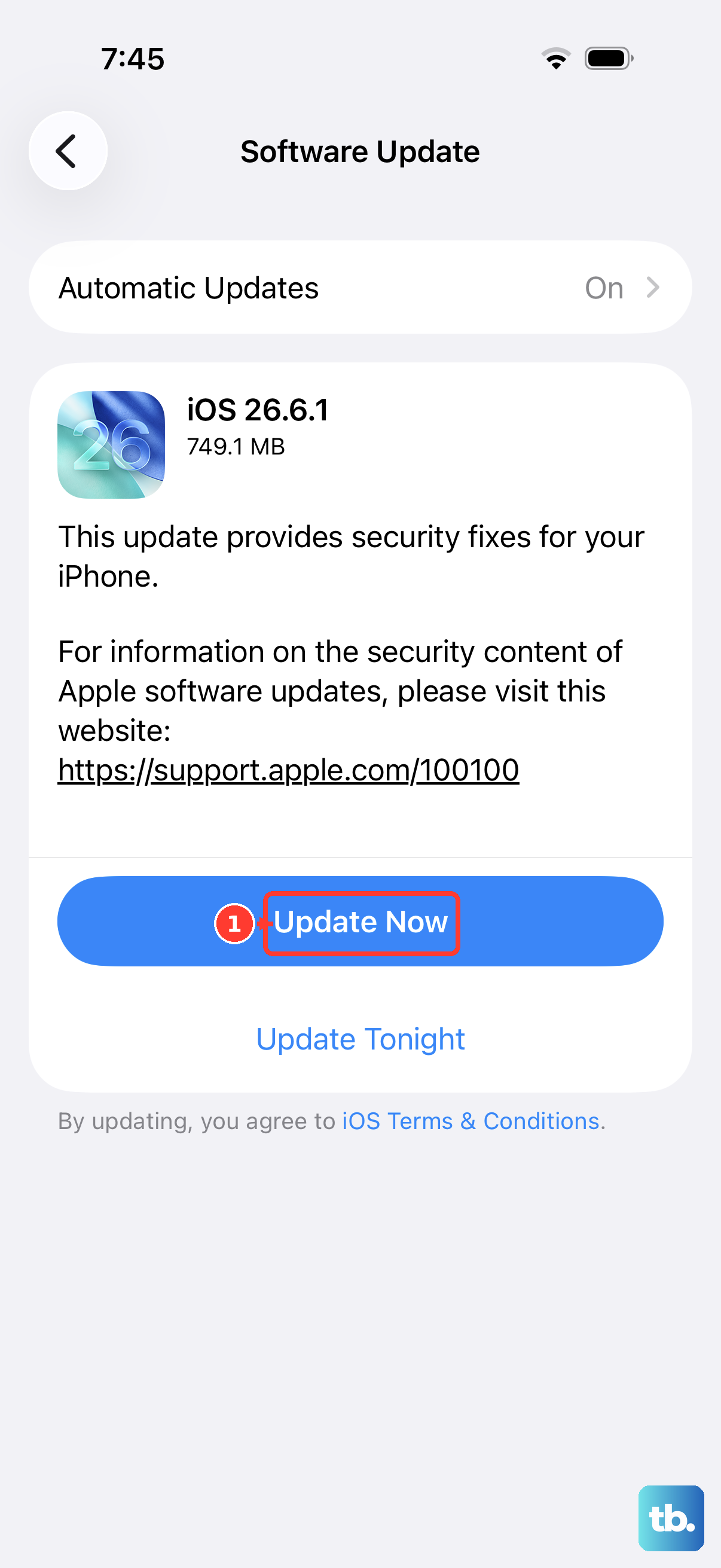
Apple has acknowledged a firmware issue in some versions of iOS 26 that can cause intermittent charging failures and unresponsive screens. The known issue mentions iOS 26.4.2 has not resolved it, but a later point release may have. Go to Settings > General > Software Update and install any available update.
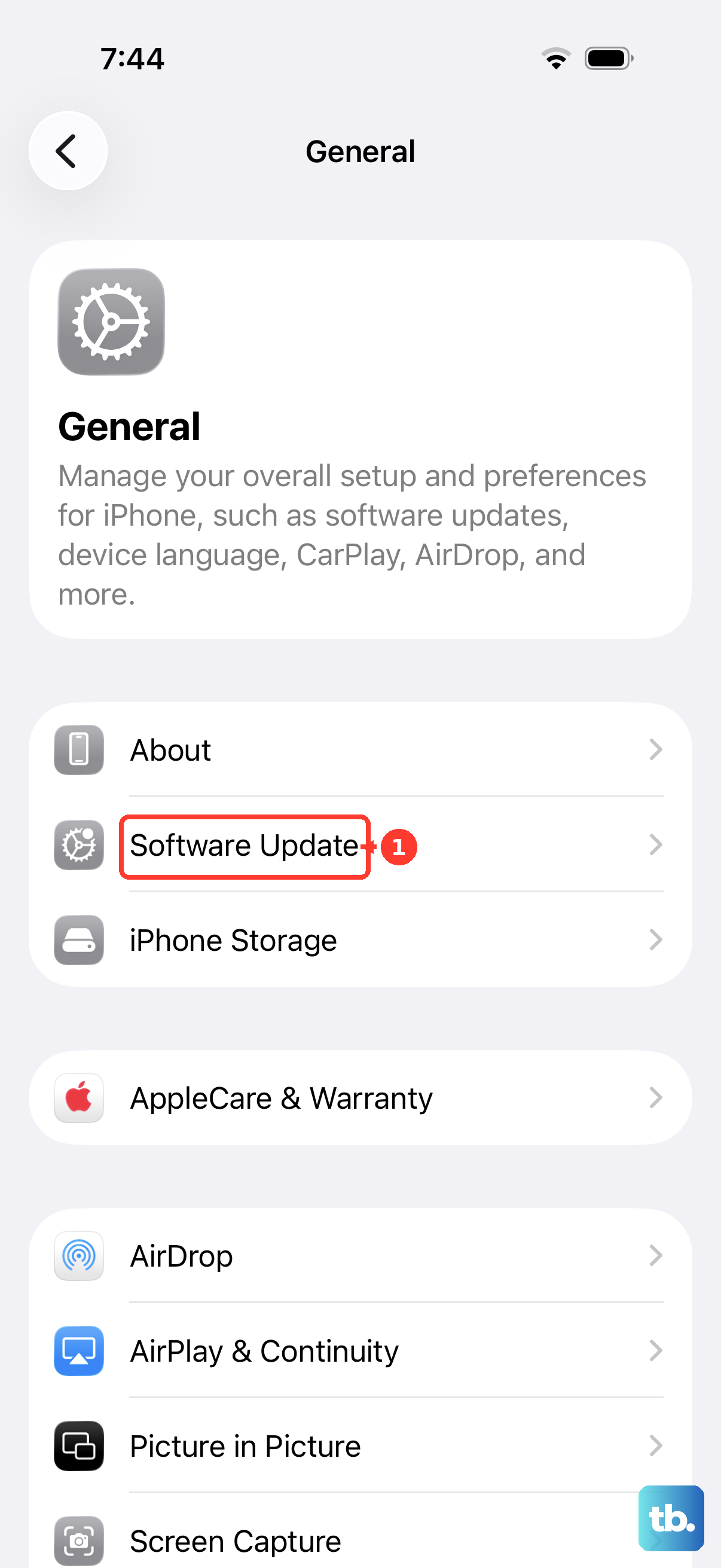
If your screen is completely unresponsive and you can't navigate to Settings, you'll need to update via a computer (next step).
Restore via Computer (DFU Mode)
If software corruption is preventing the phone from booting, a DFU restore will wipe the system clean and install fresh firmware. This erases all your data, so it's a last resort. Connect your iPhone Air to a Mac or PC with the latest version of Finder or iTunes.
Put the phone into DFU mode: press Volume Up, press Volume Down, then hold the Side button for 10 seconds. While still holding the Side button, press and hold the Volume Down button for 5 seconds, then release the Side button but keep holding Volume Down for another 10 seconds. If the screen stays black and iTunes/Finder shows a "Recovery Mode" prompt, you're in DFU.
Click Restore to reinstall iOS 26. After the restore completes, you can set up your phone as new or restore from a backup.
Check for Physical Damage
A dropped iPhone Air can loosen internal connectors even if the glass looks fine. The display cable might have partially disconnected, causing a black screen. If you've recently had the screen repaired, the connector might not be fully seated.
Take a close look at the screen for any cracks or impact marks. If you're comfortable opening the phone (and it's out of warranty), you can reseat the display connector. Otherwise, a repair shop can check it quickly.
Water damage is another possibility, though the iPhone Air is IP68 rated. Check the SIM tray for a liquid contact indicator, if it's red or pink, moisture could be the cause.
This covers the most common reasons your iPhone Air screen isn't responding. Start with the force restart and the magnetic pack trick, those solve the majority of cases.