
If your iPhone 16 is completely black and won't respond, the first thing to try is a force restart. This is different from a normal restart and can clear out temporary glitches that freeze the phone. Press and quickly release the Volume Up button, then press and quickly release the Volume Down button. Finally, press and hold the Side button. Keep holding it until you see the Apple logo appear, then you can let go.
Check Your Charger and Cable
Your phone might just be out of battery. Plug it into a wall outlet using the USB-C cable that came with it and a compatible power adapter. Let it charge for one hour, then try the force restart again. Sometimes a completely drained battery needs a few minutes of charging before it will even show the low-battery icon.
If nothing happens, try a different combination. Use another known-good USB-C cable and a different wall charger. The issue may be a frayed cable or a faulty power adapter. Check the cable and power adapter for damage, such as breakage or bent prongs, and don't use damaged accessories.
Also, check the USB-C port on the bottom of your iPhone 16. Shine a light into it and look for any packed lint or debris. This is a common issue that can prevent the cable from seating properly. You can gently clean it out with a dry, soft-bristled brush.
Try a MagSafe Charger
Since the iPhone 16 supports both MagSafe and the newer Qi2 standard, wireless charging can help check whether the problem is with wired charging. Place your phone directly on a MagSafe or Qi2 charger. You should feel a magnetic snap if it's aligning correctly.
If it doesn't charge, try removing your case. Thick cases, especially those with metal plates or magnets not designed for MagSafe, can prevent proper alignment and block charging. With a compatible MagSafe Charger and a 30W or higher power adapter, the iPhone 16 supports wireless charging up to 25W.
Look for Signs of Life
While it's plugged in, press the Side button once. Look very closely at the screen for any faint image. In a dark room, check whether an Apple logo or battery symbol is visible.
If the screen shows a low-charge battery, check the cable, adapter, and charging port, then charge the phone for 30 minutes or until it starts. If it still won't turn on after charging and a force restart, arrange service.
Review Your Charging Settings
If your iPhone 16 turns on but seems to stop charging around 80%, a charging setting or a warm battery may be the cause. Go to Settings > Battery > Charging. Check whether the charge limit is set to 80%. Optimized Battery Charging is available when the limit is set to 100%.
These features are designed to extend your battery's lifespan by not keeping it at 100% all the time. Optimized Battery Charging learns your routine and may delay charging past 80%, while a charge limit stops charging at your chosen level. Set the charge limit to 100% if you need a full charge.
Connect to a Computer
Plug your iPhone 16 into a computer using a USB-C cable that supports both data and charging. Open Finder on a current Mac, or the Apple Devices app or iTunes on a Windows PC. A completely unresponsive phone might still be recognized by a computer. Check whether the iPhone appears in Finder, the Apple Devices app, or iTunes.
Recognition by the computer can help with further troubleshooting. If the computer doesn't recognize it at all after trying different cables and USB ports, the problem might be more serious.
Check for Physical or Liquid Damage
Inspect your iPhone 16 for any obvious signs of damage. Look for a cracked back glass, a severely dented frame, or any discoloration in the USB-C port. On iPhone 16 models that have a SIM tray, remove the tray and use a light to look into the SIM slot. If the Liquid Contact Indicator inside is red, the phone has been in contact with liquid. eSIM-only models, including those sold in the US, have no SIM tray to check.
While the iPhone 16 is water-resistant, liquid damage can still cause corrosion over time that leads to a failure to power on. If you suspect this is the case, avoid plugging it in further and don't try to charge it.
Update or Restore via Recovery Mode
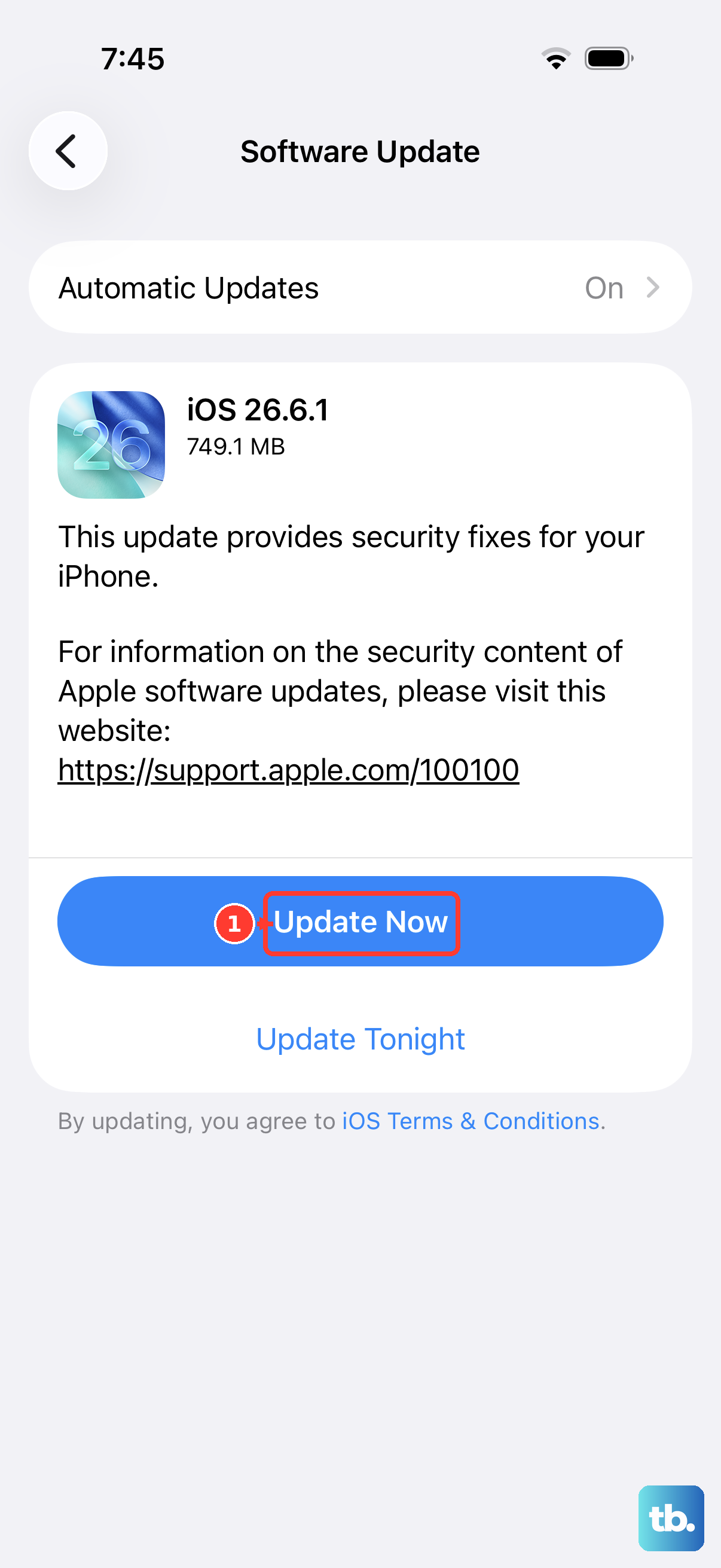
If your iPhone 16 is stuck during a software update or boot loop, you can use Recovery Mode. Restoring the phone erases its data, so check whether you already have an iCloud or computer backup before choosing Restore. Connect your phone to a computer and open Finder (on a current Mac) or the Apple Devices app or iTunes (on Windows).
Then, perform the force restart steps: quickly press Volume Up, then Volume Down, then hold the Side button. Don't release the Side button when you see the Apple logo this time. Keep holding until you see the "Connect to computer" screen on your iPhone, which shows a cable pointing to a computer icon.
From here, your computer will give you the option to "Update" or "Restore." Always try "Update" first. This will reinstall iOS without erasing your data. If the update fails or isn't available, then you may need to choose "Restore," which will install the latest iOS and erase everything on the phone.