
If your iPhone 16 Pro is making videos look choppy or freeze up, it can really ruin the experience. This is a common hiccup that pops up for a few different reasons, but the good news is you can usually sort it out yourself without too much fuss.
Before assuming the panel is at fault, run a quick online refresh rate test in your browser. It measures the refresh rate your screen is actually running at, which often is not what the spec sheet promises.
Quick First Step: Force Restart
Before anything else, give your phone a fresh start. This clears out any temporary software glitches that might be interfering with video playback. On the iPhone 16 Pro, you do this by quickly pressing and releasing the Volume Up button, then quickly pressing and releasing the Volume Down button, and finally pressing and holding the Side button until you see the Apple logo appear.
Check Your iPhone's Free Space
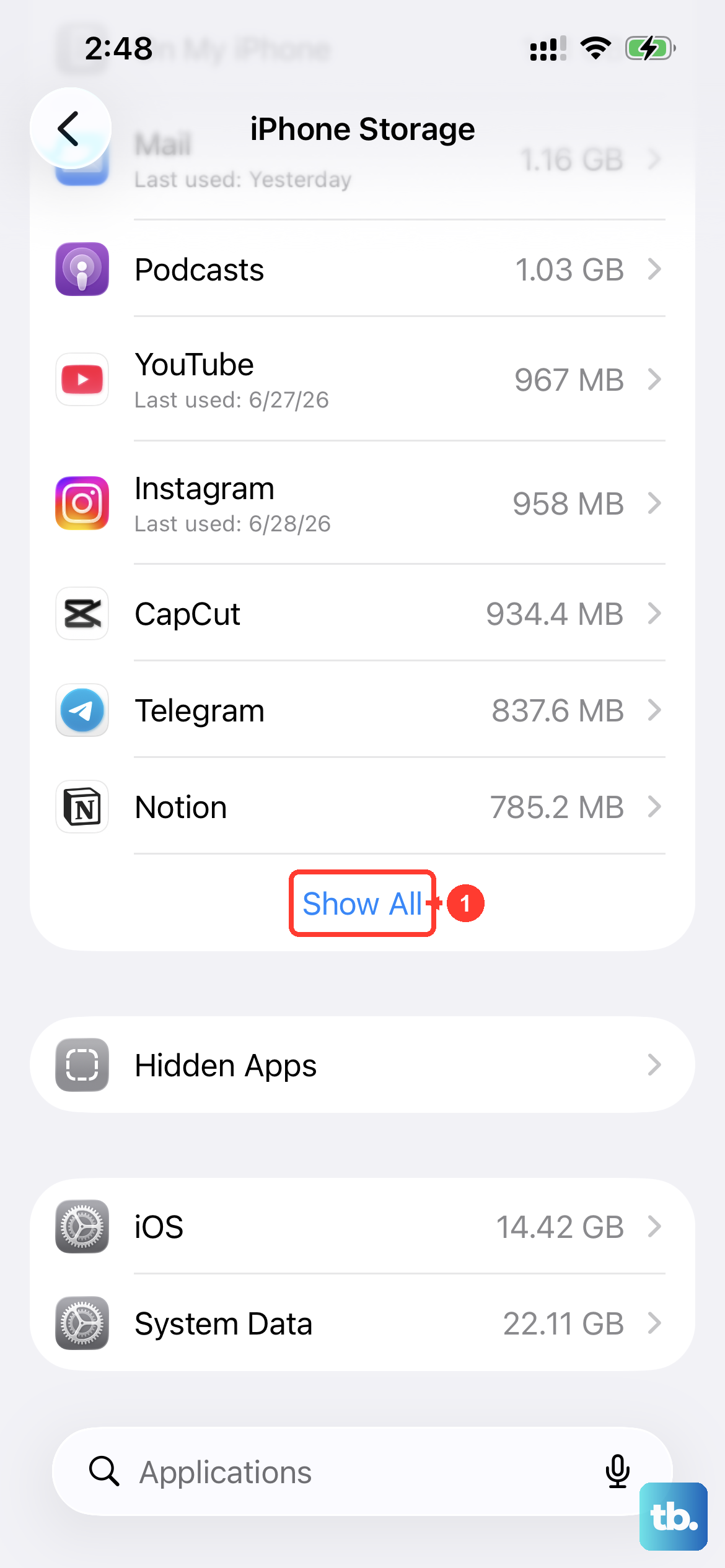
When your phone's storage is nearly full, it struggles to handle large files like videos smoothly. The system needs room to breathe and process data. Head to Settings > General > iPhone Storage to see how much space you have left.
If you're down to just a gigabyte or two, it's time for a cleanup. I'd start by offloading apps you don't use often or reviewing large video files in your Photos library. Enabling iCloud Photos can also help by keeping your full-resolution media in the cloud.
Update to the Latest iOS
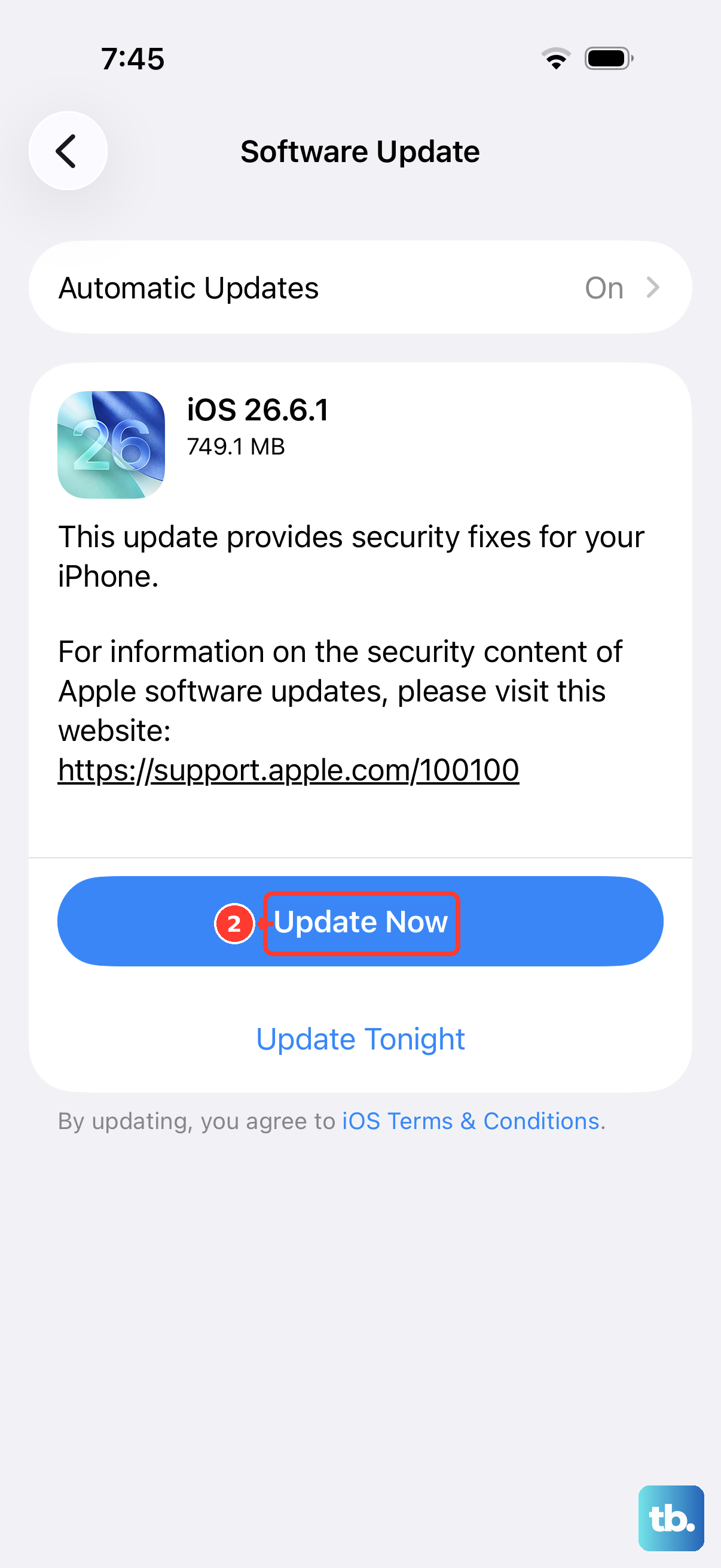
Running an old version of iOS 26 can lead to compatibility bugs with video players and codecs. Apple is constantly tweaking performance with software updates. Go to Settings > General > Software Update and install any available update.
This is one of the most effective fixes for playback issues that appear after a major update. It's always worth checking before you try more involved steps.
Test Your Network Connection
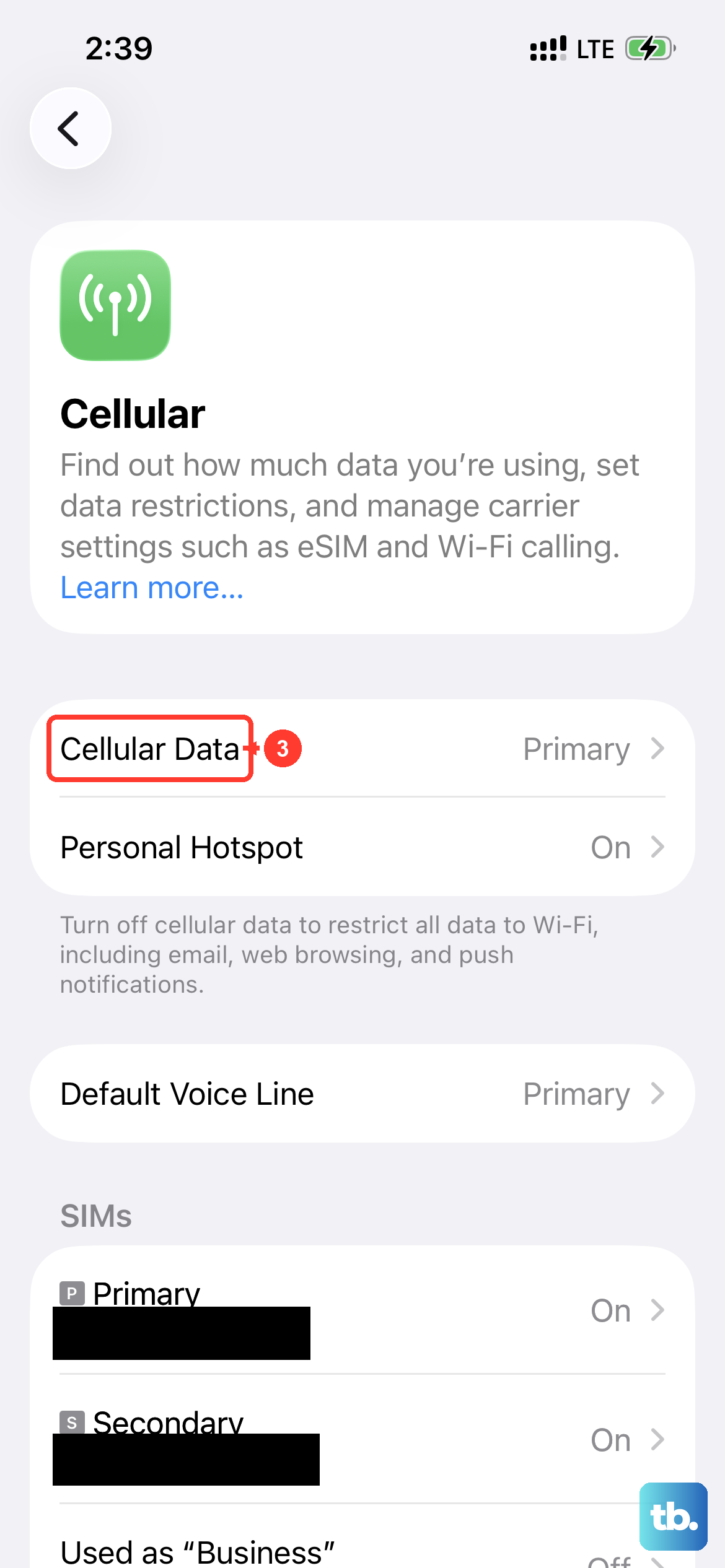
For streaming videos, a weak or unstable internet connection is the most likely culprit for buffering and stuttering. Try switching from Wi-Fi to your 5G cellular data, or vice versa, to see if the problem goes away.
If you're on Wi-Fi, try moving closer to your router or restarting the router itself. Sometimes the issue isn't your phone at all, but the network it's connected to.
Close Background Apps and Restart the Video App
Too many apps running in the background can steal processing power from your video player. Swipe up from the bottom of the screen (or press the bar at the very bottom) and swipe away any apps you aren't using.
Then, fully close the app where you're having trouble, whether it's YouTube, Netflix, or the Photos app. Swipe it away from your app switcher and then reopen it. This gives the app a clean slate to work from.
Check for a Problematic App Update
Sometimes, the issue is specific to one app. A recent update to that app might have introduced a bug. Go to the App Store, tap your profile icon, and see if there are any pending updates for your video apps.
If an update is available, install it. If the problem started right after an update, you can sometimes report it to the app developer through the App Store listing.
Reset All Settings
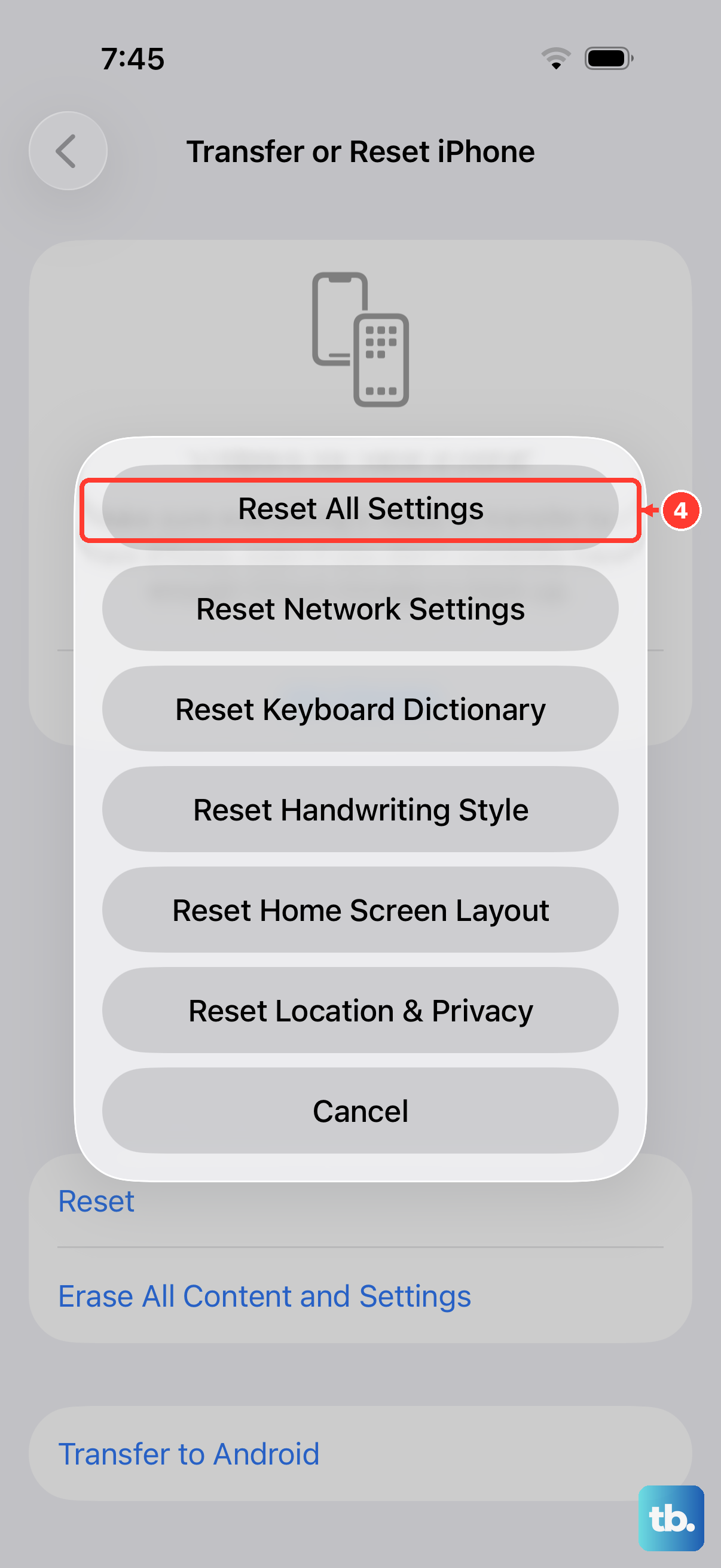
This is a more thorough step that won't delete your personal data, but it will reset all your system preferences to default. It can fix deeper software conflicts that cause playback issues.
You'll find this option at Settings > General > Transfer or Reset iPhone > Reset > Reset All Settings. You'll need to re-enter your Wi-Fi passwords and reconfigure things like display brightness, but it often clears up persistent glitches.
Disable Background App Refresh for Video Apps
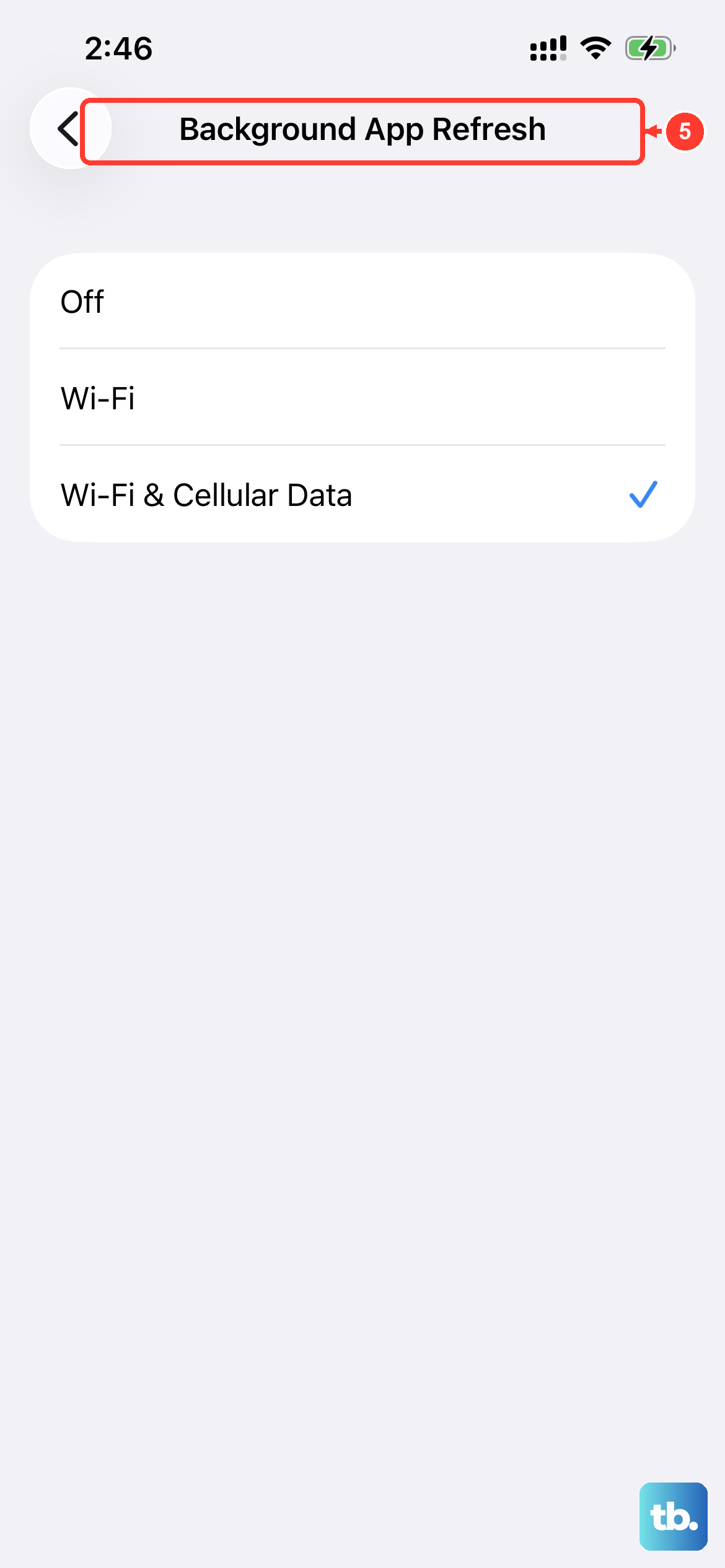
Some video apps use Background App Refresh to pre-load content. If this feature is acting up, it could interfere with active playback. You can turn it off for specific apps to test.
Go to Settings > General > Background App Refresh. You can toggle it off entirely, or just for the app giving you trouble. See if your video plays smoothly afterward.
Check for Overheating
The iPhone 16 Pro's powerful chip can get warm during extended video playback, especially with high-resolution content like 4K HDR. If the device gets too hot, it will intentionally throttle performance to cool down, which can cause stuttering.
If your phone feels very warm to the touch, take it out of its case, move it out of direct sunlight, and pause what you're doing for a few minutes. Let it cool down before trying to play the video again.
Try a Different Video File or Source
To rule out a problem with the video file itself, try playing a different video. If you're streaming, try a different show or movie on the same service. If you're playing a file from your Photos app, try one you recorded recently and one from a while ago.
If one specific file always stutgers, the file might be corrupted or in a format that your phone has trouble decoding. This helps you figure out if the problem is with your phone or with the media.