
If your iPhone 16 Pro is suddenly quiet, with alerts for texts, emails, and apps not showing up, you're missing important information. This is usually a software hiccup in iOS 26 that you can fix yourself. Let's get your notifications working again.
The first thing I'd try is a simple force restart. It clears out temporary glitches in the system memory without touching your data. On the iPhone 16 Pro, you press and quickly release the Volume Up button, then quickly press and release the Volume Down button. Finally, press and hold the Side button until you see the Apple logo appear on the screen.
Once it boots back up, check if a test message comes through. If not, we'll move on to the settings.
Check Your Focus Modes
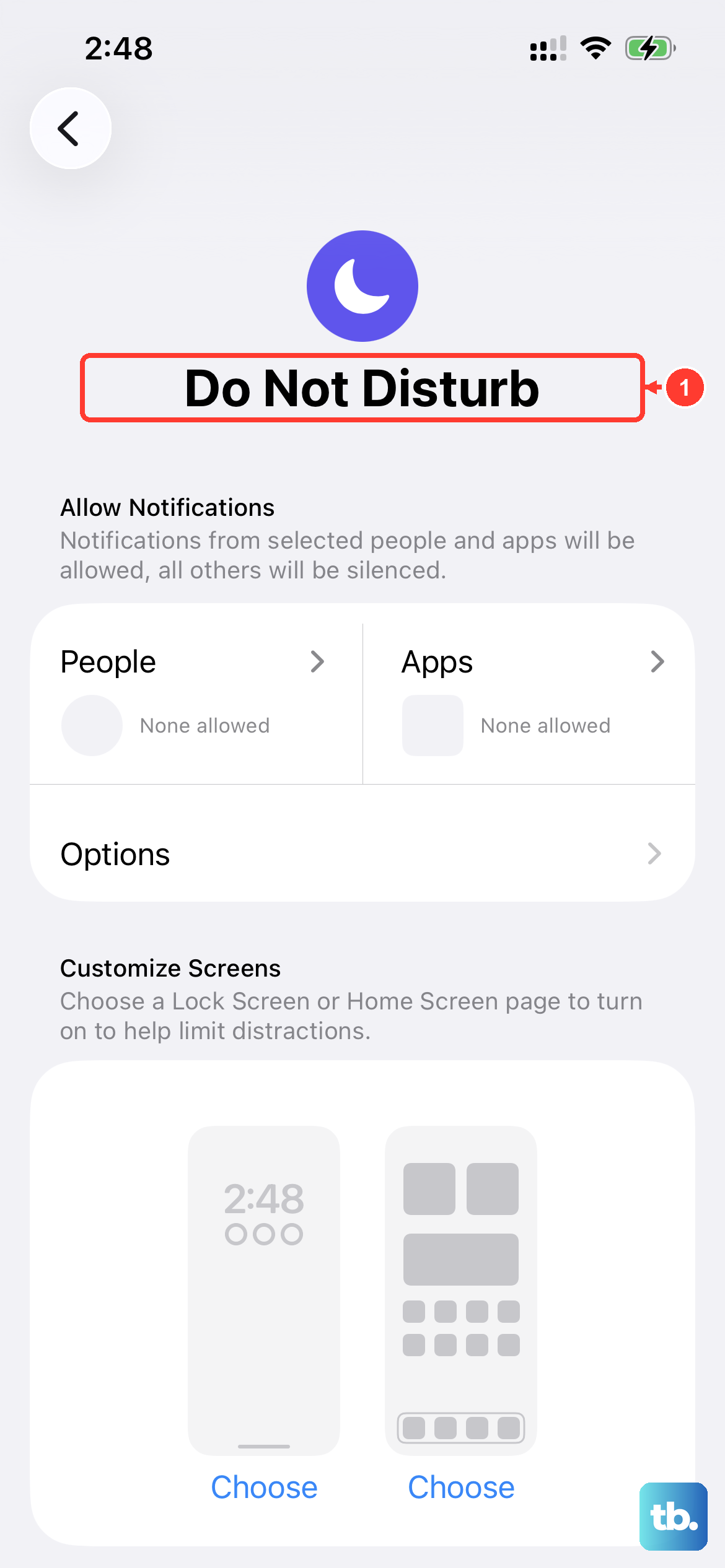
Focus modes like Do Not Disturb, Sleep, or Work can silently silence notifications. Swipe down from the top-right corner of your screen to open the Control Center. Look at the Focus tile, if it's highlighted, a mode is active.
Tap it to turn it off, or press and hold it to see which apps are allowed to notify you in that specific Focus. You might have accidentally set a mode that blocks everything.
Review App-Specific Notification Settings
Sometimes, the problem is with just one app like Messages or Gmail. Open the Settings app and scroll down to find the problematic app. Tap it, then select Notifications.
Make sure "Allow Notifications" is toggled on at the very top. Below that, check the alert style. "Lock Screen," "Notification Center," and "Banners" should all be enabled for the alerts to appear everywhere you expect them.
Disable Scheduled Notification Summaries
iOS has a feature that bundles non-urgent alerts into a summary delivered at set times. If your notifications seem to arrive in big, delayed chunks, this might be why.
Go to Settings > Notifications > Scheduled Summary. You'll see a list of apps included in the summary. You can toggle off the entire feature, or just remove specific apps from the summary so their alerts come through immediately.
Reset All Notifications Settings
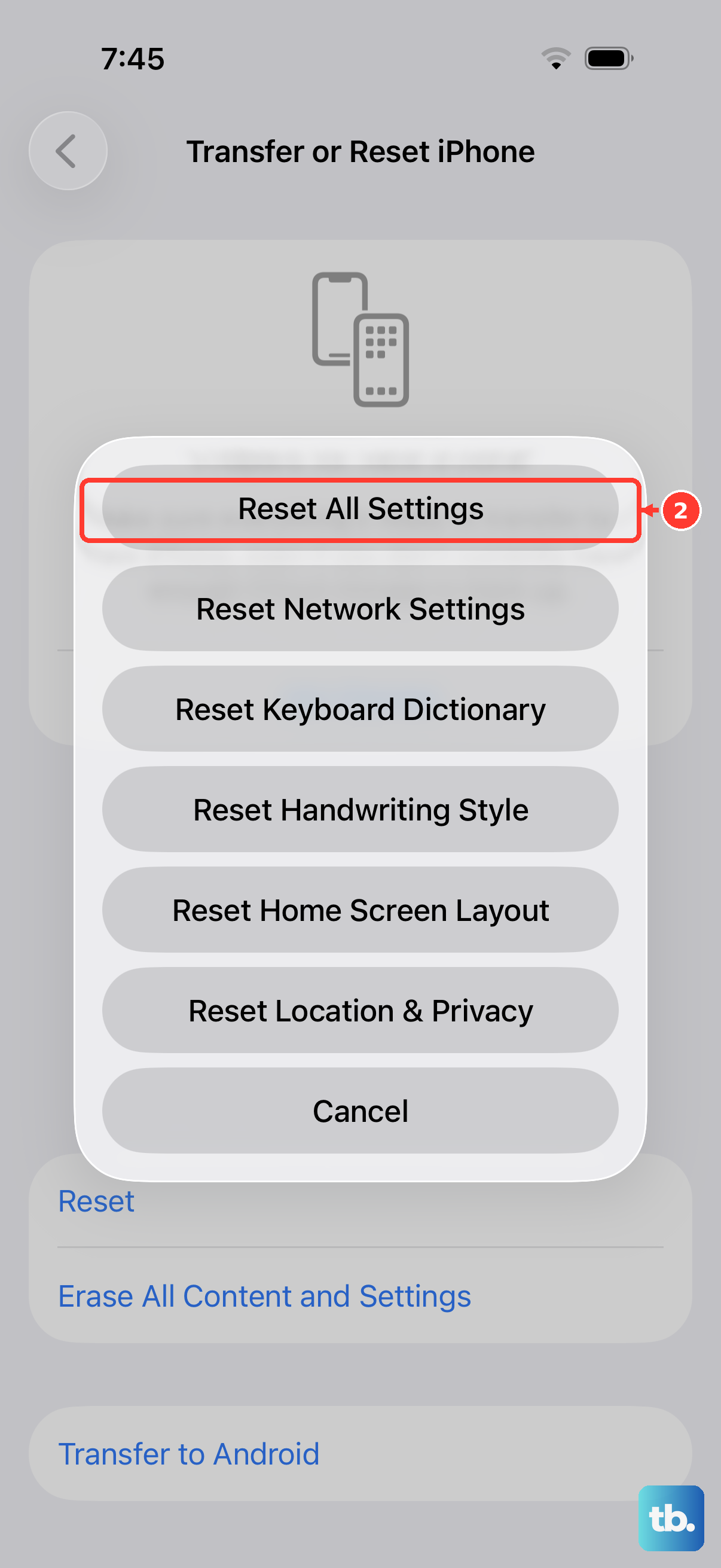
This is a more thorough step that resets every notification preference on your phone back to factory defaults. It won't delete any of your messages, photos, or apps, but you will have to reconfigure alerts for each app afterward.
To do this, navigate to Settings > General > Transfer or Reset iPhone. Tap Reset, and then choose Reset All Settings. Enter your passcode and confirm. Your phone will restart.
Check for a Software Update
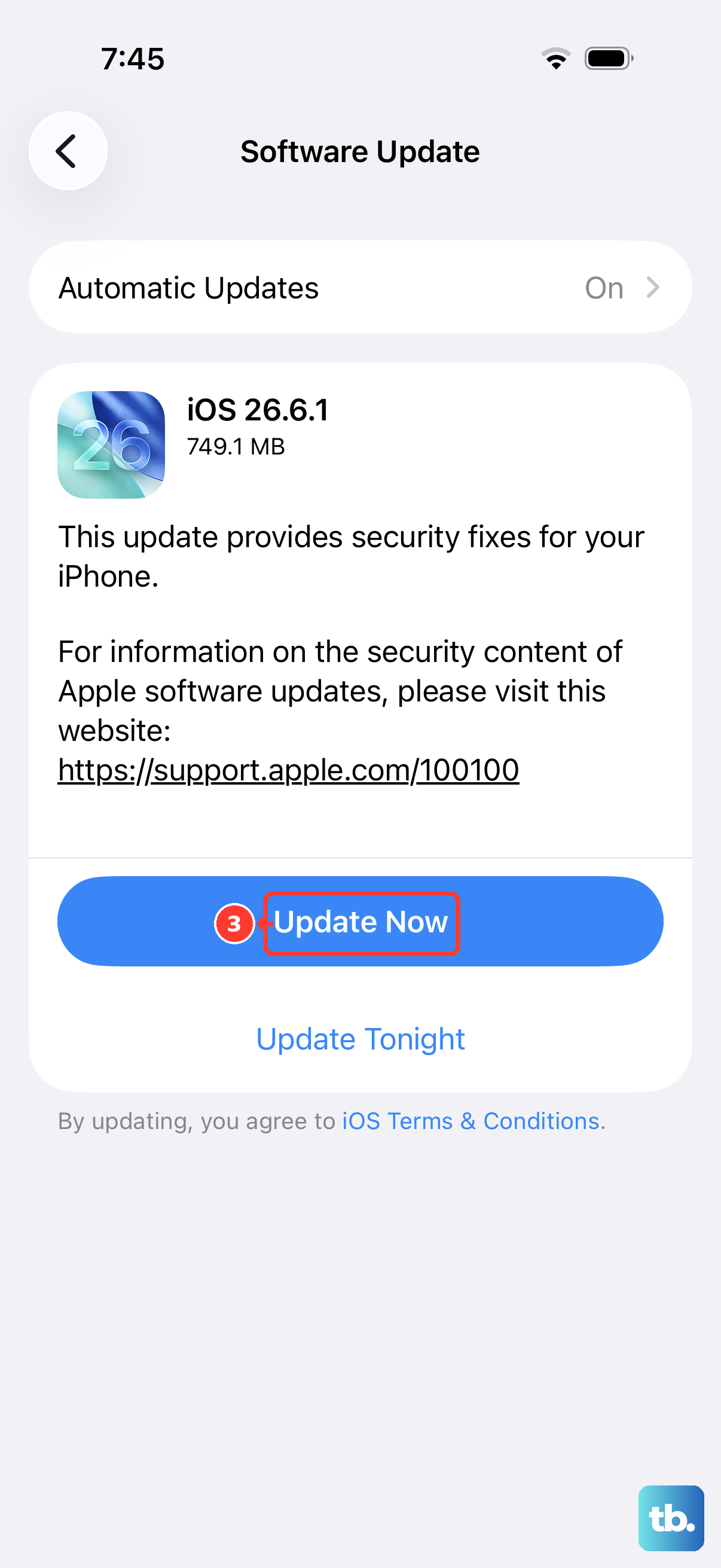
Apple frequently releases iOS updates that fix bugs, including ones related to notifications. Installing the latest version of iOS 26 could resolve the issue directly.
Open Settings > General > Software Update. If an update is available, tap "Download and Install." Make sure your iPhone 16 Pro is connected to Wi-Fi and has sufficient battery, or plug it into a 30W USB-C charger during the process.
Review Notification Grouping Settings
iOS groups notifications from the same app by default. Sometimes, if this is set to "Automatic" or "By App," it can make it seem like alerts are missing because they're stacked together.
You can change this in Settings > Notifications. Tap on an app, then look for the "Notification Grouping" option. Try setting it to "By App" or "Off" to see if individual alerts become more visible.
Ensure the App Isn't Offloaded
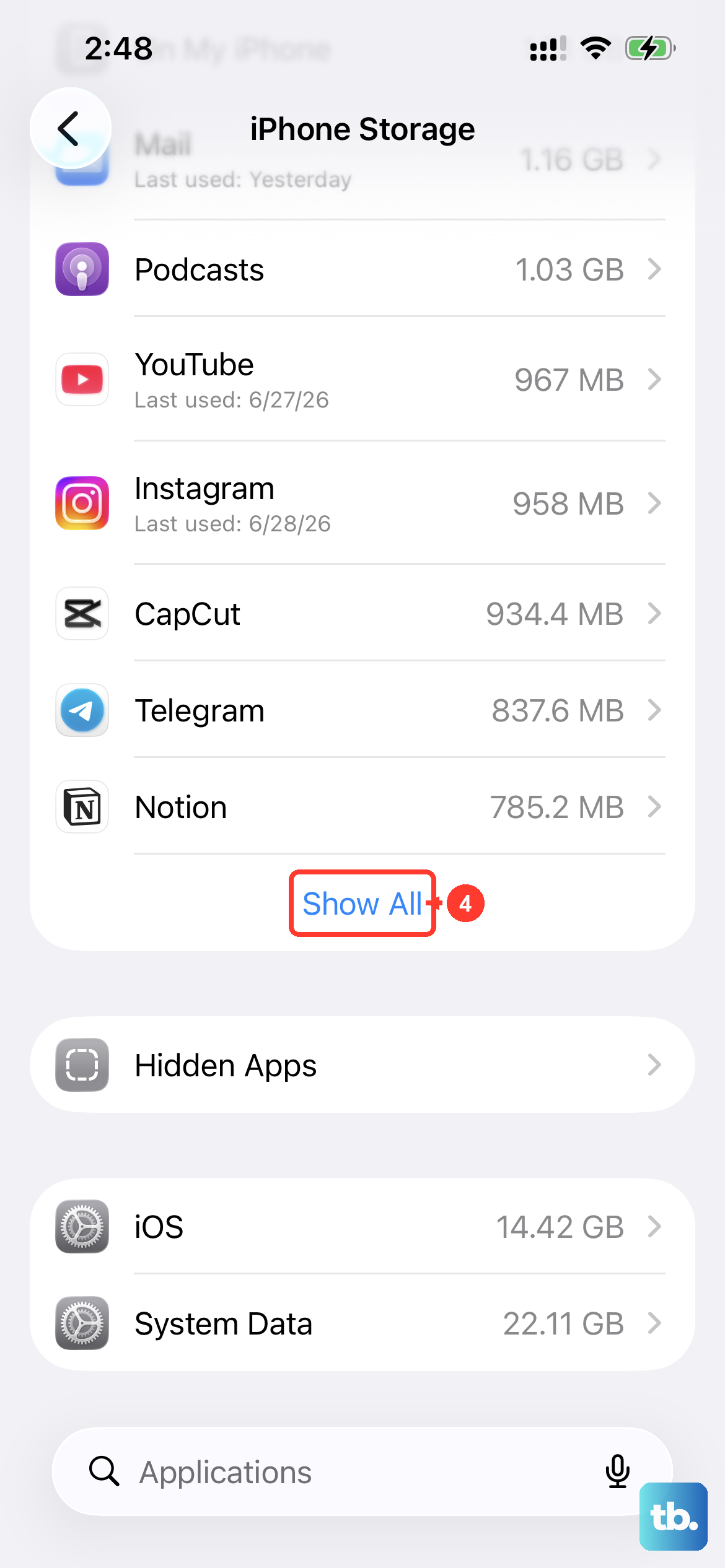
To save space, iOS can automatically offload infrequently used apps, keeping their documents but removing the app itself. An offloaded app cannot send notifications.
Go to Settings > General > iPhone Storage. Scroll through the list and look for the app in question. If it says "Offloaded" next to it, tap on the app name and then tap "Reinstall App."
Sign Out and Back Into Your Apple ID
Notifications for services like iMessage and FaceTime are tied to your Apple ID. A glitch in this connection can sometimes silence alerts. Signing out and back in can refresh it.
Go to Settings and tap your name at the top. Scroll all the way down and select Sign Out. You'll be asked to keep a copy of your key data on the iPhone; that's fine. After signing out, restart your phone, then go back to Settings to sign in again with your Apple ID password.
Check Do Not Disturb While Driving
This is a specific Focus mode that can activate automatically when your iPhone thinks you're in a moving vehicle. It can be very effective at silencing everything.
Go to Settings > Focus > Driving. Look at the options under "Turn On Automatically." If it's set to "Automatically" or "When Connected to Car Bluetooth," it might be activating unintentionally. You can change this to "Manually" or adjust which apps can notify you while it's on.
Test in Safe Mode (A Forced Restart Variation)
While iOS doesn't have a traditional safe mode, you can perform a slightly different force restart that helps clear more persistent system cache. It's the same button sequence: quickly press Volume Up, then Volume Down, then hold the Side button.
The key is to keep holding the Side button even after you see the Apple logo. Continue holding until you see the Apple logo appear and then disappear a second time before releasing. This can clear deeper system temp files that a normal restart doesn't touch.