
If your iPhone 16 camera won't open or shows a black screen, start by force restarting your phone. Press and quickly release the Volume Up button, press and quickly release the Volume Down button, then press and hold the Side button until you see the Apple logo. This can help if a temporary software glitch is freezing the camera app.
Before digging into settings, open a quick online camera test in your browser. If the preview shows a live picture, that camera is working in the browser; check whether the problem also affects the Camera app.
Key Points
- Restart and Force Close the Camera App: A simple restart or swiping away the app can resolve temporary freezes.
- Check for iOS Updates: Updating to the latest version of iOS can help resolve camera problems.
- Free Up Storage Space: Your camera needs free space to process photos and videos. If your storage is full, it may fail to open.
- Check Camera Permissions and Restrictions: Make sure third-party apps have camera access and the Camera app isn't blocked by Screen Time.
- Clean the Camera Lenses and Sensors: Smudges, dirt, or a poorly aligned case can physically block the lenses or the flash.
- Reset All Settings: This can fix deeper software conflicts without erasing your personal data like photos and messages.
Give your phone a moment to reboot completely, then try opening the Camera app again from your Home Screen.
Force Close and Reopen the Camera App
If the camera is frozen or laggy, force close the app. Swipe up from the bottom of the screen and pause in the middle to enter the App Switcher. Find the Camera app preview and swipe it up and off the top of the screen to close it. Wait a few seconds, then tap the Camera icon again to relaunch it fresh.
This is different from just going to the Home Screen. Reopening the app can help when the viewfinder is black or the shutter button isn't responding.
Install the Latest iOS Update
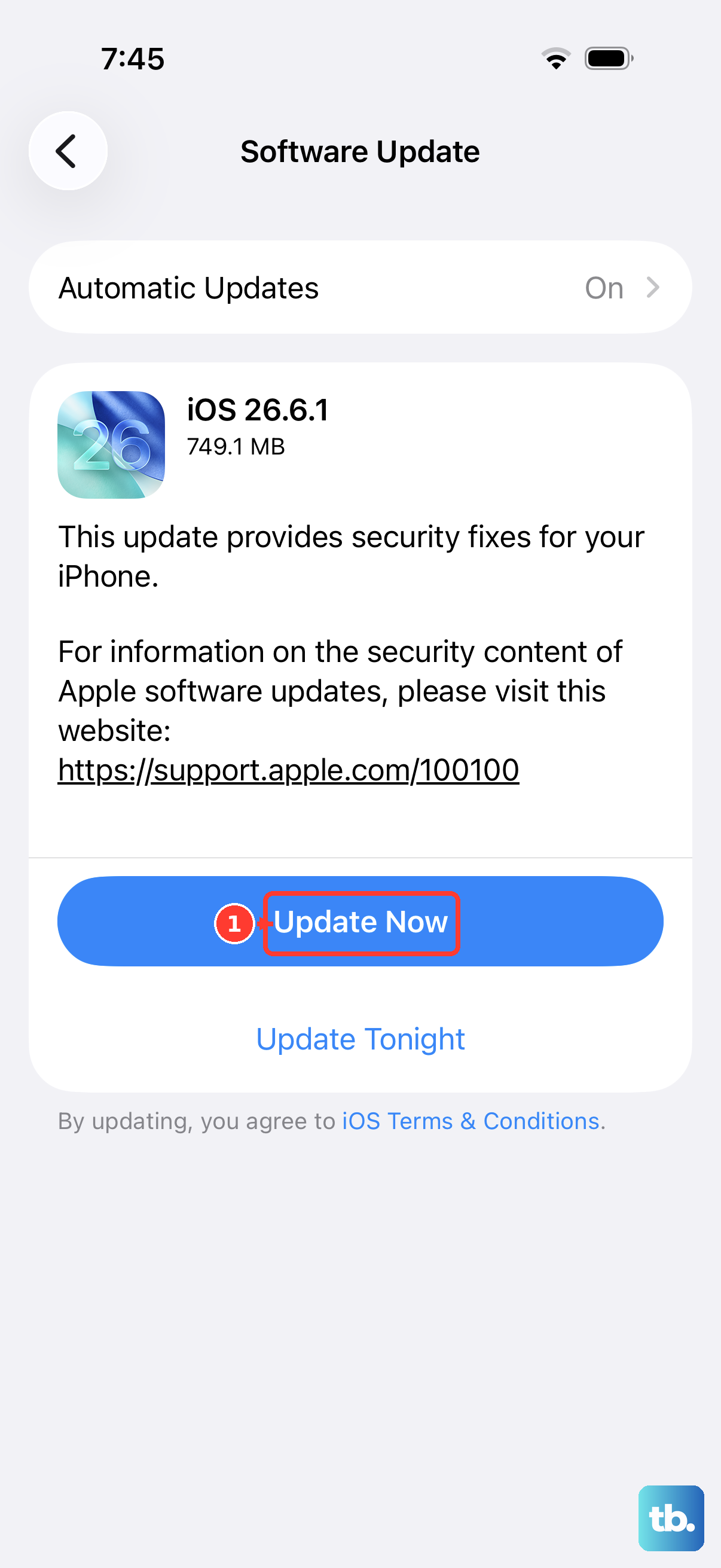
Apple frequently releases updates that fix bugs, including camera problems. Go to Settings > General > Software Update. If an update is available, tap Download and Install. Make sure your iPhone is connected to Wi-Fi and plugged into power.
After the update finishes, your phone will restart. Test the camera immediately to see if the problem is fixed.
Check Your iPhone's Available Storage
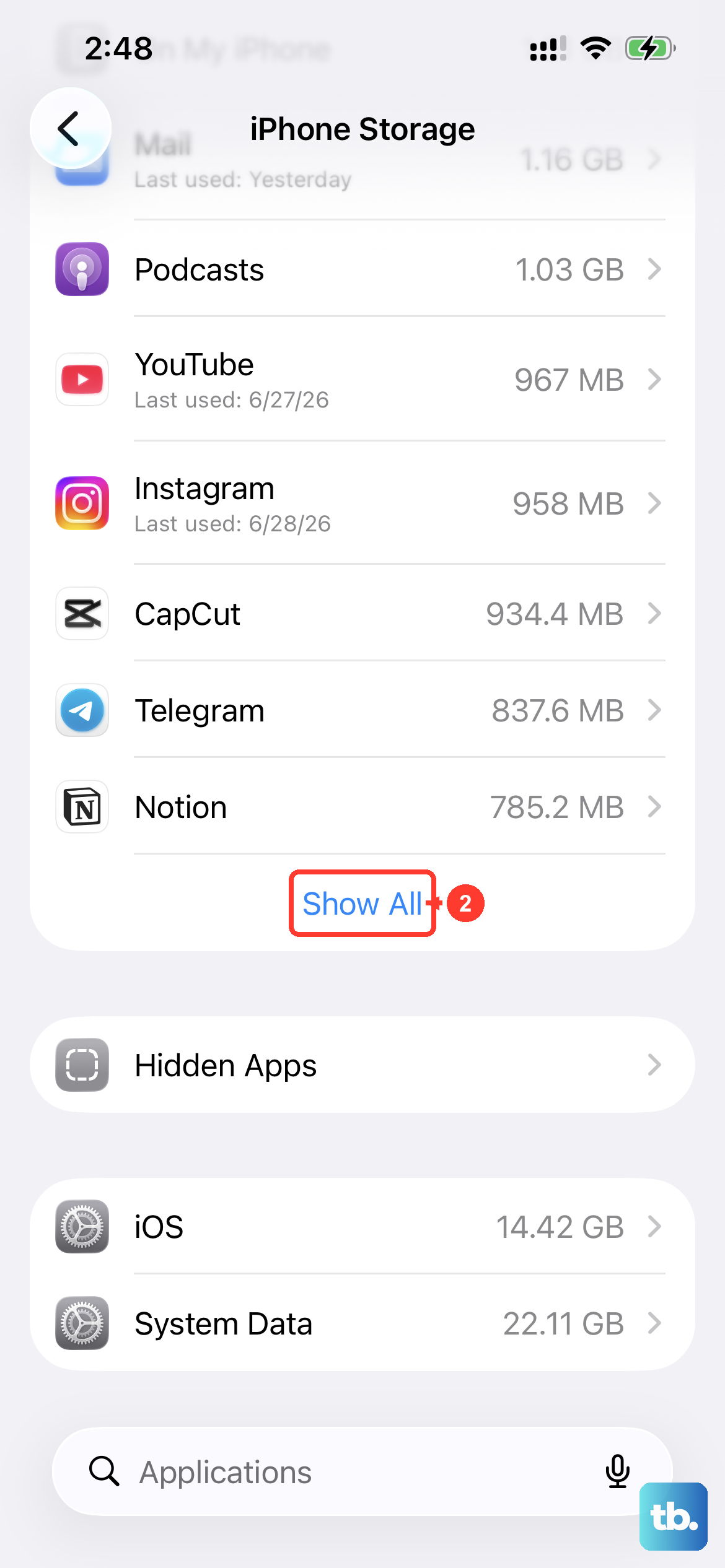
Your camera needs working space to process images. If your iPhone storage is completely full, the Camera app may crash or refuse to open. Go to Settings > General > iPhone Storage to see how much space you have left.
You'll want at least a few gigabytes free. If you're running low, you can offload unused apps, review large attachments in Messages, or move photos and videos to iCloud. Once you've cleared some space, try the camera again.
Verify Camera Permissions and Screen Time
If the camera isn't working in a third-party app, check its permissions. Go to Settings > Privacy & Security > Camera. Make sure the toggle next to the affected app is switched on (green).
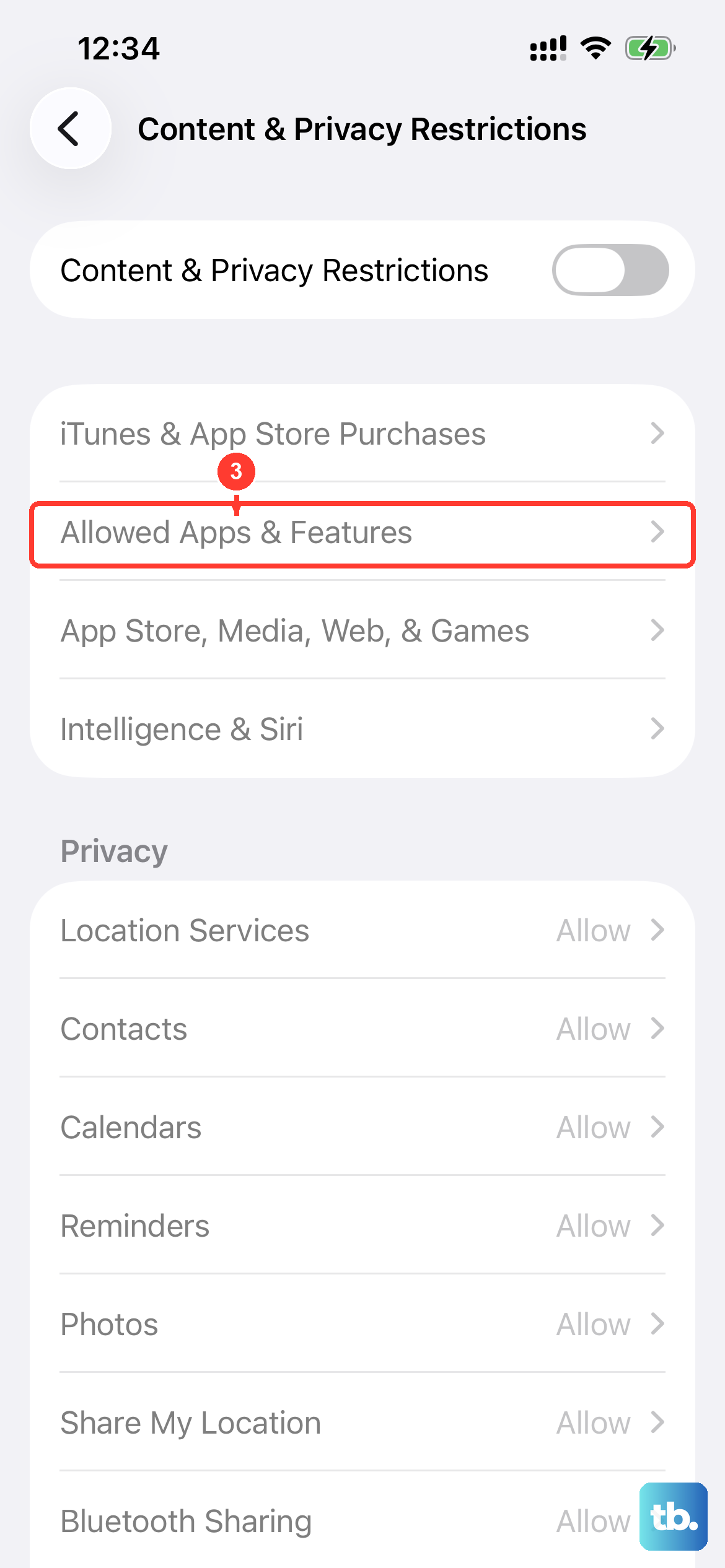
Also, check if Screen Time restrictions are blocking the camera. Go to Settings > Screen Time > Content & Privacy Restrictions. Tap Allowed Apps & Features and ensure Camera is enabled. If you use a work or school profile, there might be separate admin restrictions preventing camera use.
Physically Clean the Camera Lenses
Take a close look at the camera module on the back of your iPhone 16. Use a clean, dry microfiber cloth to gently wipe each lens in a circular motion. Check the front camera lens too, since smudges or dirt can make photos look blurry.
Also, remove your phone case. A poorly designed or misaligned case can actually obstruct the edge of a lens or cover a microphone, causing blurry photos or videos with no sound. Try taking a photo without the case on to rule this out.
Reset All Settings on Your iPhone
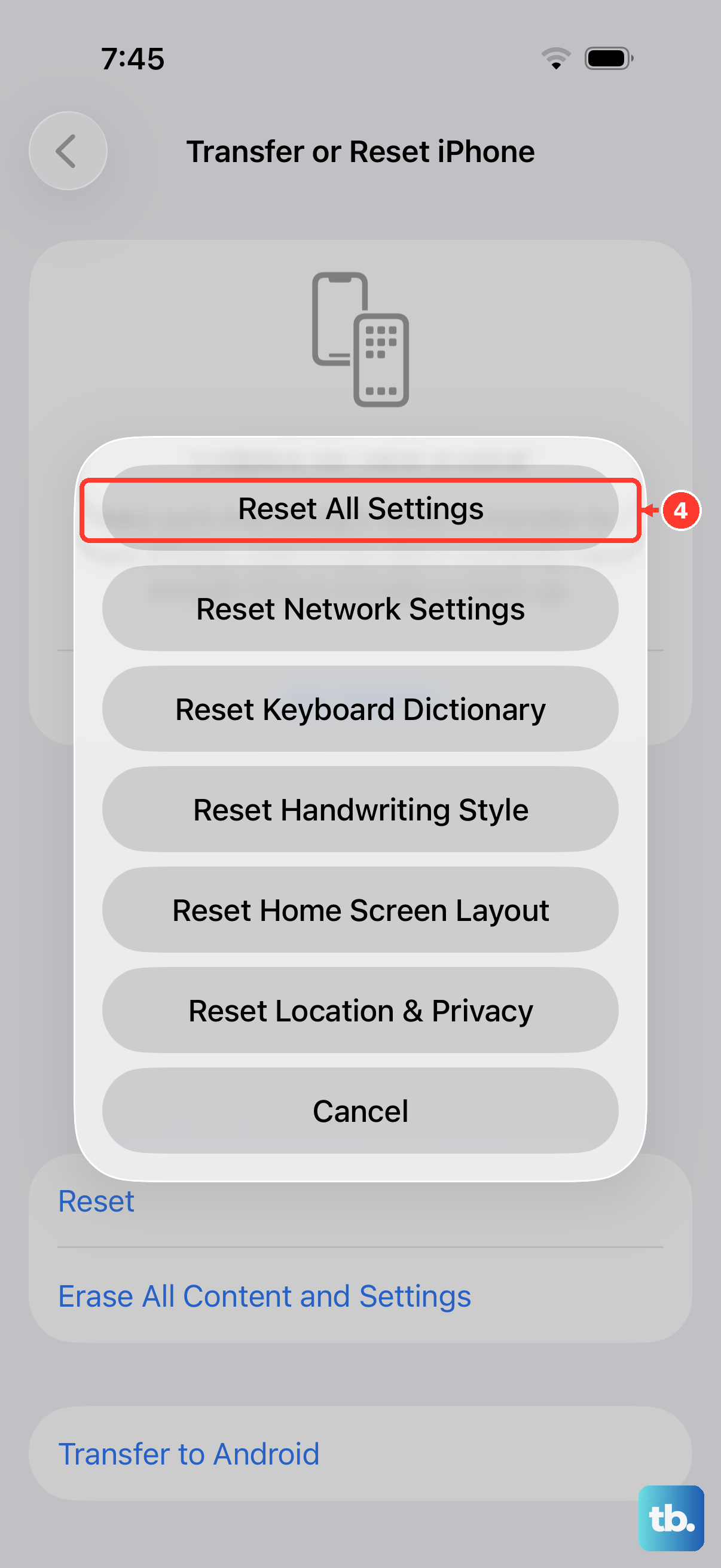
This is a stronger step that won't delete your photos, messages, or apps, but it will reset all your preferences. Wi-Fi networks and passwords are removed, and wallpaper and display settings return to defaults. Go to Settings > General > Transfer or Reset iPhone.
Tap Reset, then choose Reset All Settings. Enter your passcode when prompted and confirm. Your phone will restart. After it boots up, you'll need to rejoin Wi-Fi, re-pair Bluetooth devices and any Apple Watch, and set up Face ID again. Then test the camera.
Check the Cameras and Flash
Open the Camera app and try taking a photo with the rear camera. Tap the rotate button to switch to the front camera and take another photo. Check whether the problem affects one camera or both, and remove any film or accessory that might block a lens or place a magnet near the camera.
To test the flash, swipe down from the top-right corner to open Control Center and tap the Flashlight button. If the flash works only sometimes, open the Camera app and tap the flash button to choose a different setting.
Try a Third-Party Camera App
Try a third-party camera app from the App Store. If the third-party app works but your stock Camera app doesn't, the problem may be specific to the Camera app.
If the camera still isn't working after trying the other fixes, contact Apple Support to arrange service if needed. Before doing that, ensure you have a recent iCloud or computer backup of your iPhone.