
If your iPhone 16 won't connect to your AirPods, car, or speaker, it's a common hiccup that usually has a simple fix. Bluetooth issues can pop up after an iOS update or just randomly, but a few troubleshooting steps can help get things working again.
Toggle Bluetooth and Restart
Start with the simplest fix. Open Settings > Bluetooth and turn Bluetooth off, then turn it back on. The Bluetooth button in Control Center only disconnects accessories; it doesn't turn Bluetooth fully off. Make sure your accessory is powered on and close to your iPhone before trying to connect again.
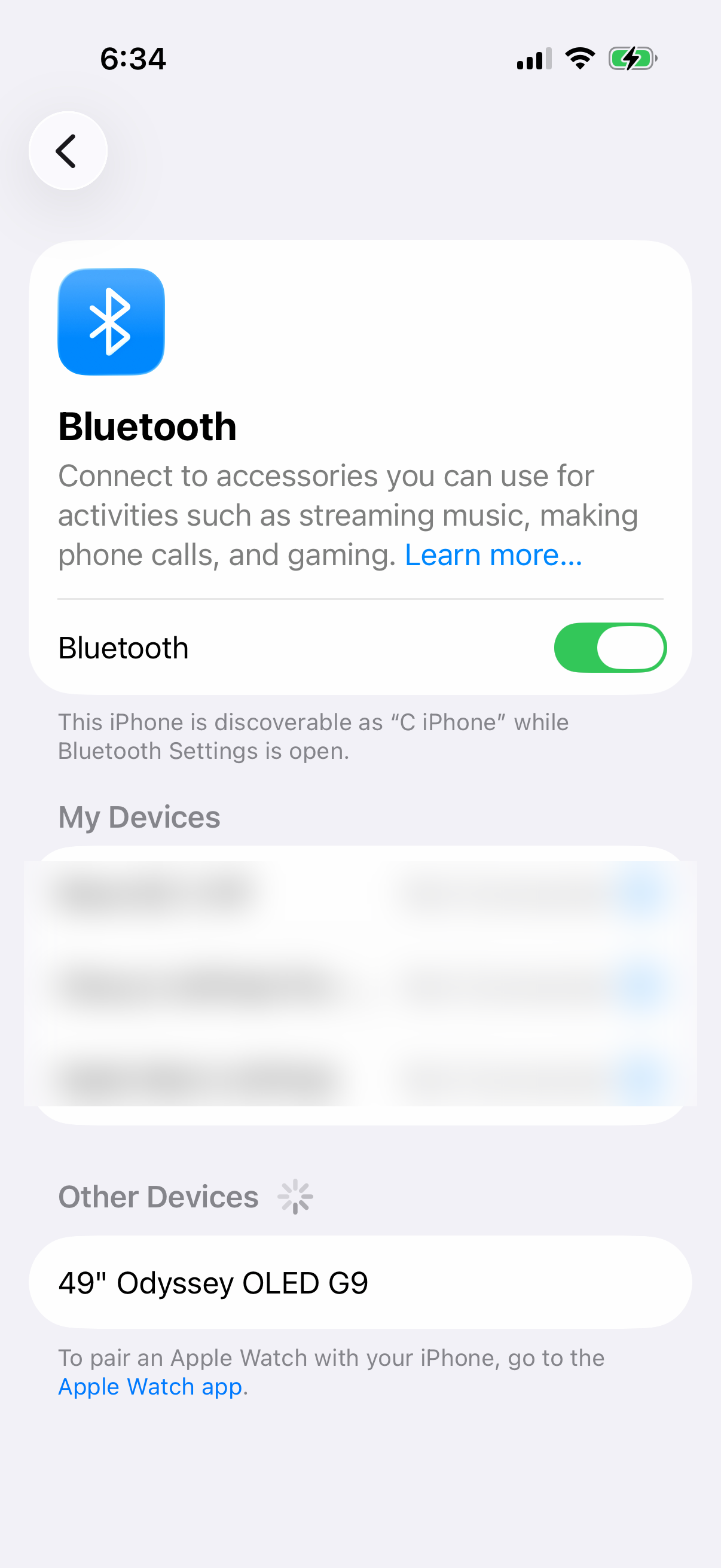
If that doesn't work, restart both your iPhone 16 and the Bluetooth device. For your iPhone, press and release the Volume Up button, press and release the Volume Down button, then press and hold the Side button until you see the Apple logo appear. Power cycle your headphones or speaker as well, then try pairing them fresh.
Forget and Re-Pair the Device
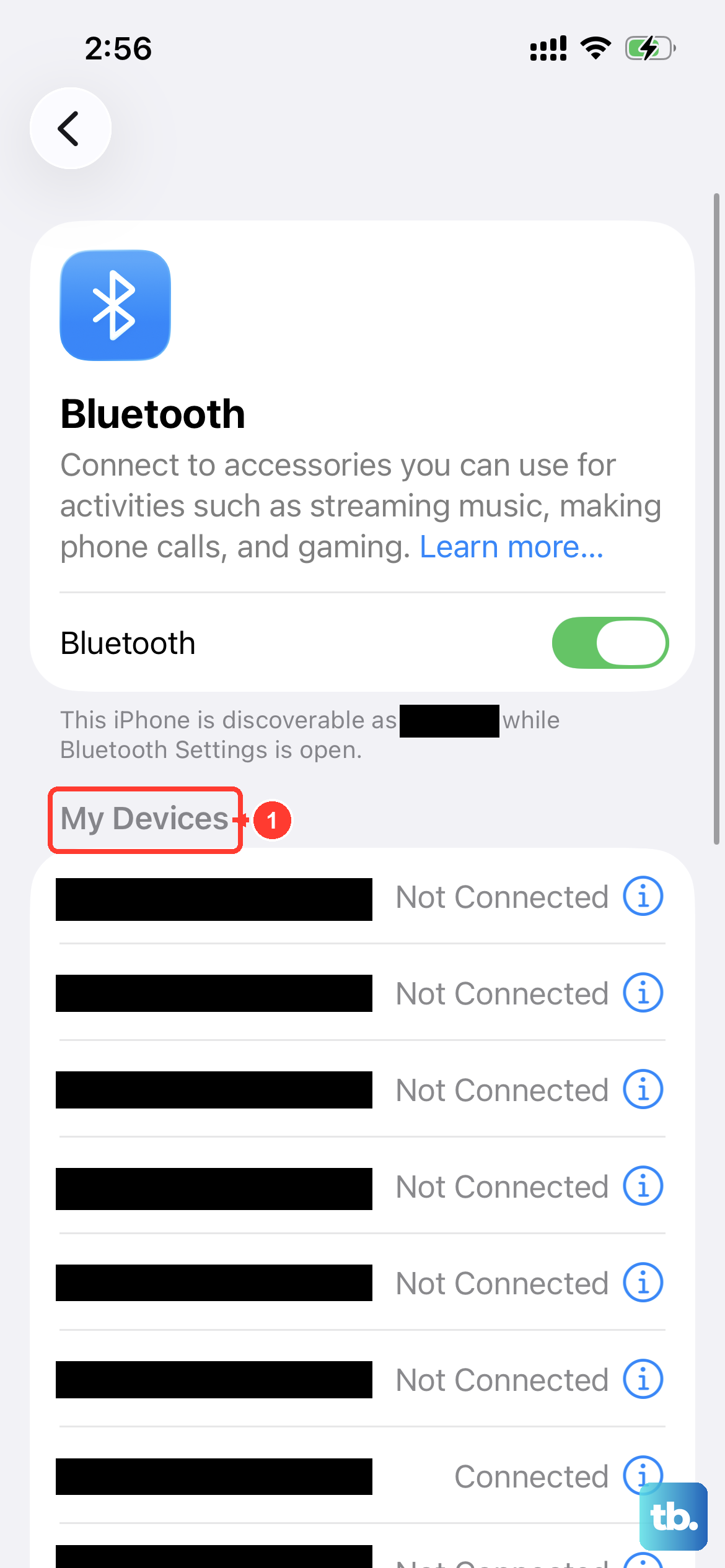
If a previously paired accessory won't connect, try forgetting it and pairing it again. Go to Settings > Bluetooth and find the device that won't connect. Tap the info icon (the "i" in a circle) next to it and select Forget This Device. Confirm your choice.
Now, put your Bluetooth accessory back into pairing mode. This process is different for every device, so check its manual if you're unsure. With your accessory discoverable, it should appear in the device list on your iPhone's Bluetooth screen. Tap it to pair again from scratch.
Check for Software Updates
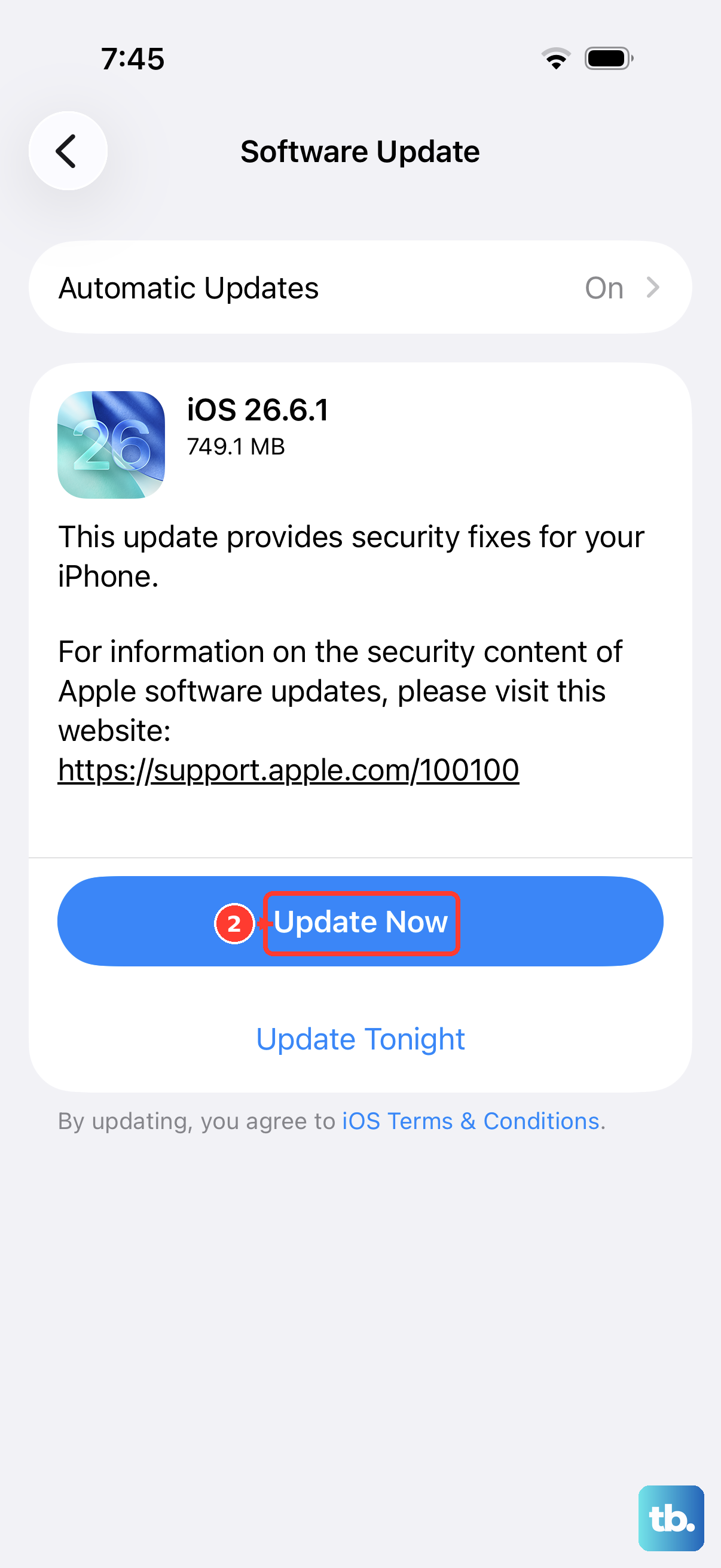
Outdated software may contribute to Bluetooth problems, especially with new accessories. Apple frequently releases iOS updates that include bug fixes for connectivity. Go to Settings > General > Software Update to see if the latest version of iOS is available.
Also check if your Bluetooth device has a companion app from its manufacturer. These apps often provide firmware updates for the accessory itself, which can resolve pairing issues with your iPhone 16.
Reset Network Settings
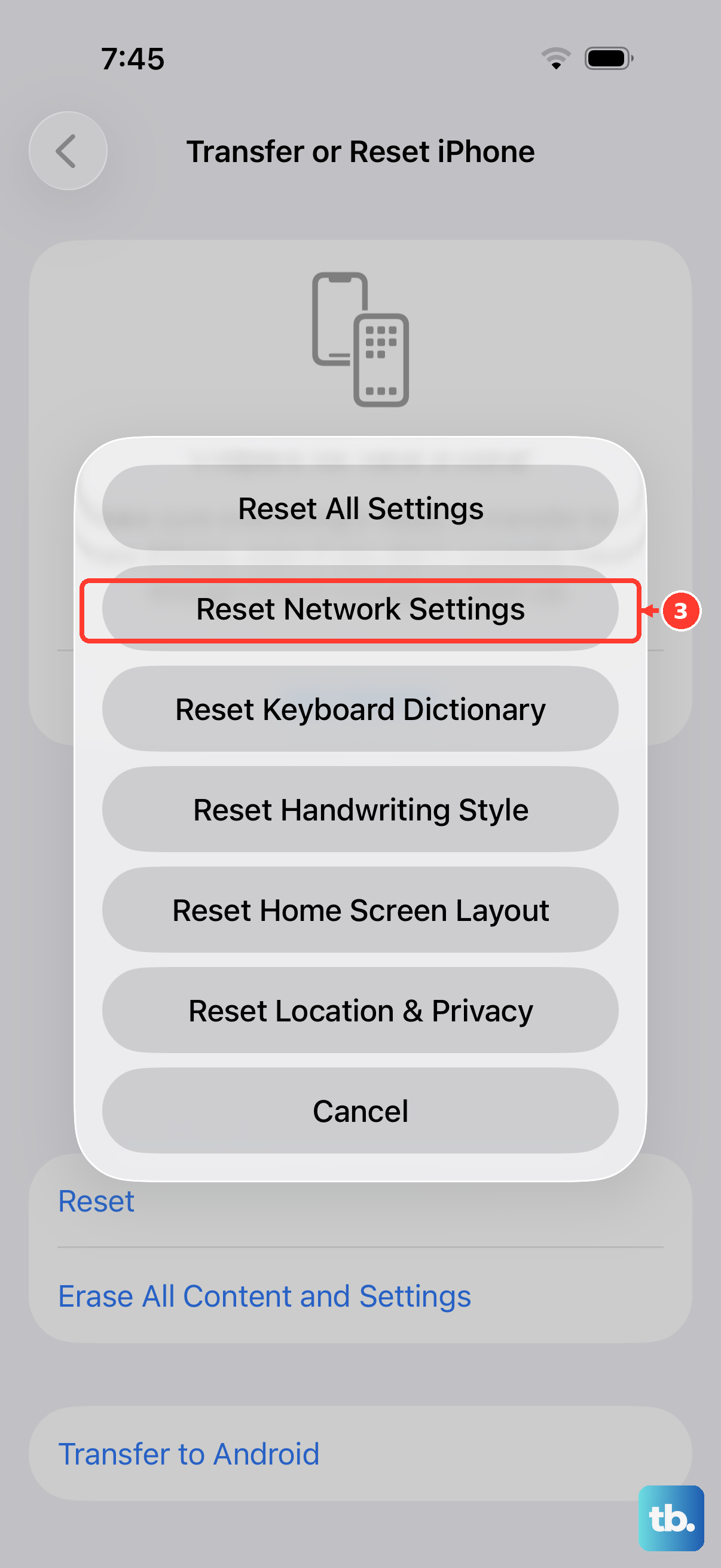
Use this more thorough step only if the other fixes fail. It resets network settings without deleting your personal content. It will forget all Wi-Fi networks and passwords, cellular settings, and VPN and APN settings, so you'll need to re-enter Wi-Fi passwords and restore any necessary network configurations.
To do this, navigate to Settings > General > Transfer or Reset iPhone. Tap Reset and then choose Reset Network Settings. Enter your passcode if prompted and confirm the reset. Your iPhone will restart, and you can attempt to pair your Bluetooth device again.
Check for Interference and Distance
Bluetooth operates on the 2.4 GHz radio band, which is crowded. Other devices like Wi-Fi routers, microwaves, baby monitors, and even USB 3.0 ports can cause interference. Try moving away from other electronics or turning some off temporarily to see if the connection stabilizes.
Keep your iPhone 16 and the Bluetooth device close to each other, with a clear line of sight if possible. Walls, especially concrete ones, can significantly weaken the signal. Try taking the phone out of a pocket or bag and moving it closer to the car's Bluetooth system.
Specific Device Troubleshooting
For AirPods or Beats headphones, make sure they're charged and close to your iPhone. Check the Bluetooth list to see if they appear but won't connect. Turn the accessory off and back on where possible, then try connecting again.
If your AirPods still won't connect, put them in their charging case, close the lid, and wait 30 seconds. Go to Settings > Bluetooth, tap the More Info button next to your AirPods, and tap Forget This Device. Then open the lid.
On AirPods (1st, 2nd, and 3rd generation) and AirPods Pro (1st and 2nd generation), press and hold the setup button on the back of the case for about 15 seconds until the status light flashes amber, then white. On AirPods 4 and AirPods Pro 3, double-tap the front of the case while the light is on, double-tap again when it flashes white, and a third time when it flashes faster, until it flashes amber, then white. Then hold the open case near your iPhone and follow the onscreen steps.
For car systems, try deleting your iPhone from the car's memory and forgetting the car in your iPhone's Bluetooth settings. Then, with the car ignition on (and often in park), start the pairing process from your car's infotainment screen first, before selecting it on your phone.
Review App Permissions and Restrictions
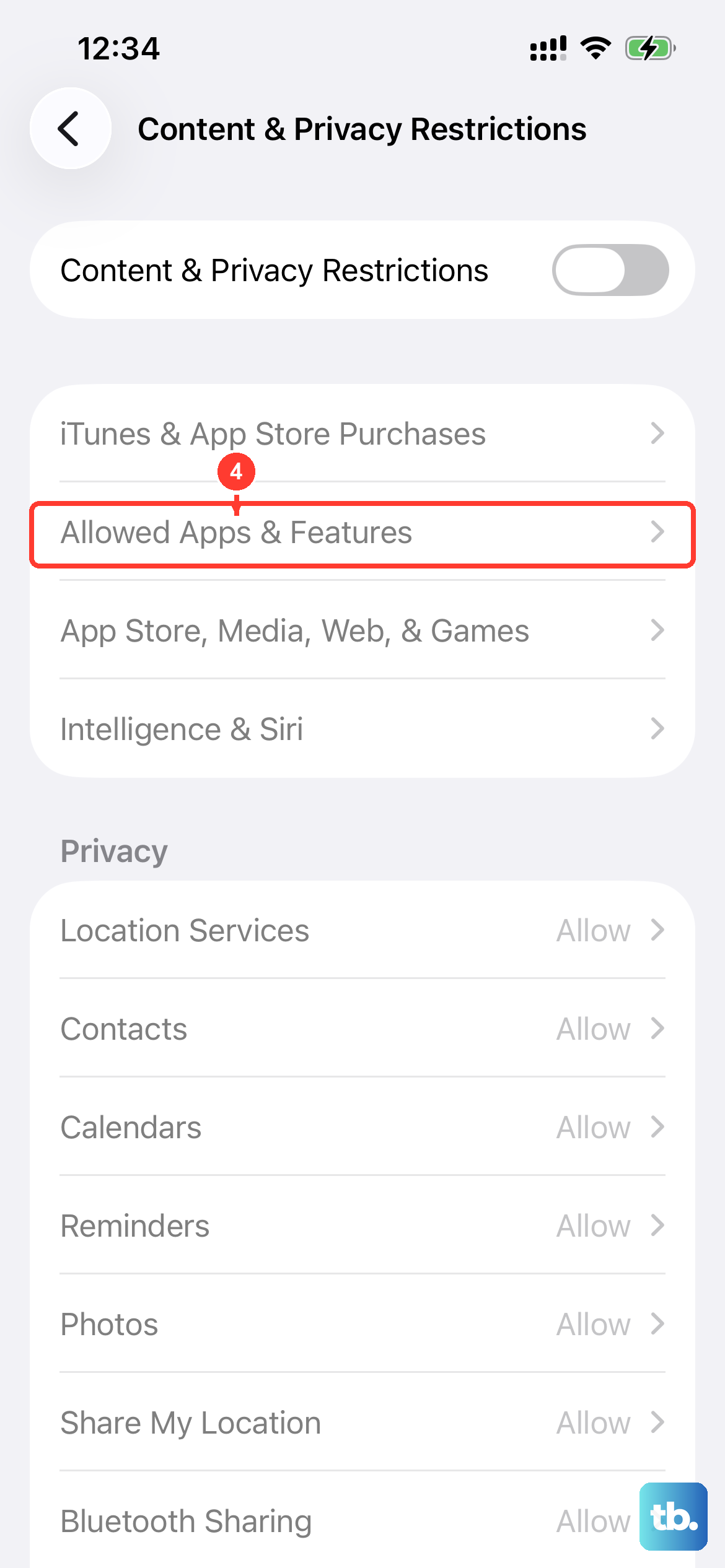
If you use an app with your Bluetooth accessory, check its Bluetooth permission. Go to Settings > Privacy & Security > Bluetooth and make sure access is turned on for that app. Then try connecting the accessory again. Also, check if Bluetooth permission changes are restricted.
Go to Settings > Screen Time > Content & Privacy Restrictions. If Restrictions are enabled, scroll down to the Privacy section, tap Bluetooth Sharing, and make sure it is set to Allow Changes. This setting can sometimes get disabled accidentally.