
If your iPhone 15 feels unusually warm, the cause is often temporary and the fix is simple. Any phone warms up during demanding tasks, but if it keeps overheating, something else may be wrong. Here's how to cool it down.
Start with the quickest fix. A force restart can clear software glitches that keep the processor working overtime. On your iPhone 15, press and quickly release the Volume Up button, then press and quickly release the Volume Down button. Then press and hold the Side button until the Apple logo appears, and release it.
A force restart doesn't erase any data. Keep holding the Side button even if nothing happens right away, because the Apple logo can take longer than 10 seconds to appear. Give the phone a minute to finish restarting, then check whether it has cooled down.
Check Your Charging Setup
Your iPhone 15 often gets warm while it charges. It uses USB-C, so use a USB-C cable with a USB-C power adapter that works with it. For fast charging, use a 20W or higher USB-C power adapter, which can charge the phone to about 50% in around 30 minutes.
For wireless charging, the iPhone 15 supports up to 15W on MagSafe and Qi2 chargers. Apple says some warmth during wireless charging is normal. If the phone gets too hot, charging slows or stops, and the Lock Screen may show Charging On Hold until the temperature drops.
Also check your case. A thick case can trap heat, especially during wireless charging. If your phone gets hot on a MagSafe or Qi2 charger, take the case off, or use a case made for MagSafe.
Review Your Battery and Settings
Go to Settings > Battery > Charging. On the iPhone 15, you can set a charge limit of 80%, 85%, 90%, 95% or 100%. Your iPhone charges to within a few percent of that limit, then stops. It won't resume until the battery drops more than 5% while still plugged in.
If the phone stops charging at 80% or 90%, that's because of this setting, not overheating. If you set the limit to 100%, you can also turn on Optimized Battery Charging, which cuts down the time your iPhone spends fully charged. Lower limits help reduce wear on the battery over time.
While you're in Battery settings, tap Battery Health to see your battery's maximum capacity compared with when it was new. iPhone 15 batteries are designed to keep 80% of their original capacity at 1,000 complete charge cycles under ideal conditions. If your capacity is well below that, you may want to get the battery serviced.
Identify and Close Demanding Apps
Sometimes a single app is to blame. Graphics-heavy games, video editing apps and augmented reality (AR) apps can push the A16 Bionic chip hard, which creates noticeable heat. That's normal while you're using them, and the phone should cool down after you close the app.
If the phone stays hot, an app may be stuck running in the background. Swipe up from the bottom of the screen and pause in the middle to open the App Switcher. Swipe up on any apps you're not using to close them. Look especially at navigation apps, video streaming apps and social media apps that autoplay video.
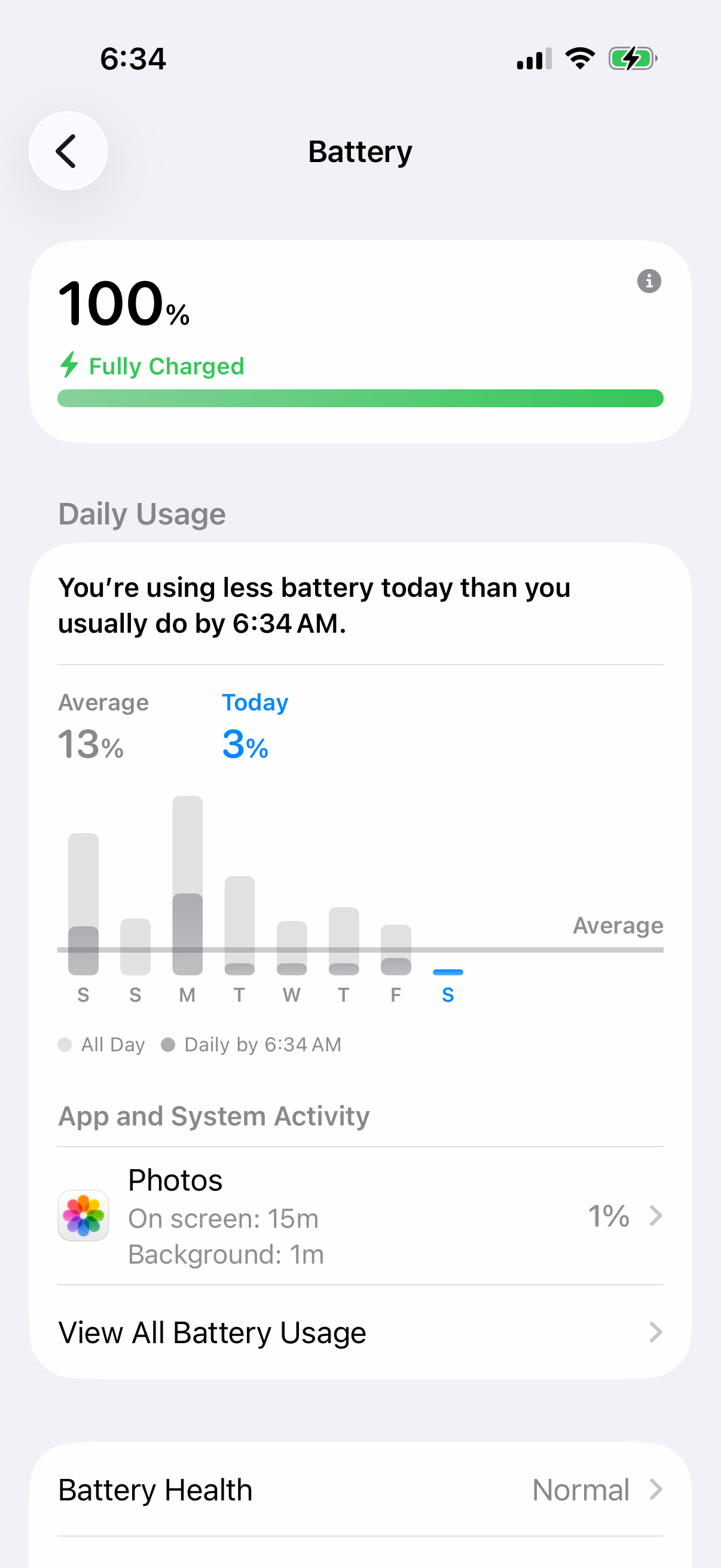
You can also see which apps use the most battery, which often matches the ones making the phone hot. Go to Settings > Battery. The chart shows your recent activity, and below it is a list of apps and their battery usage. If an app you barely used is near the top, it may be misbehaving in the background.
Update iOS and Manage Background Activity
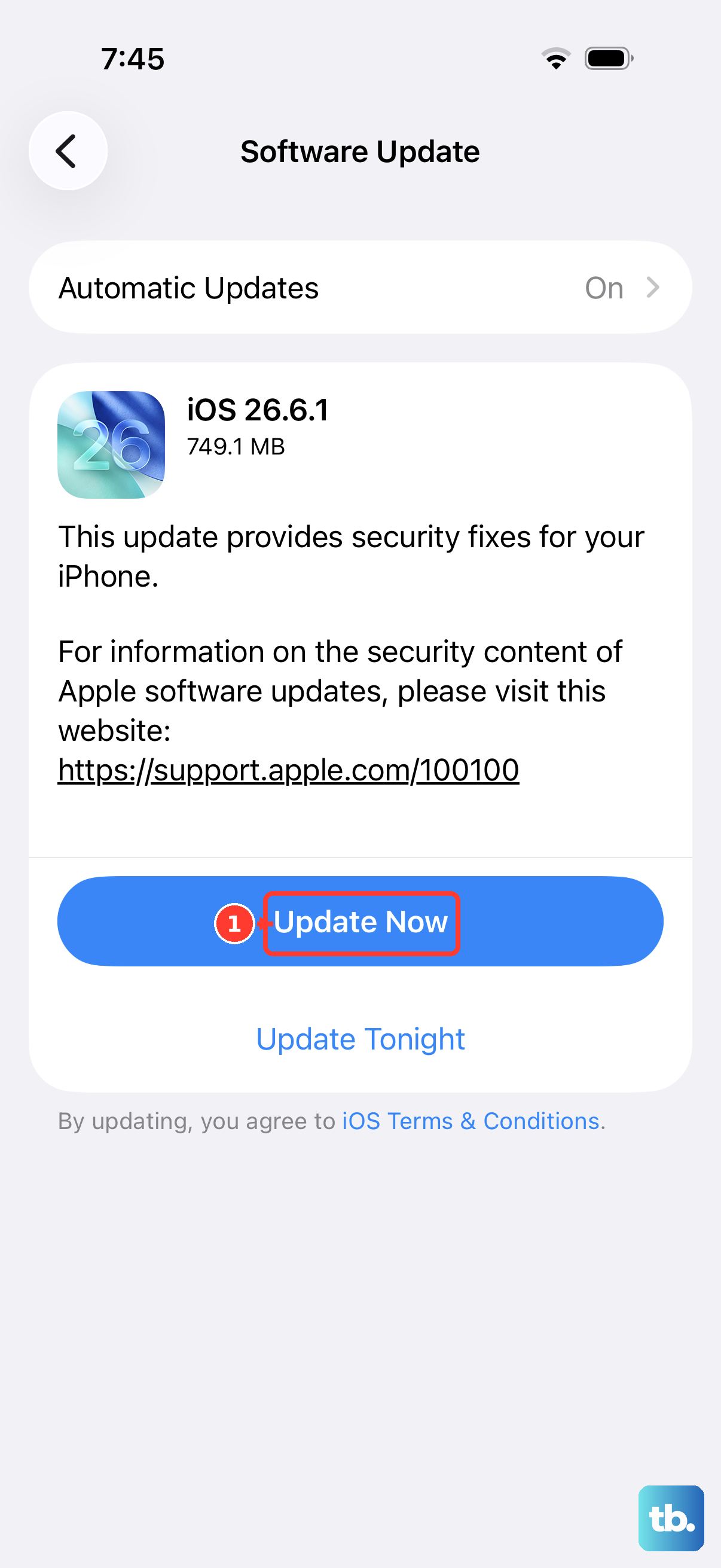
Keep your iPhone 15 on the latest version of iOS, since updates include security updates and bug fixes. Go to Settings > General > Software Update to check. Your phone may feel warm during and just after an update. That's normal and should pass.
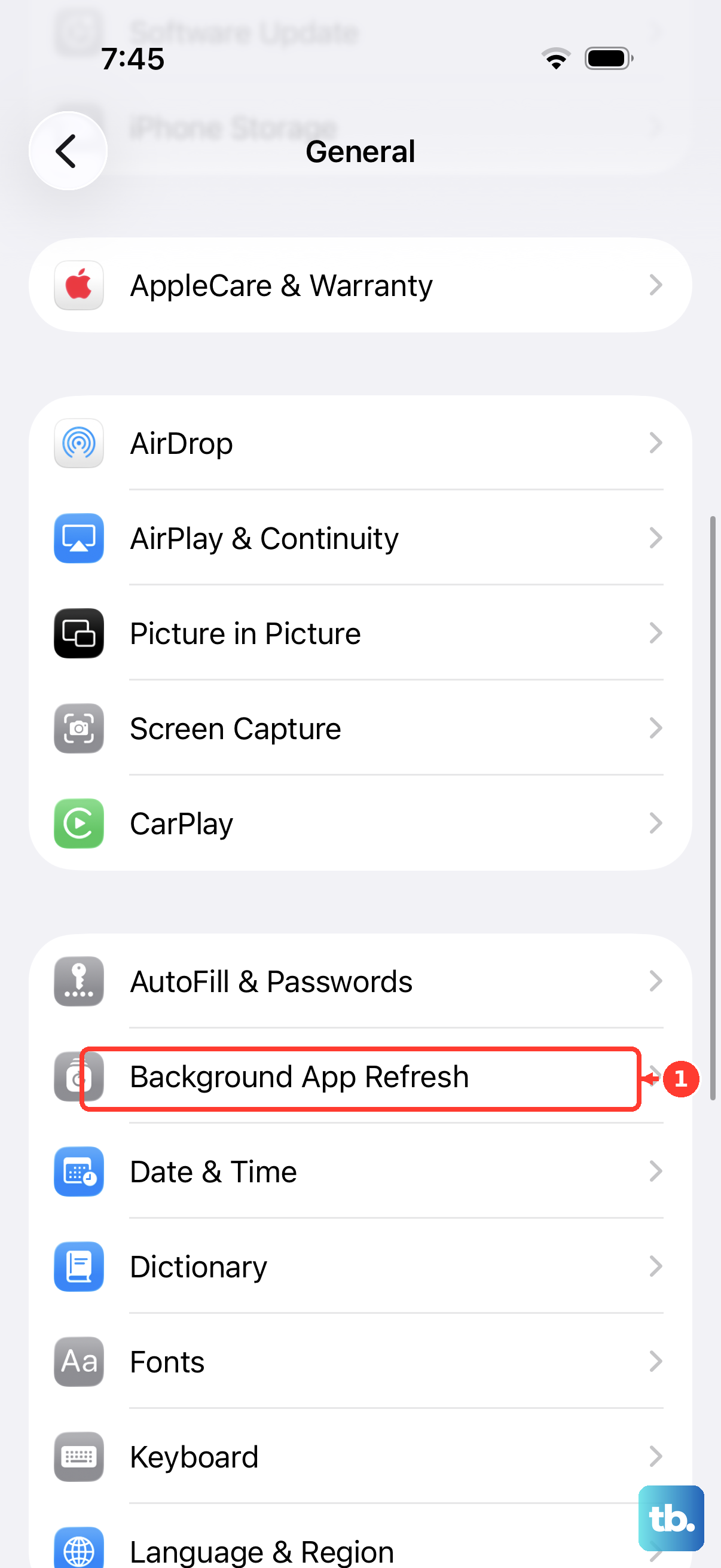
Background App Refresh lets apps update their content when you aren't using them, which uses power and can add a little heat. Go to Settings > General > Background App Refresh. You can turn it off completely or only for apps you don't need.
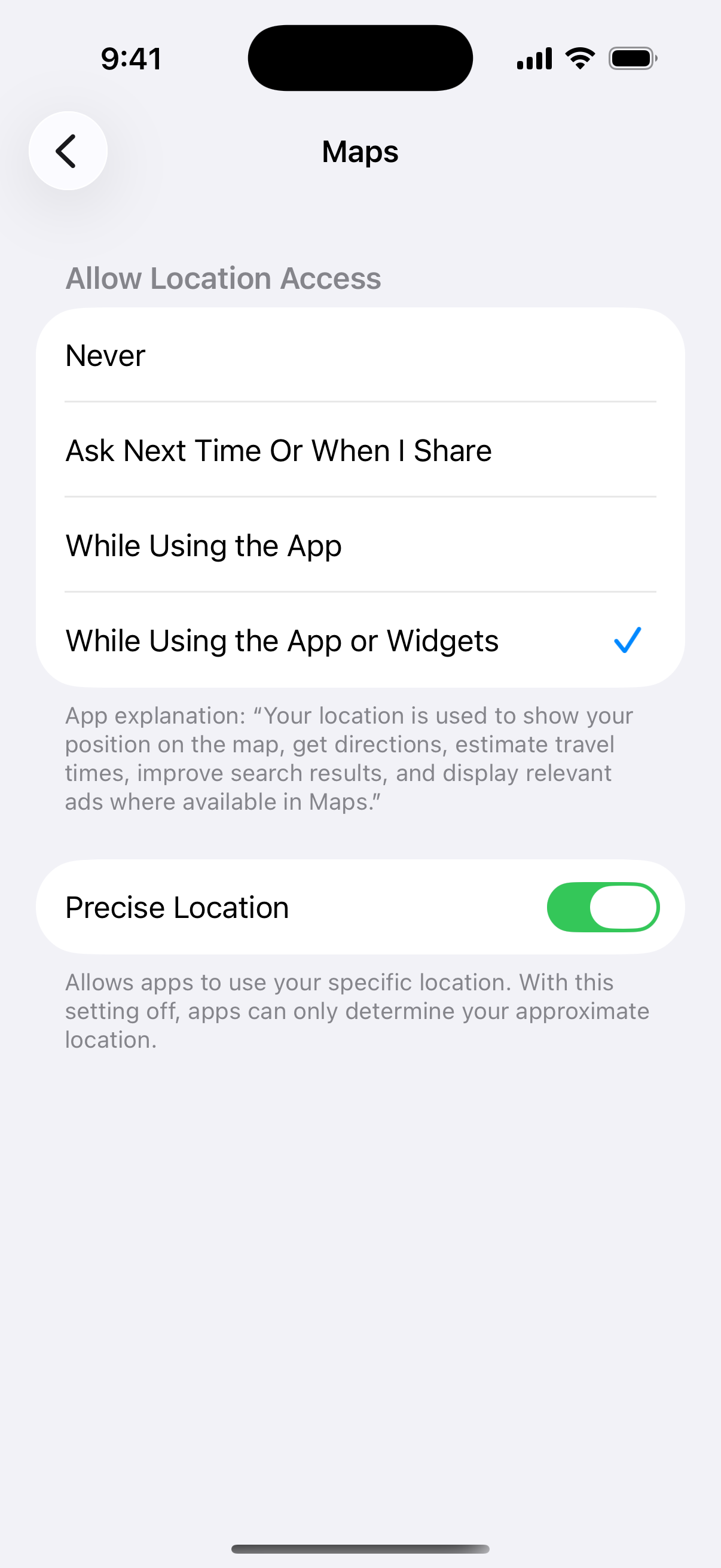
Location Services is another background activity that can add heat. Go to Settings > Privacy & Security > Location Services. Check which apps are set to Always, and where it makes sense, switch them to While Using the App or Ask Next Time Or When I Share.
Let Your Phone Cool Down Physically
If your iPhone 15 is already hot, stop using it and let it cool. If a temperature warning appears, turn the phone off, move it somewhere cooler and out of direct sunlight, and wait for it to cool down. Taking it out of the case helps the heat escape faster. Don't put it in the refrigerator or freezer, because sudden temperature changes can cause condensation inside the phone.
Put it on a cool, hard surface such as a table or countertop, and keep it off sofas and beds. Don't charge it while it's overheated. Wait until it's back to a normal temperature before you plug it in again.
Your iPhone is designed for use at ambient temperatures from 32º to 95º F (0º to 35º C), and very hot conditions can permanently shorten battery life. Don't leave it in a parked car. Running navigation at full brightness on a sunny dashboard can easily trigger the iPhone needs to cool down alert. If that happens, the screen turns off but you still hear turn-by-turn directions. A vent mount can help by keeping the phone in the car's air-conditioned airflow.
Frequently Asked Questions
Is it normal for an iPhone 15 to get warm?
Yes, it can be. Your iPhone may feel warm during setup, while restoring from a backup, during software updates, while charging wirelessly, while streaming video, and while you use demanding apps or games. If there's no temperature warning, you can keep using it.
Why won't my iPhone 15 charge past 80%?
Your charge limit is probably set to 80%. Go to Settings > Battery > Charging and move the slider to a higher limit, up to 100%.
What does "Charging On Hold" mean?
It means your iPhone is too hot or too cold to charge right now. Move it to a more comfortable temperature, and charging will resume once the phone is back in its normal range.