
Seeing a "Not Registered on Network" message on your iPhone 15 means it can't connect to your cellular provider. You won't be able to make calls, send texts, or use mobile data without Wi-Fi. This error pops up when your phone's unique identifier, the IMEI, has a problem communicating with cell towers, or when there's a simpler glitch in the connection process.
Before we get into the deeper fixes, there's one quick thing you should try. Pull down from the top-right corner to open Control Center and tap the airplane icon to turn on Airplane Mode. Wait about 15 seconds, then tap it again to turn it off. This forces your iPhone 15 to drop its current network connection and perform a fresh search and registration, which often clears up the error immediately.
Perform a Force Restart
If toggling Airplane Mode didn't work, a force restart is your next best step. This clears the phone's temporary memory without deleting any of your data. For the iPhone 15, you press and quickly release the Volume Up button, then press and quickly release the Volume Down button. Finally, press and hold the Side button until you see the Apple logo appear on the screen. Let go and wait for your phone to boot up completely.
This process is slightly different from older iPhone models, so it's worth doing even if you've tried a regular restart. I've found it resolves a surprising number of transient network issues that a simple power cycle might miss.
Check and Reinsert Your SIM Card
Since the iPhone 15 uses a physical SIM tray, a loose or dirty card can be the culprit. Grab the SIM ejector tool that came in the box (or a small paperclip) and gently push it into the hole on the left side of the phone. The tray will pop out.
Remove the SIM card and give both the card's gold contacts and the inside of the tray a quick visual inspection. If you see any dust or debris, you can gently wipe the contacts with a soft, dry cloth. Carefully reinsert the SIM and push the tray back in until it clicks. Power your phone back on and see if it finds the network.
Verify Your Carrier Account Status
Sometimes the issue isn't with your iPhone at all. If your prepaid plan has expired, your postpaid bill is overdue, or there's an account problem on your carrier's end, your phone will show this exact error. The fix is as simple as topping up your balance or paying your bill.
Try logging into your carrier's website or app from another device to check your account status. If you can't get online, you might need to borrow a friend's phone to call customer service. It's a quick check that can save you a lot of unnecessary troubleshooting on the phone itself.
Update Your Carrier Settings
Carriers occasionally push small updates that help your iPhone 15 communicate properly with their network towers. These updates are separate from iOS updates. To check for one, make sure you're connected to Wi-Fi, then go to Settings > General > About.
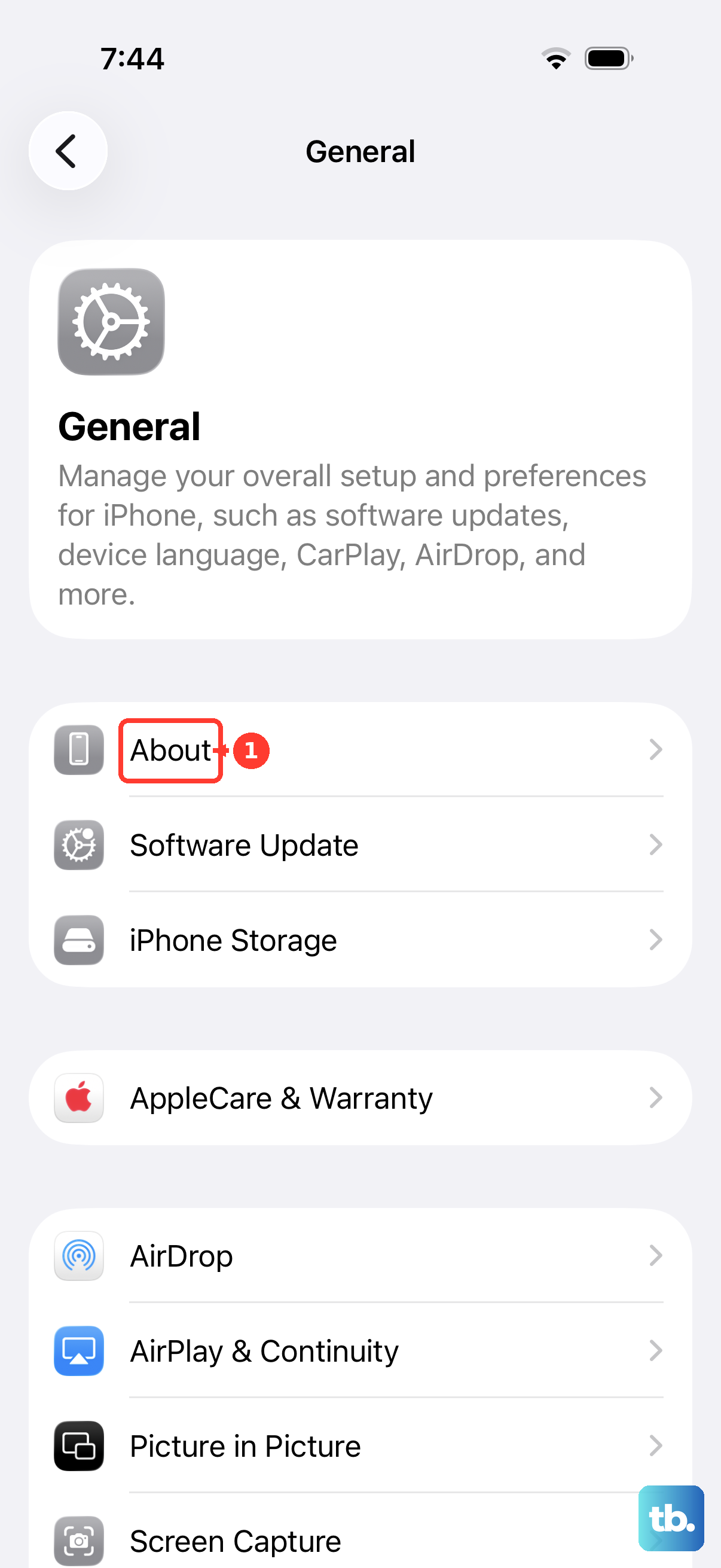
If a carrier settings update is available, a prompt will appear on this screen. Just tap "Update" when it shows up. The update only takes a moment and doesn't require a restart, but it can resolve compatibility issues that cause registration failures.
Reset All Network Settings
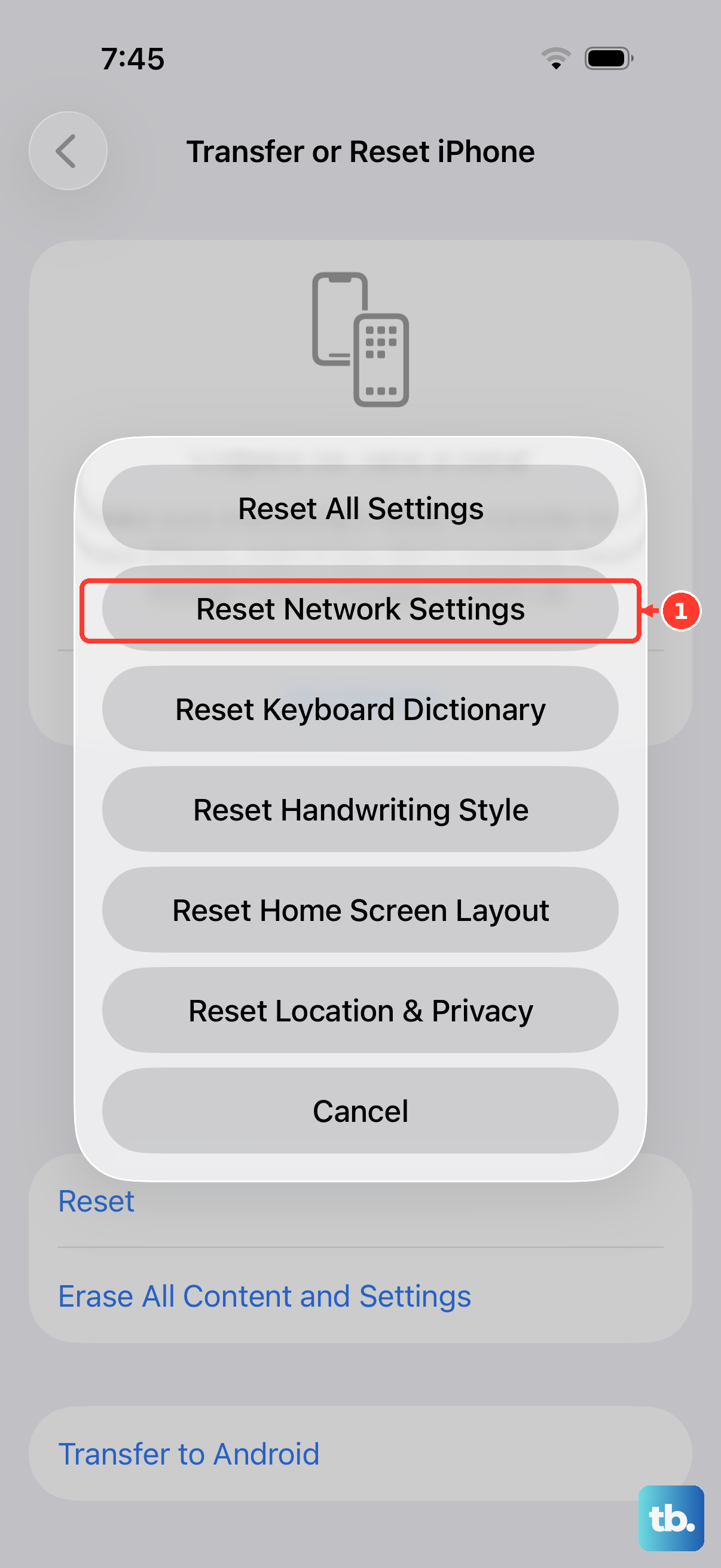
This step clears out all your saved Wi-Fi passwords, Bluetooth pairings, VPN configurations, and cellular network settings. It's a clean slate for anything related to connectivity. Go to Settings > General > Transfer or Reset iPhone > Reset.
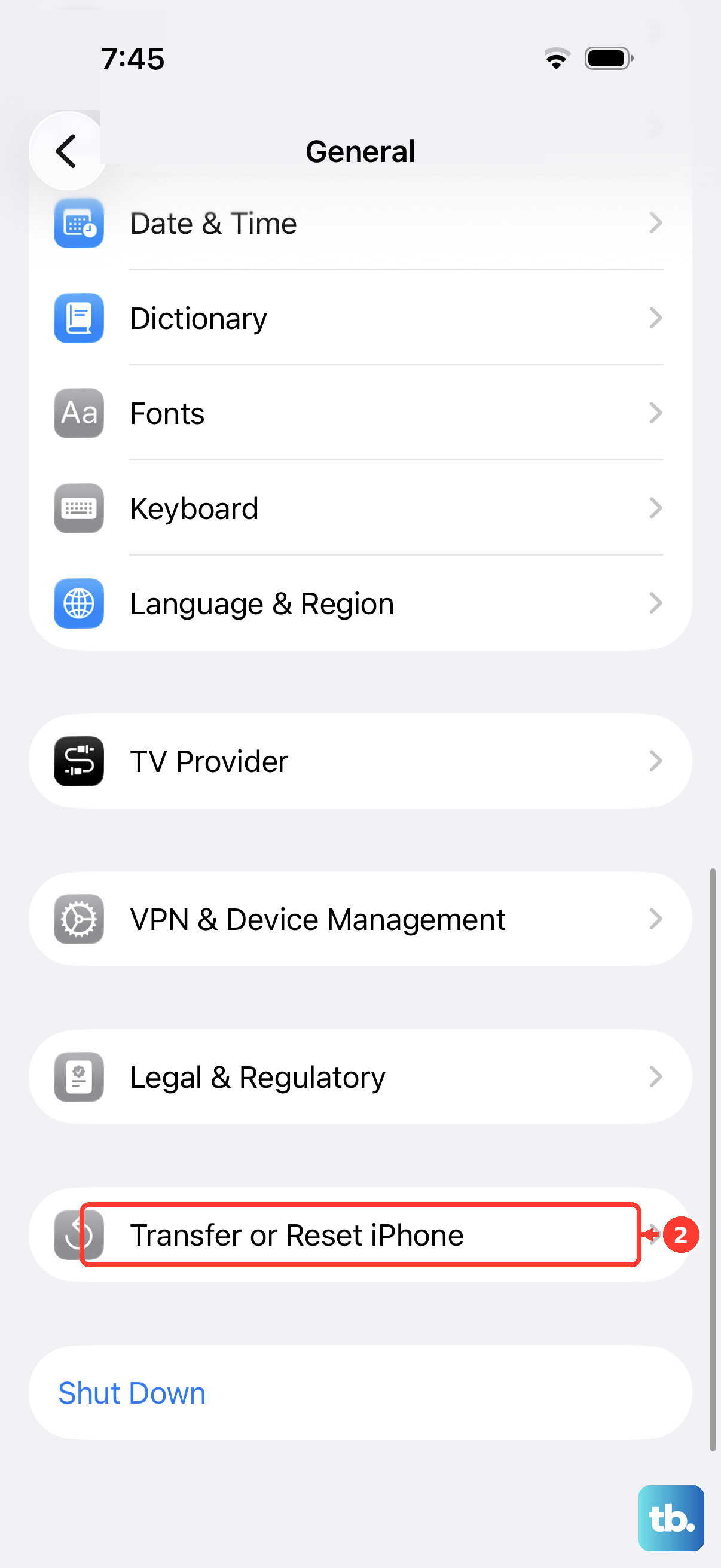
Then, tap Reset Network Settings. You'll need to enter your passcode to confirm. Your iPhone 15 will restart, and you'll have to rejoin your Wi-Fi networks and re-pair Bluetooth devices afterward. This often fixes deep-seated configuration errors that prevent network registration.
Manually Select Your Network
Your iPhone might be trying to automatically connect to a carrier tower that's having issues. You can tell it to search for all available networks and pick yours manually. Go to Settings > Cellular.
Tap Network Selection and turn off the "Automatic" toggle. Your phone will search for a minute. When the list populates, select your carrier's name from the options. If your carrier doesn't appear in the list, that's a strong sign the problem is with your SIM or account, not the phone.
Update to the Latest Version of iOS
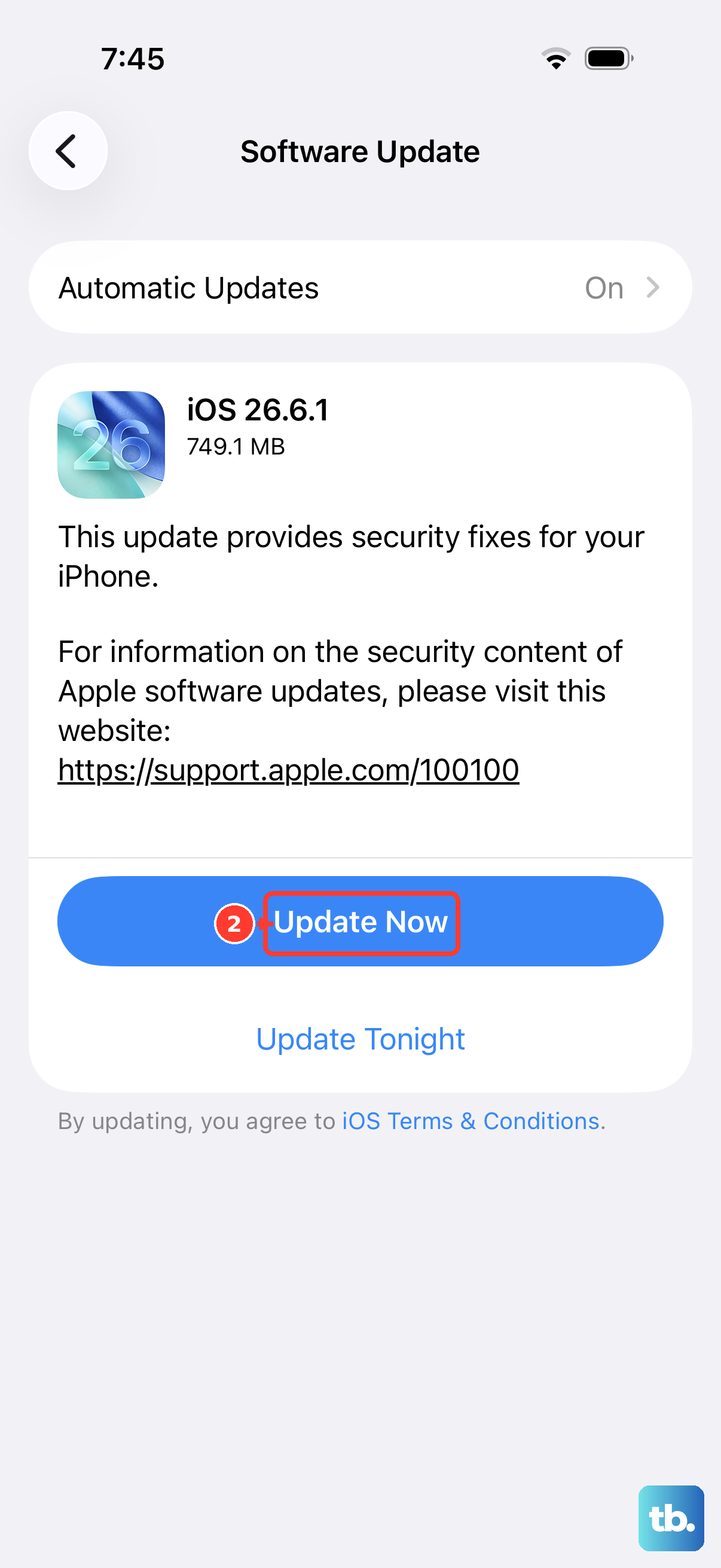
Apple releases iOS updates that frequently include bug fixes for cellular connectivity and modem firmware. Running an outdated version of iOS 26 could be the root cause. Connect to Wi-Fi and go to Settings > General > Software Update.
If an update is available, tap "Download and Install." Make sure your iPhone 15 is plugged in with its USB-C charger or on a MagSafe charger during the update process. Once it's complete, your phone will restart with the latest software, which may have patched the specific issue you're facing.
Try a Different SIM Card
At this point, it's wise to test if the problem is with the SIM card itself. If you can borrow a working SIM card from a friend or family member (even from a different carrier), pop it into your iPhone 15. If their SIM card connects to a network without any "Not Registered" errors, then your original SIM is likely faulty or deactivated.
You'll need to contact your carrier's support to get a replacement SIM card sent to you. If the borrowed SIM card also fails to register, the issue is almost certainly with your iPhone's hardware or its internal software configuration.
Restore Your iPhone Using a Computer
This is the most comprehensive software fix. It involves erasing your iPhone and installing a fresh, clean copy of iOS. It will delete all your data and settings, so you must have a recent backup in iCloud or on your computer first.
Connect your iPhone 15 to a Mac or PC using a USB-C cable. Open Finder (on Mac) or iTunes (on Windows), select your device, and choose the option to "Restore iPhone." This process downloads the latest iOS firmware directly from Apple and installs it, which can fix corrupted baseband software that a simple reset can't touch. After the restore, you can set up the phone as new to test the network, or restore from your backup.