
If your iPhone 15's battery seems to vanish before your eyes, you're not imagining it. Newer charging settings can make the battery look worse than it is, and a few settings really do drain power. Start with the most common cause.
Go to Settings > Battery > Charging and look at the Charge Limit slider. On iPhone 15 models you can set the limit anywhere from 80% to 100% in 5% steps, and a lower limit stops charging early to protect long-term battery health. That's good for the battery, but it means you start the day with less power. Drag the slider to 100% if you want a full charge. At 100%, you can also turn Optimized Battery Charging on or off.
Check Your Charging Gear
The iPhone 15 was Apple's first iPhone to use USB-C instead of Lightning, so make sure you're using a USB-C cable that meets the USB-C standard, such as the one in the box. For fast charging (up to 50% in around 30 minutes), you need a USB-C power adapter rated at 20W or higher. Wireless charging with MagSafe or Qi2 tops out at 15W.
Also check whether your phone gets hot while charging. Apple advises against charging in hot environments, and some thicker cases trap heat during MagSafe or wired charging. Try removing the case next time you plug in and see whether battery life the next day improves.
Identify the Battery Hog
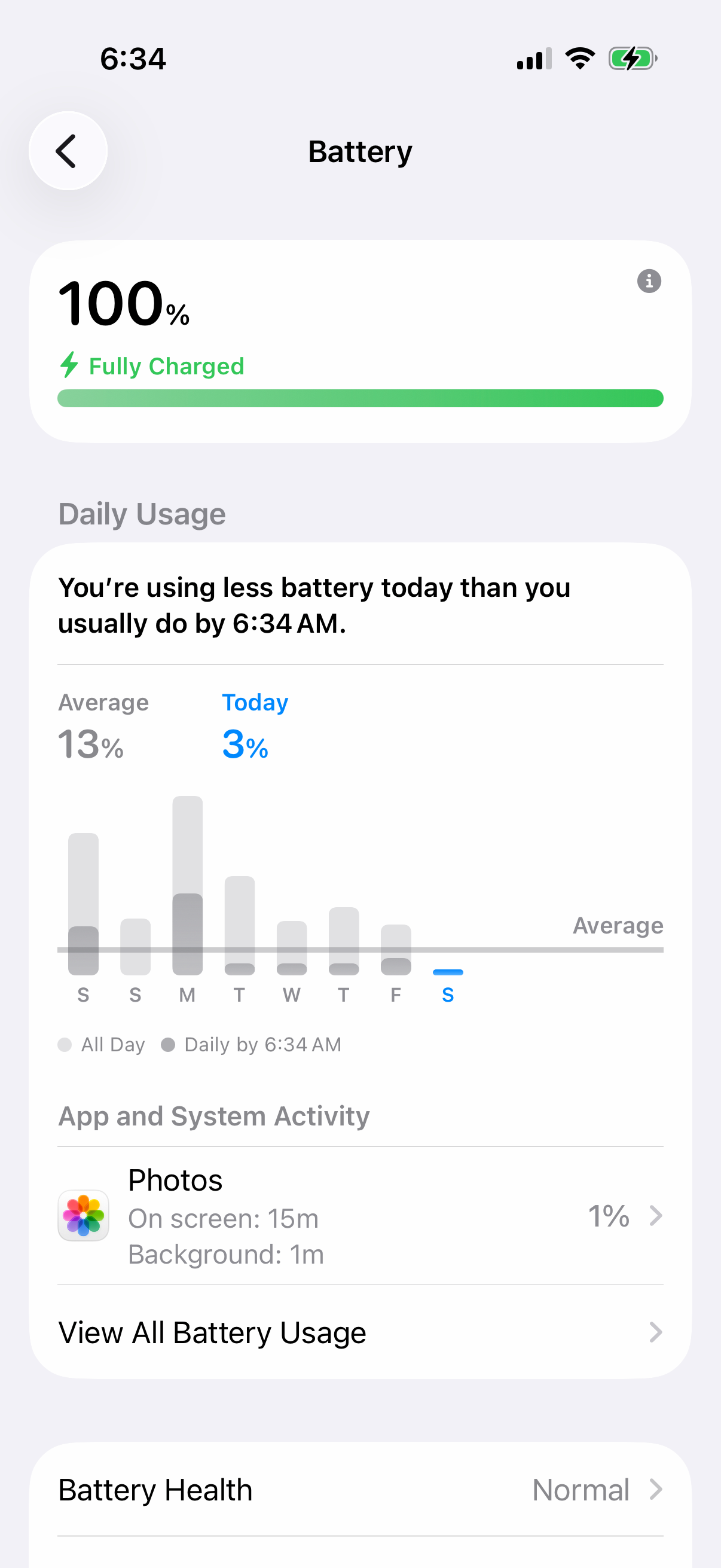
Your iPhone 15 has a detailed battery report built in. Go to Settings > Battery. Any suggestions, such as lowering screen brightness, appear above the Daily Usage chart, and you can tap one to jump straight to the related setting.
The Daily Usage chart compares today's battery use with your usual use, and the apps that used the most battery today are listed below it. Tap View All Battery Usage to see the last eight days. This often reveals a single social media or gaming app running wild in the background. To check wear, tap Battery Health on the same screen and look at the maximum capacity.
Manage Background Activity
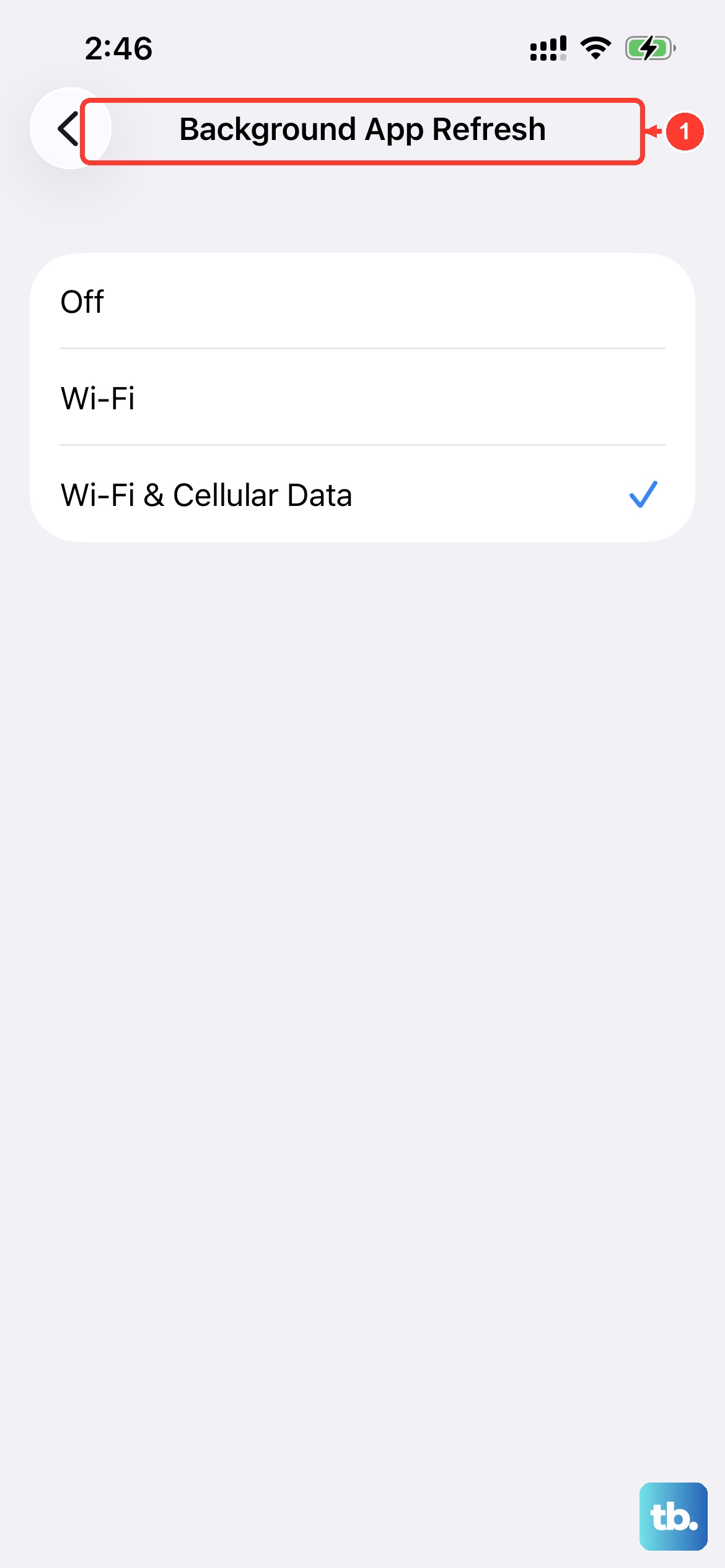
Apps refreshing in the background are a major drain. You can control this globally in Settings > General > Background App Refresh. Turn it off entirely, or just for the power-hungry apps you found in the battery report.
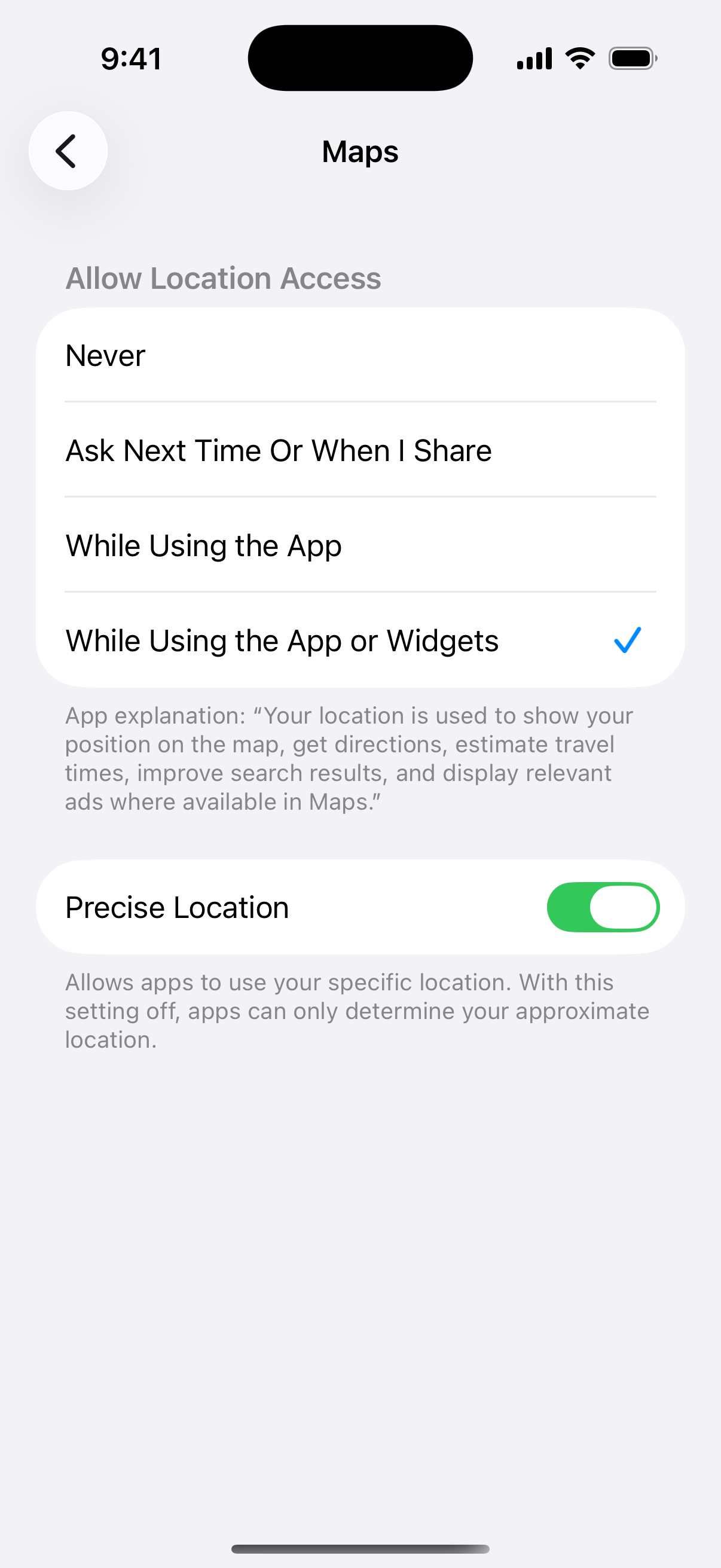
Location Services are another big one. Go to Settings > Privacy & Security > Location Services, review the list, and set apps to While Using the App or Never instead of Always where it makes sense. You can also review System Services at the bottom of this menu.
To stretch a charge, turn on Low Power Mode in Settings > Battery > Power Mode. It cuts back activities such as mail fetch and background app refresh. On iPhone 15 Pro and iPhone 15 Pro Max, Adaptive Power can also extend battery life on days you use more power than usual.
Optimize Display and Motion Settings
The bright iPhone 15 display looks great but uses a lot of power. Lower the brightness manually, or turn on Auto-Brightness in Settings > Accessibility > Display & Text Size. Also consider setting Auto-Lock to 30 seconds in Settings > Display & Brightness.
The iPhone 15 Pro and iPhone 15 Pro Max have a ProMotion display with adaptive refresh rates up to 120Hz. On those models, turn on Limit Frame Rate in Settings > Accessibility > Motion to cap the display at 60 frames per second. Turning on Reduce Motion on the same screen also cuts down animated effects on any iPhone 15.
Review Connectivity Features
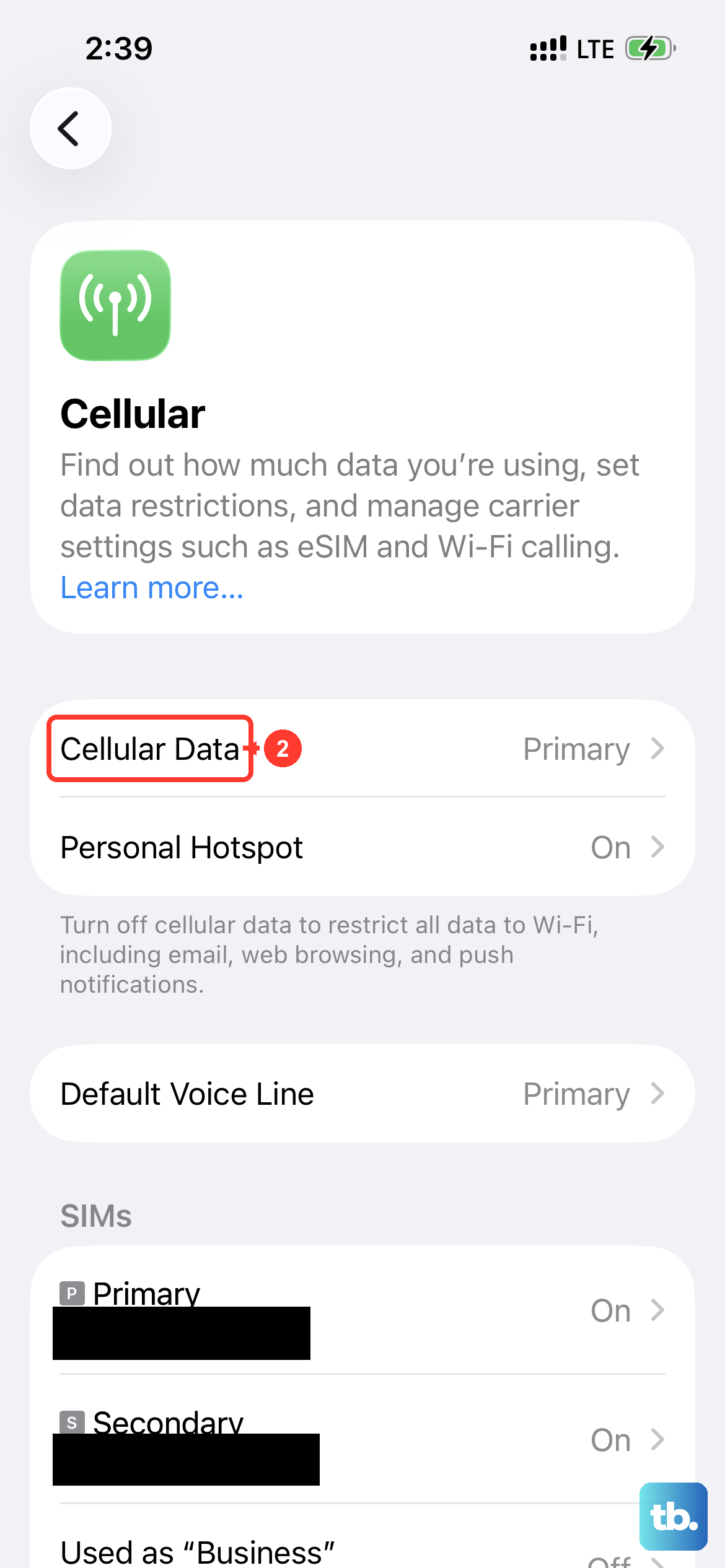
Searching for a signal uses power. In areas with poor cellular service your phone works harder, so use Wi-Fi when you can and switch on Airplane Mode in places with no coverage. Wi-Fi uses less power than cellular data.
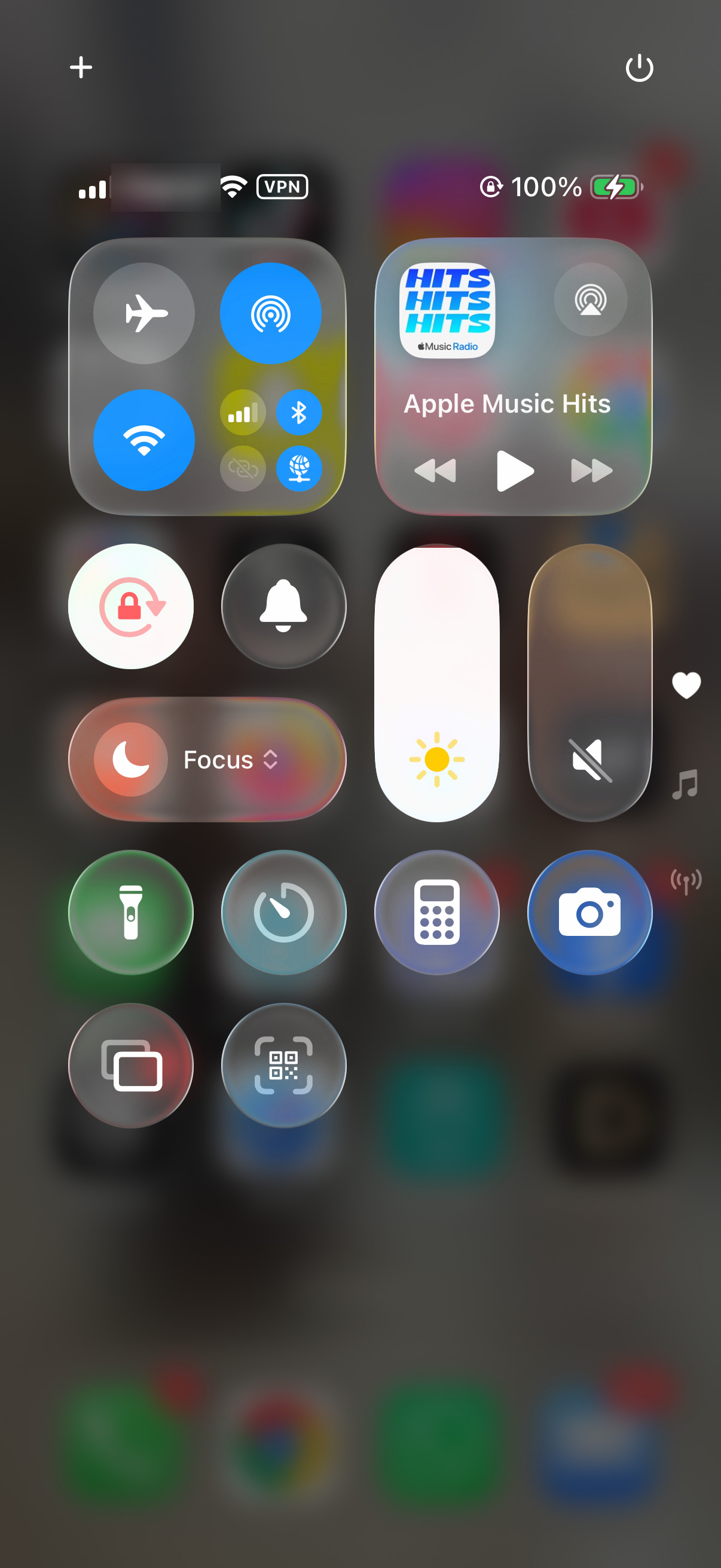
If you're not using a watch, headphones or car system, you can turn Bluetooth off from Control Center. You can also stop Siri from listening for "Siri" or "Hey Siri." Go to Settings > Apple Intelligence & Siri (just Siri on models without Apple Intelligence), tap Talk & Type to Siri, and turn the listening option off.
Update Your Software
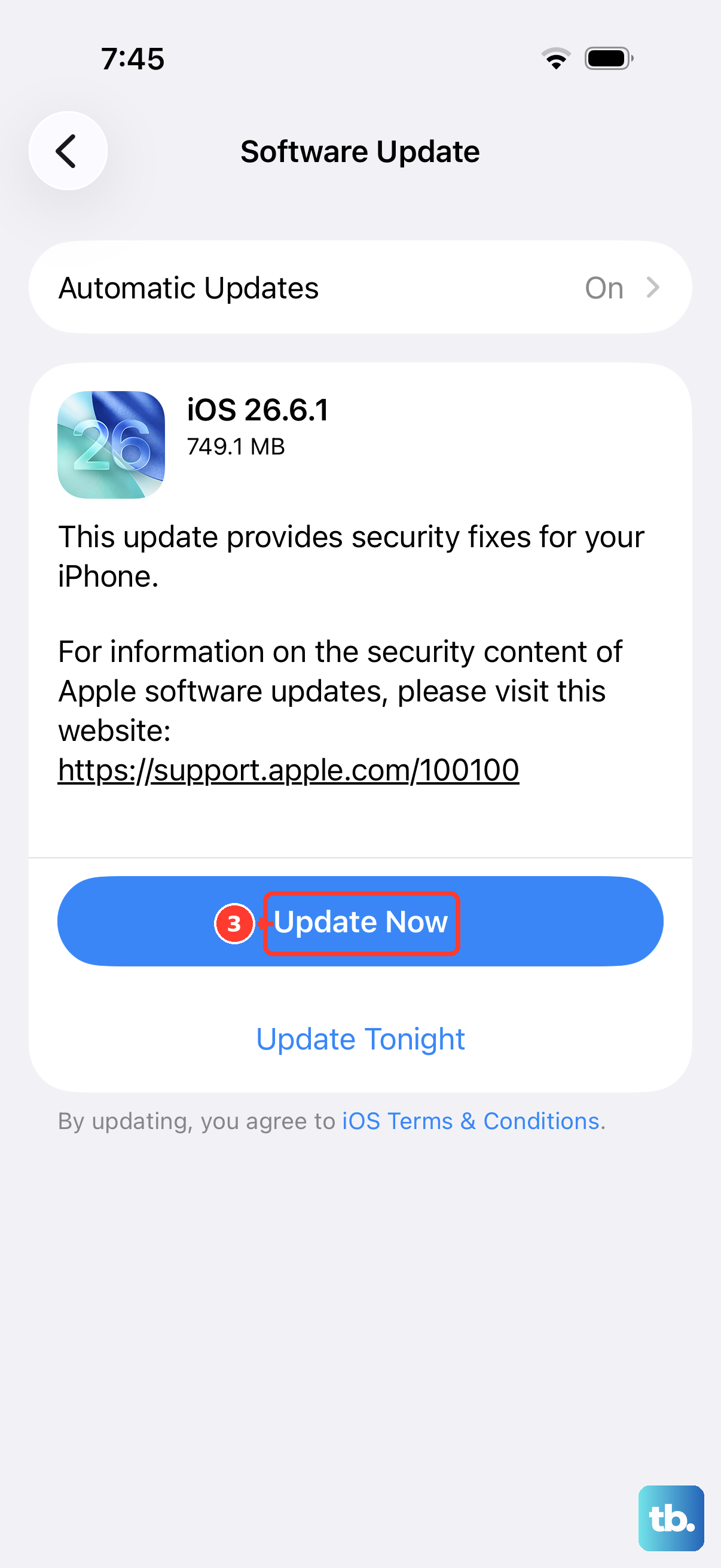
iOS updates often include battery fixes, so check for a new version in Settings > General > Software Update. If an update is available, install it while your phone is plugged in. Give it a few days afterward, because some update tasks keep running in the background and can temporarily use more battery.
Don't forget your apps. Outdated apps can have bugs that cause excessive battery use. Open the App Store, tap your profile icon, and scroll down to update any pending apps.
Perform a Force Restart
If your iPhone 15 is acting sluggish and the battery is dropping fast, a software glitch might be the cause. A force restart can clear it without deleting any data. Quickly press and release the Volume Up button, then the Volume Down button, then press and hold the Side button until you see the Apple logo appear.
Reset All Settings
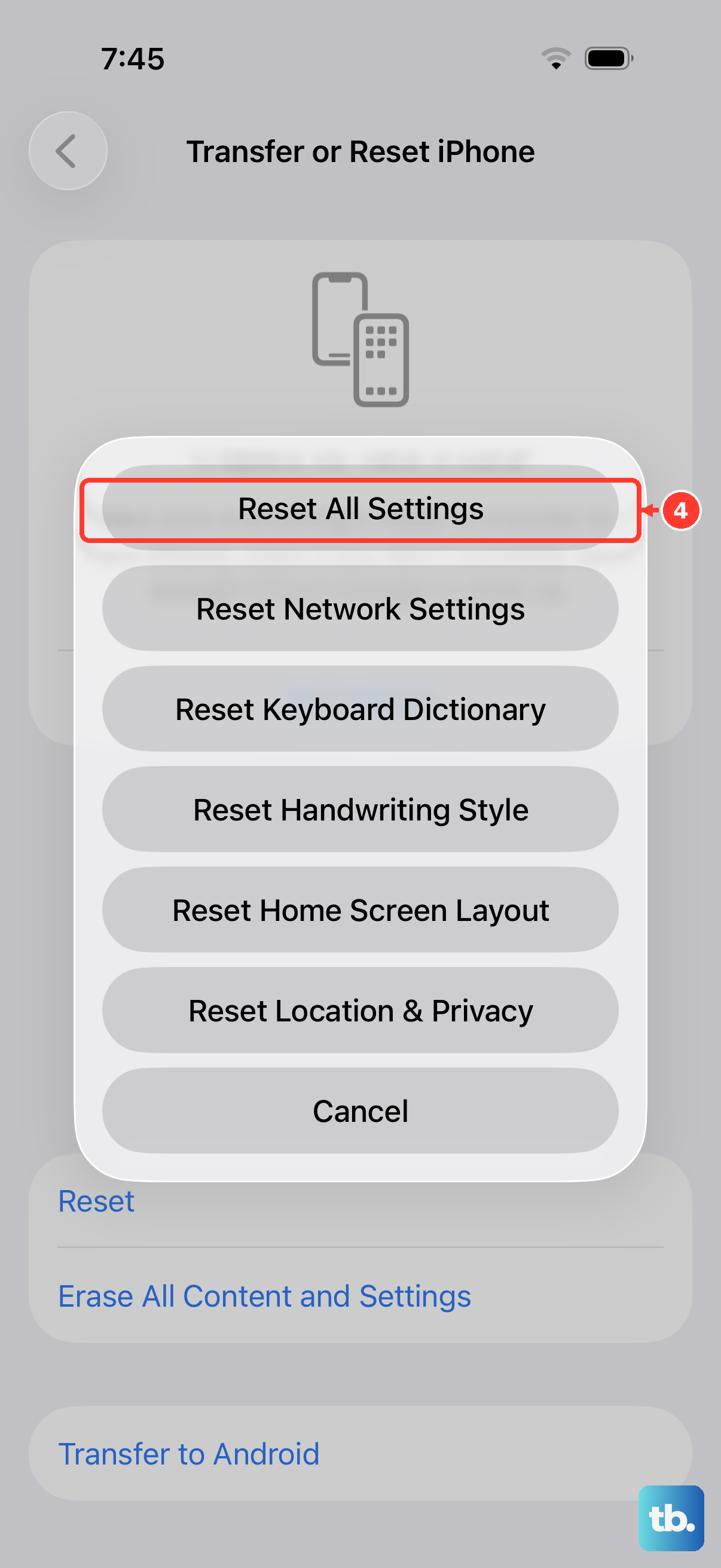
If you've tried everything and the drain continues, a deeper settings reset can help. It won't erase your photos or apps, but it resets preferences such as Wi-Fi passwords and wallpaper. Go to Settings > General > Transfer or Reset iPhone > Reset, and choose Reset All Settings.
If the drain still won't stop and Battery Health shows a significantly reduced maximum capacity, the battery itself may need replacing.