
Seeing "No SIM" or "Invalid SIM" on your iPhone 15 can stop you from making calls or using data right when you need it. This is often a quick fix, usually related to the SIM card itself or a minor software hiccup.
Restart Your iPhone 15
Start with a simple restart. This clears temporary glitches that can affect the SIM card reader. Just press and hold the side button and either volume button, then slide to power off.
If the problem is more stubborn, try a force restart. This doesn't erase any data. Quickly press and release the Volume Up button, then the Volume Down button, then press and hold the Side button until you see the Apple logo appear.
Check the Physical SIM Card and Tray
Power off your iPhone 15 completely. Use the SIM ejector tool (or a small paperclip) to pop open the SIM tray on the left side. Carefully remove the SIM card and take a close look at it.
Check the gold contacts for any scratches, dirt, or corrosion. Give them a gentle wipe with a clean, dry, lint-free cloth. Also, peek inside the SIM tray slot for any debris that might be blocking the connection.
When reinserting, make sure the SIM card is seated correctly in the tray and that the tray itself goes back in smoothly. A misaligned tray is a common culprit for "No SIM" errors.
Toggle Airplane Mode
Switching Airplane mode on and off forces your iPhone to re-establish its connection to the cellular network. Swipe down from the top-right corner to open Control Center and tap the airplane icon.
Wait about 10 seconds, then tap it again to turn Airplane Mode off. You should see the cellular signal bars reappear if this was the issue. I've found this works more often than you'd think.
Update Your iPhone's Software
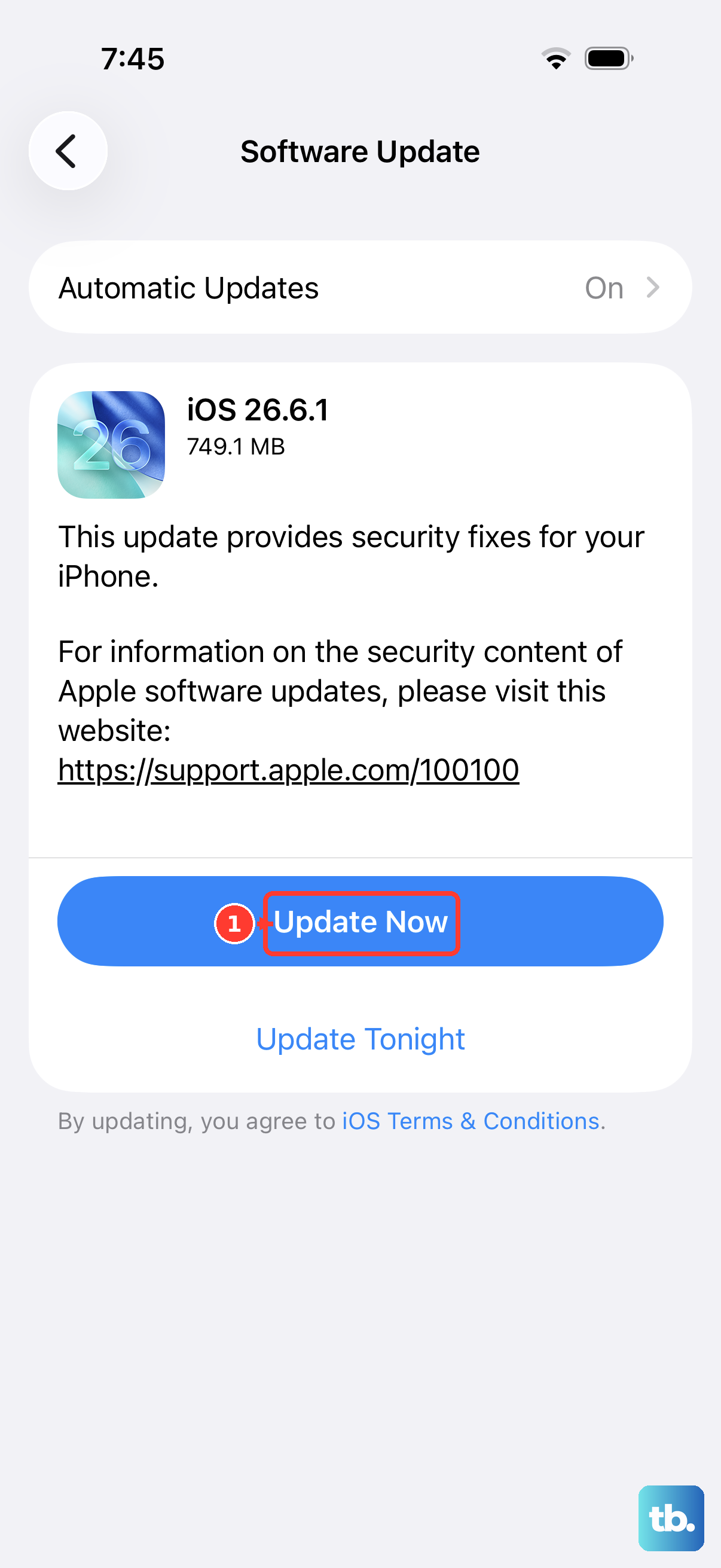
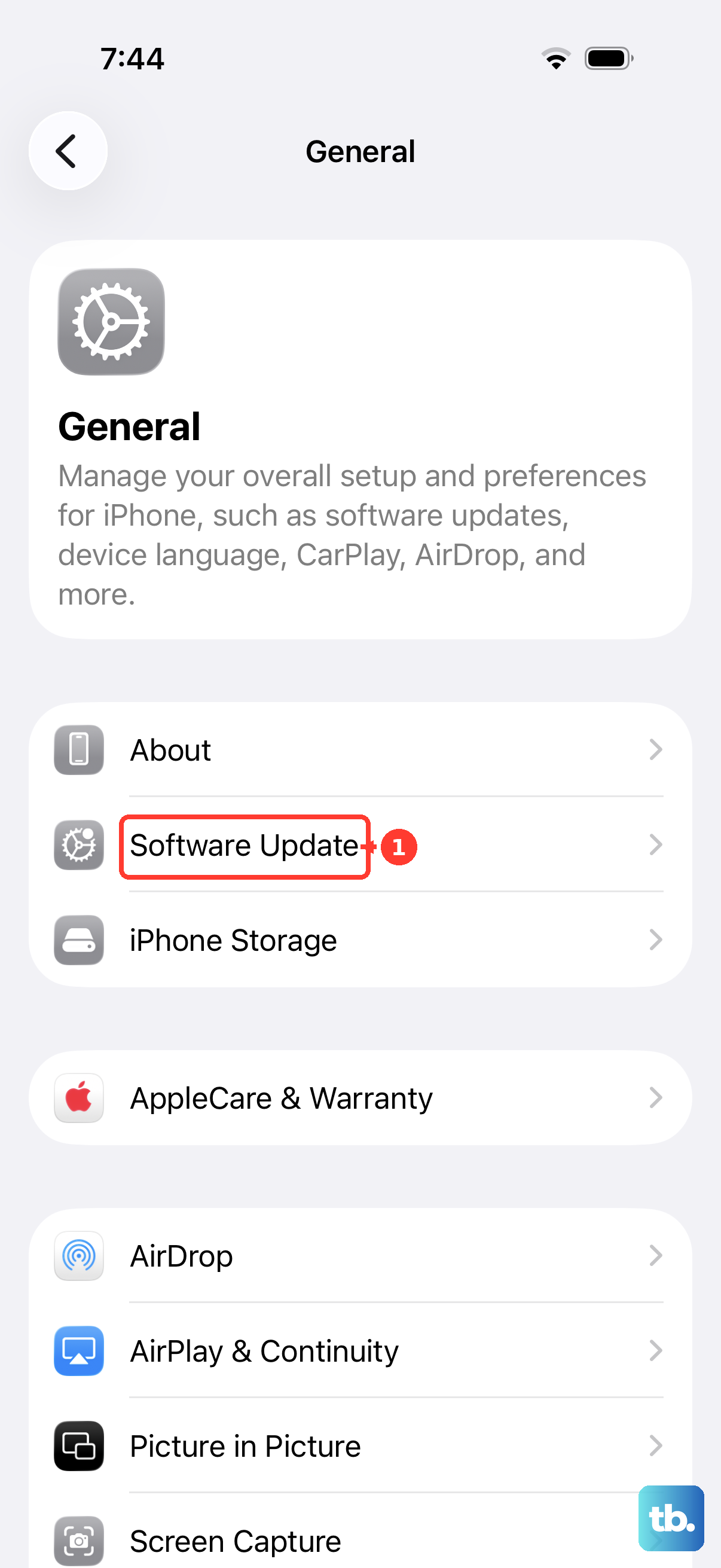
Outdated iOS software can sometimes have bugs that affect cellular connectivity. Go to Settings > General > Software Update.
If an update is available, install it. Make sure your iPhone is connected to Wi-Fi and has sufficient battery, or plug it into a charger using a compatible USB-C cable. A restart after the update is always a good idea.
Reset Your Network Settings
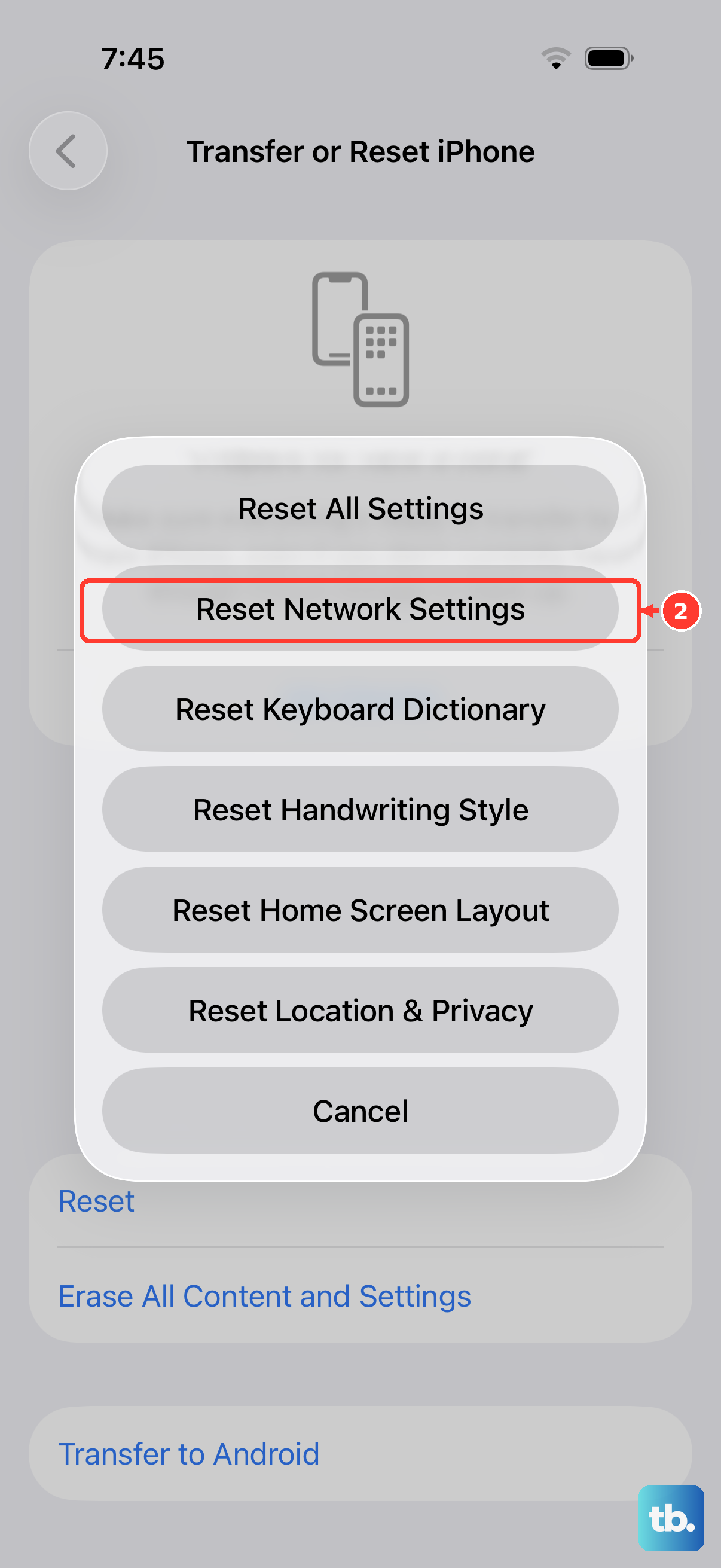
This is a stronger step that clears all your saved network configurations without touching your personal data. You'll need to rejoin Wi-Fi networks and re-pair Bluetooth devices afterward.
Go to Settings > General > Transfer or Reset iPhone. Tap Reset and then choose Reset Network Settings. Enter your passcode if prompted and confirm.
Check for a Carrier Settings Update
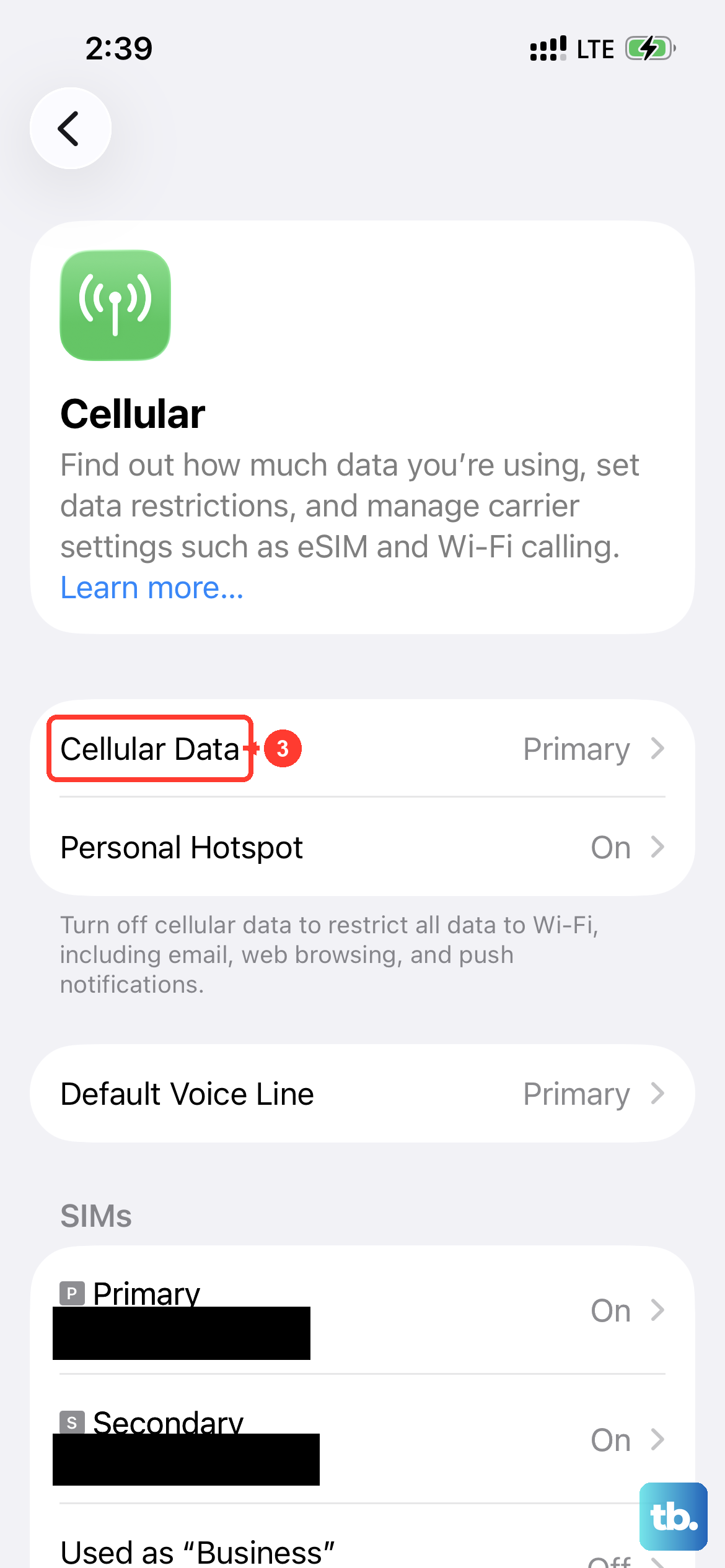
Your mobile carrier occasionally sends small updates that help your iPhone work better on their network. These happen automatically, but you can check manually.
Make sure you're connected to Wi-Fi or have a cellular data connection. Then, go to Settings > General > About. If an update is available, a prompt will appear on this screen.
Try Your SIM Card in Another Phone
This is the best way to figure out if the problem is with your SIM card or your iPhone. If you have access to another unlocked phone, power it off and insert your iPhone 15's SIM card.
Turn that phone on. If it also shows "No SIM" or can't get service, the SIM card itself is likely faulty or deactivated. You'll need to contact your carrier for a replacement.
Contact Your Mobile Carrier
Reach out to your carrier's support. They can check if there's an outage in your area, verify your account is active, and ensure your SIM is properly provisioned on their network.
They can also walk you through refreshing your connection on their end. If the SIM card is damaged, they can issue a new one, which often solves the problem immediately.
Consider Switching to eSIM
The iPhone 15 supports eSIM, a digital SIM built into the phone. If you have persistent issues with a physical SIM, switching to an eSIM can be a permanent solution.
Contact your carrier to see if they support eSIM activation. They can guide you through the process, which usually involves scanning a QR code in your Settings > Cellular menu.
Check for Hardware Issues
If you've tried everything else, including a different, known-good SIM card, and the problem persists, there might be a hardware fault. The SIM card reader inside the phone could be damaged.
Before assuming the worst, ensure you're using an official or MFi-certified SIM tray ejector tool. A bent or improper tool can sometimes damage the internal pins. If hardware is suspected, contact Apple Support for diagnosis.