
When your iPhone 15 microphone cuts out during calls, it's incredibly frustrating. People can't hear you, or your voice sounds muffled and distant. This can happen in the Phone app, FaceTime, or on third-party apps like WhatsApp or Zoom. Let's start by figuring out which microphone is acting up and then work through the fixes.
Test Your iPhone 15 Microphones
Your iPhone 15 has several microphones. The main one for calls is at the bottom, next to the USB-C port. There's another at the top near the front camera, and others by the rear cameras for video. A quick test in the Voice Memos app can tell you a lot.
Open Voice Memos and tap the red record button. Speak normally for a few seconds, then play it back. If your voice is clear, the bottom microphone is likely fine for calls. If the recording is silent or full of static, you've confirmed there's an issue.
You can also ask Siri a question by holding the Side button. If Siri doesn't respond or consistently mishears you, it points to a microphone problem. For video calls, try recording a short video in the Camera app to test those mics.
Remove the Case and Check for Blockages
This is the simplest fix and often the most effective. Some iPhone 15 cases, especially rugged ones with port covers, can partially block the microphone grilles. Take the case off completely and make a quick test call.
While the case is off, take a close look at the microphone openings. The one at the bottom, right next to the USB-C port, is the most critical for phone calls. Use a soft, dry brush (a clean, soft-bristled toothbrush works) to gently dislodge any lint or pocket debris.
Be careful not to push anything further in. I've seen more than a few microphone issues solved by simply clearing out a tiny bit of compacted lint from that bottom grill.
Disconnect All Bluetooth Accessories
If your AirPods, a Bluetooth headset, or even a car stereo are connected, your iPhone 15 might be routing all audio through them. This includes the microphone. The person you're calling would hear nothing because your phone is expecting the mic on your headphones to be active.
Swipe down from the top-right corner to open Control Center. Tap the Bluetooth icon to turn it off entirely, making it blue with a line through it. Now try your call again using the iPhone's own speaker and mic. If this fixes it, you know the issue was with audio routing.
Restart and Force Restart Your iPhone 15
A standard restart clears out minor software glitches that can affect hardware. Press and hold the Side button and either Volume button, then slide the power off slider. Wait 30 seconds, then press the Side button to turn it back on.
If the problem persists, try a force restart. This is different and can clear deeper system hiccups. Quickly press and release the Volume Up button, then quickly press and release the Volume Down button. Finally, press and hold the Side button.
Keep holding the Side button even after you see the Apple logo appear. Let go once you see the logo. This process doesn't erase any data, it just gives the system a fresh start.
Check App-Specific Microphone Permissions
Maybe your microphone works in the Phone app but not in Facebook Messenger or Zoom. This is almost always a permissions issue. Each app needs your explicit permission to use the mic.
Go to Settings > Privacy & Security > Microphone. You'll see a list of all apps that have requested microphone access. Find the app giving you trouble and make sure the toggle is switched on (green).
If it was already on, try turning it off, closing the app completely, then turning the permission back on. This resets the connection between the app and your phone's audio system.
Close and Reopen the Problem App
If a specific app is freezing or not accessing the mic correctly, force closing it can help. On your iPhone 15, swipe up from the bottom of the screen and pause in the middle to see your open apps. Swipe up on the card for the app (like WhatsApp or Telegram) to close it.
Then, tap the app icon again to relaunch it fresh. This clears the app's temporary memory and can resolve conflicts that happened during your last call or session.
Update to the Latest Version of iOS
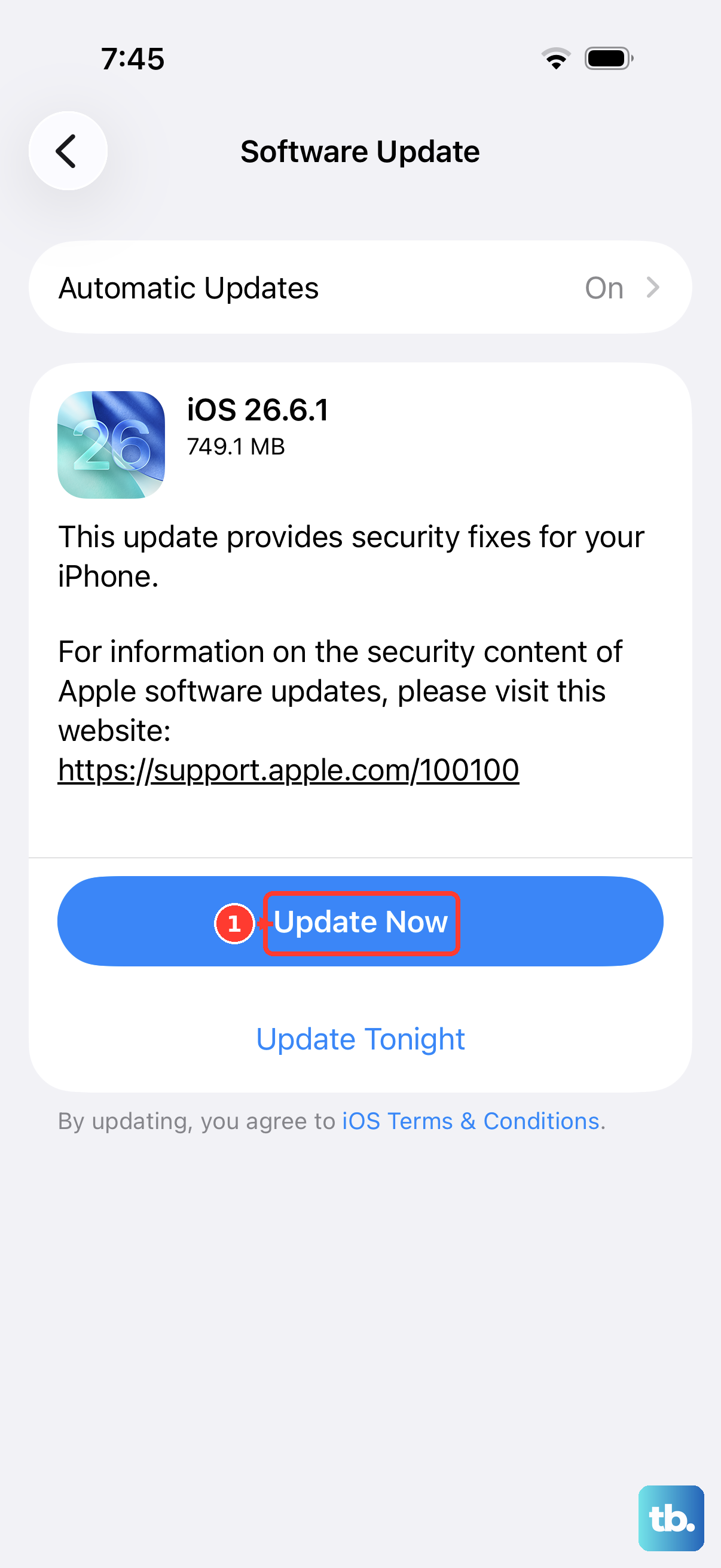
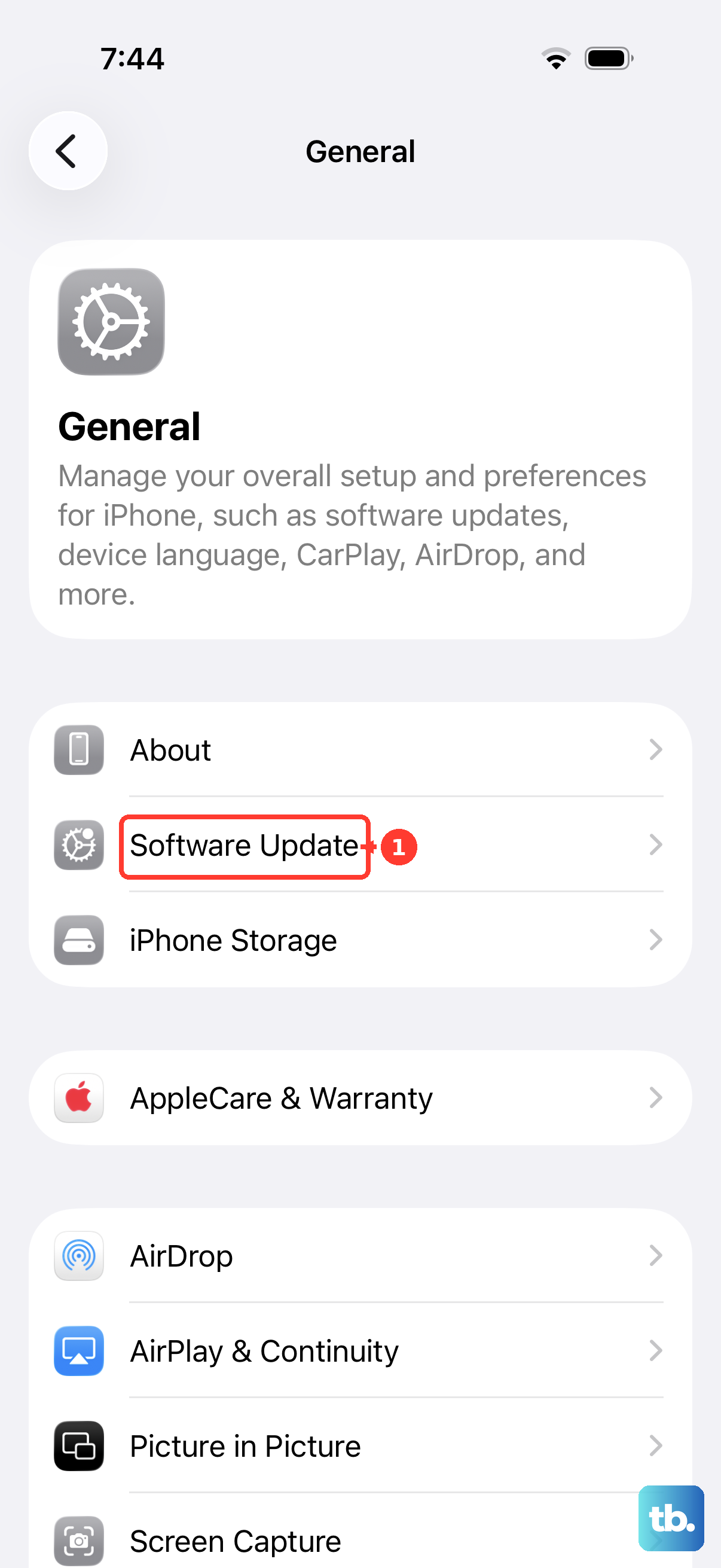
Apple releases iOS updates to fix bugs, including audio and microphone issues. Since your iPhone 15 runs iOS 26, it's important to have the latest version. Go to Settings > General > Software Update.
If an update is available, tap "Download and Install." Make sure your phone is plugged into power and on Wi-Fi. I'd recommend doing this before moving on to more drastic resets, as a software patch is often the direct solution.
Disable Phone Noise Cancellation
Your iPhone 15 has a feature that uses software to reduce background noise during calls. Sometimes, this can get confused and start filtering out your voice instead of the noise. It's easy to turn off and test.
Go to Settings > Accessibility > Audio & Visual. Look for "Phone Noise Cancellation" and toggle it off. Immediately make a test call to see if your voice comes through more clearly. You can always turn it back on later.
Reset All Settings on Your iPhone 15
This is a bigger step, but it won't delete your photos, messages, or apps. It resets every system setting back to factory defaults. That includes network settings, privacy permissions, keyboard dictionaries, and home screen layout.
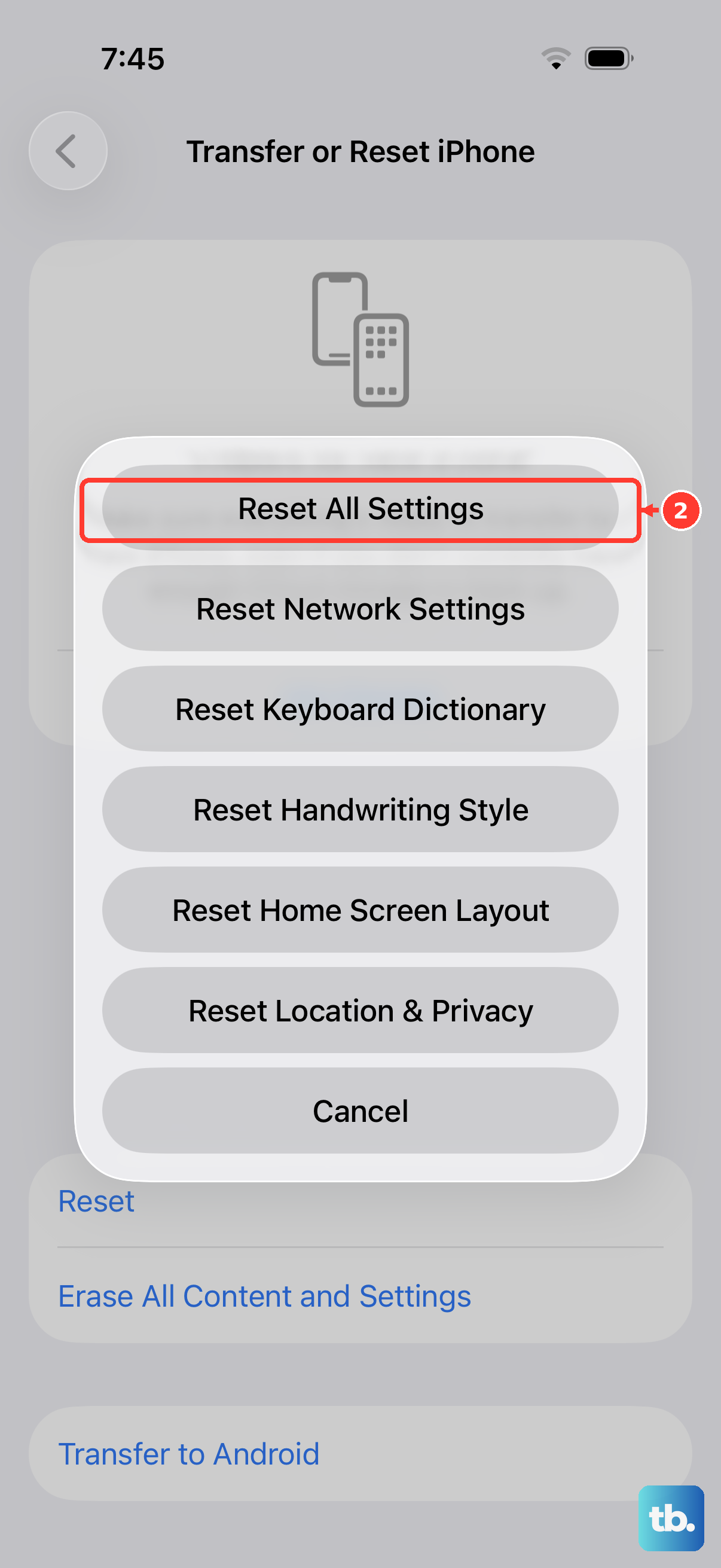
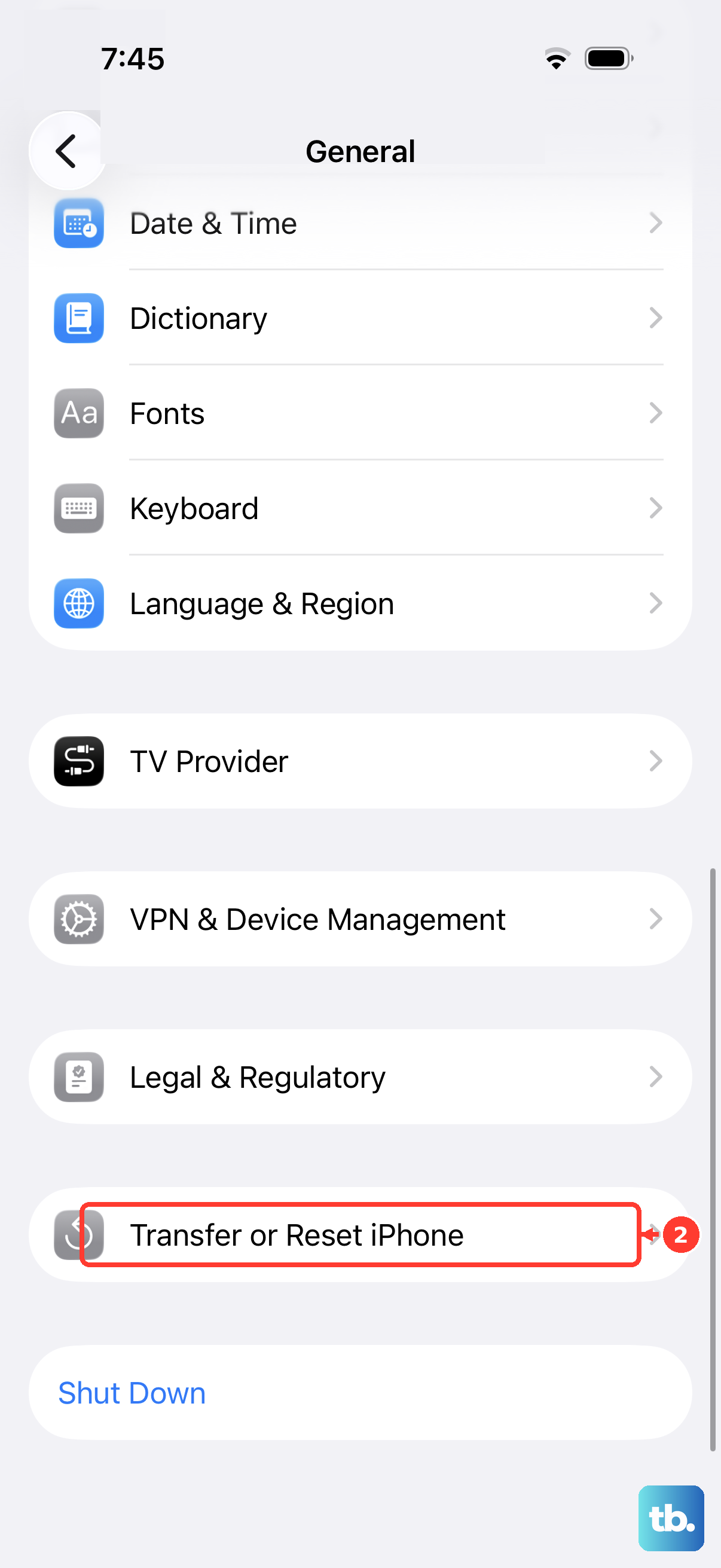
Go to Settings > General > Transfer or Reset iPhone. Tap "Reset," then choose "Reset All Settings." Enter your passcode and confirm. Your phone will restart. Afterward, you'll need to reconnect to Wi-Fi and re-adjust some preferences, but it can clear out corrupted settings causing the mic to fail.
Check for Audio Routing in Control Center
During a call, you can manually control where the audio goes. If you've tapped the wrong icon by accident, the mic might be disabled. While on a call, open Control Center by swiping down from the top-right corner.
Look in the top-right of the Control Center for an audio output icon (it looks like a triangle with circles). Tap it. Make sure "iPhone" is selected, not the name of a speaker or headphone. This ensures the call audio and microphone are using your phone's built-in hardware.