
When your iPhone 15's GPS stops locking on or shows you in the wrong place, it can throw a real wrench in your plans. This can happen for a bunch of reasons, from a simple app glitch to a setting that got changed. Let's walk through the most effective ways to get your location services back on track.
Start With These Quick Steps
I'd always begin with the simplest fixes. They take seconds and often solve the problem right away. First, try toggling Location Services off and back on in the Control Center. Just swipe down from the top-right corner and tap the location arrow icon.
If that doesn't do it, give your iPhone a quick restart. This clears out any temporary software bugs that might be confusing the GPS chip. For the iPhone 15, you press and release the Volume Up button, press and release the Volume Down button, then press and hold the Side button until you see the Apple logo.
Check Your Location Permissions and Settings
Sometimes, the issue isn't the GPS itself but an app's permission to use it. Head into Settings > Privacy & Security > Location Services. Make sure Location Services is turned on at the very top of this screen.
Scroll down and check the app you're having trouble with, like Maps or Google Maps. Tap on it and ensure the permission is set to "While Using the App" or "Always," depending on what you need. A common hiccup is when an app gets set to "Never" or "Ask Next Time" by accident.
Toggle Airplane Mode to Reset Connections
This is a classic trick that resets all your iPhone's radios, including the one for GPS. Swipe into the Control Center and tap the airplane icon to turn Airplane Mode on. Wait about 15 seconds, then tap it again to turn it off.
After you disable Airplane Mode, give your phone a moment to reconnect to cellular and Wi-Fi networks. These networks help with a faster initial location lock, a feature Apple calls "Precise Location."
Update Your Apps and iOS Software
An outdated version of Maps, Waze, or another navigation app can have bugs that break GPS functionality. Open the App Store, tap your profile icon, and see if any updates are pending for your mapping apps.
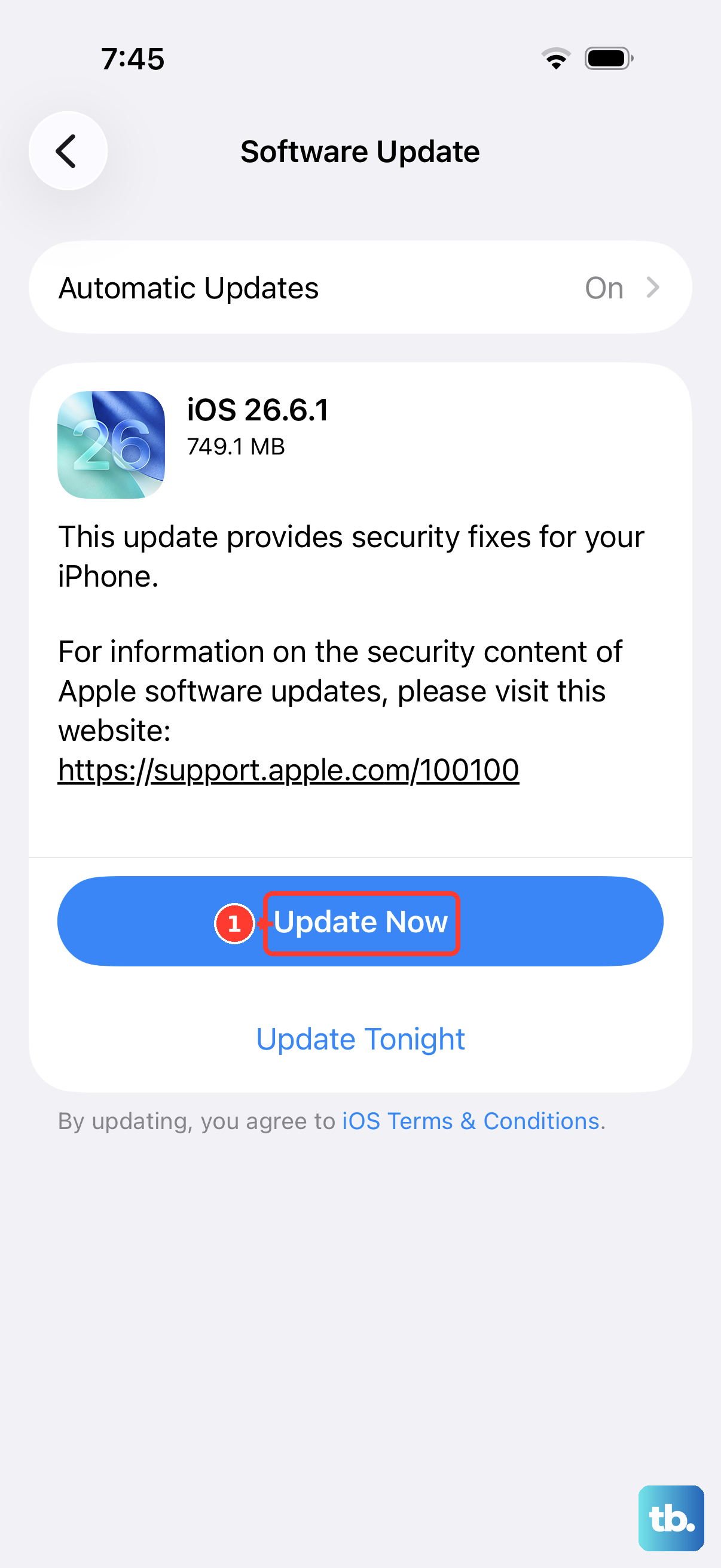
More importantly, check for a system update. Go to Settings > General > Software Update. Apple frequently releases iOS updates that include fixes for connectivity and hardware performance. Since you're on iOS 26, make sure you have the latest point release installed.
Reset Your Location & Privacy Settings
If things are still acting up, you can reset all your location preferences without erasing your personal data. This will revert all your app permissions back to their default state, so you'll need to re-grant access when you open apps later.
Go to Settings > General > Transfer or Reset iPhone. Tap on "Reset" and then choose "Reset Location & Privacy." You'll need to enter your passcode to confirm. This is a very effective way to clear out any corrupted settings data.
Check for Physical and Environmental Issues
The iPhone 15's GPS antenna can be blocked. If you're in a dense urban area with tall buildings, underground, or inside a structure with a metal roof, the signal will struggle. Try moving to an open window or stepping outside.
While Apple's cases are designed to not interfere, some very thick or metal-based third-party cases could potentially cause problems. It's worth removing your case for a moment to see if your GPS accuracy improves.
Test With a Different App
To figure out if the problem is with one specific app or the system itself, try using a different navigation tool. Open Apple Maps, Google Maps, and maybe a fitness app like Strava. If only one app has issues, the fix is with that app. If all apps fail, it's a system-wide problem.
You can also use the Compass app that comes pre-installed. If it can't find your location or calibrate properly, it points to a broader GPS issue.
Review Your Date & Time Settings
This might seem unrelated, but GPS relies on incredibly precise timing data. If your phone's date, time, or time zone are wrong, it can throw off the entire location calculation.
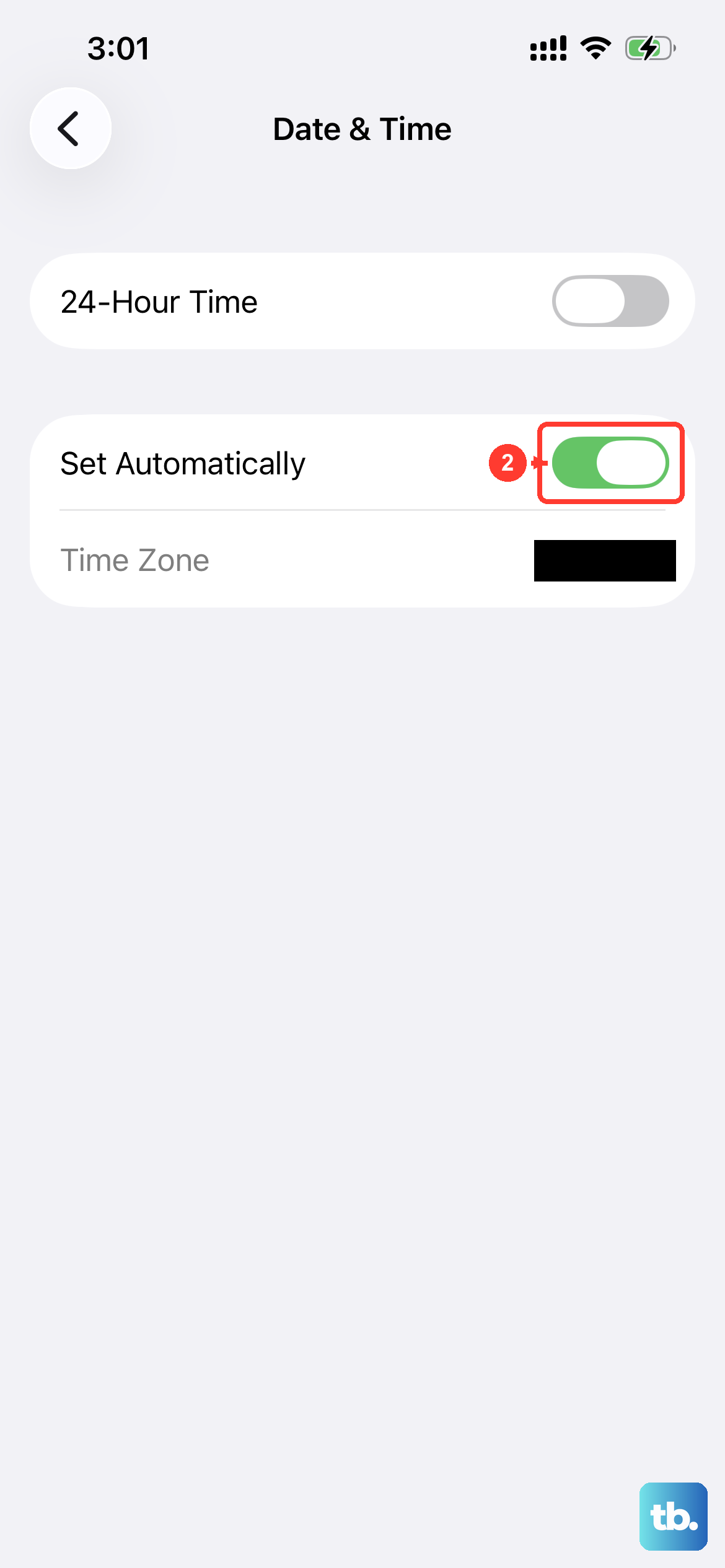
Go to Settings > General > Date & Time. Make sure "Set Automatically" is switched on. This allows your iPhone to set the time based on your network location, which keeps everything in sync for GPS to work correctly.
Check for Cellular Data Issues
While GPS itself works via satellite, your iPhone uses cellular and Wi-Fi data to download map information and assist with a quicker, more accurate initial lock (this is Assisted GPS, or A-GPS). If you have no cellular data connection, maps won't load, even if the GPS dot is working.
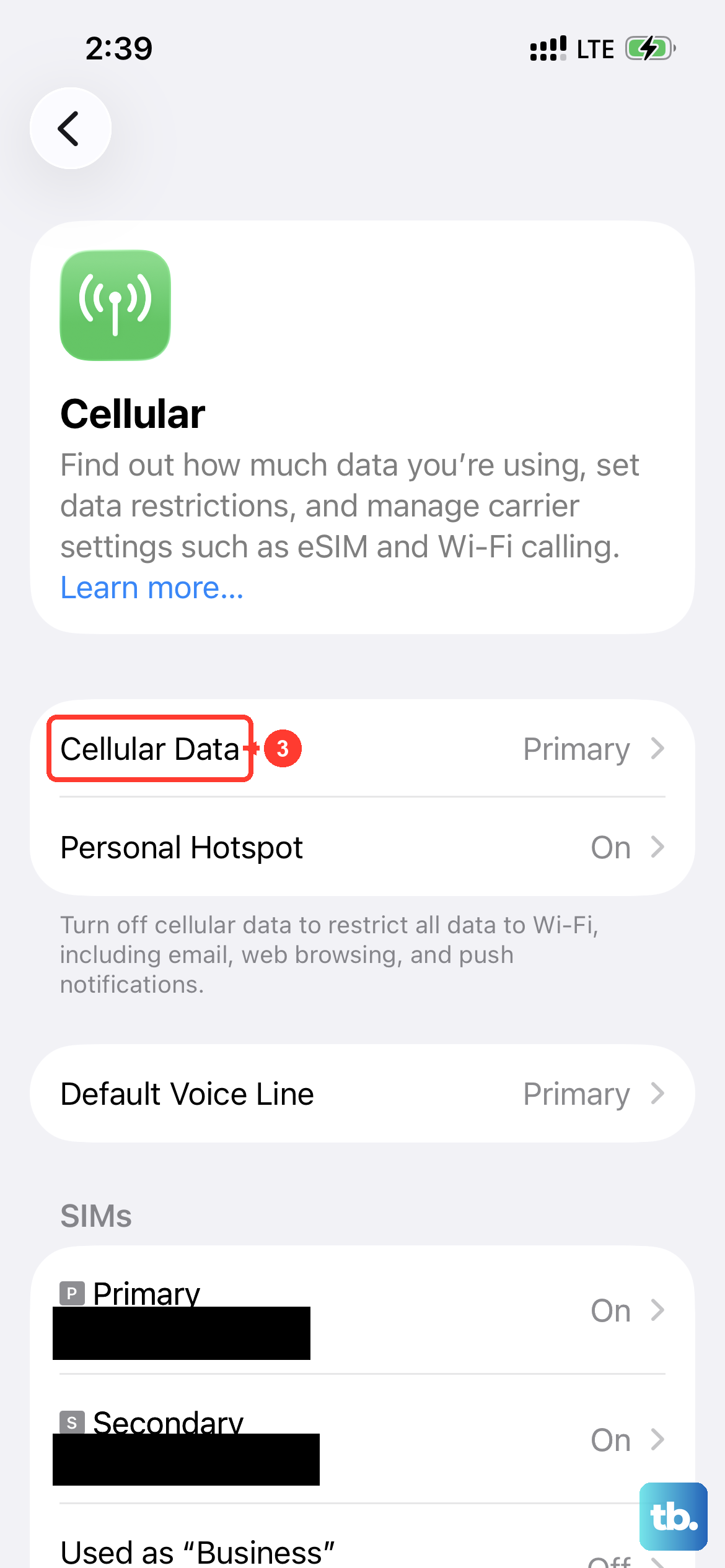
Try switching between Wi-Fi and cellular, or ensure you're in an area with a good signal. You can also try toggling Cellular Data off and on in Settings > Cellular.
Consider a Network Settings Reset
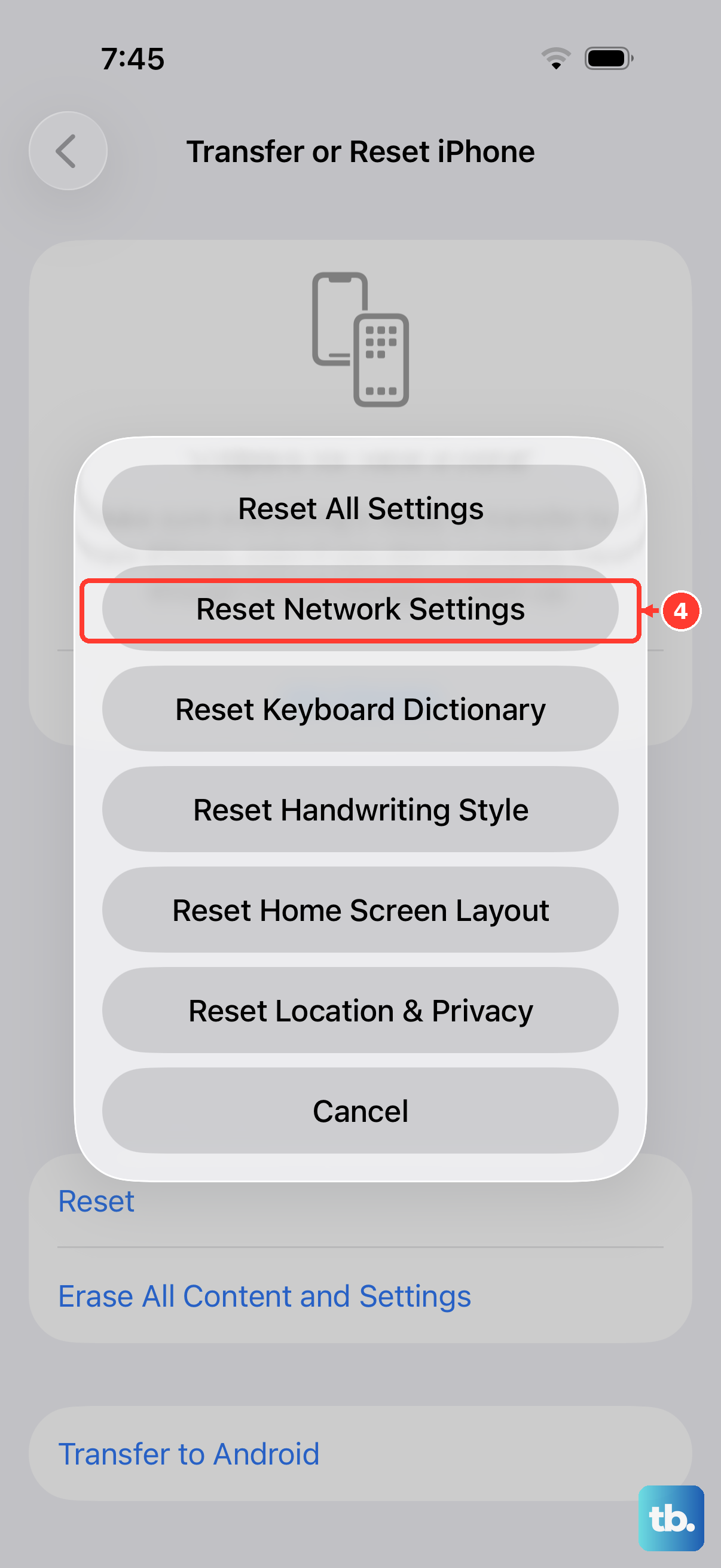
This is a stronger reset that clears all your network configurations, including Wi-Fi passwords, cellular settings, and VPN details. It won't delete your personal files or media.
Navigate to Settings > General > Transfer or Reset iPhone > Reset. This time, select "Reset Network Settings." Your iPhone will restart, and you'll have to re-join Wi-Fi networks and re-pair Bluetooth devices, but it can resolve deep-seated connectivity conflicts affecting location services.