
If your iPhone 14 is asking for a code when you put in a new SIM card, it's carrier-locked. Here's how to get it unlocked.
Contact Your Original Carrier First
This is almost always the best and cheapest way to unlock your iPhone 14. If you bought it from a carrier like AT&T, T-Mobile, or Verizon, they are obligated to provide the unlock code once you meet their requirements. I'd start here, as it's usually free.
You'll need your iPhone's IMEI number. Just open the Phone app and dial *#06#. The 15-digit number that pops up is your IMEI. Have this ready before you call.
Check Your Unlock Eligibility
Carriers have specific rules you must meet before they'll unlock your phone. For your iPhone 14, the most common requirements are that the device is fully paid off and not reported lost or stolen.
Your account must be in good standing with no past-due balances. If you were on a contract, the term needs to be completed. The phone also usually needs to have been active on the carrier's network for a minimum period, often 60 days.
Request the Unlock from Your Carrier
Call your carrier's customer service or use their online unlock portal. Be clear that you need a "SIM network unlock PIN" for your iPhone 14. They will ask for your IMEI and will verify your account ownership.
The process can take a few business days. AT&T and T-Mobile often have automated systems that can approve requests quickly if you're eligible. Verizon iPhones are typically unlocked automatically after 60 days, but you may still need to request it if that didn't happen.
Once approved, they'll send the unlock code to your email or account. Save this message. You won't need it until you put a different carrier's SIM card into the phone.
Use a Third-Party Unlocking Service
If your original carrier can't or won't provide the code, a reputable third-party service is your next option. This is common if you bought the phone second-hand and don't have the original account details.
Look for services with strong reviews and a money-back guarantee if the unlock fails. You'll provide them with your iPhone 14's IMEI number and the original carrier it's locked to. They then procure the code from their sources.
This is a paid service, and costs can vary. It's generally reliable for iPhones, but always do your research on the specific company first. Never use a service that asks you to download suspicious software to your computer or phone.
Entering the Unlock Code on Your iPhone 14
The process itself is straightforward once you have the code. First, power down your iPhone 14 completely. Remove the current SIM card tray using the ejector tool.
Insert a SIM card from a different carrier. This is key, the phone won't prompt for the unlock code if it sees a SIM from the carrier it's already locked to. Turn the phone back on.
After it boots, you should see a screen that says "SIM Locked" or prompts you to enter the "SIM PIN." Carefully type in the unlock code you received. You typically only get a few attempts, so be precise.
If You Get a "SIM Locked" or "Invalid SIM" Error
Sometimes, the iPhone 14 won't prompt for a code and will just show an error. If this happens, try a forced restart first. Quickly press and release the Volume Up button, then the Volume Down button, then press and hold the Side button until you see the Apple logo.
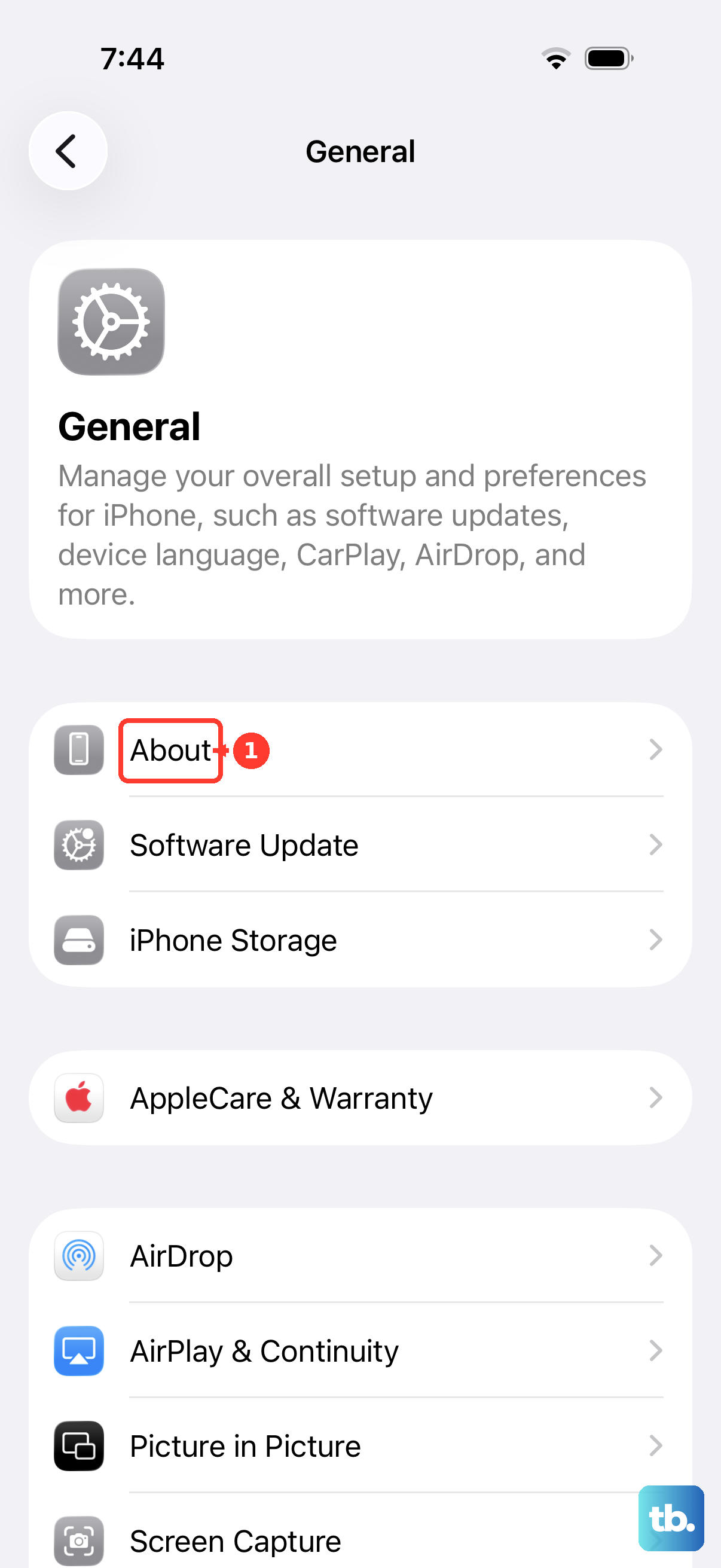
After it restarts with the new SIM inside, the prompt might appear. If it doesn't, the unlock might have already been processed carrier-side. Try going to Settings > General > About and scroll down. If you see "No SIM restrictions" under Carrier Lock, you're already unlocked.
What to Do If the Code Doesn't Work
Double-check that you're entering the code correctly and that you're using a SIM from a truly different network. If it still fails, don't keep guessing. Too many incorrect attempts can cause problems.
Contact the provider who gave you the code, either your carrier or the third-party service. Give them the exact error message. They may need to issue a new code or confirm the IMEI they used was correct.
After a Successful Unlock
Once the code is accepted, your iPhone 14 will restart. It's now permanently unlocked for use with any compatible carrier worldwide. This is great for international travel, as you can pop in a local prepaid SIM.
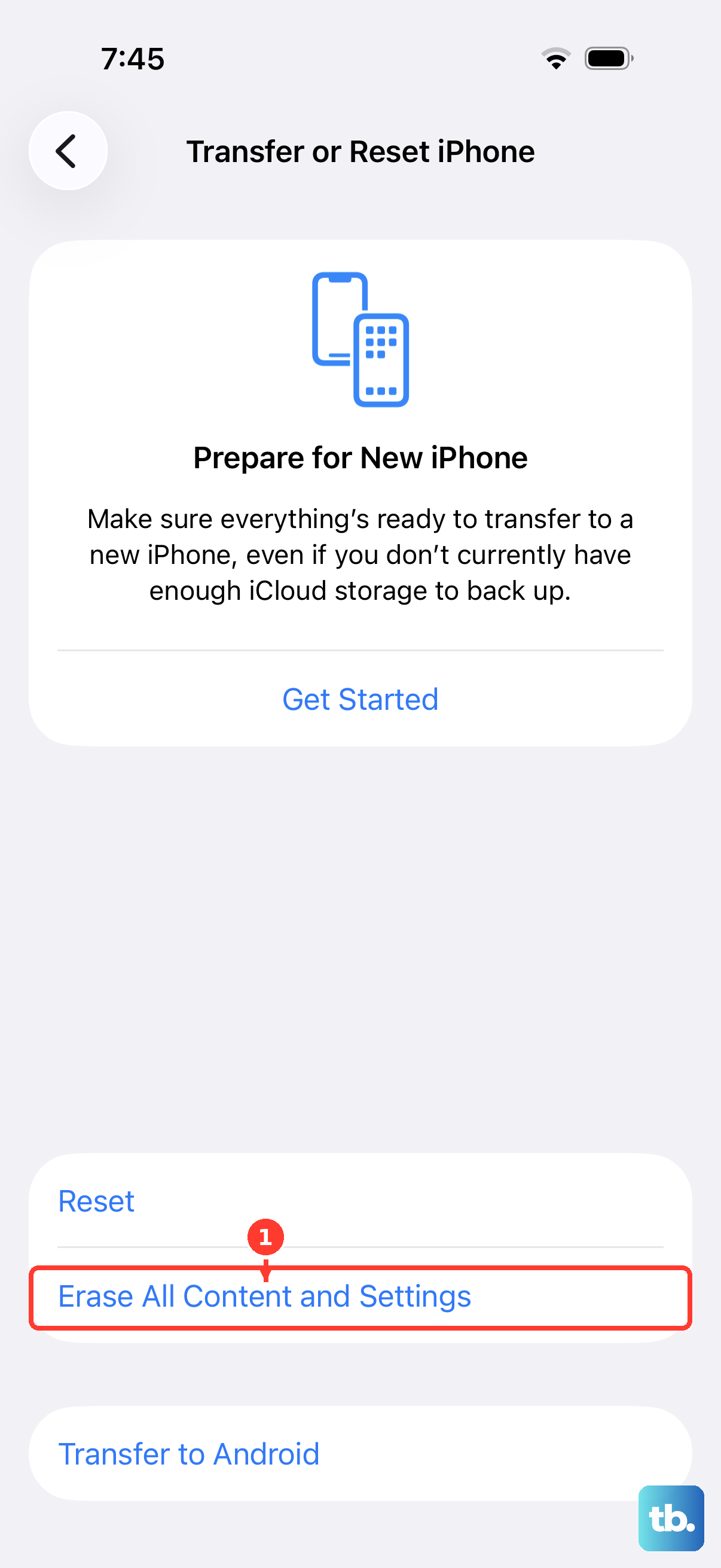
The unlock survives factory resets and iOS updates. To confirm it worked, you can always check the Carrier Lock status in the Settings > General > About menu. It should permanently say "No SIM restrictions."











