
Seeing "No Service" or "Searching..." in the corner of your iPhone SE 4 is a real headache. It cuts you off from calls, texts, and mobile data when you need them most. The good news is this is almost always a temporary glitch you can fix yourself.
I'd start with the simplest fix first, as it works more often than you'd think.
Restart Your iPhone SE 4
A quick restart clears out minor software bugs that can confuse the cellular modem. It's the equivalent of giving your phone a fresh start. Just hold the Side button and either volume button, then slide to power off.
Wait about 30 seconds, then press the Side button again to turn it back on. Give it a minute to reconnect to the network once it boots up.
Check for a Carrier Settings Update
Your carrier occasionally sends small updates that fine-tune network connectivity. These are separate from iOS updates and are crucial for maintaining a good signal.
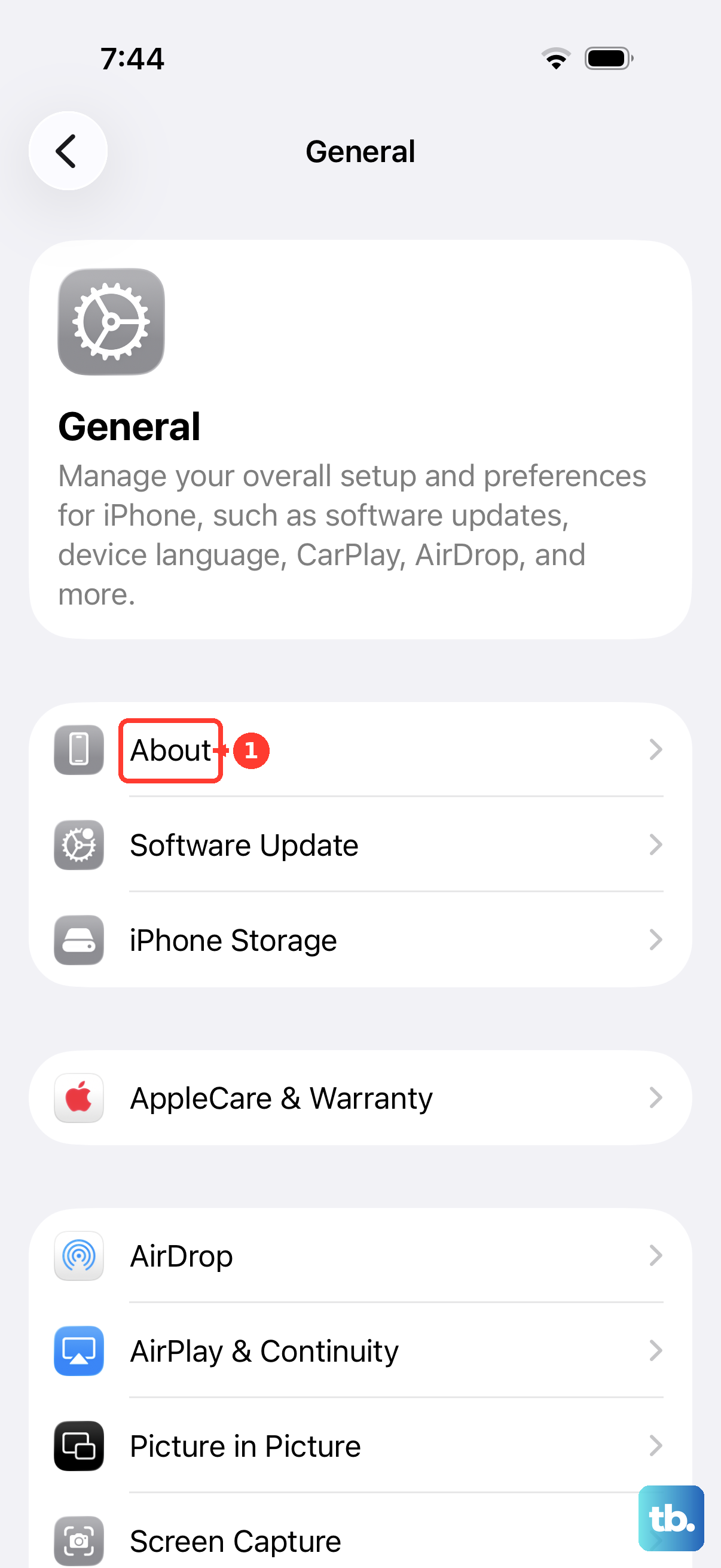
To check, go to Settings > General > About. If an update is available, a prompt will appear right on this screen. Tap "Update" if you see it. This takes just a few seconds and doesn't require a restart.
Toggle Airplane Mode
This forces your iPhone SE 4 to disconnect from and then reconnect to all wireless networks, including cellular. Swipe down from the top-right corner to open Control Center and tap the airplane icon to turn it on.
Wait about 15 seconds, then tap it again to turn Airplane Mode off. Watch the status bar to see if the signal bars or "5G"/"LTE" indicator returns.
Re-insert Your SIM Card
A loose or dirty SIM card is a classic culprit for signal problems. You'll need the SIM ejector tool that came in the box (a small paperclip works too). Find the SIM tray on the left side of your iPhone SE 4.
Gently push the tool into the small hole to pop the tray out. Remove the SIM card, give the gold contacts a quick wipe with a soft, dry cloth, and carefully re-seat it in the tray. Push the tray back in until it clicks. Your phone will reboot as it re-detects the SIM.
Update iOS to the Latest Version
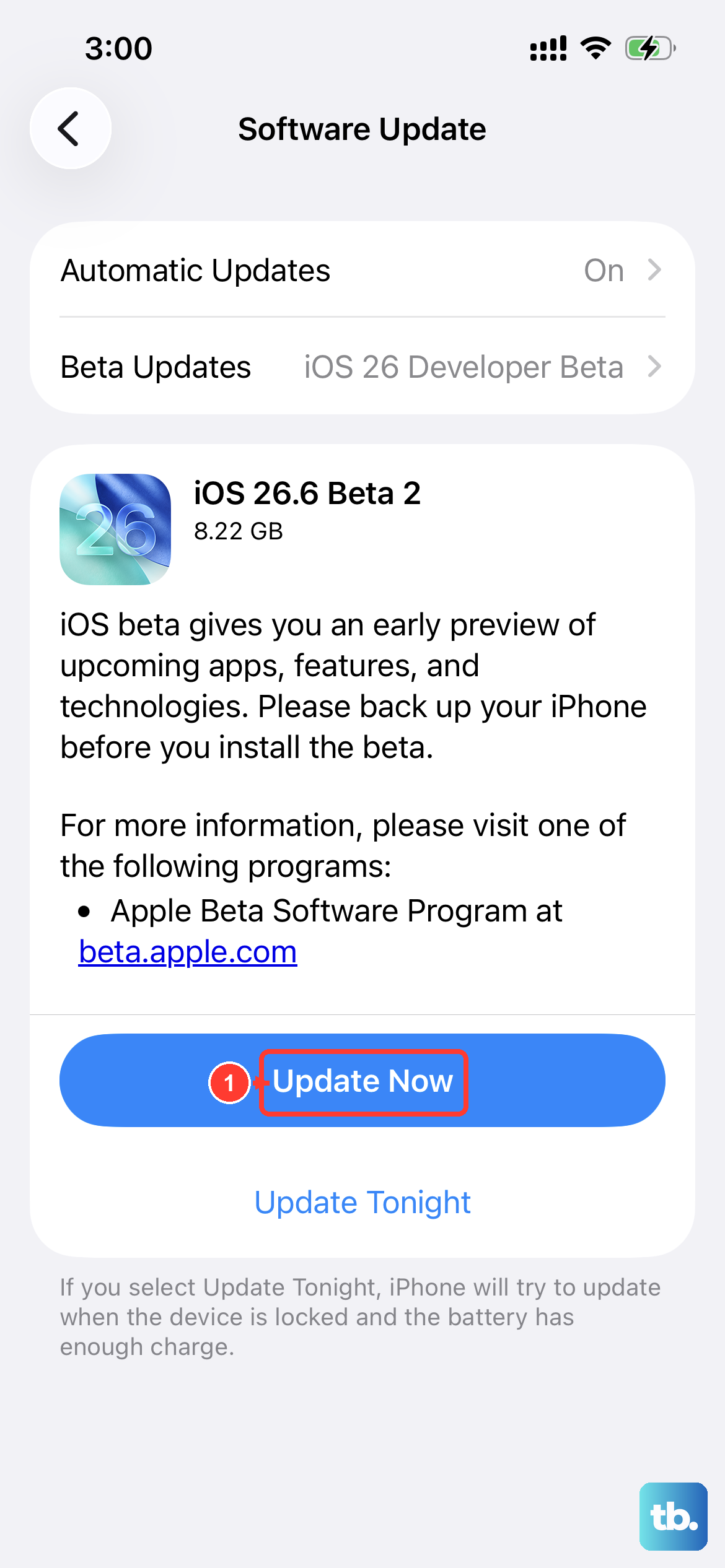
Apple regularly releases iOS updates that include fixes for connectivity issues. Since your iPhone SE 4 runs iOS 18, make sure you're on the latest version available.
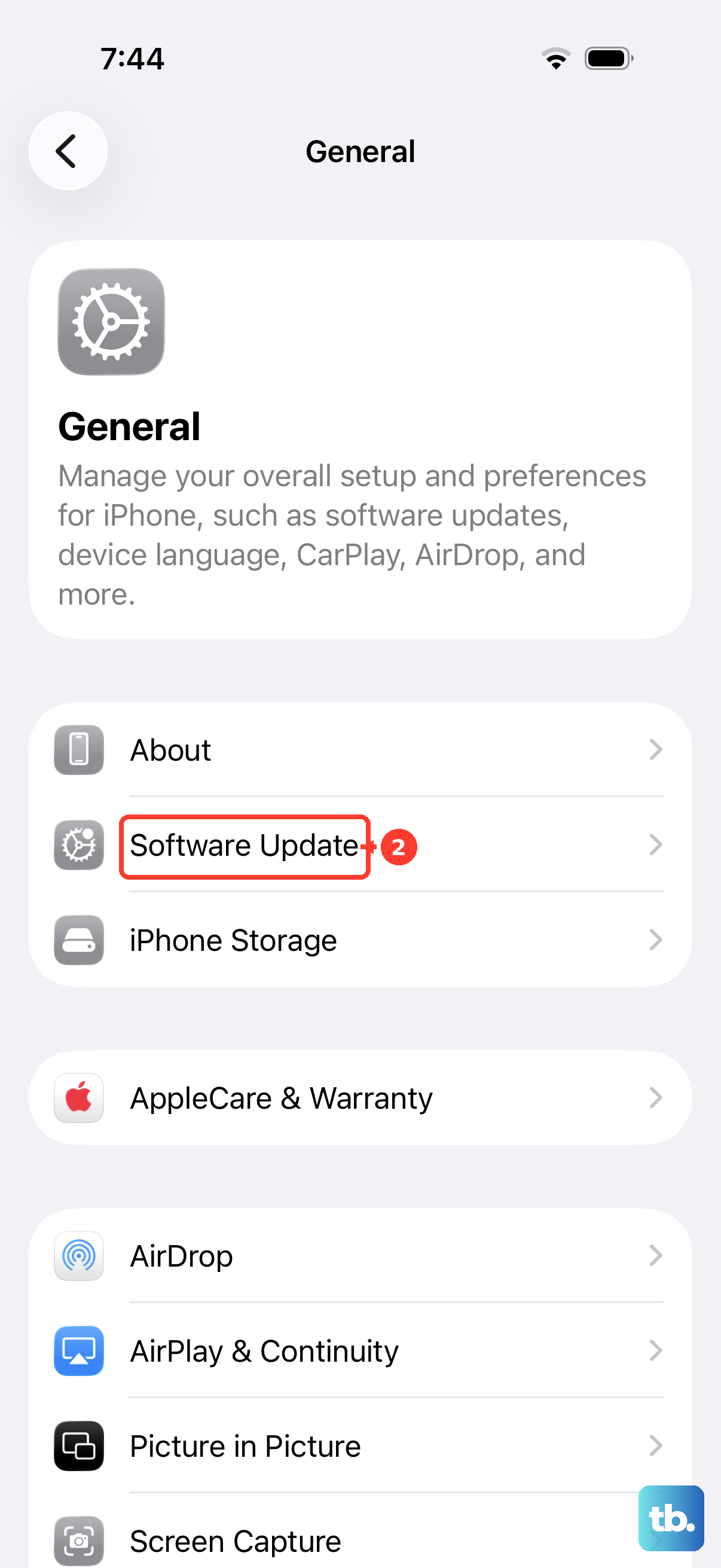
Head to Settings > General > Software Update. If an update is listed, tap "Download and Install." It's best to do this over Wi-Fi and while your phone is charging, as it can take some time.
Reset Your Network Settings
This is a more thorough step that clears all saved network configurations. It will erase your known Wi-Fi networks and passwords, Bluetooth pairings, and any custom VPN or APN settings, so you'll need to re-enter those later.
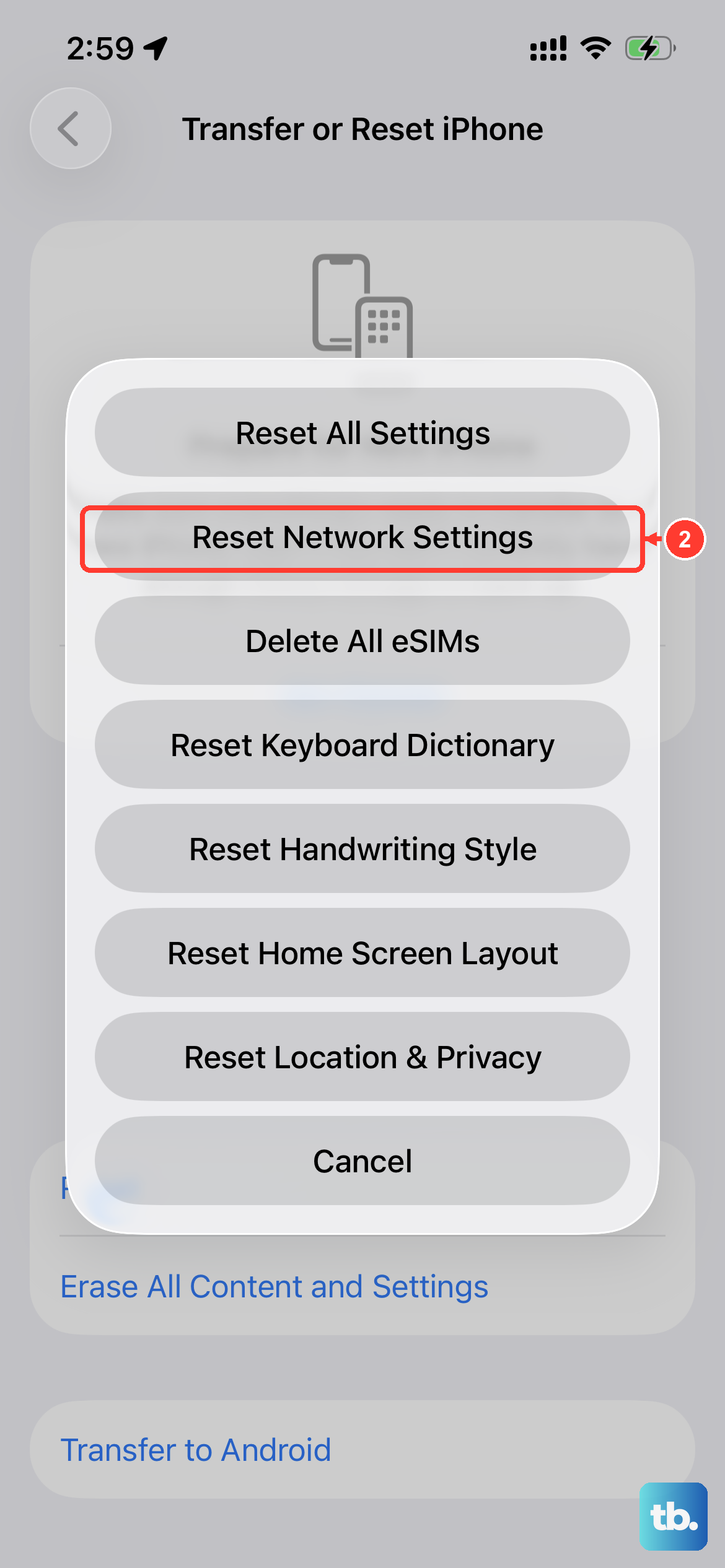
To do it, open Settings > General > Transfer or Reset iPhone. Tap "Reset" at the bottom, then choose "Reset Network Settings." Enter your passcode when prompted and confirm. Your phone will restart automatically.
Manually Select Your Network Carrier
Sometimes your iPhone might be trying to latch onto a weak or incorrect network. You can force it to choose your proper carrier. Go to Settings > Cellular.
Tap "Network Selection" and turn off "Automatic." After a moment, a list of available networks will appear. Select your carrier's name from the list. If you're unsure which one is yours, turn "Automatic" back on.
Check for a Service Outage
Before digging deeper into your phone, it's worth checking if the problem is on your carrier's end. Service outages can happen due to maintenance, weather, or technical problems.
You can visit your carrier's website or support Twitter account, or use a site like Downdetector to see if other people in your area are reporting issues. If there's a widespread outage, you'll just have to wait it out.
Perform a Force Restart
This is different from a normal restart and can clear more stubborn software hiccups. On the iPhone SE 4, you press and quickly release the Volume Up button, then press and quickly release the Volume Down button.
Immediately after that, press and hold the Side button. Keep holding it until you see the Apple logo appear, then let go. This won't delete any of your data or settings.
Contact Your Carrier
If you've tried everything here and still have no service, the issue might be with your account or SIM card. It's time to call your carrier's support line.
They can check if your line is active, run diagnostics, and see if there are any network issues specific to your account. They might also suggest replacing your SIM card with a new one, which often resolves persistent signal problems.











