
If your iPhone 13 is restarting on its own, it's usually a software hiccup that you can fix yourself. I'd start with a force restart, as it clears out temporary glitches without touching your data. It's the quickest thing to try.
Before you do anything more involved, it's a good idea to make sure you have a recent backup. You can do this through iCloud or by connecting to your computer. This way, your photos and messages are safe no matter what.
Perform a Force Restart
For the iPhone 13, the force restart sequence is specific. Press and quickly release the volume up button, then do the same with the volume down button. Finally, press and hold the side button until you see the Apple logo appear on the screen, then let go.
This process doesn't delete anything. It just forces the phone to shut down and reboot from scratch, which can clear up the minor software errors that often cause random restarts.
Update iOS and Your Apps
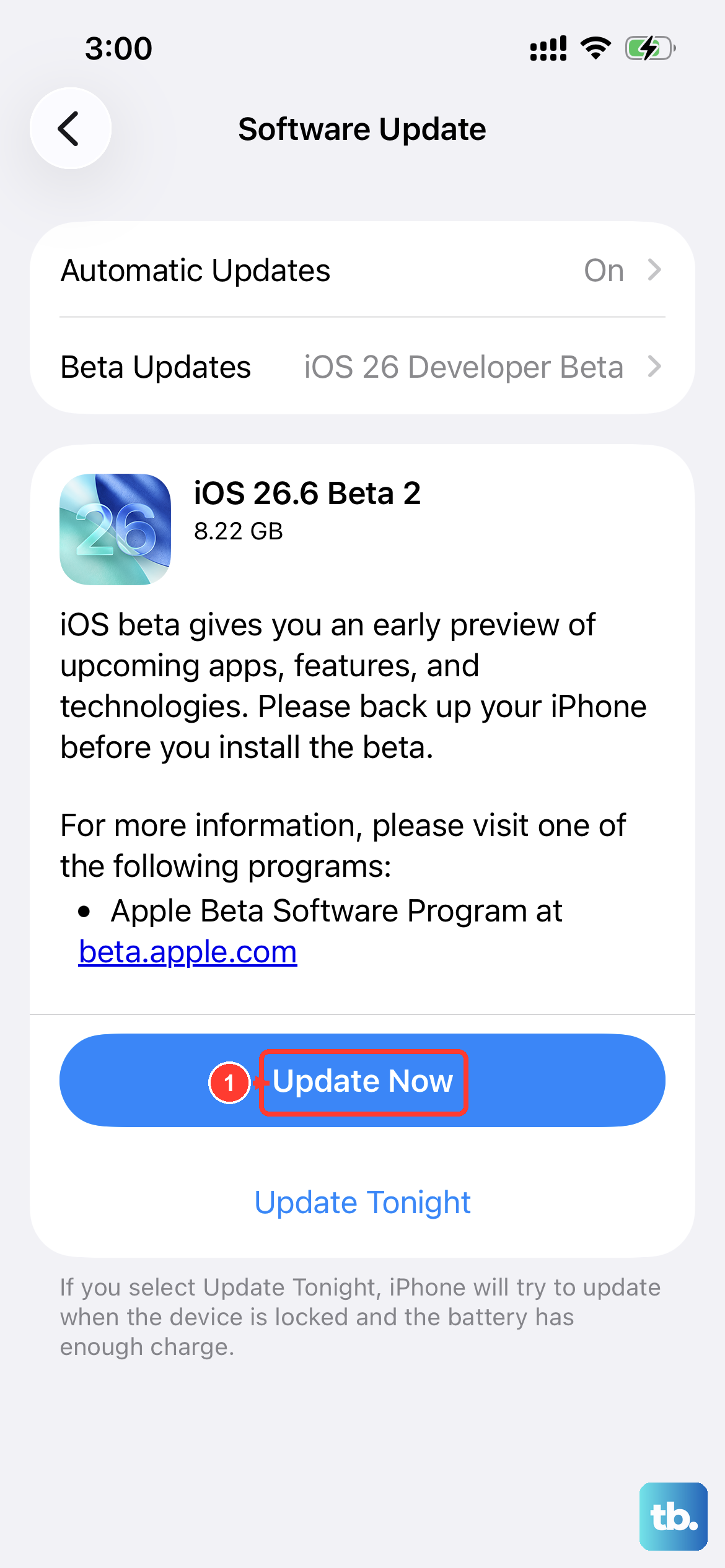
Running outdated software is a common trigger for instability. Head to Settings > General > Software Update to check for the latest version of iOS. If you're not on iOS 18 yet, that update could resolve the issue.
Next, update your apps. Open the App Store, tap your profile icon in the top corner, and scroll down to see pending updates. Outdated apps, especially ones that run in the background, can sometimes conflict with the system.
Check for a Problematic App
A single misbehaving app can be the culprit. Think about if the restarts started after you installed something new. You can try closing all your open apps first by swiping up from the bottom of the home screen and swiping away each app preview.
If that doesn't help, you can check your analytics logs. Go to Settings > Privacy & Security > Analytics & Improvements > Analytics Data. Look for log entries named after recently crashed apps. If you see one app name repeatedly, try deleting it to see if the restarts stop.
Review Your Battery Health
Since the iPhone 13 is a few years old now, battery wear could be a factor. A significantly degraded battery can sometimes cause unexpected shutdowns that look like restarts. Go to Settings > Battery > Battery Health & Charging.
Look at the "Maximum Capacity" percentage. If it's below 80%, the battery has worn out and may not deliver power consistently. This is a known point where Apple recommends a replacement, which could solve your problem.
Free Up Storage Space on Your iPhone
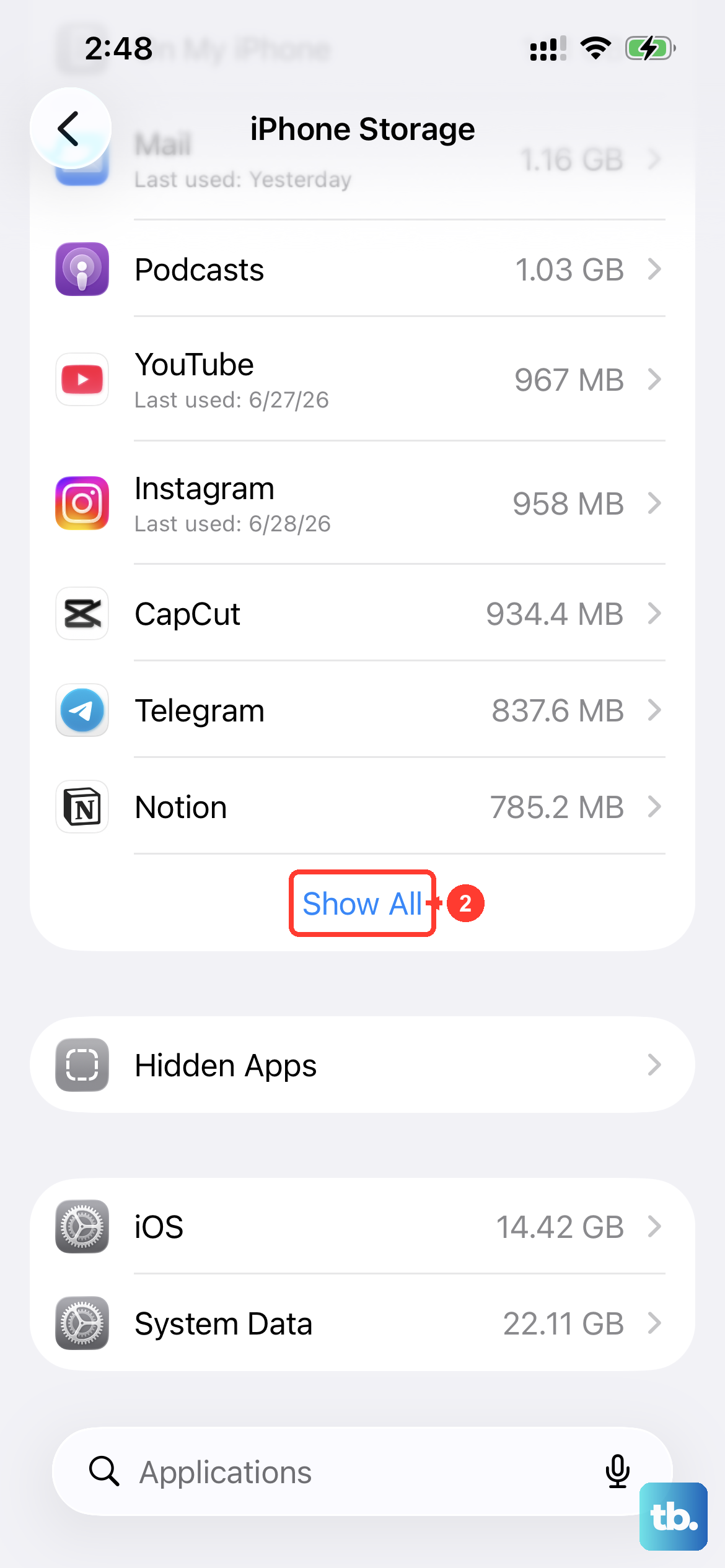
When your phone's storage is completely full, the operating system doesn't have room to work properly, which can lead to crashes. Check your available space by going to Settings > General > iPhone Storage.
The system will show you recommendations and a breakdown of what's using space. Offloading unused apps (which removes the app but keeps its documents and data) is a quick way to free up gigs without losing anything important.
Reset All Settings
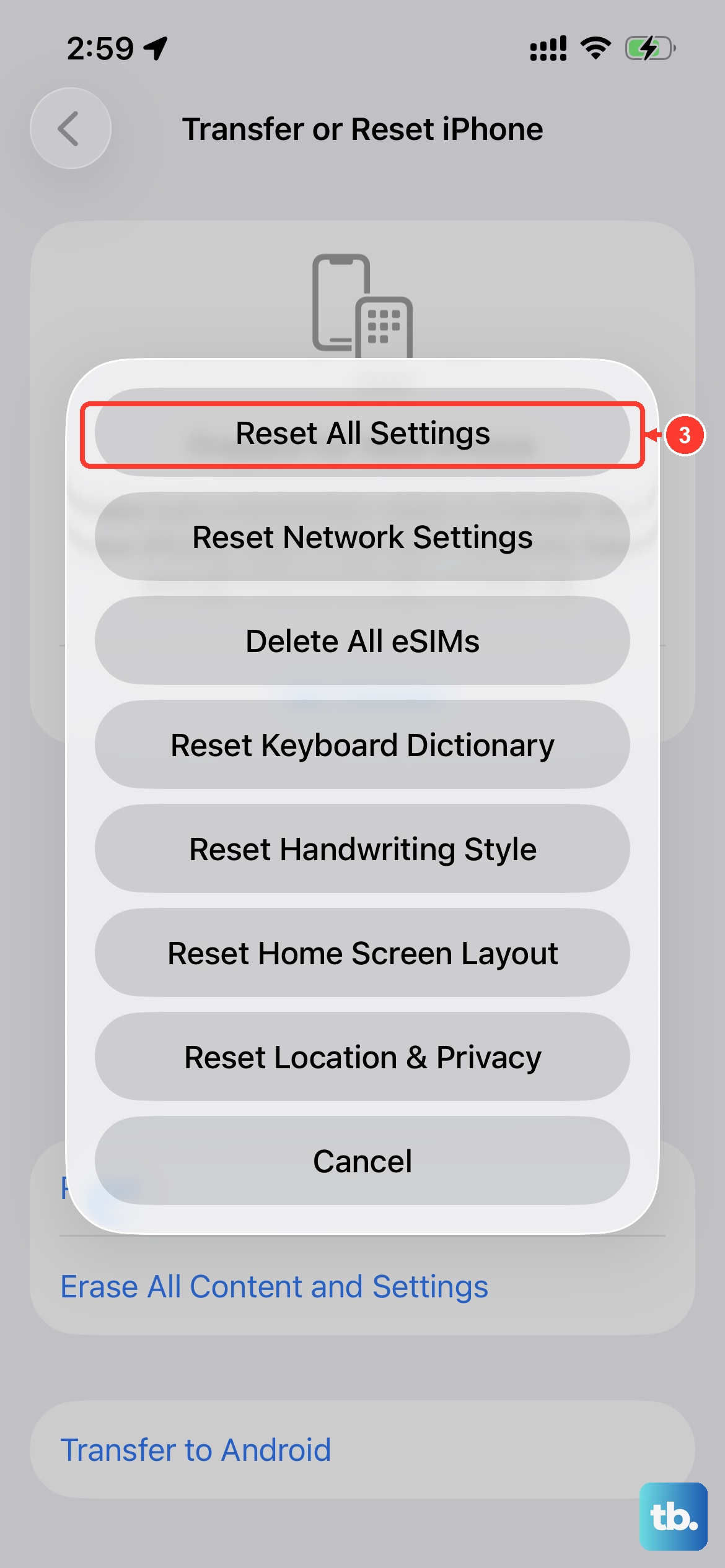
This is a more thorough step that resets all your preferences, like Wi-Fi passwords, wallpaper, and display settings, back to factory defaults without erasing your personal data. It can fix deeper configuration conflicts.
To do it, navigate to Settings > General > Transfer or Reset iPhone > Reset, and then choose "Reset All Settings." You'll need to enter your passcode to confirm.
Check Your Charging Cable and Port
Using a damaged or uncertified Lightning cable can cause power delivery issues. The iPhone 13's Lightning port can also collect lint over time, preventing a solid connection. I'd recommend using only an original Apple cable or one that is MFi-certified.
Shine a light into the Lightning port on the bottom of your phone. If you see packed lint, carefully use a dry, soft-bristled brush or a plastic toothpick to gently clean it out. A poor connection here can interrupt power and cause the phone to act erratically.
Restore via Recovery Mode
If the phone is stuck in a restart loop and nothing else works, restoring iOS via Recovery Mode is the next step. You'll need a computer with Finder (on Mac) or iTunes (on Windows). First, connect your iPhone to the computer with a cable.
Quickly press and release the volume up button, then the volume down button. Immediately press and hold the side button. Keep holding it even after the Apple logo appears, until you see the Recovery Mode screen (a cable pointing to a computer icon).
On your computer, you'll get an option to Update or Restore. Choose "Restore" to download and install a fresh copy of iOS. This will erase all data on the phone, so it's only for when other fixes fail.
Perform a Factory Reset
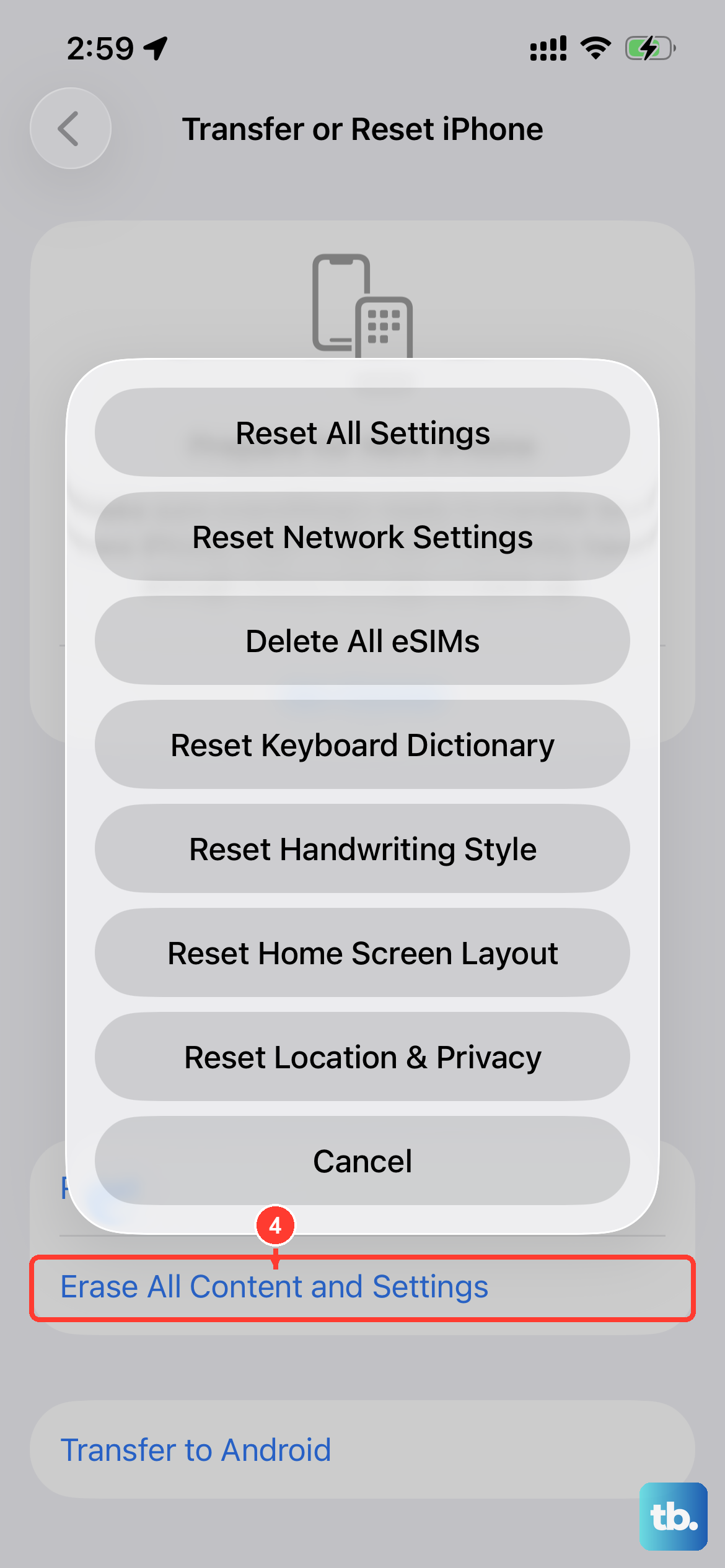
This is your last software resort. A factory reset erases everything on your iPhone 13 and installs a clean version of iOS. You should only do this if you have a backup you can restore from afterward.
Go to Settings > General > Transfer or Reset iPhone and tap "Erase All Content and Settings." After entering your passcode and Apple ID password, the phone will wipe itself and restart. You can then set it up as new or restore from your backup.