
When your iPhone 13 apps keep closing unexpectedly, it pulls you right out of whatever you were doing. It's a common hiccup that can happen for a few different reasons, but the fixes are usually pretty straightforward. I'd start with a simple restart, as that clears out temporary glitches that can cause apps to quit.
To force restart your iPhone 13, quickly press and release the Volume Up button, then quickly press and release the Volume Down button. Finally, press and hold the Side button until you see the Apple logo appear on the screen. This is different from a normal restart and can resolve deeper software freezes.
Update Your Apps and iOS
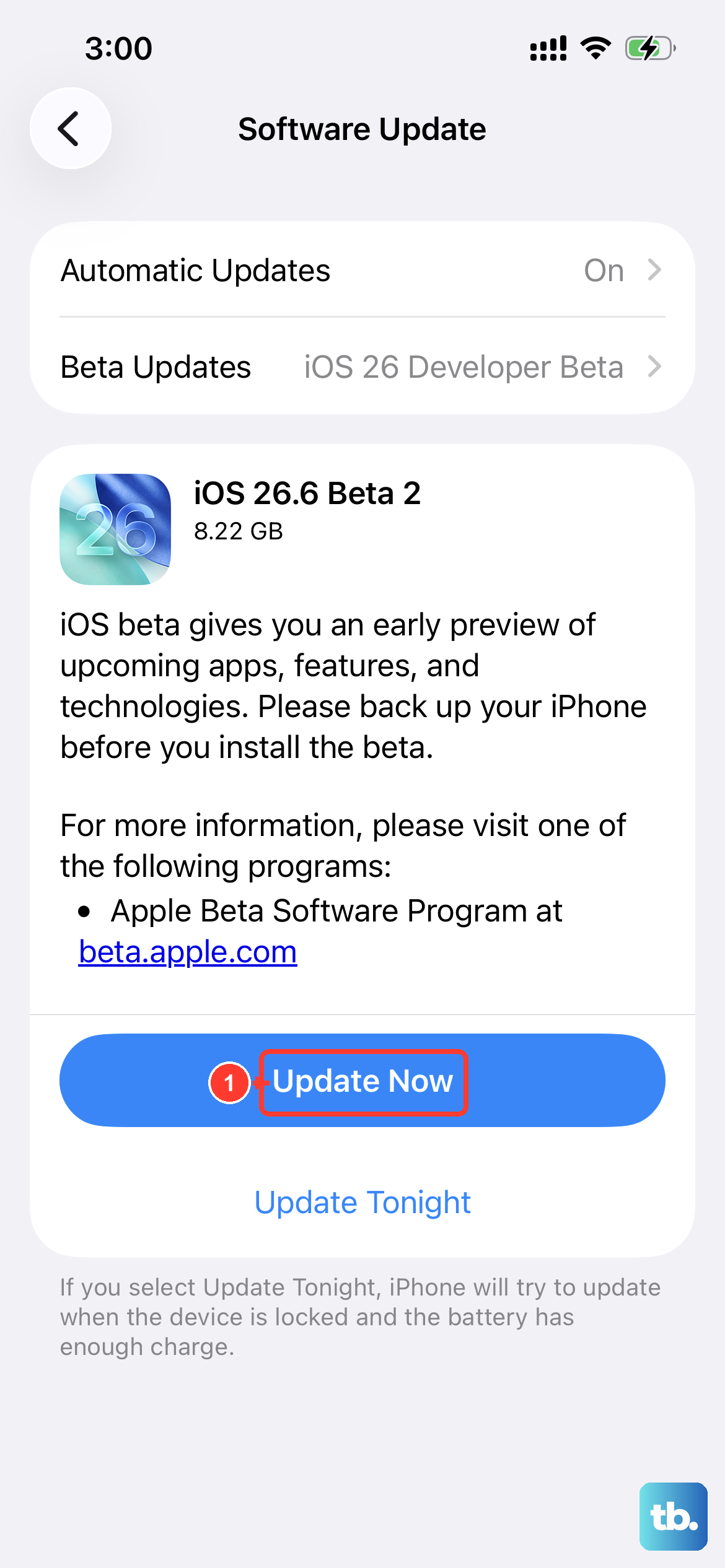
Running outdated software is one of the biggest reasons apps crash. Developers constantly release updates to patch bugs and ensure compatibility with the latest iOS. Head to the App Store and tap your profile icon in the top right corner to see all pending updates.
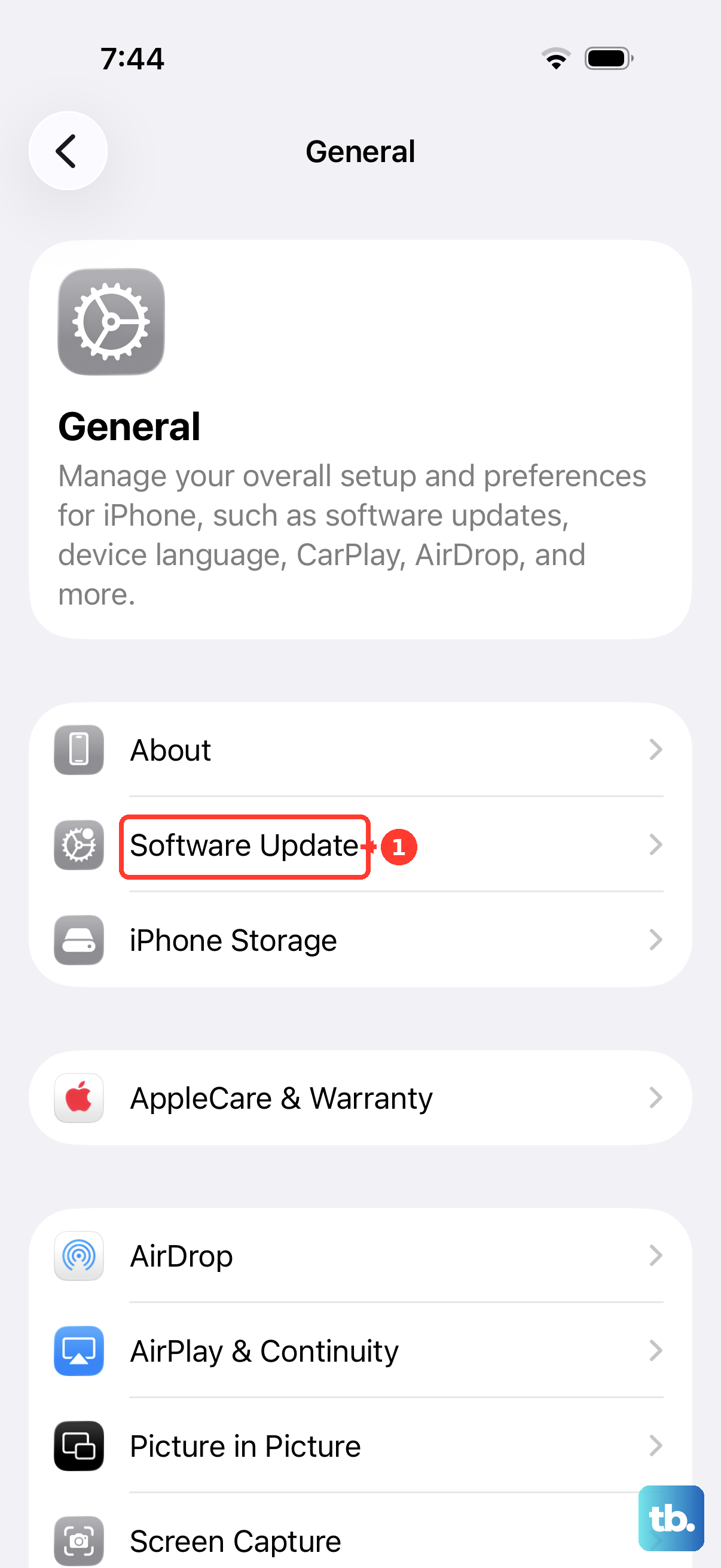
It's just as important to keep iOS itself updated. Go to Settings > General > Software Update. If you're still on an older version of iOS, updating to iOS 18 (or the latest available) can resolve a lot of underlying stability issues that affect apps.
Check Your iPhone's Available Storage
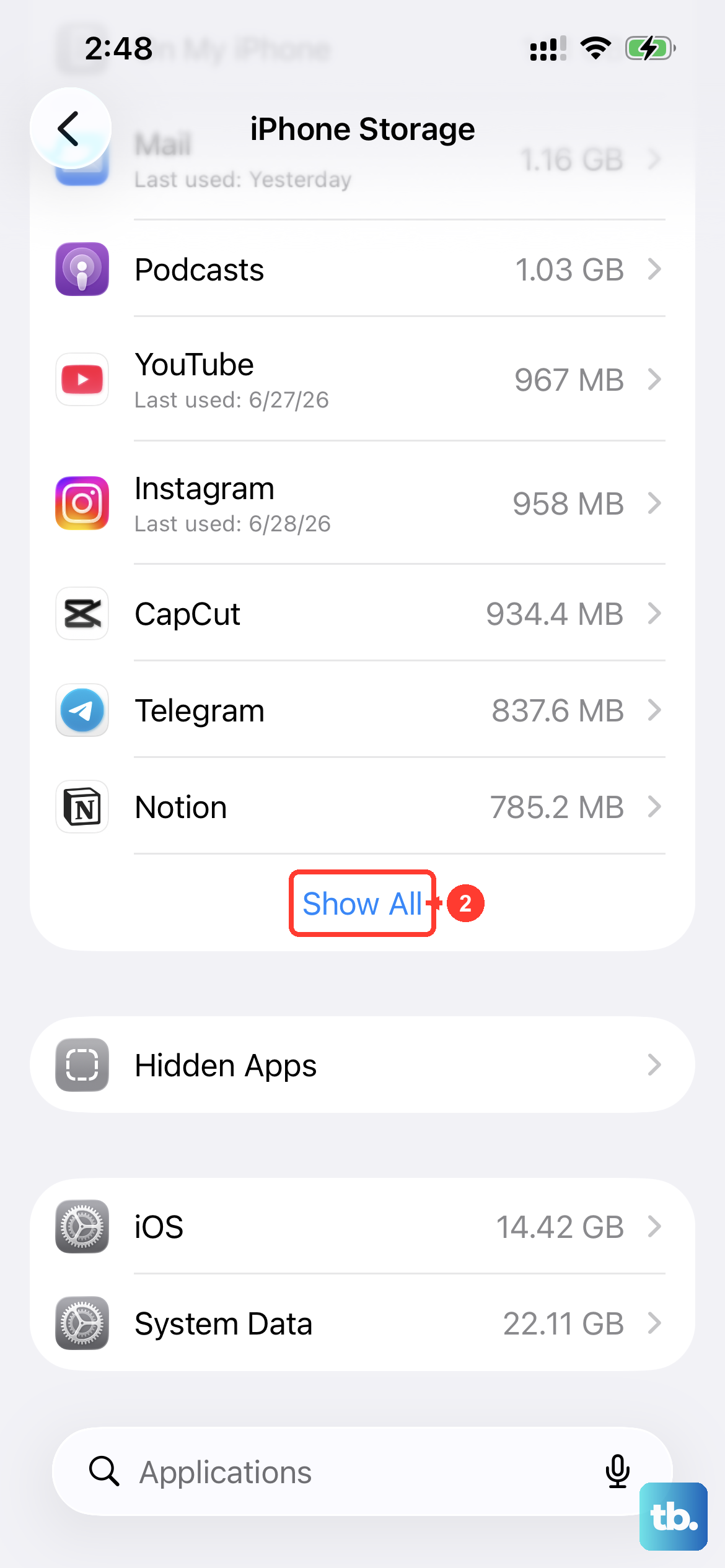
When your iPhone 13 runs low on storage, apps don't have the space they need to operate properly, which can lead to them closing. You can check this by going to Settings > General > iPhone Storage.
The system will show you a breakdown of what's using space. If you're critically low, focus on offloading large videos, deleting unused apps, or clearing old message threads. Keeping at least a few gigabytes free helps everything run smoother.
Close and Reopen Problem Apps
If a specific app is misbehaving, force closing it can give it a fresh start. Swipe up from the bottom of the screen and pause in the middle to enter the app switcher. Find the app's preview and swipe it up and off the top of the screen to close it completely.
Then, tap the app icon on your Home Screen to relaunch it. This severs its current connection to the system's memory and often clears up whatever temporary snag was causing the crashes.
Offload and Reinstall the App
For a more thorough fix than just force closing, you can offload the app. This removes the app itself but keeps its documents and data on your phone. Go to Settings > General > iPhone Storage, tap the problematic app, and select "Offload App."
After it's offloaded, you can reinstall it from the App Store by tapping its cloud icon. Your data will still be there. If the problem persists, you might need to delete the app entirely, which removes its data too, and then do a fresh install.
Review Your Battery Health
As the iPhone 13 ages, its battery capacity naturally decreases. If the battery health is significantly degraded, the phone may not be able to deliver consistent power during peak performance demands, which can cause apps to quit.
You can check this in Settings > Battery > Battery Health & Charging. If the "Maximum Capacity" is below 80%, the battery is considered worn and may be contributing to performance issues, including app instability.
Reset All Settings
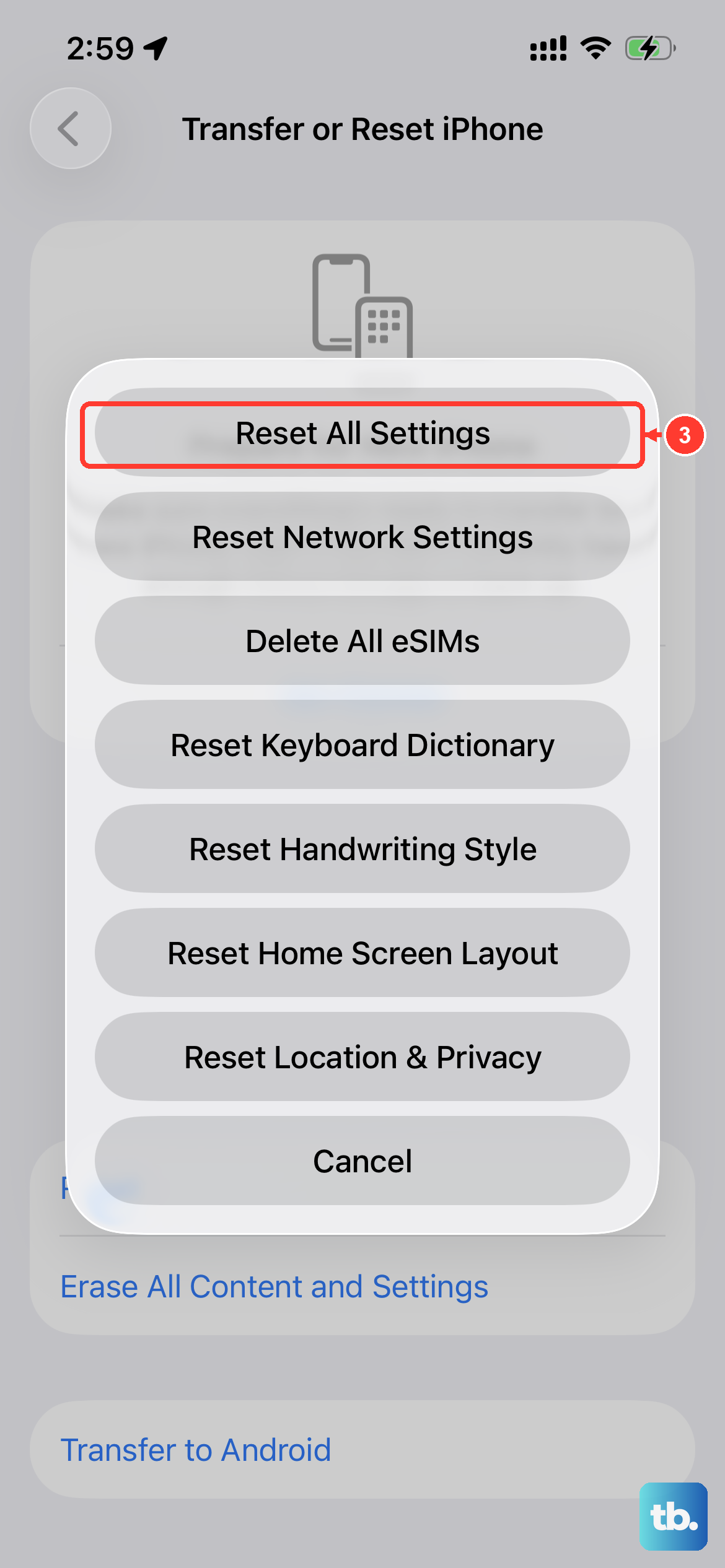
This is a more involved step, but it won't delete your personal data like photos or messages. It resets all your system settings, like Wi-Fi passwords, wallpaper, and privacy permissions, back to their defaults, which can fix misconfigured options causing conflicts.
To do this, go to Settings > General > Transfer or Reset iPhone and tap "Reset." Then, choose "Reset All Settings." You'll need to re-enter Wi-Fi passwords and reconfigure some preferences, but it often resolves persistent software glitches.