
If your iPad Pro M5 is stuttering, freezing, or dropping frames during video playback, you're not stuck with a sluggish tablet. The M5 chip is ridiculously fast, so lag usually points to a software hiccup, a clogged storage, or a network issue. Most of these fixes take under a minute, and you won't lose any data.
Start with the quickest fix: a force restart. On the iPad Pro M5 (both 11-inch and 13-inch models), press and quickly release the Volume Up button, then press and quickly release the Volume Down button, then press and hold the Top button until you see the Apple logo. This clears out temporary system glitches without touching your files. Try playing a video right after the restart, it often solves the problem immediately.
Check your available storage
When your iPad's storage gets full, video playback apps struggle to buffer and write data quickly enough. The M5's powerful GPU can't compensate if the drive is choked. Go to Settings > General > iPad Storage. If you're down to less than 1GB of free space, that's your culprit. Delete unused apps, offload large video files to cloud storage, or clear out your Recently Deleted album in Photos. Even freeing up 2 3GB can make a noticeable difference.
Update iPadOS 18 and your video apps
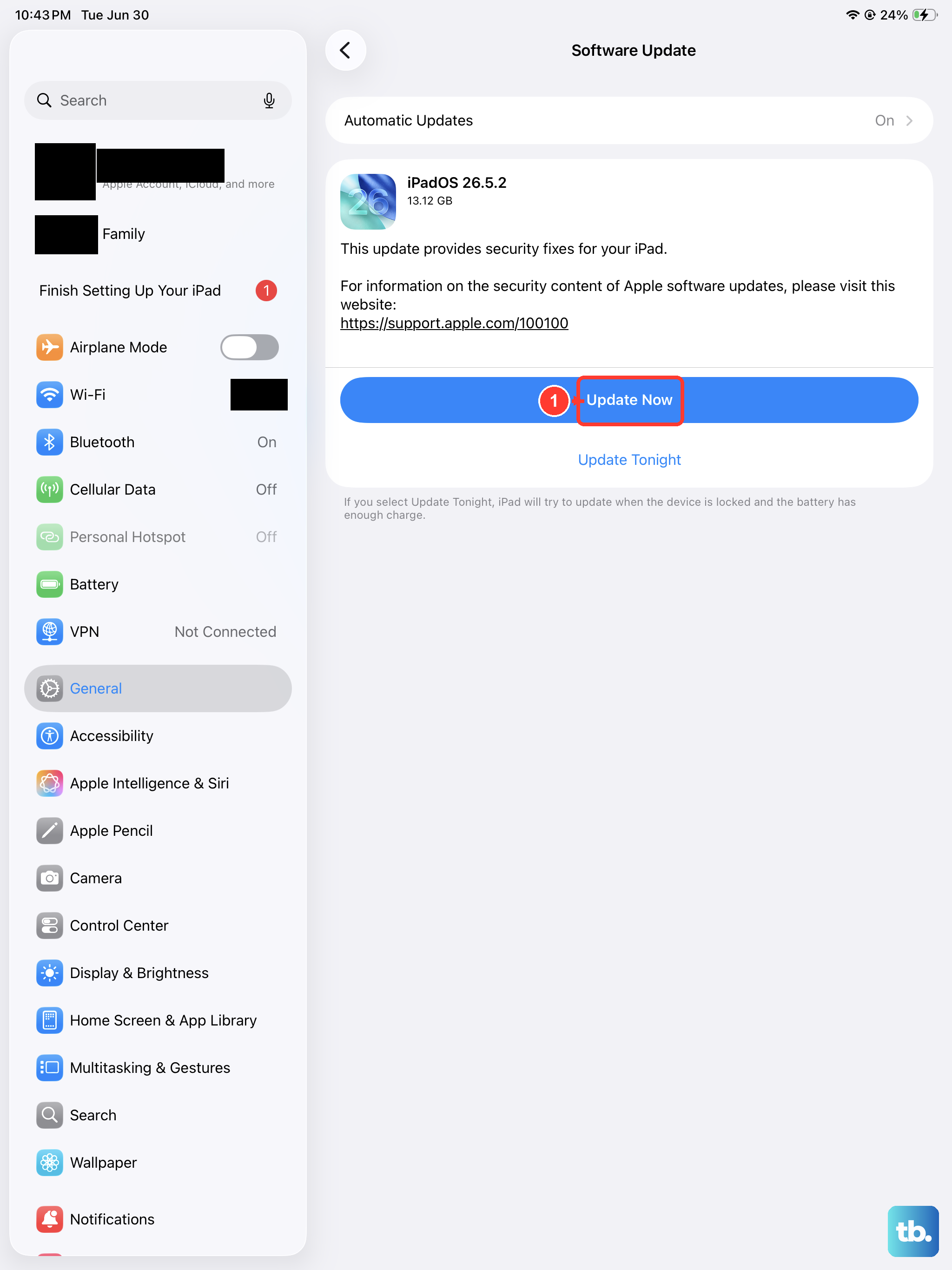
Apple has released several patches for video playback bugs since iPadOS 18 launched. Check for updates in Settings > General > Software Update. While you're at it, open the App Store and update apps like YouTube, Netflix, or whatever player you're using. Developers often push fixes that target the M5's specific GPU architecture.
Is your Wi-Fi the weak link?
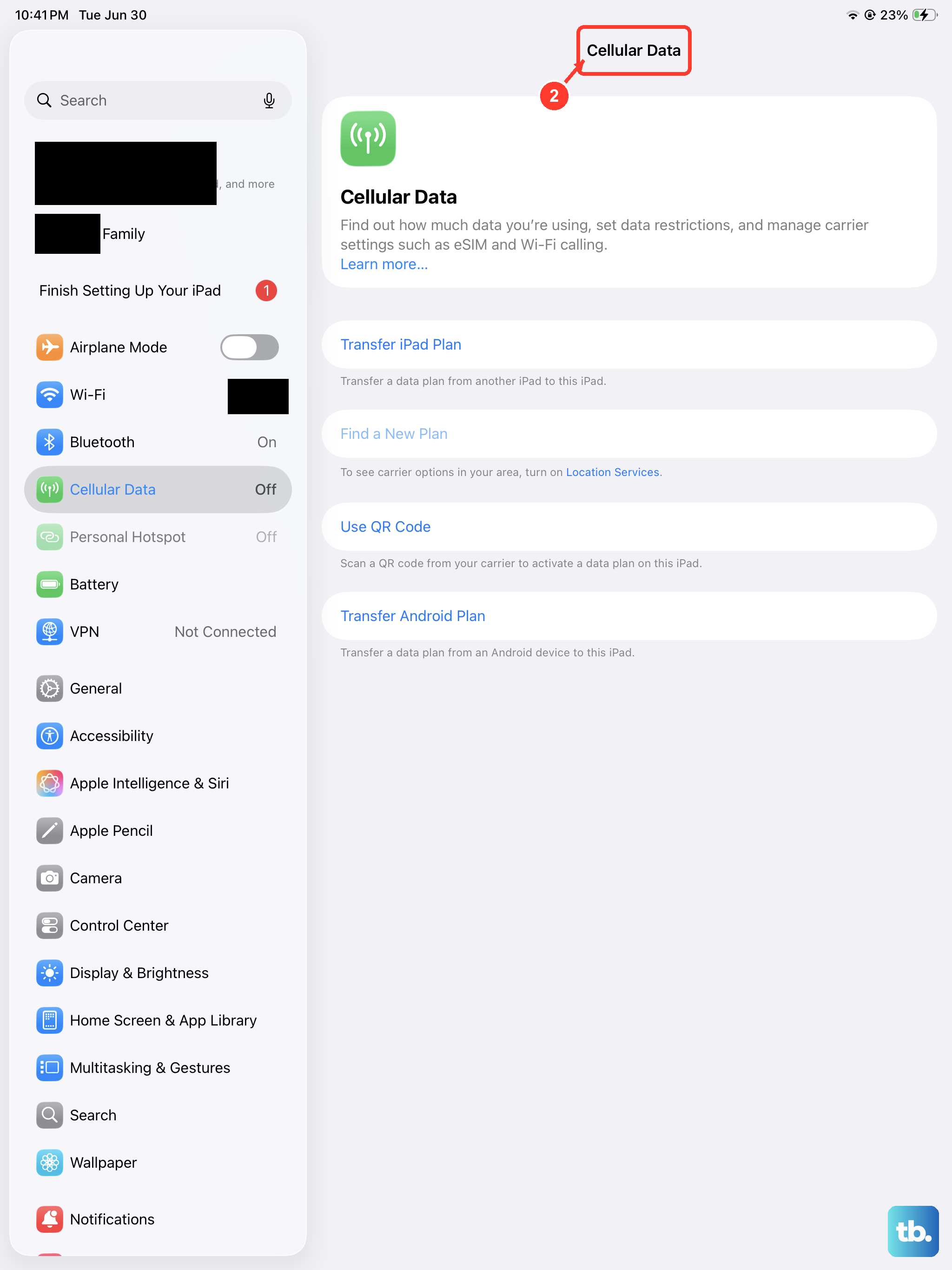
Streaming video over a weak connection causes frequent buffering and stutter. Even local videos stored in iCloud or other cloud services need a solid link. Make sure you're on a 5GHz network for the best throughput. Try toggling Wi-Fi off and back on, or switch to cellular data if you have an LTE/5G model and see if the problem clears. If it does, reboot your router by unplugging it for 30 seconds.
Close background apps and kill unnecessary processes
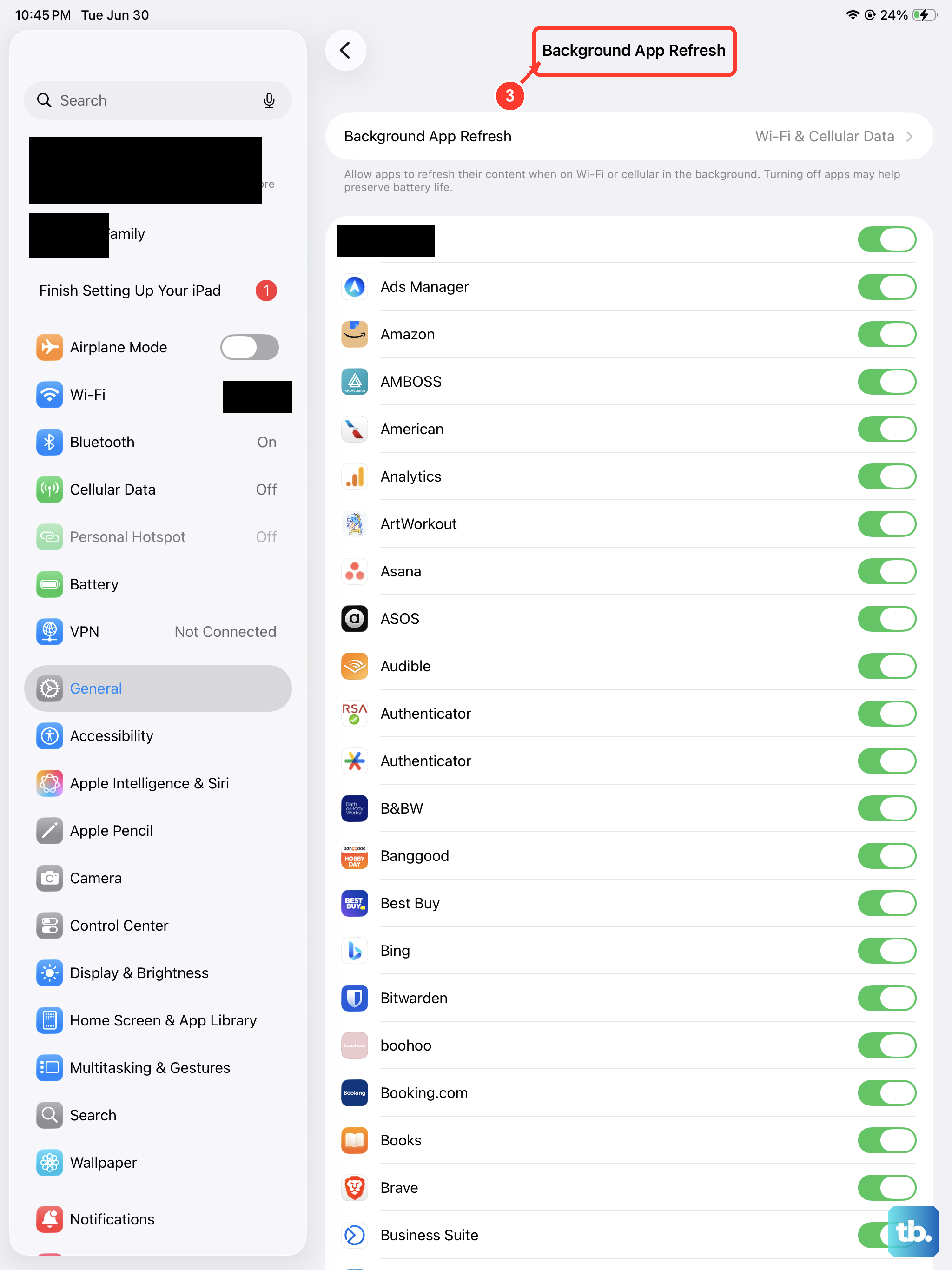
The iPad Pro M5 can juggle tons of apps, but a memory-hungry game or a stuck background process can steal resources from video playback. Swipe up from the bottom and pause in the middle to open the App Switcher, then flick away any apps you're not using. For a deeper clean, go to Settings > General > Background App Refresh and turn it off for apps that don't need it.
Reset all settings without losing data
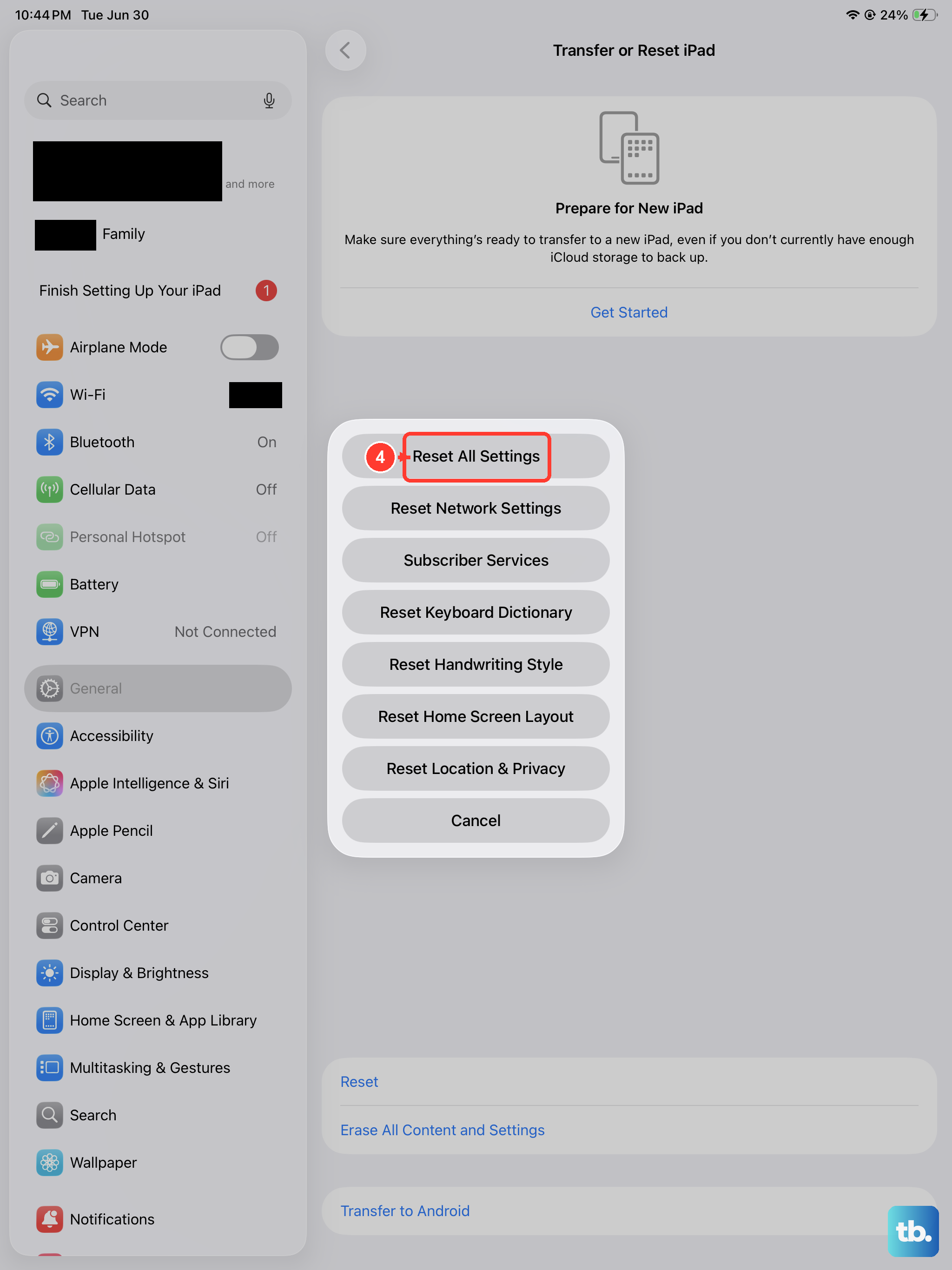
If video lag continues after trying everything above, a settings reset can fix corrupted configurations that cause playback issues. Go to Settings > General > Transfer or Reset iPad > Reset > Reset All Settings. This won't delete your photos, files, or apps, but it will reset Wi-Fi passwords, wallpapers, and accessibility preferences to defaults.
Your iPad Pro M5 has a stunning 120Hz ProMotion display, so any lag is especially jarring. Most of the time, a force restart or clearing storage does the trick. If the issue only happens in one specific app, delete and reinstall that app, it's often a corrupted cache rather than a system problem.