
When your iPad Pro M5 gets stuck on the Apple logo during startup, it's easy to think the worst. The logo just sits there, sometimes with a progress bar that doesn't seem to move. This usually happens after an interrupted software update, a failed restore, or a corruption in iPadOS. Here's how to break out of it and get your iPad back to normal.
Give It 15 to 20 Minutes
Before you do anything drastic, give the iPad some time. After a major iPadOS update, the device can sit on the Apple logo for longer than you'd expect while it finishes installing files and optimizing storage. If you see a progress bar under the logo, it's still working through the process. Plug it into power using the USB-C port and wait at least 20 minutes. That progress bar means don't interrupt it.
Force Restart the iPad Pro M5
If the logo has been stuck for more than 20 minutes with zero progress, a force restart is your best first move. On the iPad Pro M5, the sequence is specific: press and quickly release the Volume Up button, then press and quickly release the Volume Down button, then press and hold the Top button until the Apple logo appears. Keep holding the Top button even after the screen goes black. Let go only when you see the logo come back. This usually breaks the stuck boot loop and gets the iPad past the logo screen.
Boot Into Recovery Mode
If the force restart brings you right back to the same stuck logo, recovery mode is the next step. You'll need a computer with a USB-C cable. Connect your iPad Pro M5 to a Mac or PC and open Finder (on a Mac) or iTunes (on Windows). Now perform the same button sequence: press and release Volume Up, press and release Volume Down, then press and hold the Top button. Don't let go of the Top button until you see the recovery mode screen, a cable pointing at a computer icon on the iPad's display.
Your computer will pop up with two choices: Update or Restore. Always pick Update first. That reinstalls iPadOS while keeping your photos, apps, and settings intact. The process takes about 15 to 20 minutes. If Update fails, you'll need to use Restore, which wipes everything clean.
DFU Mode as a Last Resort
When recovery mode doesn't work, DFU (Device Firmware Update) mode goes a layer deeper. Connect the iPad to your computer, then press and release Volume Up, press and release Volume Down, and hold the Top button for 10 seconds. Without releasing the Top button, press and hold the Volume Down button as well for 5 seconds. Then release the Top button but keep holding Volume Down for another 10 seconds.
The screen should stay completely black, no Apple logo, no battery icon. If your computer detects the iPad in DFU mode, it will offer to restore the firmware. This is a clean slate firmware installation that can fix corruption recovery mode can't touch.
Check the USB-C Cable and Port
If your computer can't detect the iPad Pro M5 in recovery mode or DFU mode, the USB-C connection could be the problem. Inspect the iPad's USB-C port for dust, lint, or debris. A common issue with the iPad Pro M5 is that gunk in the port prevents a solid connection. Shine a light in there and gently pick out anything you see with a wooden or plastic toothpick. Also try a different USB-C cable and a different port on your computer. Damaged or non-certified cables are a frequent reason recovery mode fails.
Free Up Storage Before the Next Update
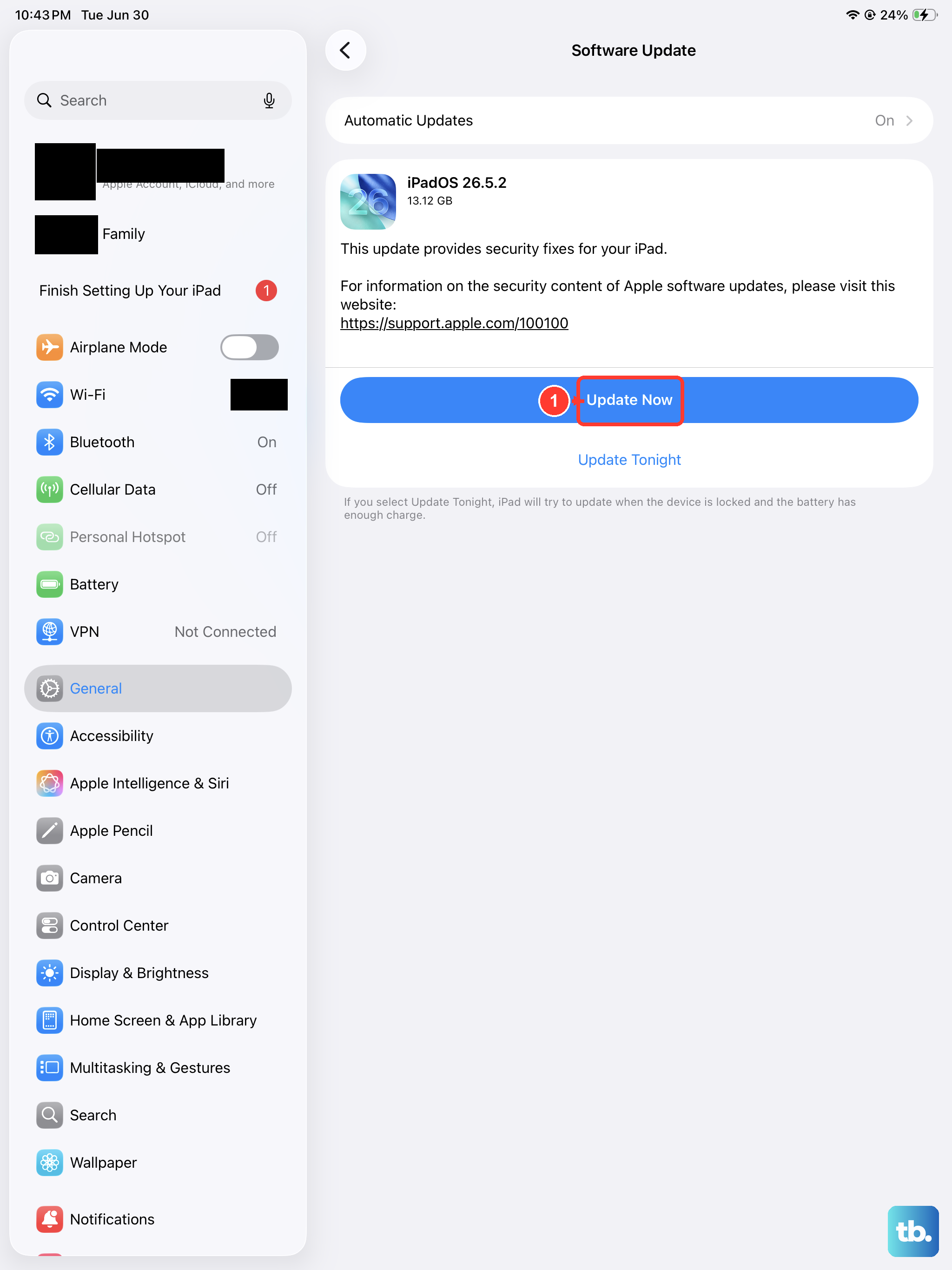
The stuck logo often traces back to a software update that ran out of space halfway through. If you get the iPad working again after a force restart, immediately check how much free storage you have. Head to Settings > General > iPad Storage and clear out at least 5 to 6 GB. Delete unused apps, offload large games, or move photos to iCloud. A full storage drive is a common cause for update failures on iPadOS.
Restore Your Data After a Reset
If you had to use the Restore option and lost everything, you can get your data back during setup. Choose Restore from iCloud Backup or Restore from Mac/PC depending on where your backup lives. This is also a good reminder to check that iCloud backup is turned on under Settings > [Your Name] > iCloud > iCloud Backup. Regular backups make these situations a lot less stressful.