
Factory resetting your iPad Pro M5 wipes everything clean and sends it back to its default state. It's the most drastic step you can take, but it's often the right one if you're dealing with persistent software hiccups in iPadOS 18 or prepping the tablet for a new owner. Here's how to do it right without losing the stuff that matters.
Back Up Your iPad Pro M5 Before You Wipe It
Before you do anything, make sure your data lives somewhere other than the iPad itself. Head to Settings > [Your Name] > iCloud > iCloud Backup and hit Back Up Now. Keep the iPad connected to Wi-Fi and power until it finishes.
You can also plug the iPad Pro M5 into a Mac with a USB-C cable and open Finder. Select your iPad from the sidebar, then click Back Up Now. On a PC you'll need iTunes for this. Either way, verify your photos, messages, and app data are backed up before you proceed.
Sign Out of Your Apple ID to Avoid Activation Lock
Skip this step and your iPad stays locked to your Apple ID even after the wipe. Go to Settings > [Your Name], scroll to the bottom, and tap Sign Out. You'll need your Apple ID password to turn off Find My iPad. Tap Turn Off when it appears in the top-right corner to confirm.
Erase All Content and Settings Directly on the iPad
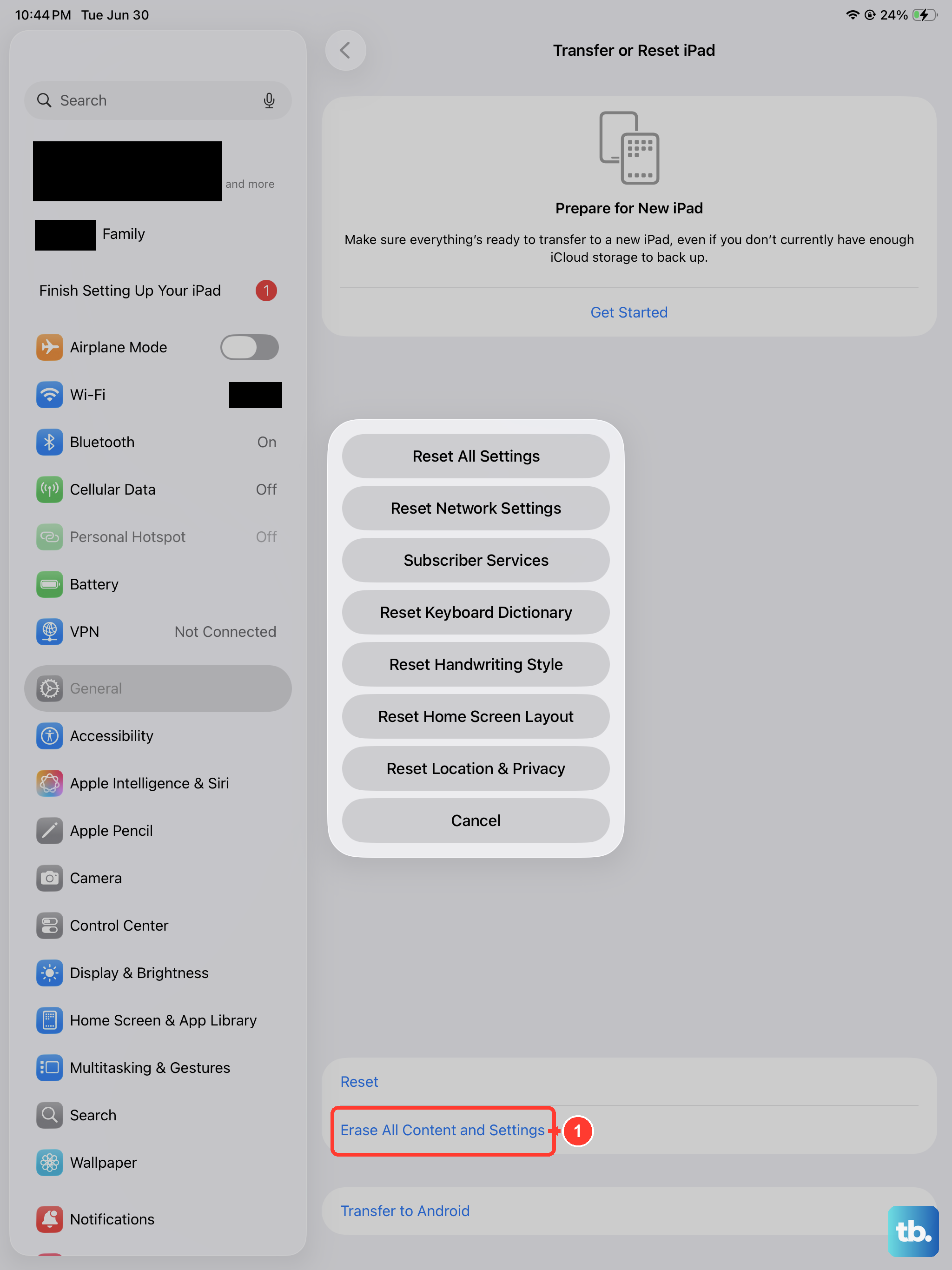
This is the standard method and usually the smoothest one. Open Settings > General > Transfer or Reset iPad > Erase All Content and Settings. Enter your passcode and Apple ID password when the prompts appear. The iPad restarts and shows a progress bar under the Apple logo as it erases. A few minutes later you'll see the Hello screen, just like when you first unboxed it.
Use a Computer If the Screen Is Frozen
If your iPad Pro M5 is stuck in a boot loop, on a black screen, or completely unresponsive to touch, you can force it into recovery mode. Connect the iPad to your Mac or PC with a USB-C cable and open Finder or iTunes.
Now perform the force restart sequence: press and quickly release the Volume Up button, then press and quickly release the Volume Down button, then press and hold the Top button until the Apple logo appears. Keep holding the Top button past the logo until you see a computer icon and a cable on the screen. A dialog box will appear on your computer offering to Restore or Update the iPad. Click Restore to download the latest version of iPadOS and completely wipe the device.
Reset Specific Settings Without Losing Data
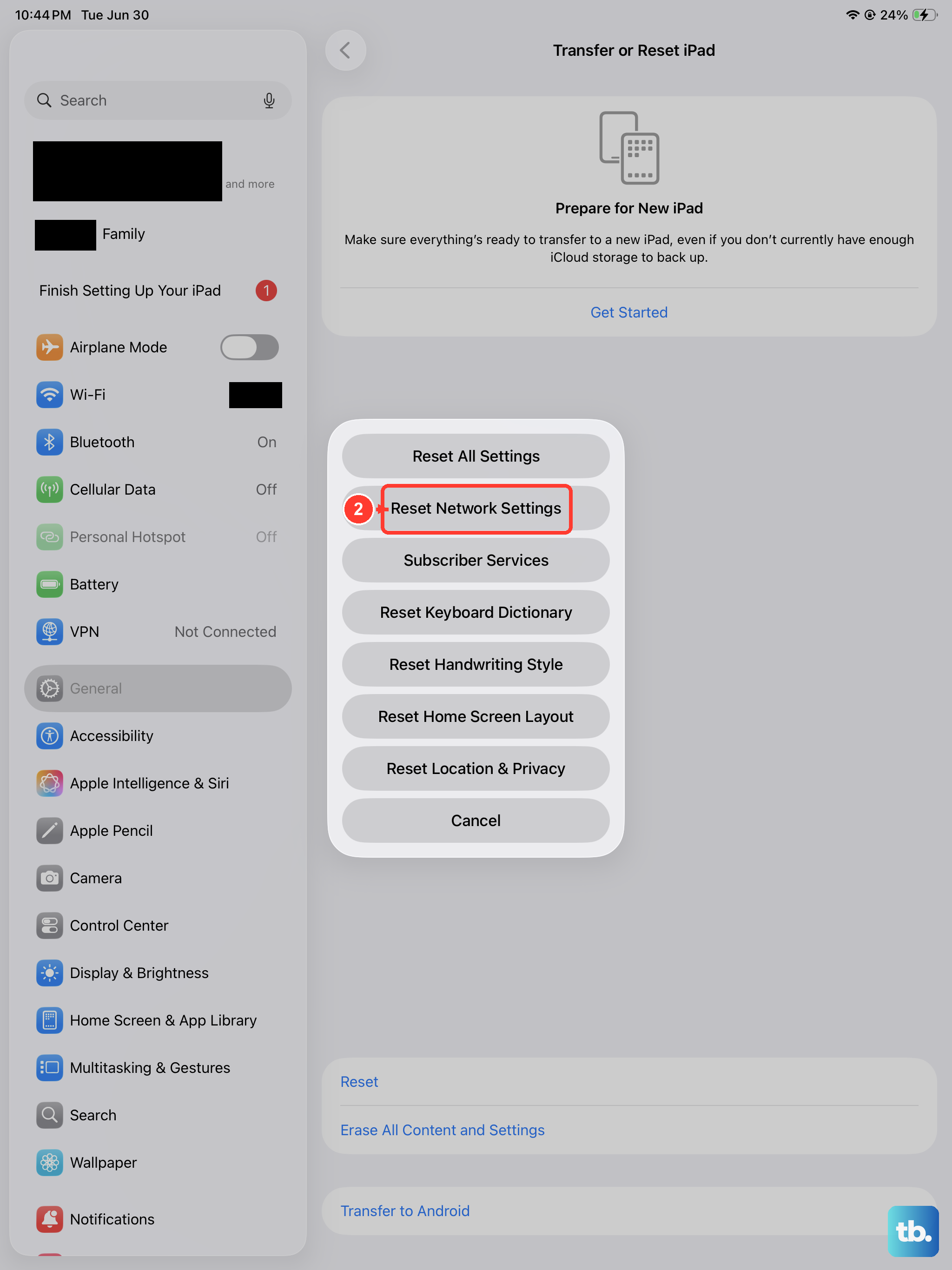
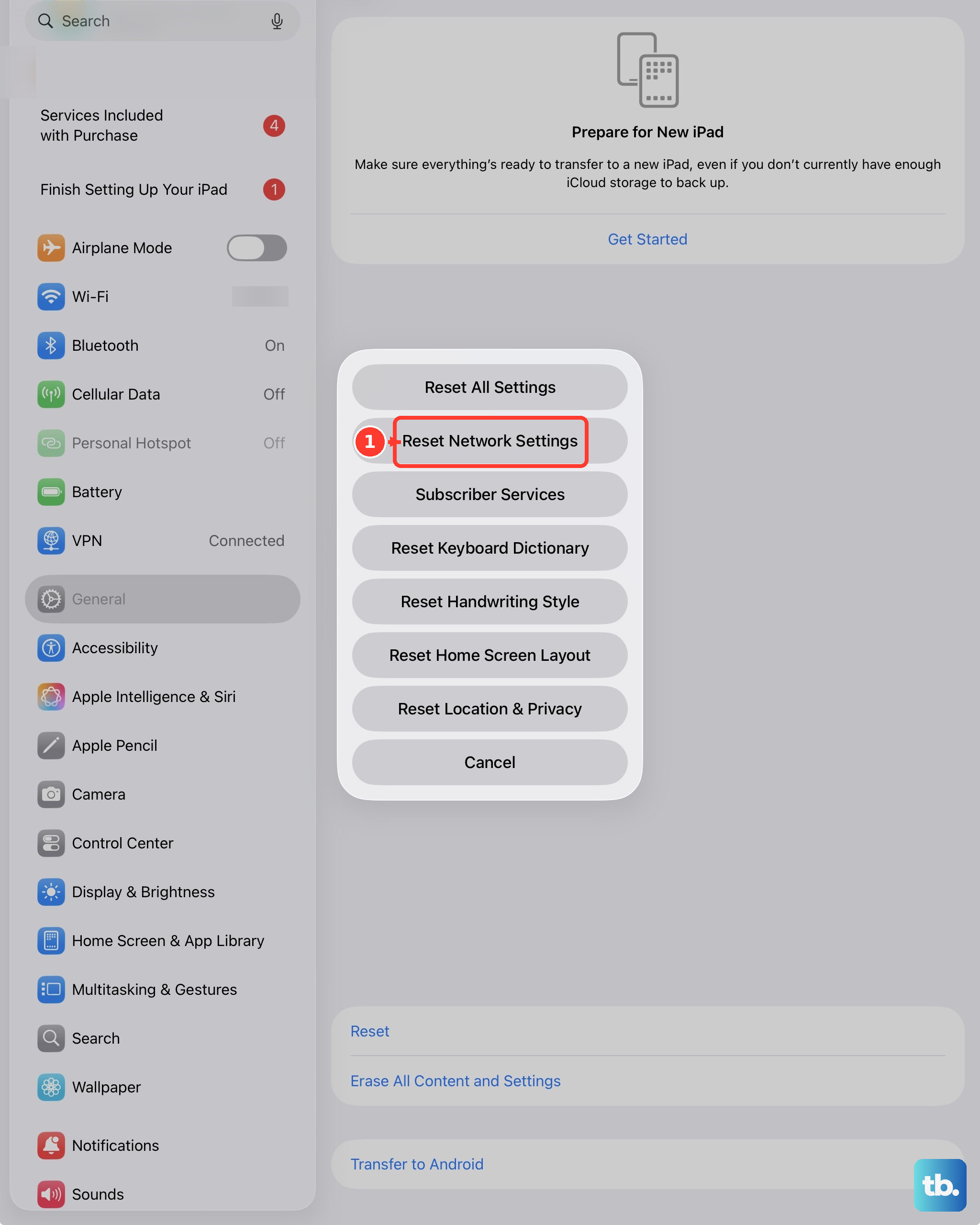
Not every issue needs a full nuclear wipe. If you're chasing a Wi-Fi problem, a keyboard glitch, or a misplaced Home screen layout, try a targeted reset first. Go to Settings > General > Transfer or Reset iPad > Reset. You can reset network settings, the keyboard dictionary, the Home screen layout, or your location and privacy settings. None of these touch your personal files or media.
Restore Your Data from a Backup
Once the factory reset finishes, your iPad Pro M5 boots to the Hello screen. Follow the on-screen prompts to choose your language, connect to Wi-Fi, and sign into your Apple ID. When you reach the Apps & Data screen, select Restore from iCloud Backup or Restore from Mac or PC. Pick the most recent backup and let it download. Your apps, photos, and settings will return as they were before the wipe.
Software Glitches That Warrant a Factory Reset
A factory reset makes sense when your iPad has persistent lag, random app crashes, or battery percentage weirdness that nothing else fixes. It's also essential before selling or giving away the device. If you're hitting errors during an iPadOS 18 update, wiping the slate clean often clears those roadblocks too.
A reset also doubles as a useful diagnostic step. If you've noticed charging acting flaky, erasing the software rules out a glitchy power management profile before you start inspecting the USB-C port for dust or testing a different 60W adapter.