
Your iPad Pro M5 is an absolute powerhouse with that M5 chip and iPadOS 18, so when apps start freezing or crashing, it feels out of character. The good news is that most of these issues are software-related and pretty straightforward to fix. I've put together nine things to try, starting with the quickest ones.
Force Restart the iPad
Sometimes an app freezes because the whole system is in a weird state. A force restart clears that out without losing any data. Here's how it works on the iPad Pro M5: press and quickly release the Volume Up button, then press and quickly release the Volume Down button, then press and hold the Top button until the Apple logo appears. Keep holding even if the screen goes black, the logo will pop up after about ten seconds.
Update to the Latest iPadOS

Apple regularly pushes out iPadOS updates to squash bugs, including ones that cause app crashes. Check your version by going to Settings > General > Software Update. If there's an update, download and install it. I've seen 18.0 and 18.1 patches fix freezing issues on the M5 specifically. Make sure your iPad is plugged in and connected to Wi-Fi before you start.
Update Your Apps
App developers also push out fixes regularly. Open the App Store, tap your profile icon in the top right, then swipe down to refresh and tap Update All if you see any pending updates. With the M5's performance, you might think old app versions would run fine, but incompatibility with iPadOS 18 can trip them up.
Force Close and Relaunch the App
If a single app is acting up, force closing it can clear a temporary glitch. On iPad Pro M5, swipe up from the bottom of the screen and pause in the middle to open the App Switcher. Then swipe the frozen app's card upward to dismiss it. Tap the app again to relaunch. This is different from a force restart, it only affects that one app.
Offload and Reinstall the App
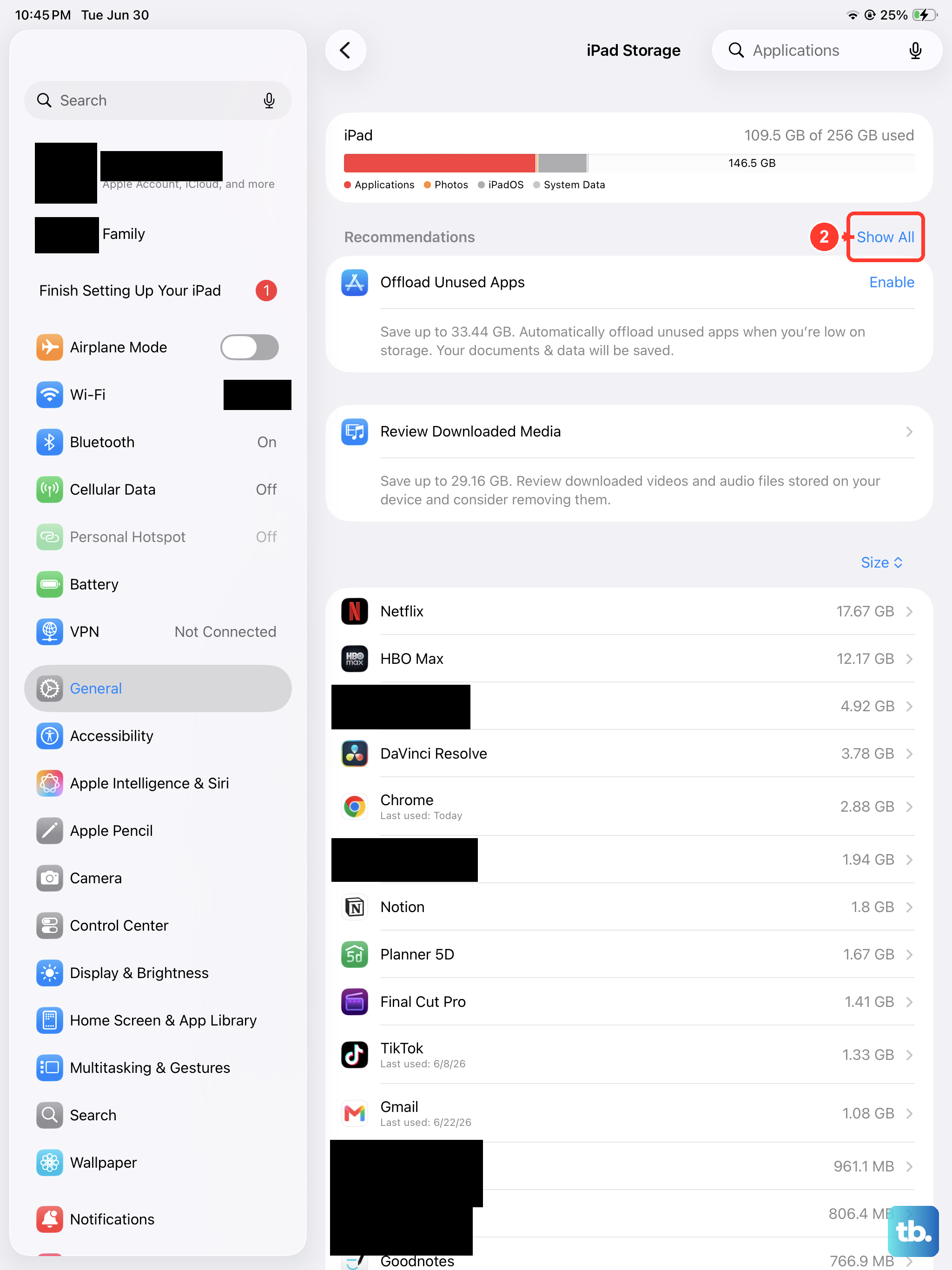
Clearing an app's cache isn't as straightforward on iPadOS as on Android, but offloading the app does the same thing. Go to Settings > General > iPad Storage and find the problematic app. Tap it, then choose Offload App. This removes the app but keeps its documents and data. Then tap Reinstall App from the same screen to get a fresh copy without losing your login info.
Check Available Storage
Low storage space can make apps crash, even on the M5 with its fast SSD. Head to Settings > General > iPad Storage and see how much free space you have. If it's under 5GB, start clearing things out. Delete unused apps, offload old photo albums to iCloud, or remove downloaded files in the Files app. Apps need room to write temporary data, and when that space runs out, they bail.
Try a Different Network

Apps that rely on an internet connection, like streaming or social media, can crash if the network is unstable. Toggle Airplane Mode on and off to reset the connection. If you're on Wi-Fi, try switching to cellular data, or vice versa. You can also go to Settings > Wi-Fi and tap the info icon next to your network to choose Forget This Network, then reconnect. A flaky router can cause timeouts that look like app crashes.
Reset All Settings
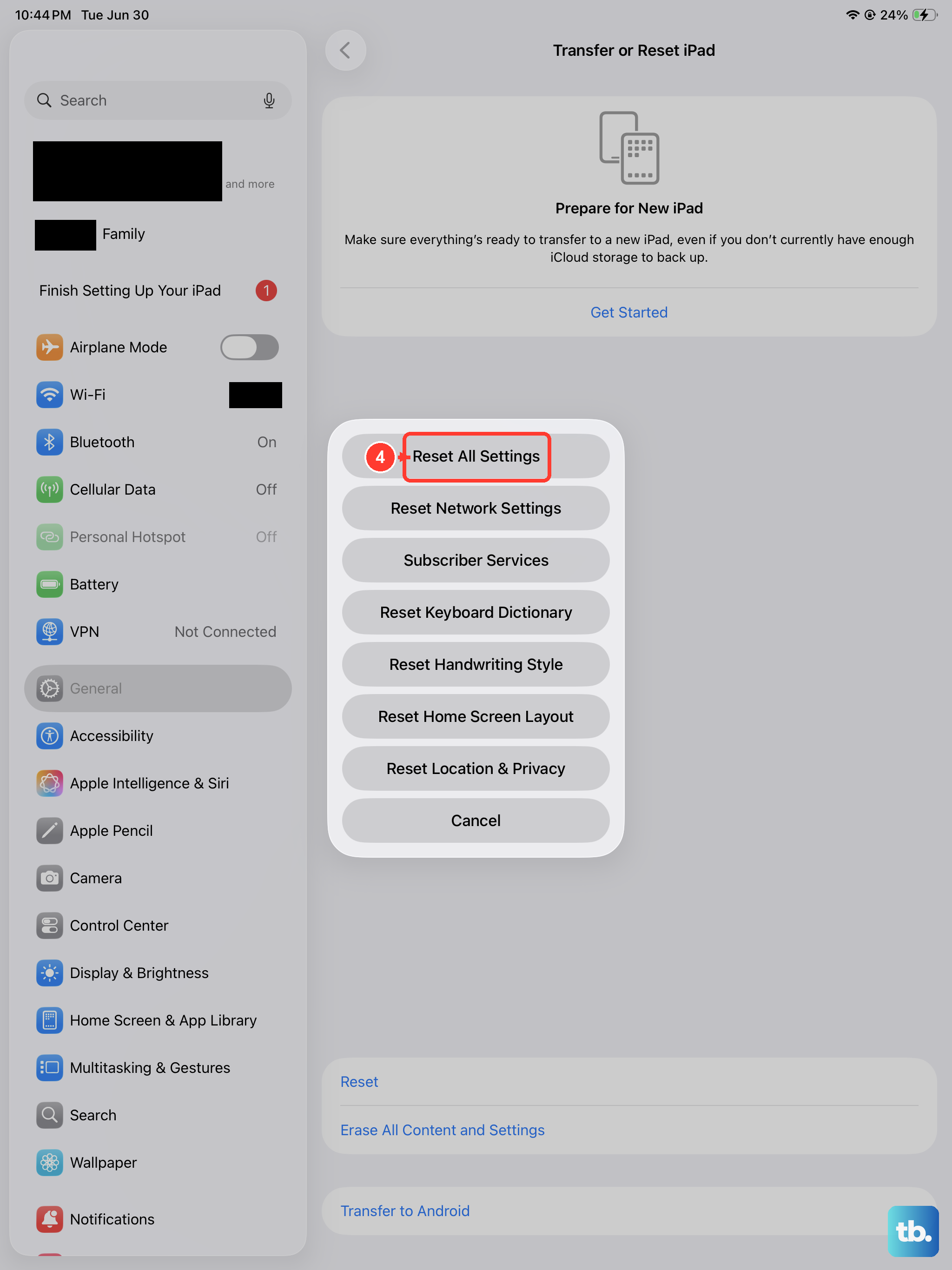
This is a middle ground before a full factory reset. It wipes your Wi-Fi passwords, wallpapers, and accessibility settings, but keeps your apps, photos, and data intact. Go to Settings > General > Transfer or Reset iPad > Reset > Reset All Settings. Your iPad will restart and you'll need to reconnect to Wi-Fi, but it often clears up weird software conflicts that cause freezing.
Factory Reset as a Last Resort
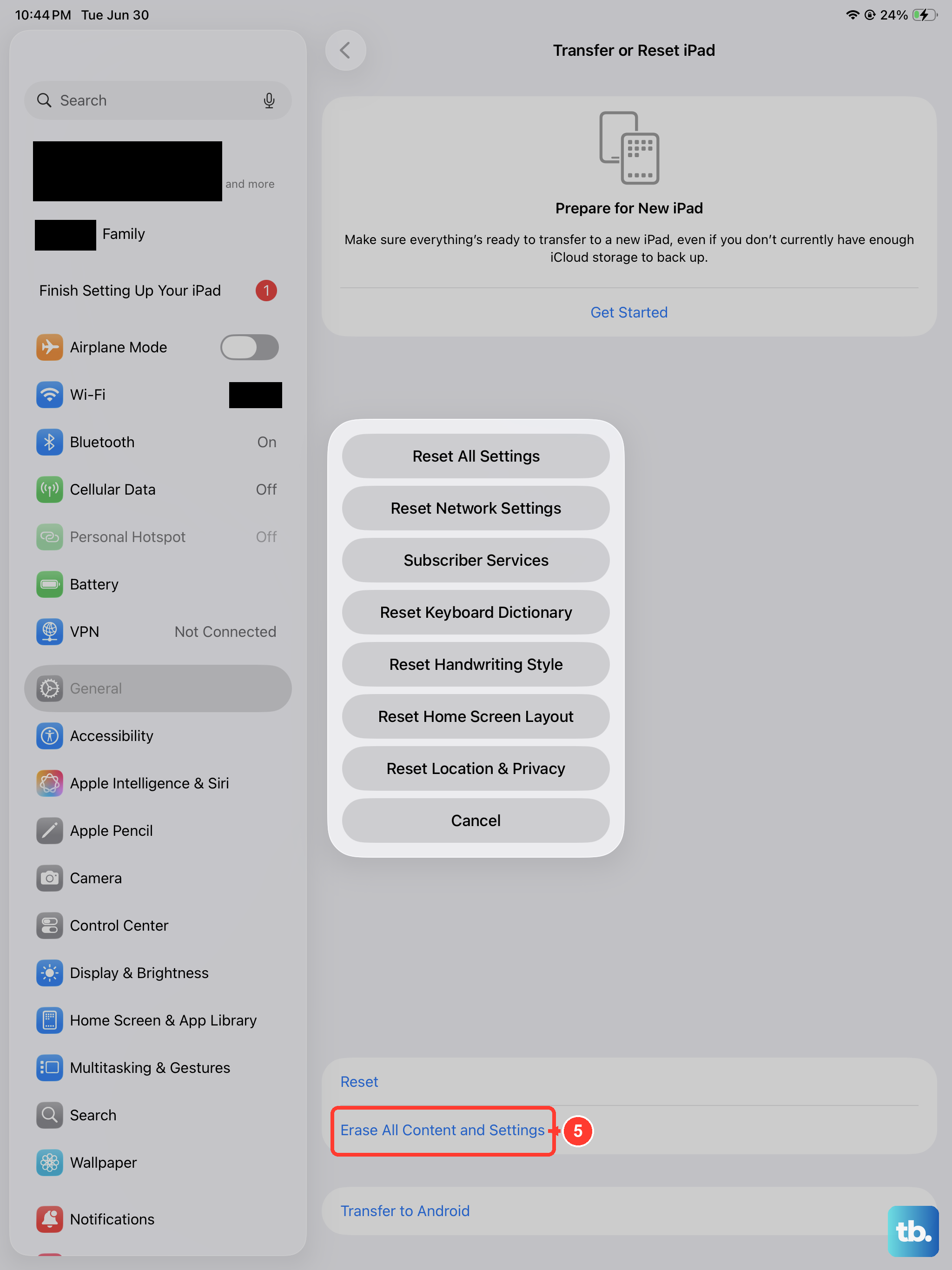
If nothing else has worked and the crashes are constant, a factory reset will give you a completely clean slate. Back up your iPad first via iCloud or a computer, this erases everything. Go to Settings > General > Transfer or Reset iPad > Erase All Content and Settings. After the reset, set it up as new (don't restore from backup) to rule out any corrupted settings. Then reinstall your apps one by one.
Most app freezing issues on the iPad Pro M5 are fixed by one of the first four steps. Start with the force restart and app updates, then work through the rest if you need to.