
Getting a "Call Failed" message on your iPad Pro (M4) can stop you in your tracks, especially if you rely on it for important FaceTime or cellular calls. This usually means your iPad is having trouble connecting to the Wi-Fi or cellular network properly. It's often a quick software hiccup or a setting that needs a tweak.
Let's start with the fastest fix, which often clears things up in about 30 seconds.
Toggle Airplane Mode
The quickest way to reset your network connection is with Airplane Mode. Swipe down from the top-right corner of your screen to open Control Center. Tap the airplane icon to turn it on, wait about 15 seconds, then tap it again to turn it off.
This forces your iPad to re-establish connections to both Wi-Fi and cellular networks, which can clear up temporary glitches causing the call failures.
Check Your Signal and Connection
Weak signal is the most common culprit. Look at the top of your screen. If you're on cellular, check for signal bars. If you're using Wi-Fi for FaceTime, ensure you're connected to a strong network.
For cellular models, moving closer to a window or a different location can help. If you're on Wi-Fi, try moving closer to your router or restarting it.
Force Restart Your iPad Pro
A simple force restart can clear out software bugs that might be interfering with the calling functions. On the iPad Pro (M4), press and quickly release the Volume Up button, then quickly press and release the Volume Down button.
Immediately after, press and hold the Power button. Keep holding it until you see the Apple logo appear, then let go. This doesn't erase any data, it just gives the system a fresh start.
Check Focus and Do Not Disturb
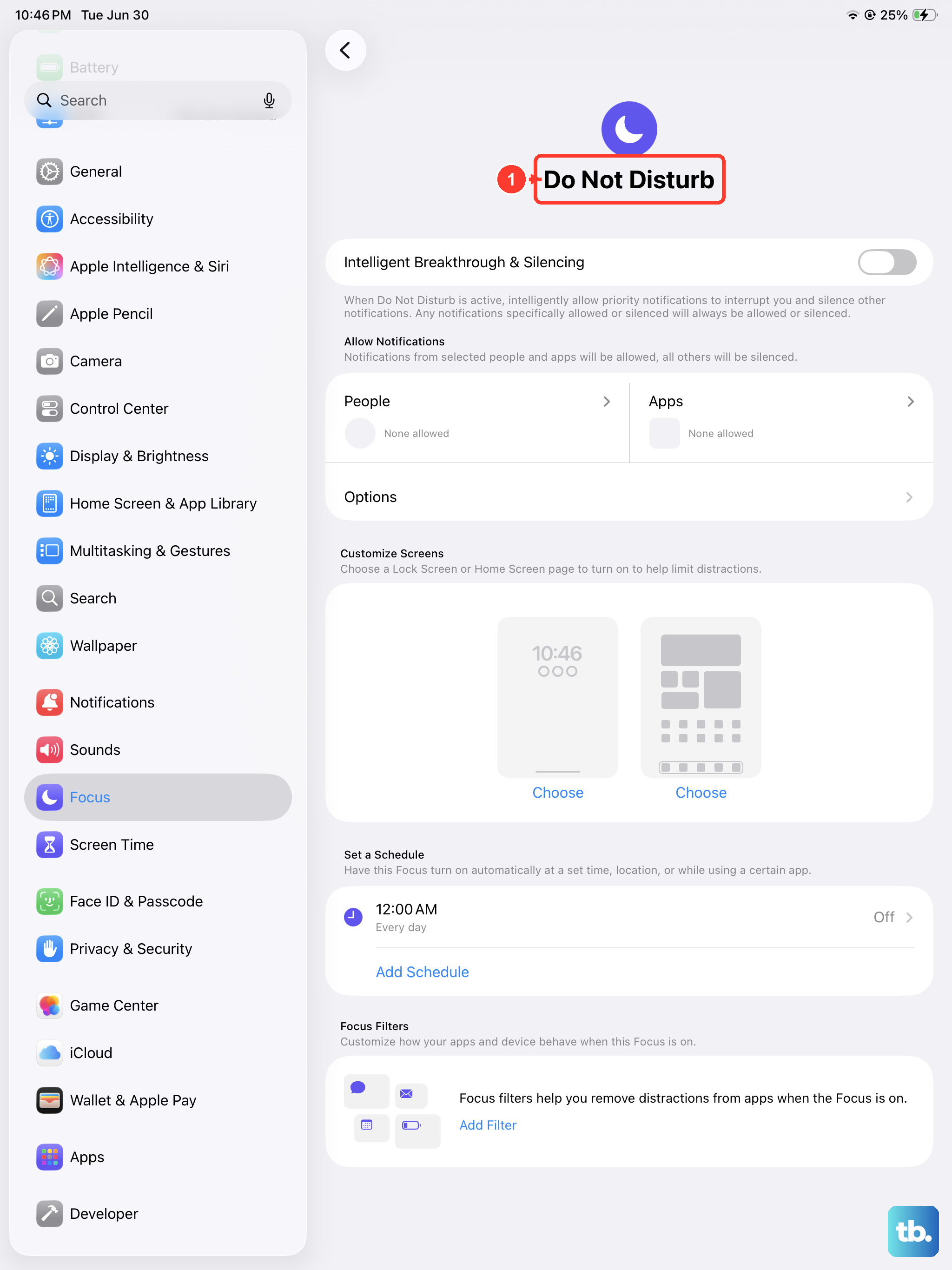
Your Focus modes might be silently blocking incoming call notifications. Swipe down into Control Center and look for an active Focus icon, like the moon for Do Not Disturb.
If you see one is on, tap it to turn it off. You can also go to Settings > Focus to see which modes are active and adjust their settings to allow calls through.
Update Date and Time Settings
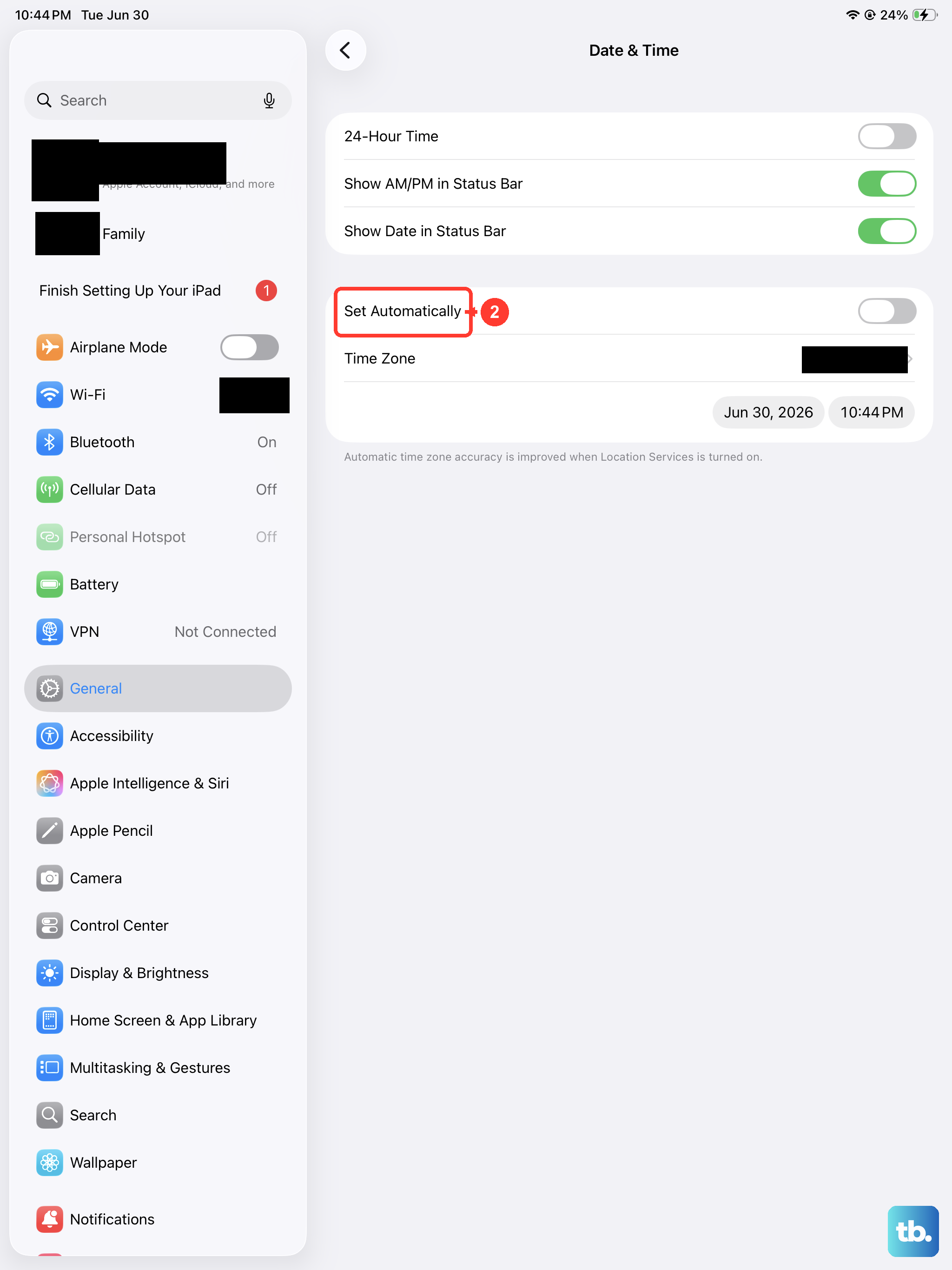
Believe it or not, an incorrect system time can mess with network authentication. Go to Settings > General > Date & Time. Make sure the "Set Automatically" option is turned on.
This lets your iPad sync with the correct time servers, which helps maintain a stable connection for services like FaceTime and cellular calls.
Verify Cellular Data and Roaming Settings
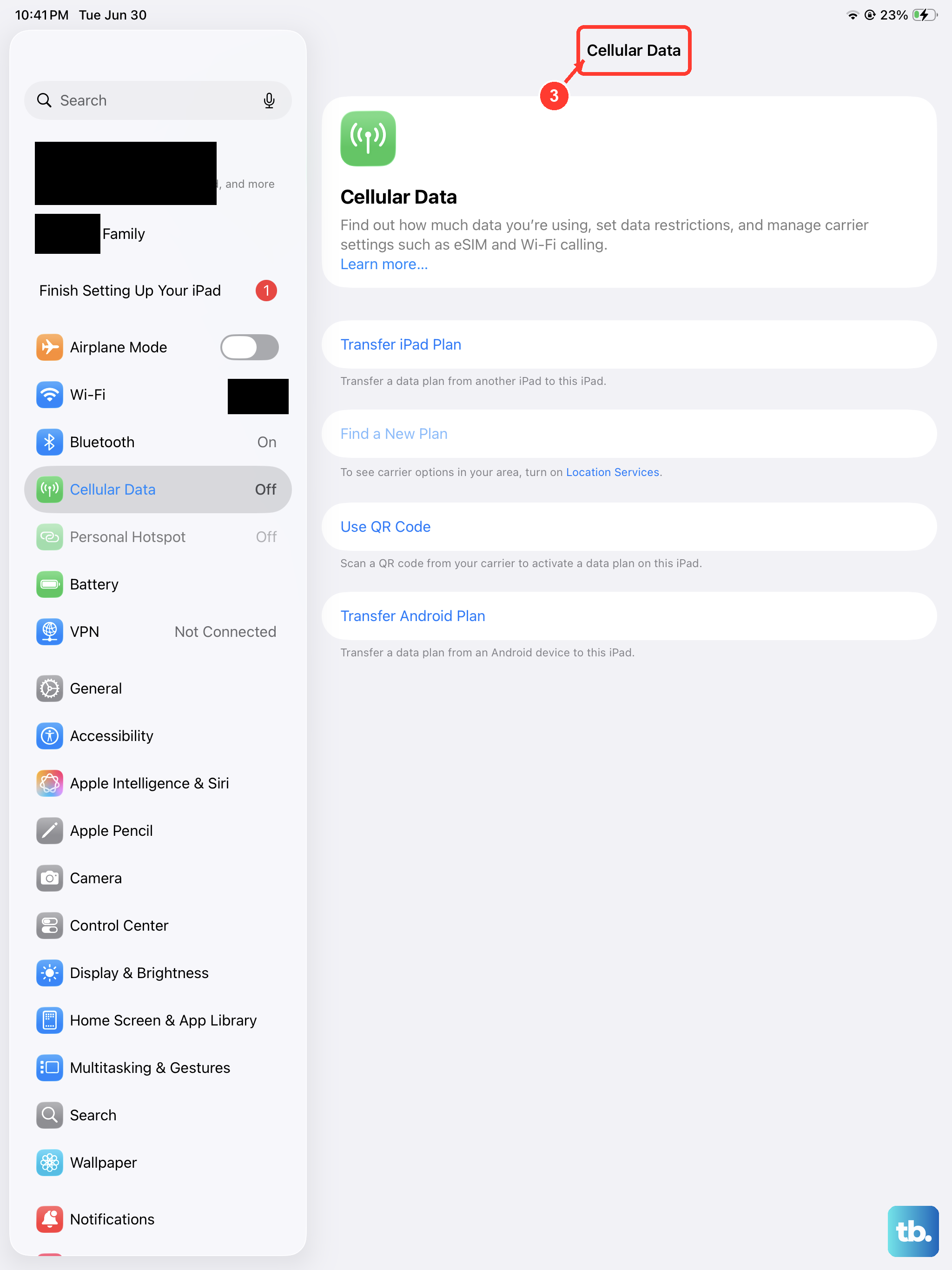
If you have a cellular model and are trying to make a regular phone call, ensure your cellular data is enabled. Go to Settings > Cellular Data and make sure the main "Cellular Data" switch is on.
If you're traveling, you might also need to enable data roaming. Tap Cellular Data Options within that menu and turn on "Data Roaming." Be aware this might incur extra charges from your carrier.
Check for a Carrier Settings Update
Carrier updates are small files that help your iPad communicate better with your cellular network. Make sure your iPad is connected to Wi-Fi, then go to Settings > General > About.
If a carrier update is available, a pop-up notification will appear. Just follow the prompts to install it. This can often fix calling issues directly.
Update Your iPadOS Software
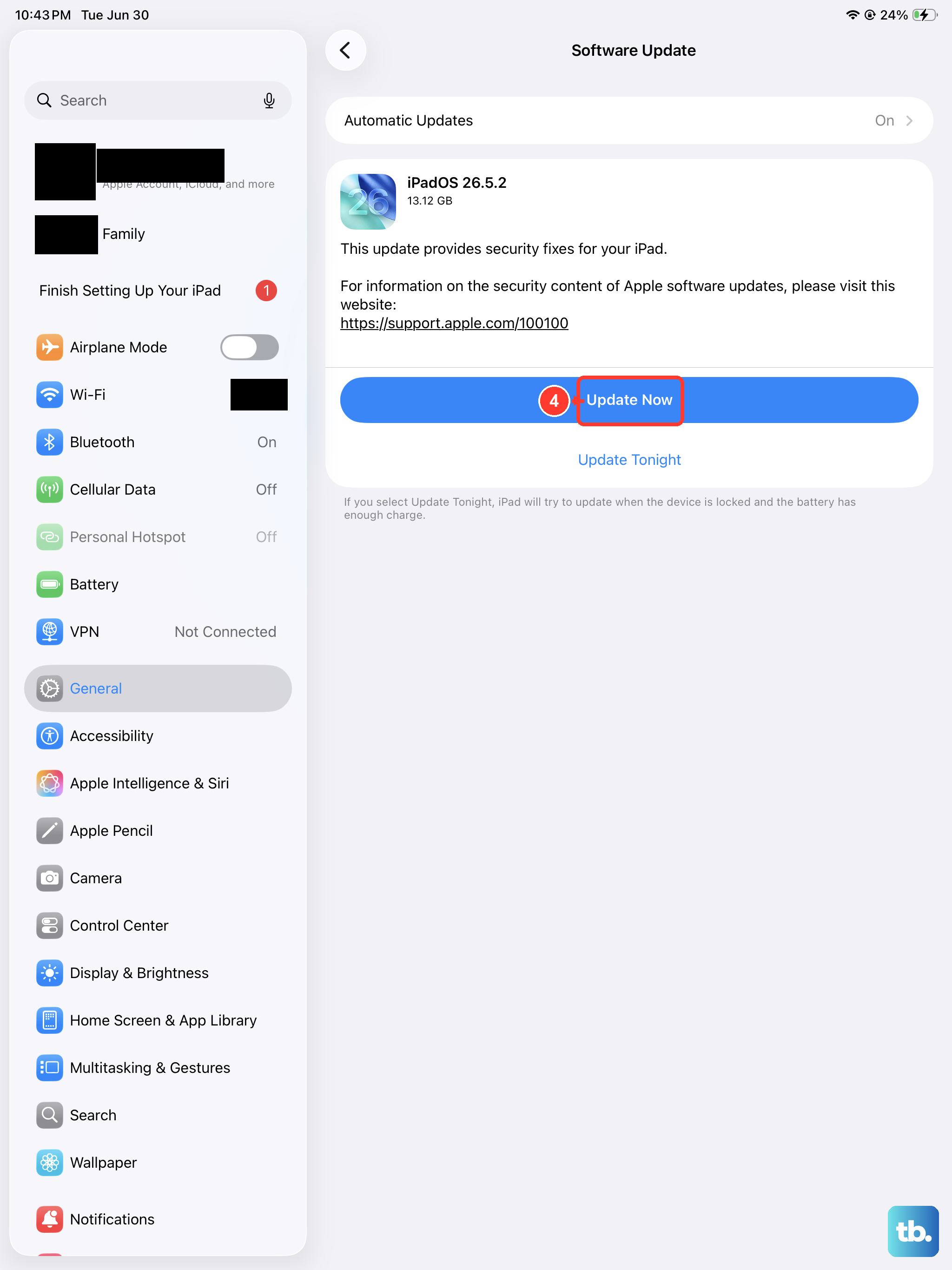
Apple releases iPadOS updates that include bug fixes for all sorts of issues, including network and calling problems. Connect to Wi-Fi and plug your iPad into power.
Then, go to Settings > General > Software Update. If an update is listed, tap "Download and Install." I've seen many quirky issues resolved simply by staying on the latest version of iPadOS.
Reset Your Network Settings
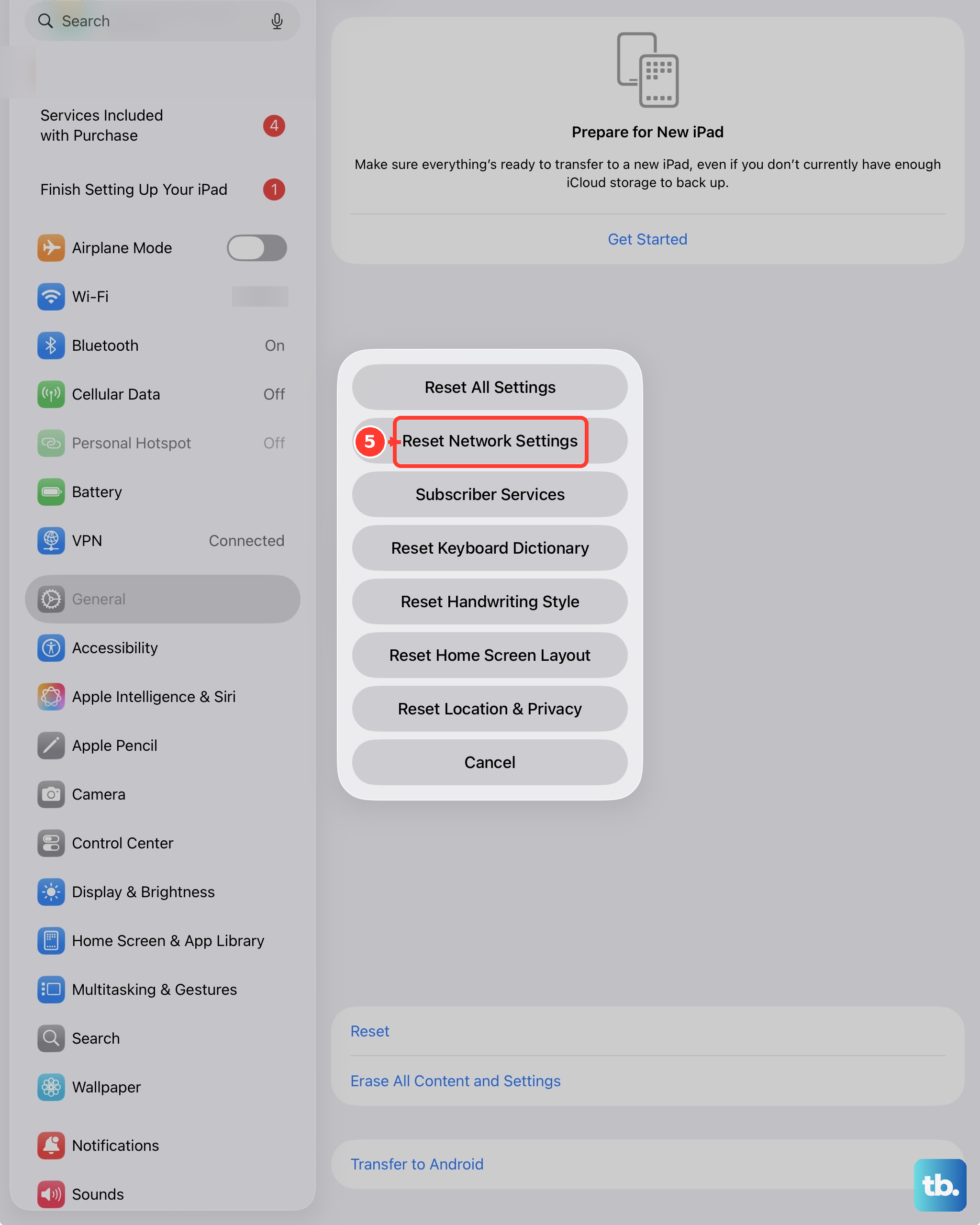
This is a more thorough step that clears all your saved Wi-Fi networks, passwords, cellular settings, and VPN configurations. It won't delete your personal data like photos or apps.
Go to Settings > General > Transfer or Reset iPad. Tap Reset, then choose Reset Network Settings. You'll need to enter your passcode to confirm. Afterward, you'll have to rejoin your Wi-Fi networks.
Check Your SIM Card (Cellular Models)
A loose, dirty, or faulty SIM card can definitely cause call failures. You'll need a SIM eject tool or a small paperclip. Find the SIM tray on the edge of your iPad and gently insert the tool to pop it out.
Remove the SIM card, give the gold contacts a gentle wipe with a soft, dry cloth, and reinsert it. Make sure it's seated correctly before pushing the tray back in. If you have another device, you can test the SIM there to see if the problem follows it.
Contact Your Carrier
If you've tried everything here and calls are still failing, the issue might be on your carrier's end. There could be a service outage in your area, a problem with your account, or the SIM card itself may be defective.
Give your carrier's customer service a call from another phone. They can check for outages, reprovision your line, or send you a replacement SIM card if needed.