
When your iPad mini (7th generation) gets stuck and won't update to the latest iPadOS, it can leave you feeling stuck too. You might see an error message, a download that never starts, or an installation that fails partway through. The good news is there are several straightforward things you can try to get things moving again.
Free Up Storage Space on Your iPad
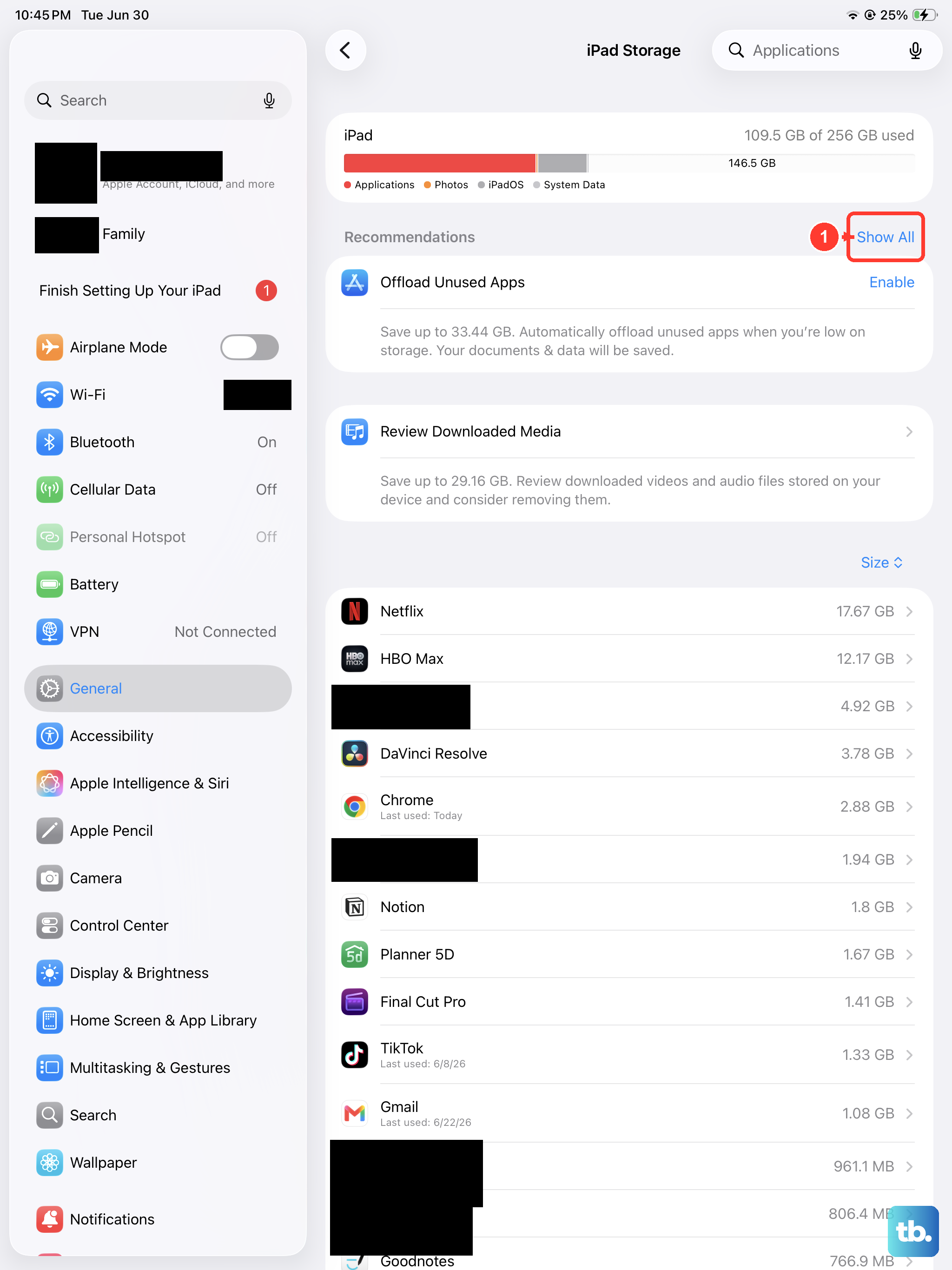
Your iPad mini needs a good chunk of free space to download and install a system update. A major iPadOS 26 update could require 5 GB or more. Head to Settings > General > iPad Storage to see how much room you have left.
If you're running low, the quickest fix is to offload unused apps. This removes the app but keeps its documents and data. You can also review large videos or message attachments and delete what you don't need. I've found clearing just a few gigabytes is often enough to let the update proceed.
Check Your Wi-Fi Connection
iPadOS updates must be downloaded over Wi-Fi, not cellular. Make sure you're connected to a stable network. Try opening a website in Safari to test the speed. If pages are slow, restart your router by unplugging it for 30 seconds.
Public networks in places like cafes or hotels sometimes block large downloads. If the update fails there, try again on your home network. A weak or intermittent signal is a common culprit for failed downloads.
Delete the Downloaded Update File
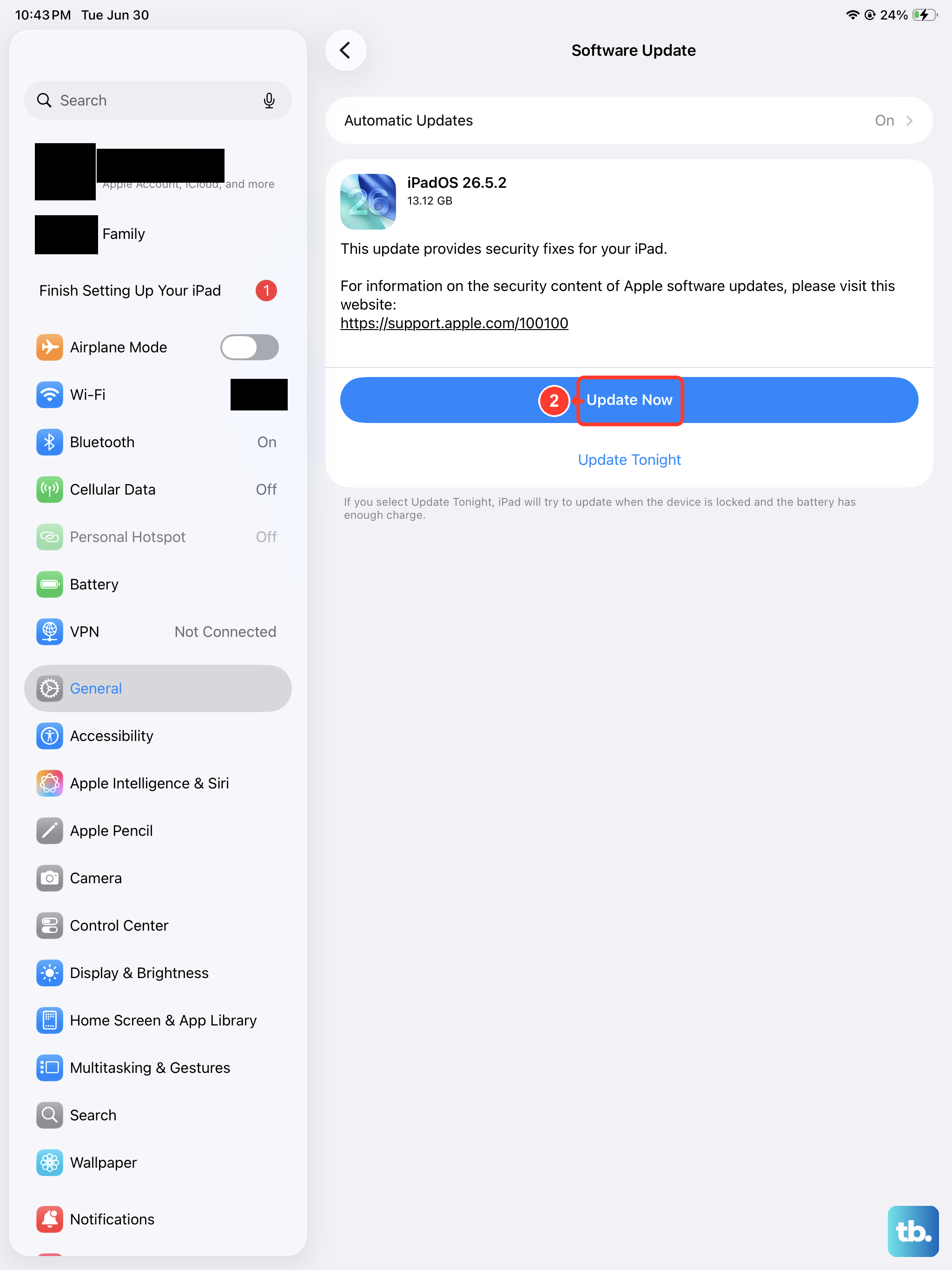
Sometimes an update file gets corrupted during the initial download, which blocks any new attempts. Go to Settings > General > iPad Storage and scroll through the list of apps and files. Look for the iPadOS update file, tap on it, and select Delete Update.
After you've removed it, go back to Settings > General > Software Update. Your iPad mini should now find the update again and let you download a fresh, clean copy from Apple's servers.
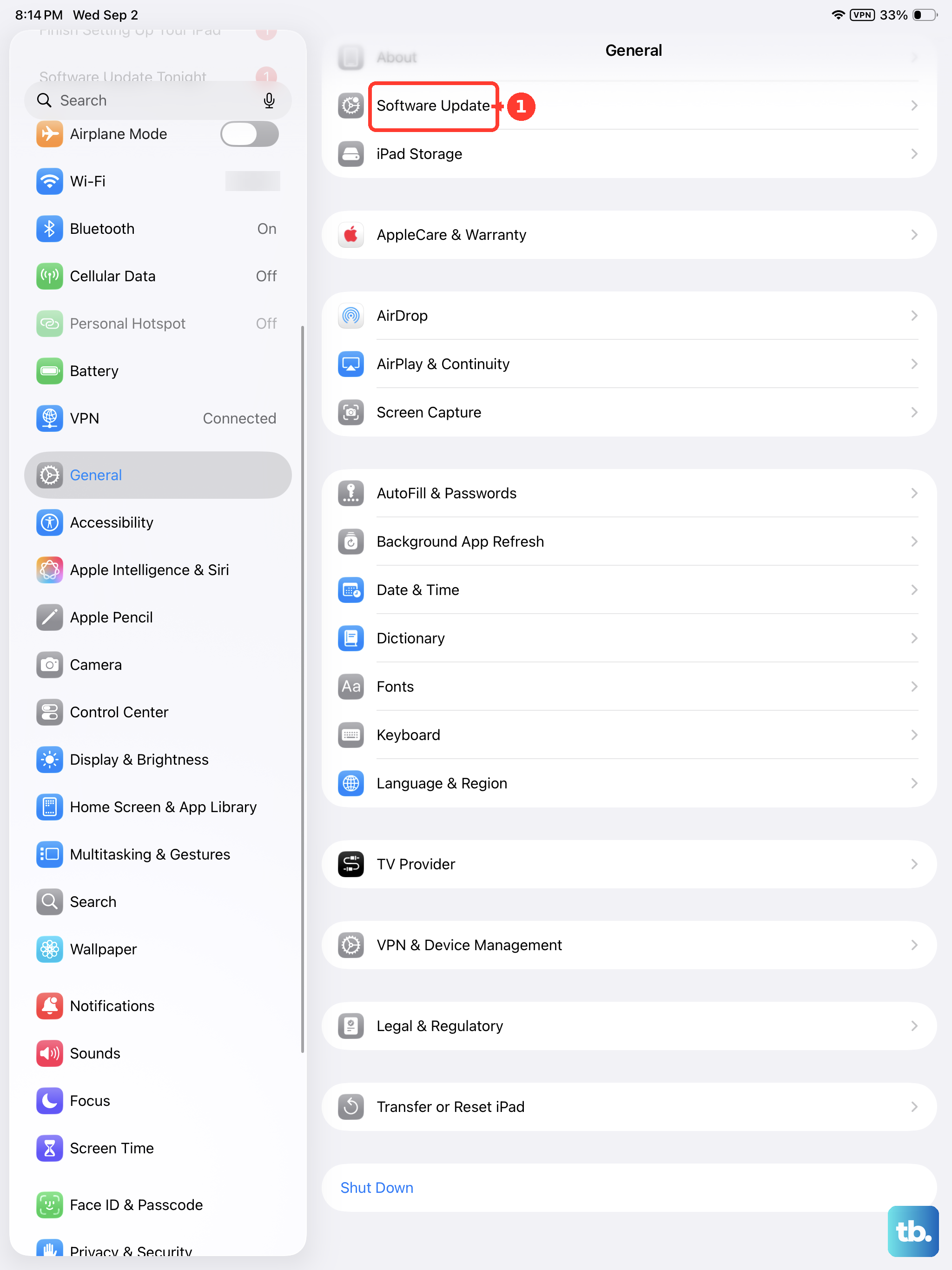
Restart Your iPad mini
A simple restart can clear out temporary glitches that are interfering with the update process. To restart your 7th generation iPad mini, press and hold the Top button and either volume button until the power off slider appears.
Slide to power off, wait about 30 seconds, then press the Top button again to turn it back on. Once it's rebooted, go straight to Software Update in Settings and try the process again. This basic step resolves more issues than you might think.
Reset Your iPad's Network Settings
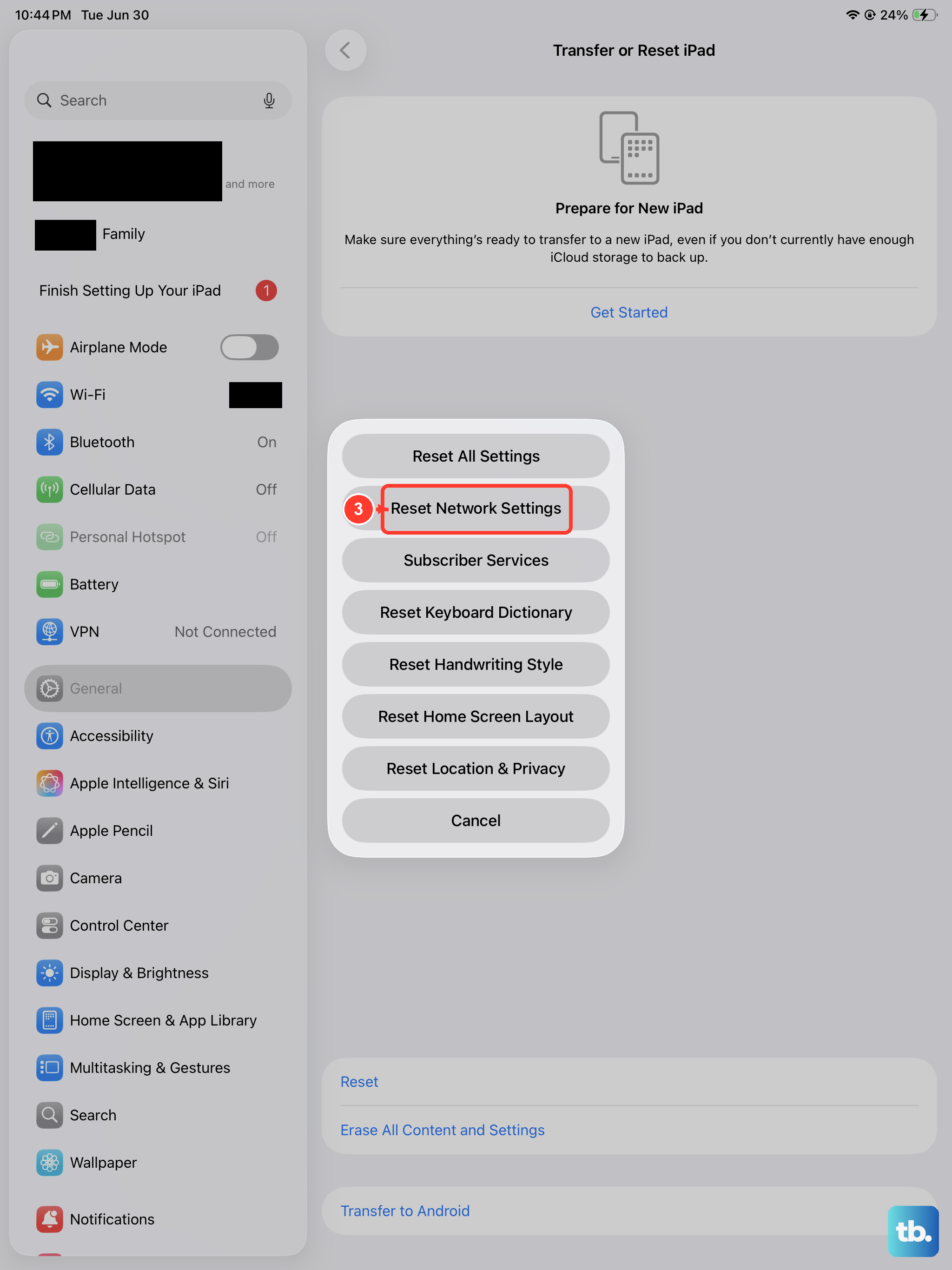
If the restart didn't help, the issue might be with your network configuration. Resetting these settings can clear up connection problems. Go to Settings > General > Transfer or Reset iPad > Reset > Reset Network Settings.
This will erase all saved Wi-Fi networks and passwords, so you'll need to reconnect to your Wi-Fi afterward. Once you're back online, attempt the update again. It's a common fix for persistent "Unable to Check for Update" errors.
Update Using a Mac or PC
When the over-the-air update just won't cooperate, updating via a computer is a reliable workaround. Connect your iPad mini to your computer using its USB-C cable. On a Mac with macOS Catalina or later, open Finder. On a Windows PC or older Mac, open iTunes.
Select your iPad when it appears, then click Check for Update. Follow the prompts to download and install. This method downloads the update file to your computer first, then sends it to your iPad, which often bypasses Wi-Fi or storage issues on the tablet itself.
Check Apple's System Status Page
Occasionally, the problem isn't on your end at all. During a major new iPadOS release, Apple's servers can get overwhelmed. Visit apple.com/support/systemstatus on another device and look for the "Software Update" service.
If there's a yellow or red indicator next to it, the issue is with Apple. In that case, all you can do is wait a few hours and try the update again later. Server-side problems usually resolve within a day.
Try Updating at a Different Time
If the system status page looks clear but downloads are still slow or failing, it could be due to high global traffic. Everyone with a compatible iPad is trying to get the update at once. I'd recommend trying again early in the morning or late at night, when fewer people are likely to be downloading.
This can result in a faster, more stable download from Apple's servers. Patience here can save you a lot of frustration with repeated failed attempts during peak hours.
Ensure Your iPad mini Is Compatible
While the iPad mini will certainly support iPadOS 26, it's always worth a quick check if you're seeing no update available at all. Go to Settings > General > About and look at the Model Name to confirm you have the 7th generation device.
If you've recently restored from a backup or are setting up a used device, it's possible an older version was installed. The update should appear for all supported models, but verifying your device is a good first step.