If your Xbox Series S won't turn on at all, start with the simplest fix first. Unplug the power cord from the console and wait at least 10 seconds before plugging it back in. Press the power button again to see if it boots up.
If you suspect drift or a failing button, run an online gamepad tester first. Watching the stick crosshairs settle off center confirms drift in seconds.
Key Points
- Reset the Power Supply: Hold down the power button on the front of your console for about 10 seconds until it completely shuts down.
- Fix Display and Resolution Problems: If you're seeing a corrupted image or no signal at all, your TV settings might be the culprit.
- Troubleshoot Quick Resume Crashes: When a game crashes during Quick Resume, press the Xbox button on your controller to open the guide.
- Clear Xbox 360 Game Issues: Xbox 360 games sometimes crash immediately or return you to the home screen without an error.
- Restore HDMI-CEC Functionality: If your Xbox stopped turning on your TV automatically after a system update, the HDMI-CEC setting might need a reset.
- Fix Wi-Fi Connection Problems: Check your internet connection with other devices first to rule out an outage.
I've seen this work for most power-related issues that crop up after a power surge or outage.
Sometimes the console is actually on but you're not getting any display. Check that your HDMI cable is firmly seated in the HDMI OUT port on the back of the console, and reseat it at both ends. The Series S has just one HDMI port (output only), so there is no HDMI IN to mix it up with. Try a different HDMI cable if you have one handy, and test it on another TV or monitor if possible.
If you're using a 4K TV with 120Hz and variable refresh rate, that combination can sometimes cause display problems.
Reset the Power Supply
Hold down the power button on the front of your console for about 10 seconds until it completely shuts down. Unplug the power cord from both the wall outlet and the Xbox itself. Wait a full minute before plugging everything back in.
This gives the internal power supply time to reset itself, which often fixes startup issues.
Make sure you're plugging directly into a wall outlet rather than a surge protector or power strip. Some power strips can interfere with the console's power draw. If you have access to a different outlet in another room, try that too.
It only takes a minute to rule out outlet problems.
Fix Display and Resolution Problems
If you're seeing a corrupted image or no signal at all, your TV settings might be the culprit. Update your TV to the latest firmware first, especially if you have an LG, Samsung, or Vizio model. These brands have had specific issues with Xbox Series S display settings.
Go to Settings > General > TV & display options > Video Modes and uncheck "Allow variable refresh rate." You can also try lowering the resolution to 1440p at 120Hz or 4K at 60Hz instead of 4K at 120Hz. The console can't always handle all three features simultaneously.
Troubleshoot Quick Resume Crashes
When a game crashes during Quick Resume, press the Xbox button on your controller to open the guide. Scroll down to the crashed game and press the Menu button, then select Quit. This fully closes the application.
Some games just don't play nice with Quick Resume, even years after launch.
If the console completely locks up, hold the power button down for several seconds until the light goes out. Unplug the power cable for 10 seconds, then plug it back in and power on. You'll lose any unsaved progress, but this hard reset usually unfreezes the system.
Look for the boot screen when it restarts to confirm the reset worked.
Clear Xbox 360 Game Issues
Xbox 360 games sometimes crash immediately or return you to the home screen without an error. Your saves are automatically stored in Xbox Live, so you can safely clear local storage. Open Settings > System > Storage and select Clear Local Xbox 360 Storage.
This removes temporary files that might be causing compatibility issues. The next time you launch an Xbox 360 game, it will download your cloud saves automatically.
I'd recommend this fix before trying anything more complicated with backward compatible titles.
Restore HDMI-CEC Functionality
If your Xbox stopped turning on your TV automatically after a system update, the HDMI-CEC setting might need a reset. Go to Settings > General > Power Mode & Startup > TV & AV Power Options. Toggle HDMI-CEC to Off, wait a moment, then toggle it back to On.
A bug can disable this feature even when the settings show it's enabled. Toggling it off and on forces the console to re-establish the connection with your TV.
This usually takes care of the "TV won't turn on with Xbox" problem that pops up occasionally.
Fix Wi-Fi Connection Problems
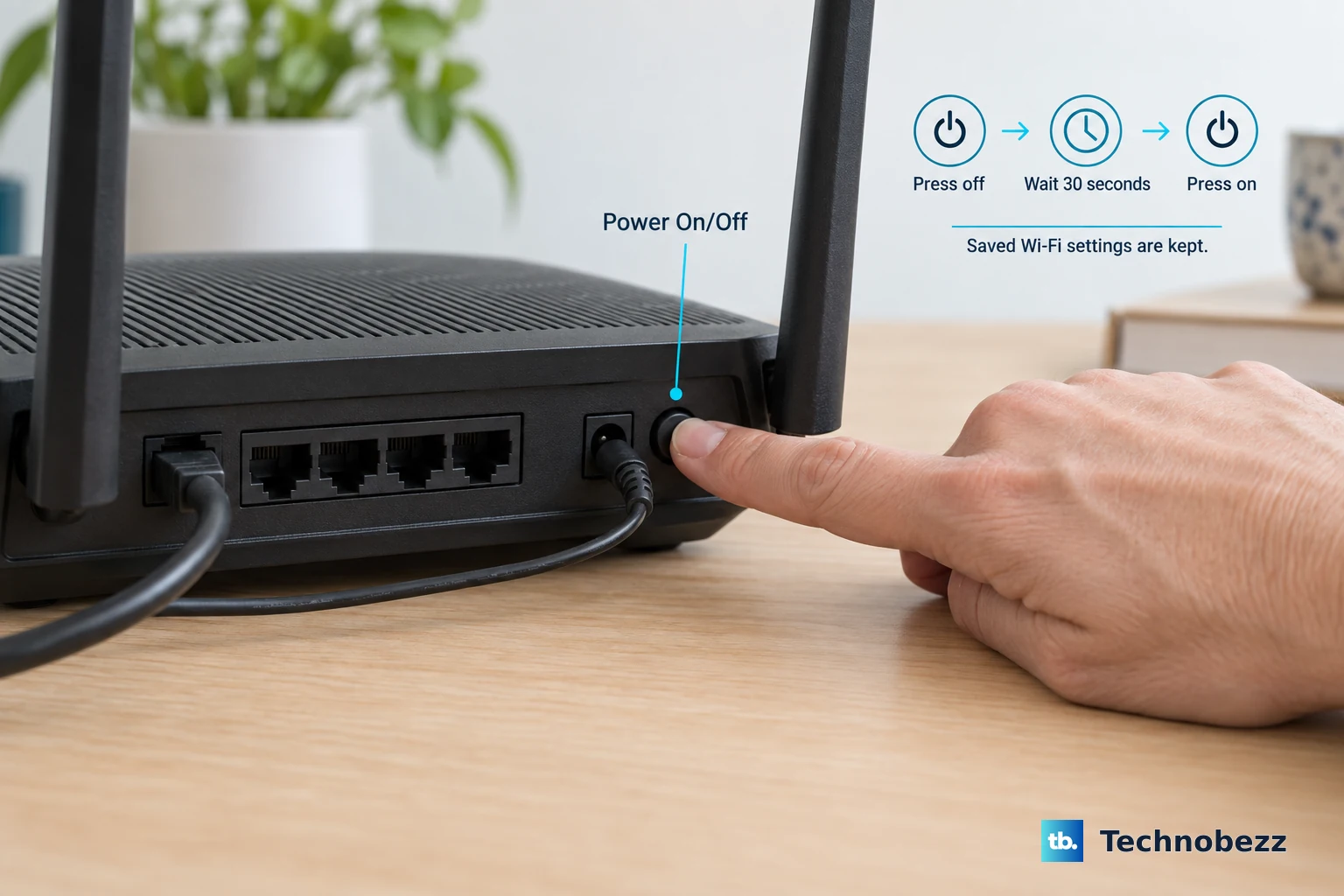
Check your internet connection with other devices first to rule out an outage. Then go to Profile & System > Settings > General > Network Settings to verify you're connected to the right network. Perform a hard reset on both your Xbox and wireless router by unplugging them for 30 seconds.
Certain wireless headsets can interfere with Wi-Fi signals, so disconnect any third-party headsets to test. Move your console closer to the router or plug it directly in with an Ethernet cable if possible.
These steps solve most Wi-Fi issues people encounter.
Address Controller Connectivity
If your controller won't connect wirelessly, try using a USB cable to connect it directly to the front USB port. The controller should work wired even if the wireless connection is having problems. Make sure you're using fresh batteries or a charged battery pack.
Press the Pair button on your console (above the front USB port) until the Xbox logo flashes rapidly. Then press the Pair button on the back of your controller. If they still won't connect, perform a hard reset on the console by holding the power button for 10 seconds.
Manage Limited Storage Space
The Xbox Series S only has about 364GB of usable space after system files. You can plug any USB 3.1 external hard drive into the USB ports to expand storage immediately. Xbox One, Xbox 360, and original Xbox games will play directly from external drives.
For Xbox Series S games, you'll need the Seagate Storage Expansion Card that uses the same fast internal design. You can store Series S games on a regular external drive and transfer them back when you want to play.
This saves you from constantly deleting and redownloading titles.
Clear System Cache for Performance
If your Xbox is running slowly or having general performance issues, clearing the system cache might help. Power down the console completely and unplug the power cord from the wall for at least 30 seconds. This clears temporary files that can build up over time.
Plug the cord back in and power up the console. Log in and try using an app or game to see if performance improved.
Some users report this fixes various minor glitches and slowdowns that accumulate with regular use.