
Seeing "Call Failed" on your iPad mini can be confusing, especially since you might be using it for FaceTime or cellular calls. This error typically pops up when your iPad can't connect properly to the cellular network or the internet for VoIP services. Weak signals, software hiccups, or incorrect settings are usually the culprits.
Here are 10 effective ways to fix call failures on your iPad mini, starting with the quickest solutions you can try right now.
Toggle Airplane Mode
The fastest fix is to reset your iPad's network connections by flipping Airplane Mode on and off. This clears temporary glitches that can disrupt calls, whether you're on cellular or Wi-Fi.
Swipe down from the top-right corner of your screen to open Control Center. Tap the airplane icon to turn it on, wait about 15 seconds, then tap it again to turn it off. This forces your iPad to re-establish all its connections fresh.
Check Your Cellular or Wi-Fi Signal
For cellular models, check the signal bars in the status bar. If you have one bar or see "No Service," move to a different location or near a window. If you're relying on Wi-Fi for FaceTime or other calling apps, ensure you have a strong, stable connection.
A weak or flaky internet connection is a common reason for call drops. Try loading a webpage to test your connection's stability before placing another call.
Restart Your iPad mini
A simple restart can clear out minor software bugs that might be interfering with calling functions. To restart your 7th generation iPad mini, press and hold the top button and either volume button until the power off slider appears.
Slide to power off, wait a full 30 seconds, then press the top button again to turn it back on. This gives the system a clean slate.
Check Focus and Do Not Disturb
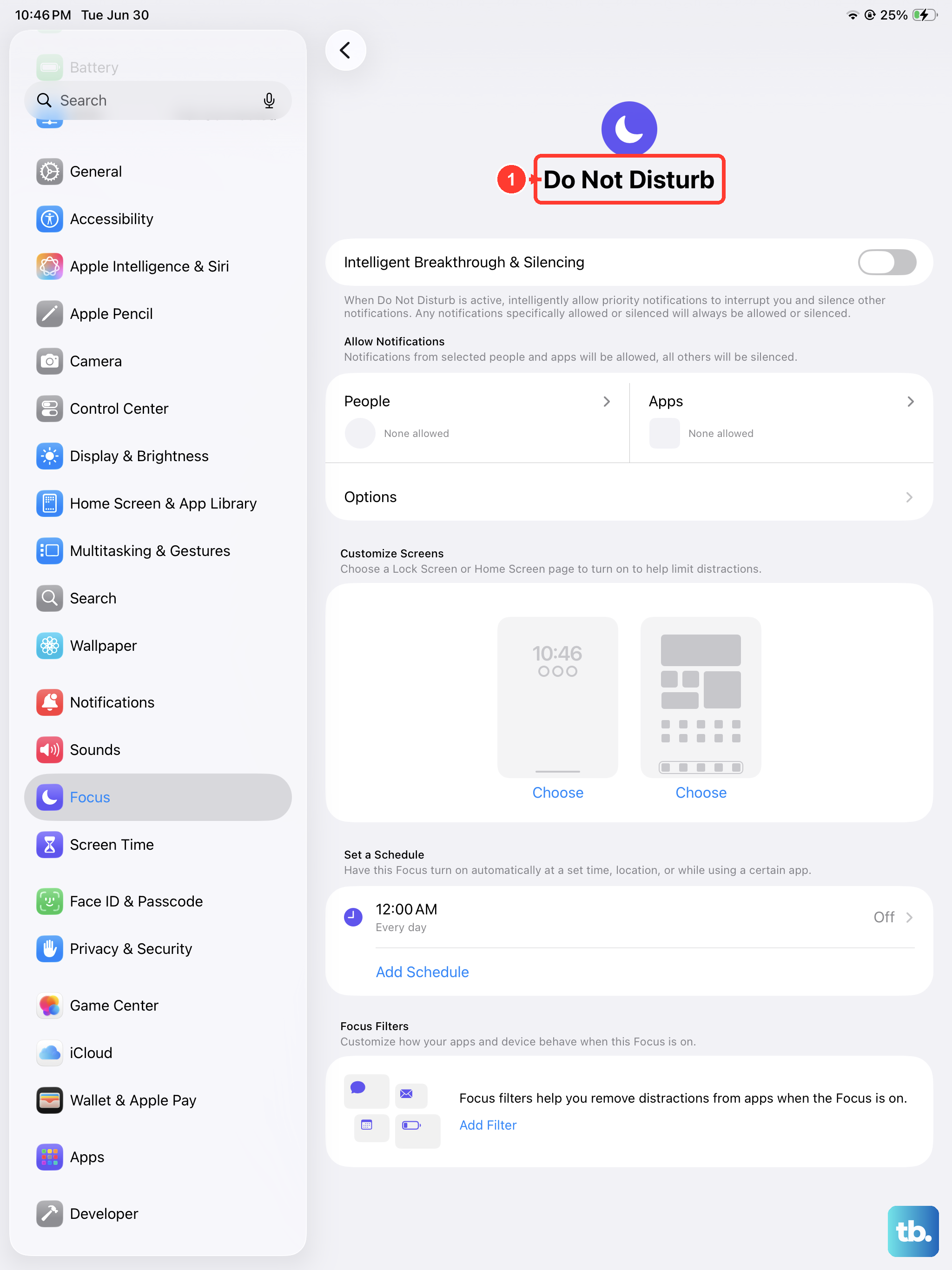
Focus modes, especially Do Not Disturb, can sometimes silence or block incoming call notifications. It's easy to forget you have one enabled.
Swipe down from the top-right to open Control Center and look at the Focus button. If it's active (it will be highlighted), tap it to turn the current Focus off. You can also check all your settings in Settings > Focus.
Update Date and Time Settings
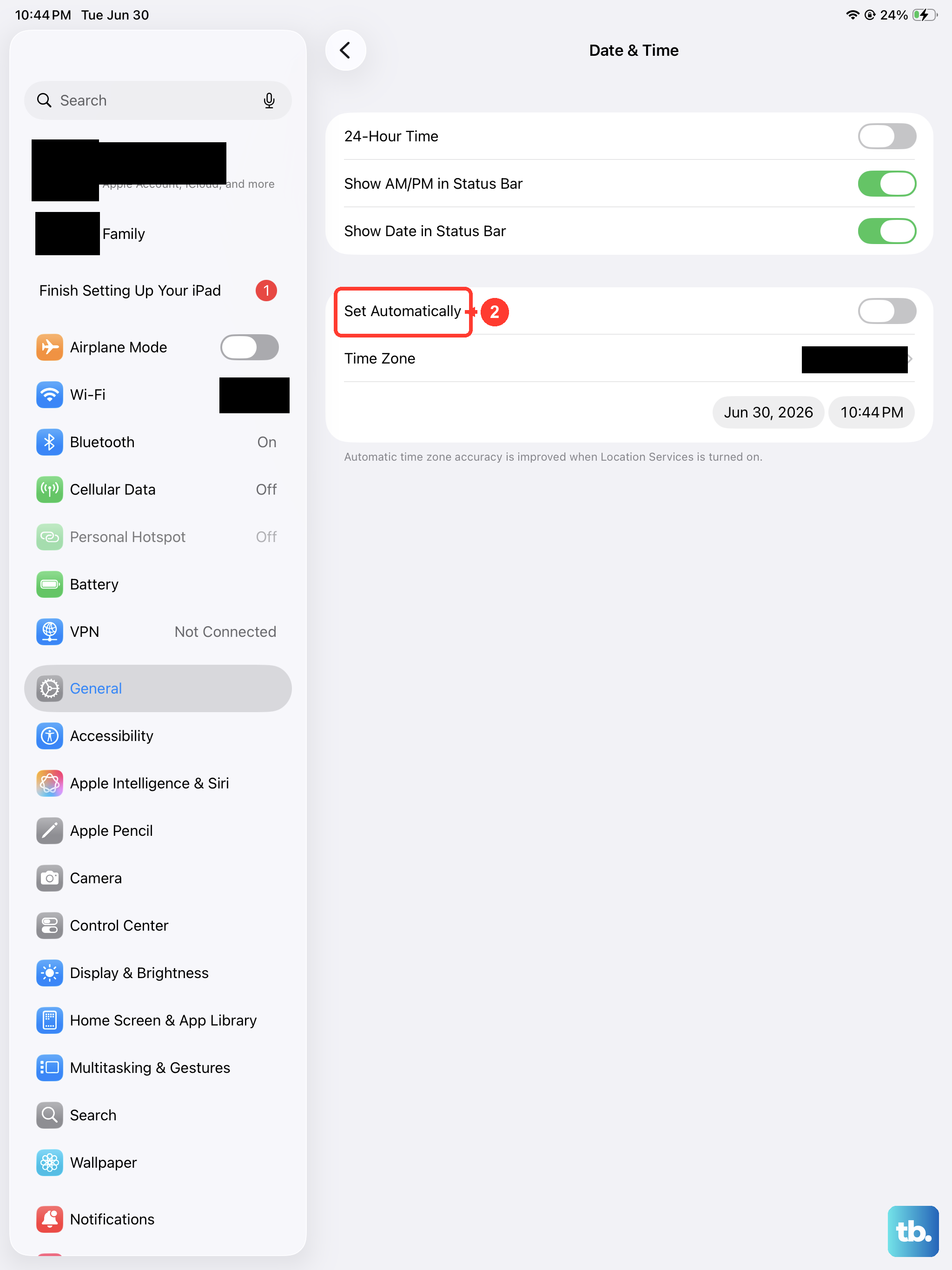
Incorrect date and time settings can cause certificate errors and network connection problems. Your iPad needs the right time to communicate properly with cell towers and servers.
Go to Settings > General > Date & Time and make sure "Set Automatically" is turned on. This small setting can have a surprisingly big impact.
Verify Cellular Data is Enabled
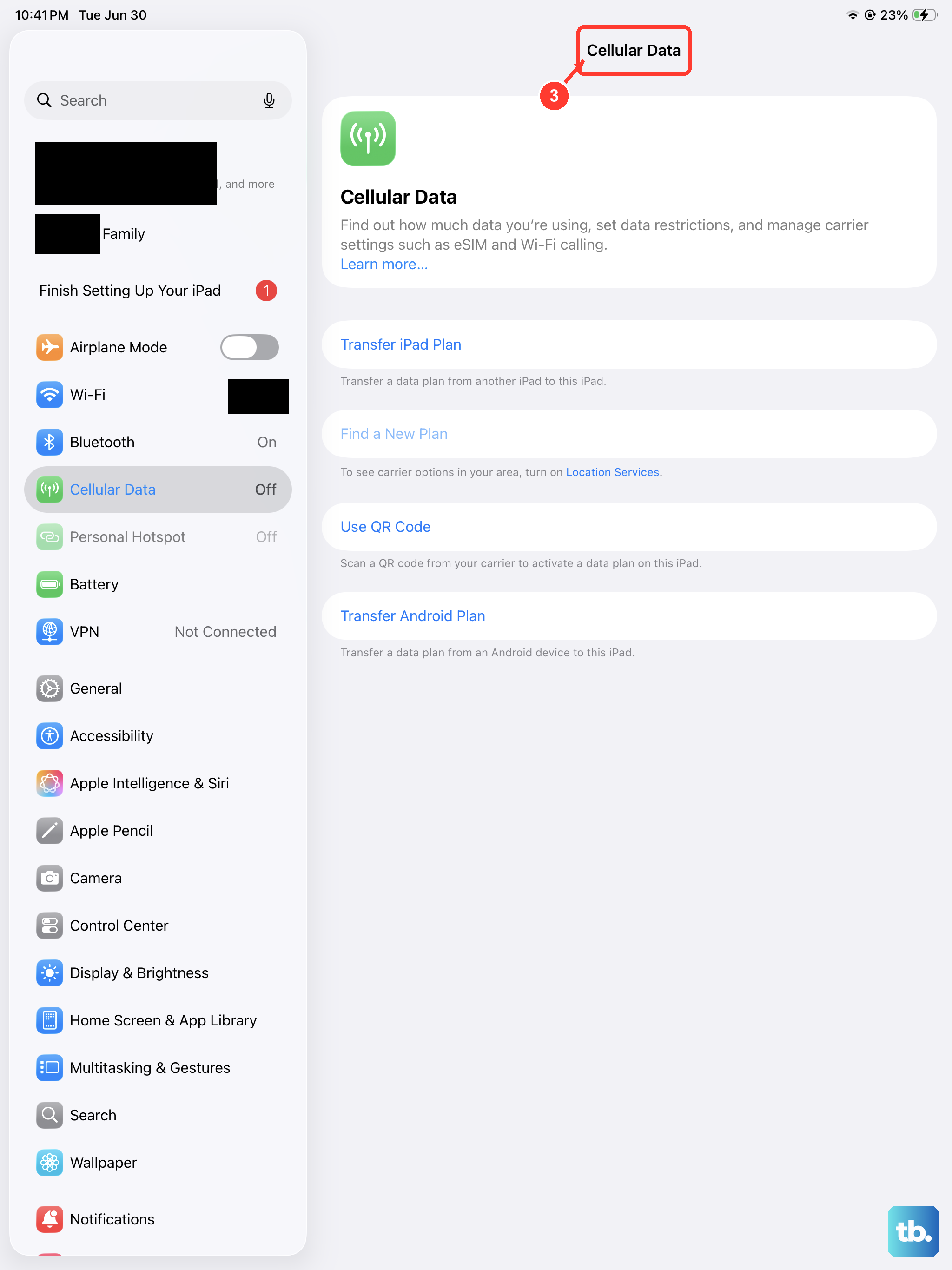
If you have a cellular model and are trying to make a call away from Wi-Fi, ensure your cellular data is switched on. This is a common oversight after traveling or toggling settings.
Open Settings > Cellular Data and make sure the main "Cellular Data" switch is green. If you're traveling internationally, you may also need to enable Cellular Data Options > Data Roaming.
Update Carrier Settings
Your carrier occasionally releases updates that improve network connectivity and fix calling issues. These are separate from iPadOS updates.
Make sure your iPad is connected to Wi-Fi. Then, go to Settings > General > About. If a carrier settings update is available, a prompt will appear on this screen. Just follow the instructions to install it.
Check Your SIM Card (Cellular Models)
A loose, dirty, or faulty SIM card can cause call failures. The SIM tray on the iPad mini is on the left edge. You'll need a SIM eject tool or a small paperclip.
Gently press into the small hole to eject the tray. Remove the SIM card, inspect it for damage, wipe the gold contacts gently with a soft cloth, and reinsert it. Ensure the tray clicks fully back into place.
Update iPadOS Software
Software updates from Apple include bug fixes that can resolve calling and connectivity issues. It's always a good idea to be on the latest version of iPadOS.
Connect to Wi-Fi and plug in your charger. Go to Settings > General > Software Update. If an update for iPadOS 26 (or newer) is available, tap "Download and Install." I'd start with this one if you haven't updated in a while.
Reset Network Settings
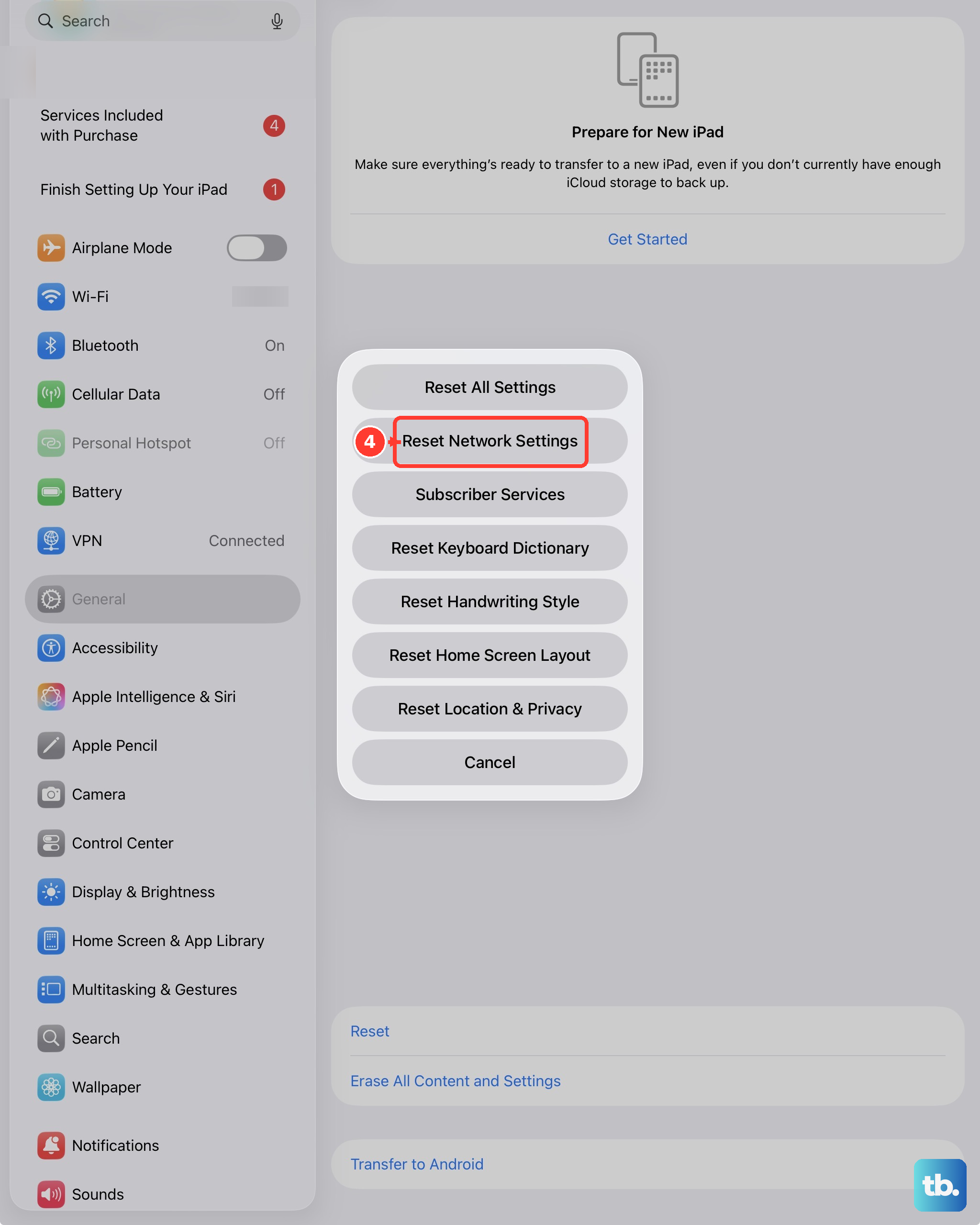
This is a more thorough step that clears all saved Wi-Fi networks, passwords, cellular settings, and VPN configurations. It won't delete your personal data, but you will need to re-join Wi-Fi networks afterward.
Go to Settings > General > Transfer or Reset iPad. Tap "Reset," then choose "Reset Network Settings." Enter your passcode to confirm. Your iPad will restart, and you can test your calls again.