
When your iPad mini (7th generation) won't download apps from the App Store, it can stop you from getting work done or just enjoying your device. That spinning circle or "Waiting..." message is a common headache, but it's usually something you can fix yourself without much trouble.
Let's go through the fixes that work for iPadOS 26, starting with the quickest ones you should try first.
Check Your Internet Connection
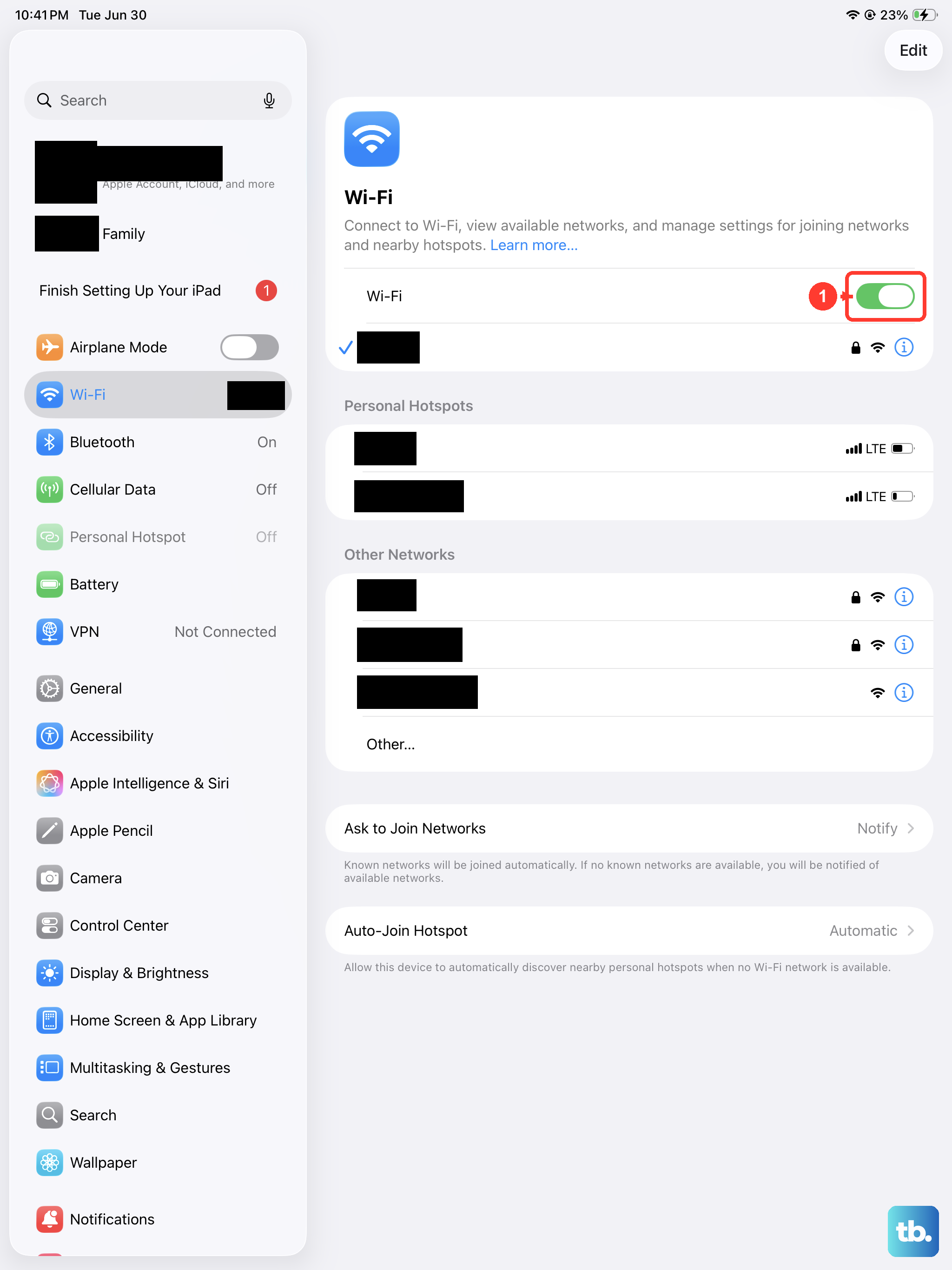
This is the most common culprit. The App Store needs a stable connection to verify your account and download apps. Open Safari and try loading a website like apple.com to test your Wi-Fi.
If the page doesn't load, go to Settings > Wi-Fi and make sure you're connected to the right network. You can try toggling Wi-Fi off and back on. For a deeper network refresh, enable Airplane Mode for 10 seconds, then turn it off.
Force Restart Your iPad mini
A simple restart clears out temporary software glitches that can stall the App Store. For the 7th generation iPad mini, press and quickly release the Volume Up button, then press and quickly release the Volume Down button.
Immediately after, press and hold the Top button (the one on the top edge) until you see the Apple logo appear on the screen. This doesn't delete any data, it just gives the system a fresh start.
Sign Out and Back Into the App Store
Sometimes your Apple ID session gets stuck. Tapping your profile picture in the top right of the App Store and signing out can reset things. Go to the App Store, tap your profile icon in the corner, scroll down, and tap Sign Out.
After you're signed out, restart your iPad using the force restart method above. Then, go back to the App Store and sign in with your Apple ID and password again. I've found this resolves download hangs more often than not.
Check Your Date & Time Settings
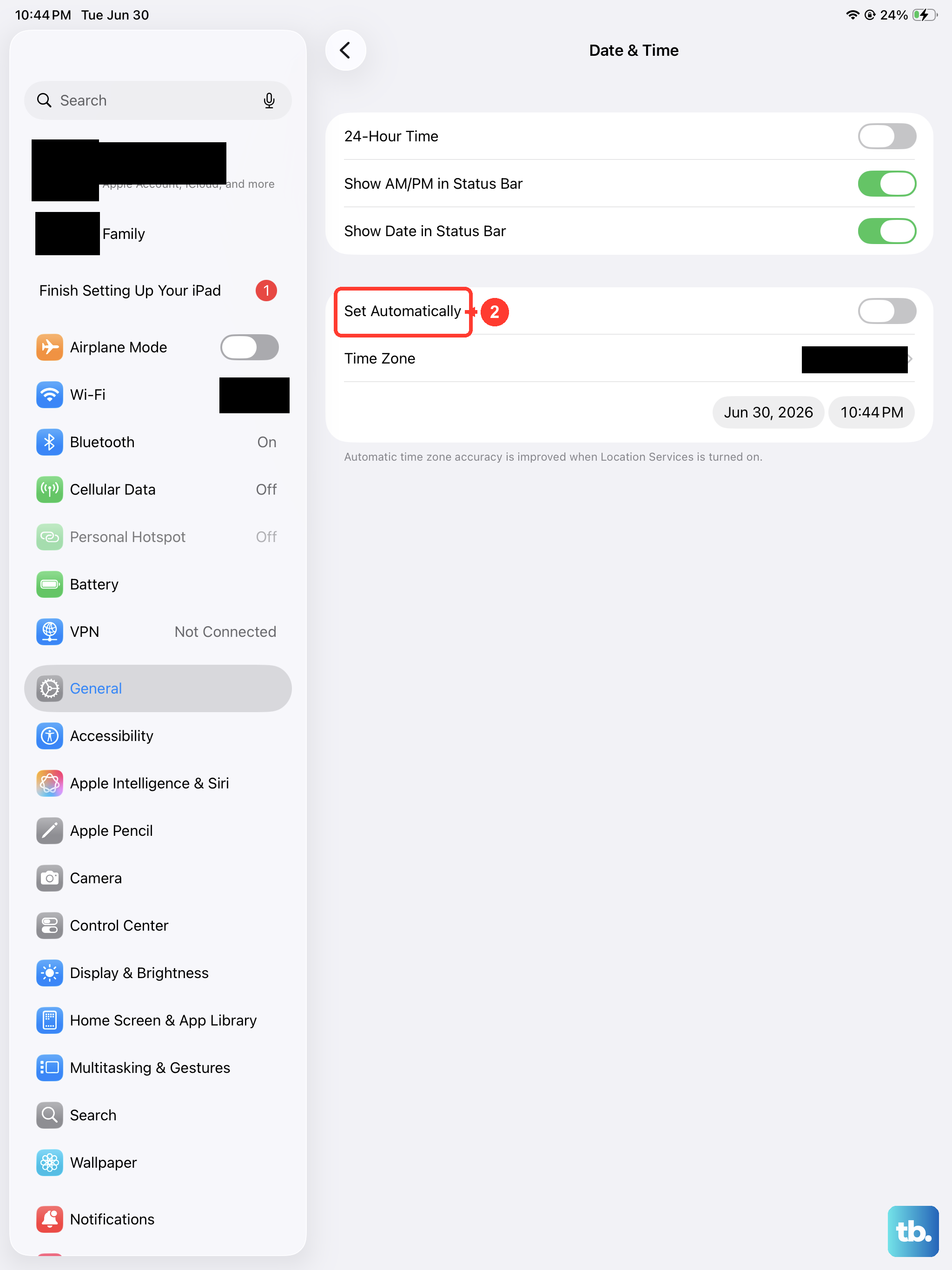
This one sounds odd, but it's important. The App Store servers use your device's time to verify security certificates. If your iPad's clock is off, downloads can fail silently.
Go to Settings > General > Date & Time. Make sure Set Automatically is turned on. If it's already on but you're still having issues, try turning it off, manually setting the correct date and time, and then turning "Set Automatically" back on.
Check Available Storage Space
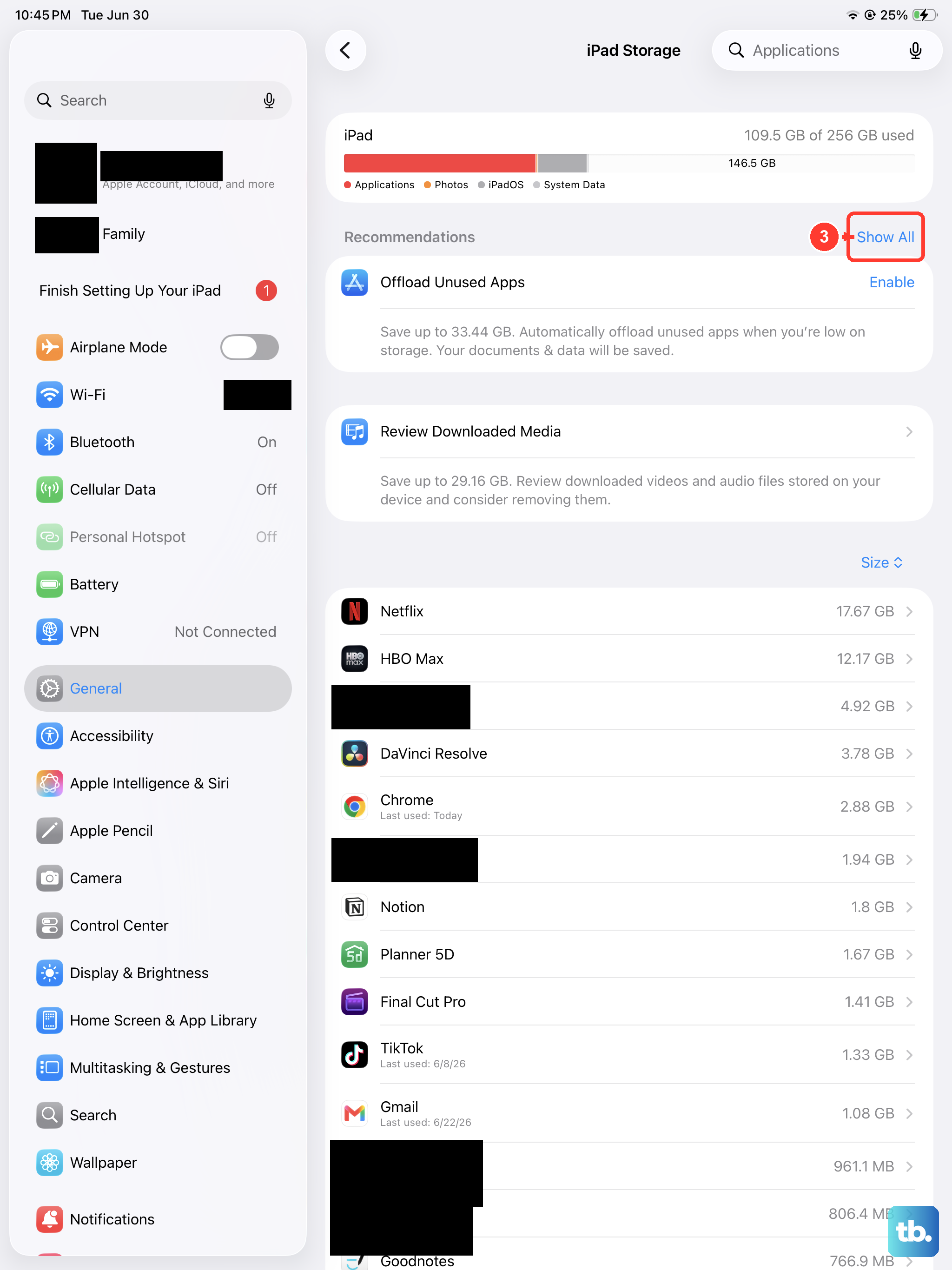
Your iPad mini needs free space to download and install an app, even if the app itself is small. Go to Settings > General > iPad Storage to see how much space you have left.
If you're running low, you might see an "Insufficient Storage" alert. You can offload unused apps (which removes the app but keeps its documents and data) or delete old videos and photos to free up room.
Update iPadOS to the Latest Version
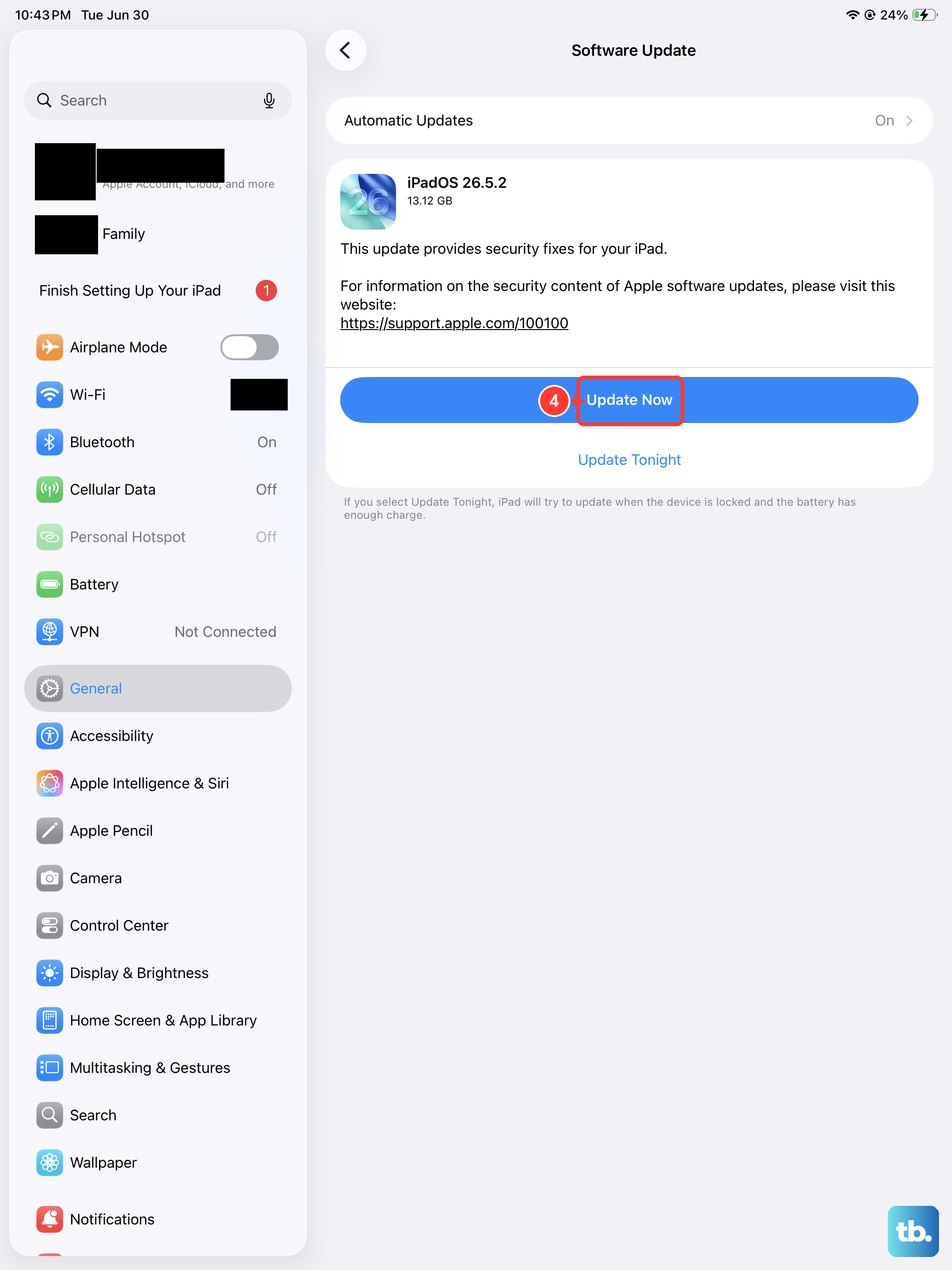
Software bugs in older versions of iPadOS can break App Store functionality. Apple regularly releases updates with fixes. Connect your iPad to power and go to Settings > General > Software Update.
If an update is available, tap Download and Install. Using a stable Wi-Fi connection and the official Apple 20W or higher USB-C charger is best for this process. Keeping your iPad updated is key for performance.
Reset Your Network Settings
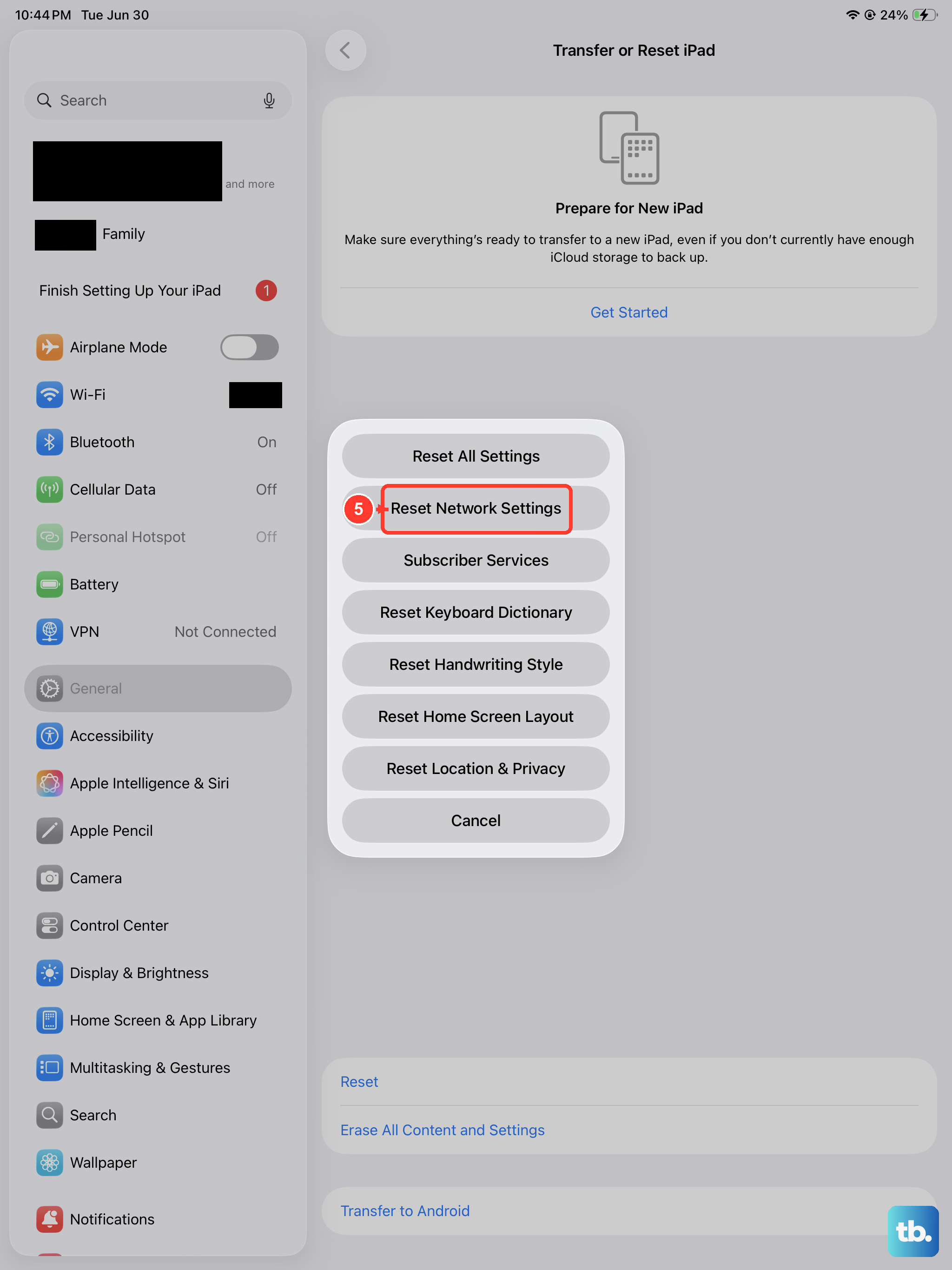
This clears all your saved Wi-Fi passwords, VPN settings, and cellular preferences, which can fix persistent connection issues that affect the App Store. Go to Settings > General > Transfer or Reset iPad.
Tap Reset, then choose Reset Network Settings. You'll need to re-join your Wi-Fi networks afterward, but it often clears up download problems related to network configuration.
Check Screen Time & Content Restrictions
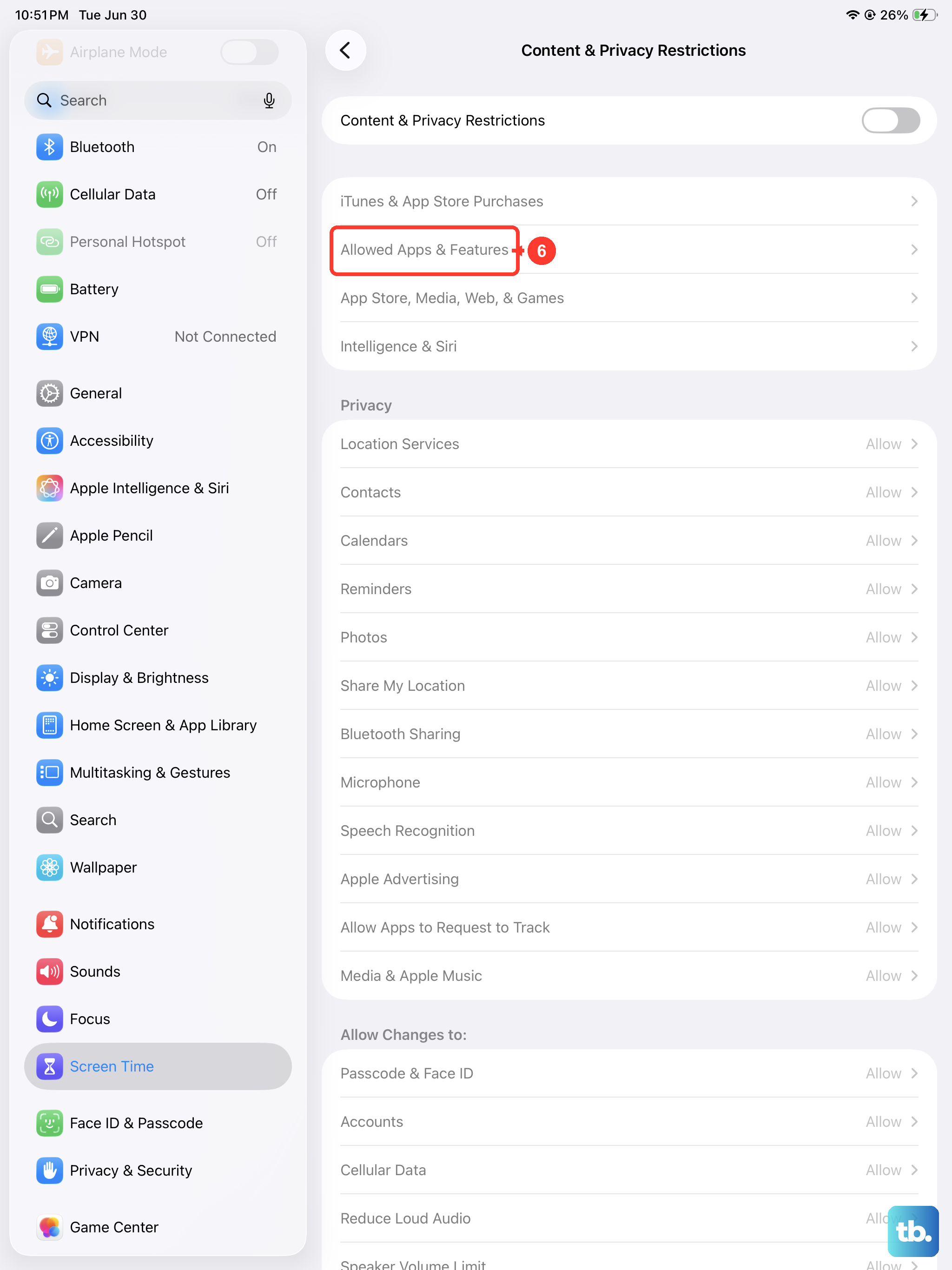
If you have Screen Time enabled, a restriction might be blocking app downloads. Go to Settings > Screen Time > Content & Privacy Restrictions.
Tap iTunes & App Store Purchases, then tap Installing Apps. Make sure it's set to Allow. Also, check under Content Restrictions > Apps to ensure you're not blocking apps of a certain rating.
Force Quit and Relaunch the App Store
If the App Store app itself is frozen, force quitting it can help. On an iPad without a Home button, swipe up from the bottom of the screen and pause in the middle to enter the app switcher.
Find the App Store card and swipe it up and off the top of the screen to close it. Wait a few seconds, then tap the App Store icon on your Home Screen to reopen it and try your download again.
Check for a Pending Terms & Conditions Update
Occasionally, Apple updates its terms, and you must agree to them before you can download anything new. The prompt doesn't always appear obviously.
Open the App Store and tap your profile picture in the top right. Scroll down and see if there's a button to review terms or update billing information. If there is, follow the prompts to accept the new terms.