
When your iPad starts restarting on its own, it's more than just annoying. It can interrupt your work, cut off a movie, or lose your place in a document. This kind of random restarting is usually a software hiccup, but it can sometimes point to something more.
Before you dive into any fixes, it's a smart move to make sure your data is backed up. You can do this through iCloud or by connecting to a computer. This way, if you need to take more serious steps, your photos, notes, and apps are safe.
Force Restart Your iPad
A force restart is the first thing I'd try. It clears out temporary glitches in the system's memory without touching your data. The method depends on which iPad model you have.
For modern iPads without a Home button, like the iPad Air or iPad Pro, here's what you do. Quickly press and release the Volume Up button. Then, quickly press and release the Volume Down button. Finally, press and hold the Top button until you see the Apple logo appear on the screen.
If you have an older iPad with a physical Home button, the process is different. Just press and hold both the Home button and the Top button at the same time. Keep holding them until the Apple logo shows up, then you can let go.
Check for Problematic Apps
A misbehaving app is one of the most common reasons for an iPad to restart. Start by closing all the apps you have running in the background. On iPads without a Home button, swipe up from the bottom of the screen and pause in the middle, then swipe up on each app card to close it.
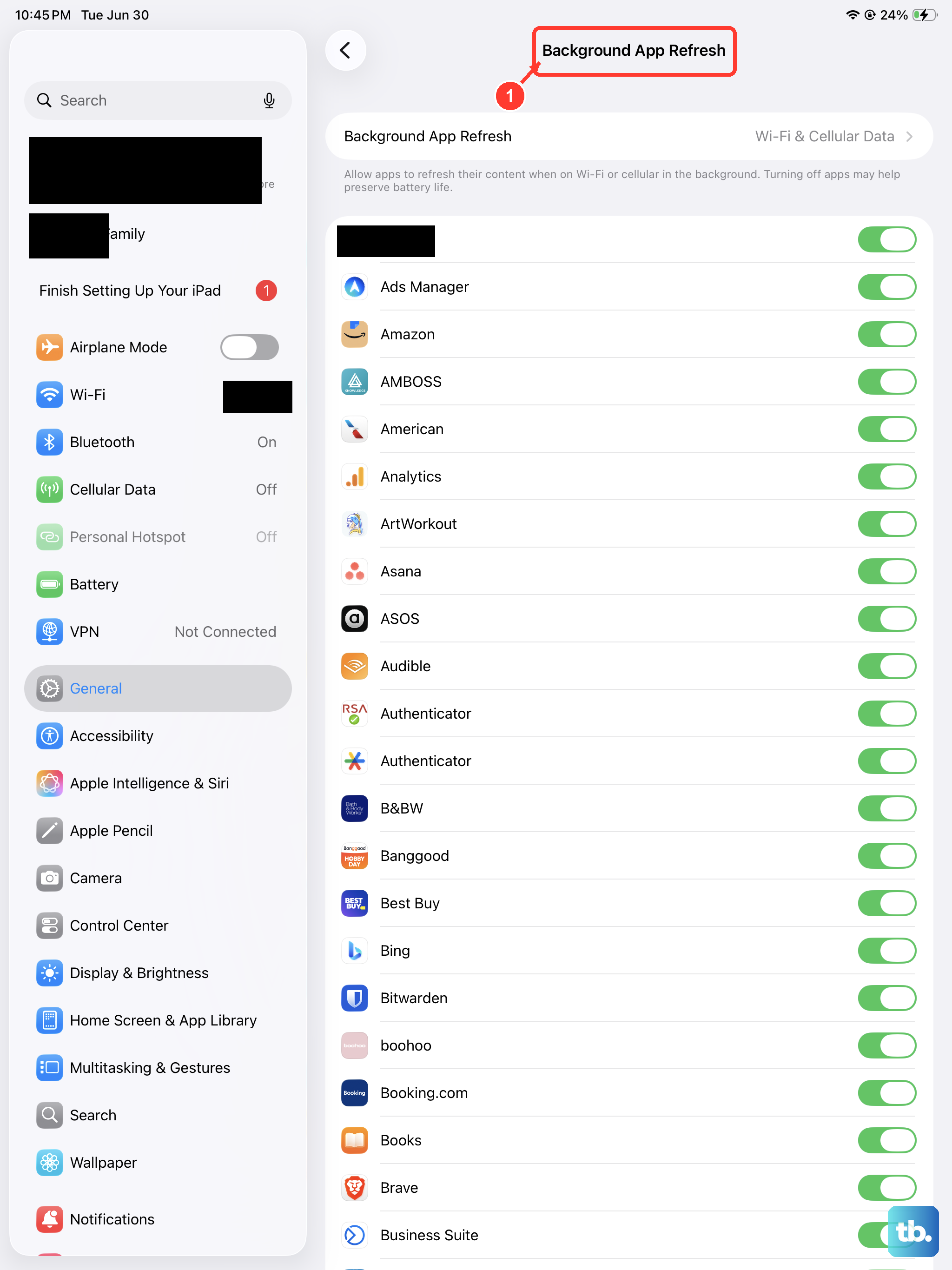
Next, you can stop apps from refreshing in the background, which can sometimes cause conflicts. Go to Settings > General > Background App Refresh. You can turn this off completely, or just for specific apps you suspect might be the troublemakers.
Update Your Apps and iPadOS
Running old software is a classic recipe for instability. Developers and Apple are constantly fixing bugs that can cause crashes. First, head to the App Store and tap your profile icon in the top corner.
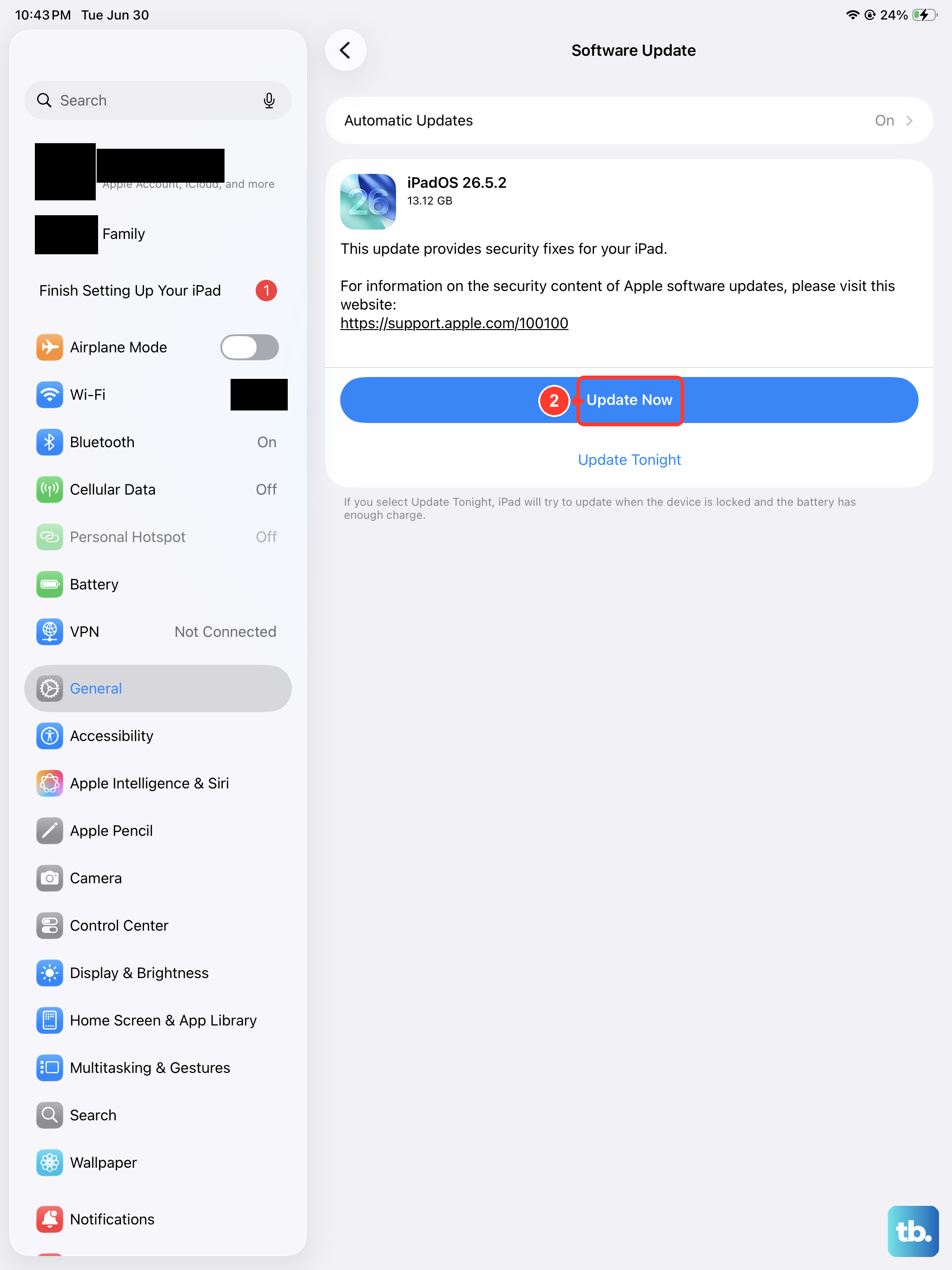
Scroll down and you'll see a list of pending updates. Tap "Update All" to get everything current. After that, check for a system update. Go to Settings > General > Software Update.
If there's an update available, download and install it. Make sure your iPad is plugged into power and connected to Wi-Fi during this process. I've seen many random restart issues cleared up by a simple iPadOS update.
Review iPad Analytics Data
Your iPad keeps a detailed log of every crash and system error, which can be a huge help in diagnosing the problem. To find it, go to Settings > Privacy & Security > Analytics & Improvements > Analytics Data.
You'll see a long list of files. Look for entries that start with "panic-full" – these indicate a full system crash. Also look for logs named after specific apps, which can tell you exactly which software is failing. This info is technical, but it can confirm if the issue is with an app or the system itself.
Free Up Storage Space
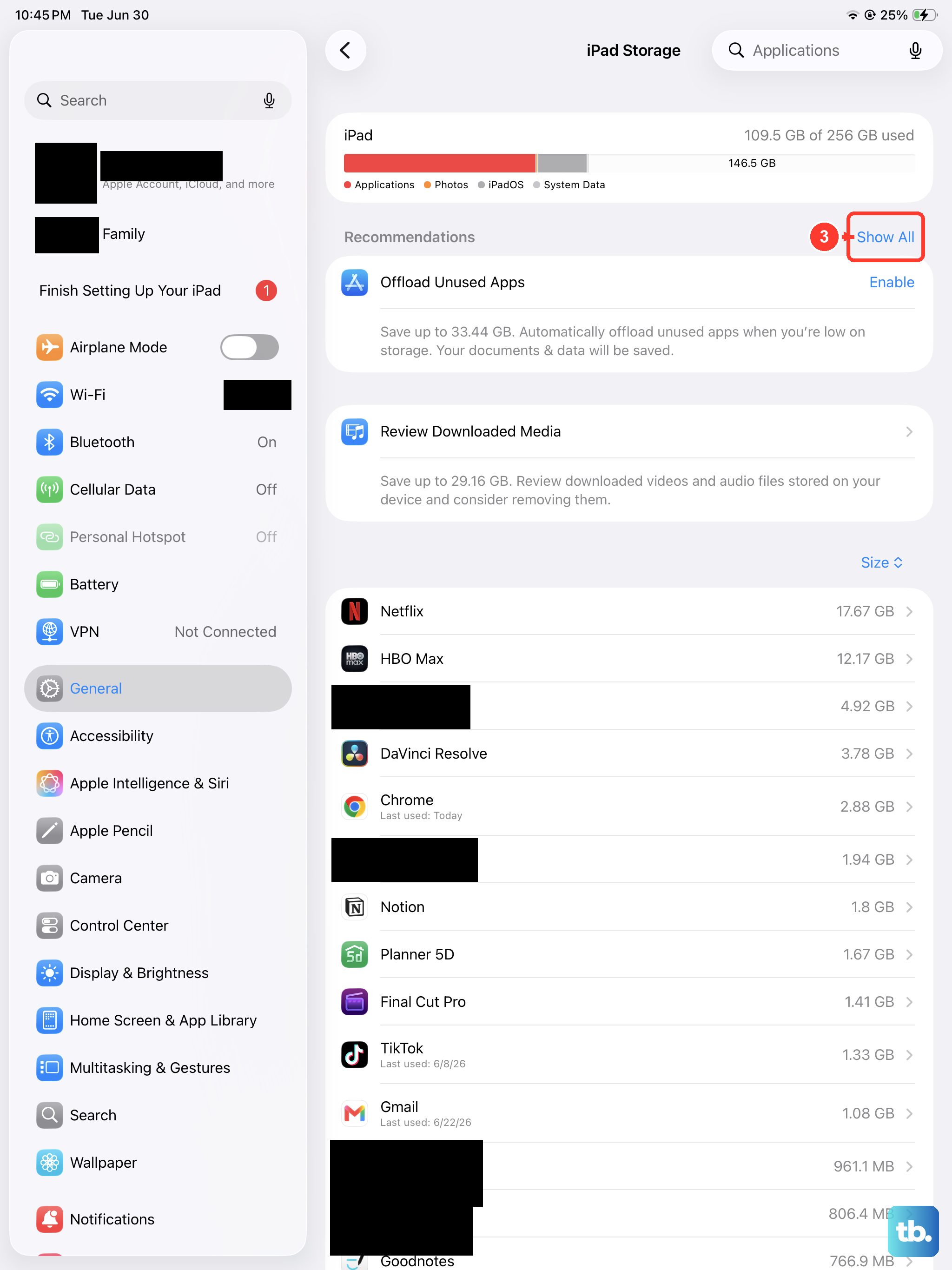
When your iPad's storage is completely full, the operating system doesn't have room to work properly. This can lead to all sorts of strange behavior, including random restarts. Check your status by going to Settings > General > iPad Storage.
The system will show you a breakdown and often give recommendations. You might offload unused apps, which removes the app but keeps its documents and data. You can also review large files or clear out old messages and photos. Aim to keep at least a few gigabytes free.
Reset All Settings
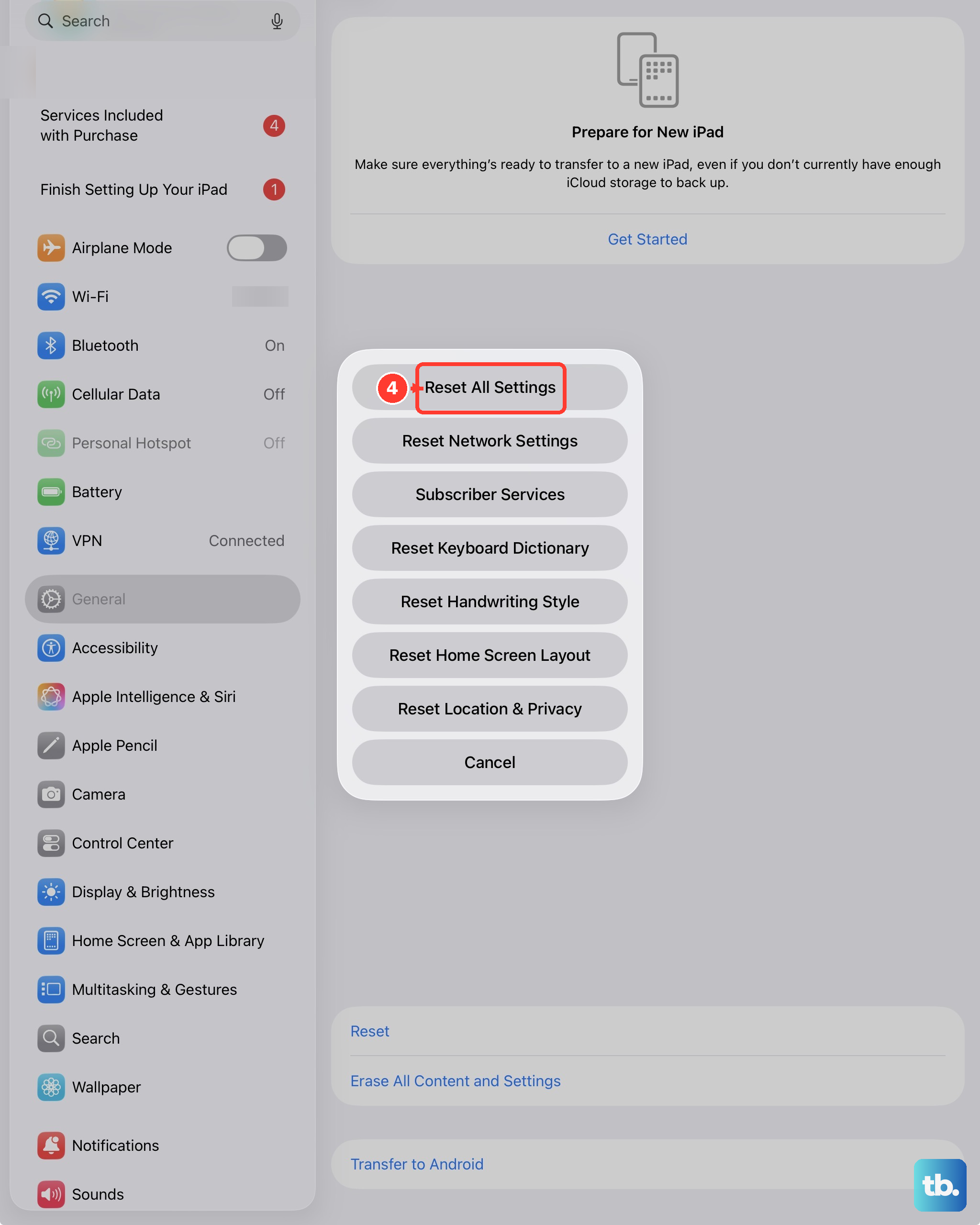
If the restarting continues, the next step is to reset your iPad's settings. This won't delete your apps, photos, or personal data. It will, however, revert all your preferences back to factory defaults.
Things like your Wi-Fi passwords, wallpaper, and privacy settings will be wiped. To do this, navigate to Settings > General > Transfer or Reset iPad. Tap "Reset" and then choose "Reset All Settings." You'll need to enter your passcode to confirm.
Perform a Factory Reset
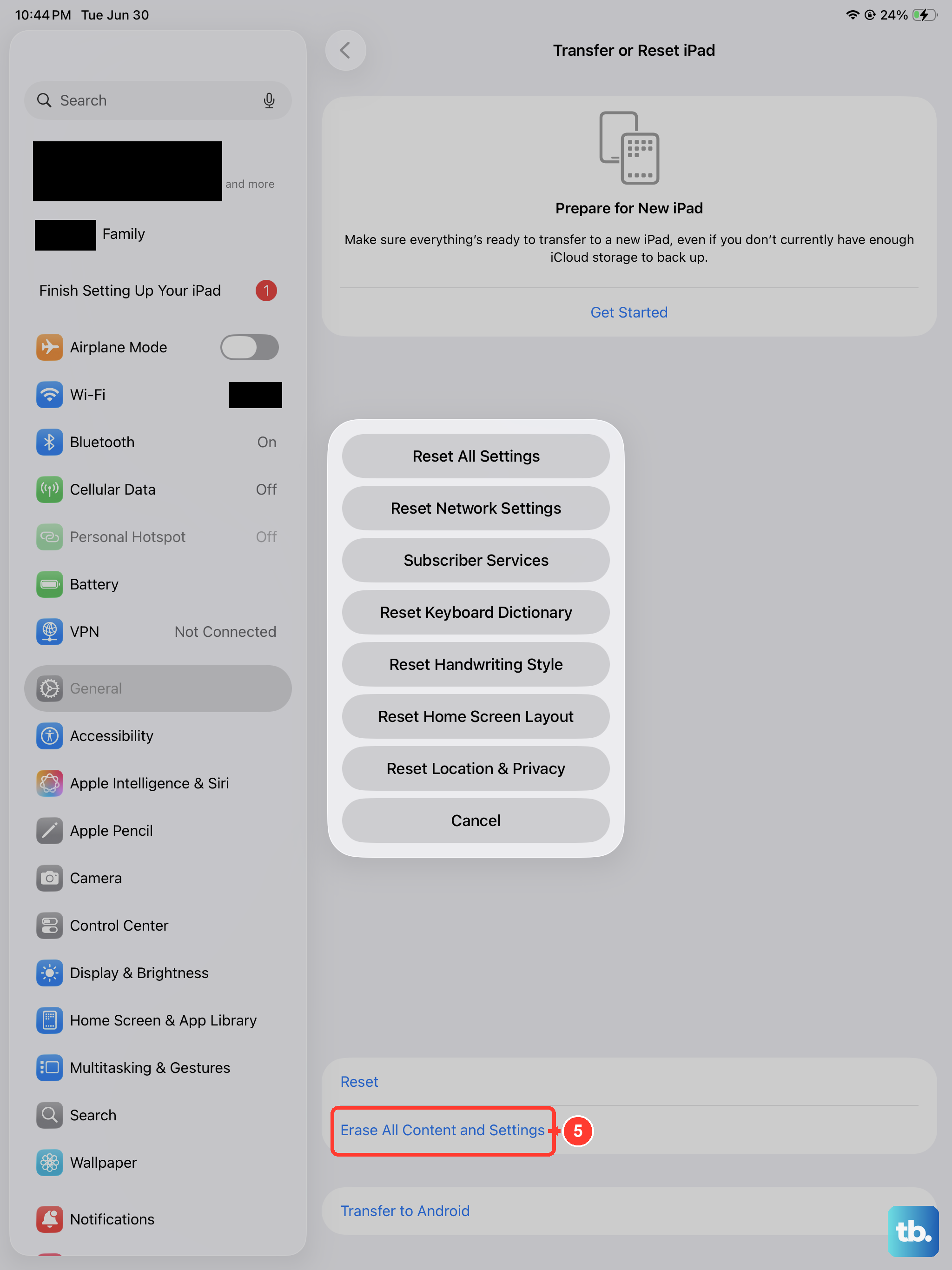
This is a major step, so only do it if you have a current backup. A factory reset will erase everything on your iPad and install a fresh copy of iPadOS. It's the most effective way to rule out a deep-seated software problem.
Go to Settings > General > Transfer or Reset iPad. This time, tap "Erase All Content and Settings." Enter your passcode and Apple ID password when prompted. Your iPad will restart and take you through the initial setup screen as if it were brand new.
Restore via Recovery Mode
If your iPad is stuck in a constant restart loop and you can't even get into Settings, you'll need to use Recovery Mode. This requires a computer with a USB-C cable (for newer iPads) or the Finder app on a Mac (or iTunes on a Windows PC).
First, connect your iPad to the computer. For iPads without a Home button, quickly press and release the Volume Up button, then the Volume Down button. Immediately press and hold the Top button. Keep holding it even after the Apple logo appears, until you see the recovery mode screen.
For iPads with a Home button, just press and hold both the Home and Top buttons together until the recovery screen appears. Your computer will then give you the option to Update or Restore. Choose "Restore" to download and install a clean version of iPadOS.
Check for Physical Issues
While less common, a hardware problem can cause restarts. If you use a keyboard case or a USB-C hub, try removing it. Some accessories, especially cheaper hubs, can draw too much power or cause conflicts.
Also, make sure you're using an adequate charger. iPads need more power than iPhones. Using a small 5W or 10W iPhone charger might keep it alive, but it can lead to unstable performance. A 20W or 30W USB-C charger is best for reliable operation.
If you've tried every software fix here and the iPad still restarts randomly, it could point to an internal hardware fault like a failing battery or logic board issue. At that point, the most reliable path is to contact Apple Support or visit an Apple Store for diagnostics.