
When your iPad Air (2026) can't send messages, it cuts off a key way to communicate. You might see a red exclamation point, a message stuck on "Sending," or just no notification at all that it failed. The process is a bit different than on an iPhone, but the fixes are just as straightforward.
Check Your Connection First
Your iPad needs an internet connection to send any message, whether it's an iMessage or an SMS. If you're on Wi-Fi, check the icon in the top corner. For cellular models, look at the signal bars. I'd start by toggling Airplane Mode on and off from Control Center to refresh the connection instantly.
If you're using a cellular model, remember that SMS/MMS texts require a cellular signal, not just data. Moving to a location with better reception can make all the difference. A quick restart of your iPad can also clear up temporary network glitches that halt messaging.
Restart Your iPad Air
For the 2026 model without a Home button, you'll use the button combo. Press and quickly release the Volume Up button, then press and quickly release the Volume Down button. Finally, press and hold the Top button until you see the Apple logo appear, then release it. This force restart can resolve many software hiccups affecting the Messages app.
Verify Apple's iMessage Status
Since iMessage relies on Apple's servers, an outage on their end will stop blue bubble messages from sending. Pull up Safari and go to apple.com/support/systemstatus. Look for iMessage in the list. If there's a yellow or red indicator, the issue is with Apple and you'll just have to wait.
While you wait for Apple to fix a server issue, you can send a message as a standard SMS. Just tap and hold the failed blue message bubble and select Send as Text Message. This requires you to have SMS enabled in your settings, which we'll check next.
Refresh Your iMessage Connection
Head to Settings > Apps > Messages and toggle the iMessage switch off. Give it a full minute, then turn it back on. This forces your iPad to de-register and then re-register with Apple's messaging servers, which often clears up sending problems.
While you're in the Messages settings, take a quick look at your Send & Receive addresses. Make sure the correct phone number and email address you want to use are checked. Sometimes, if your Apple ID is signed in on multiple devices, the settings can get confused.
Review Your Blocked Contacts List
If messages are failing to send to one specific person, you might have blocked them without realizing it. Go to Settings > Apps > Messages > Blocked Contacts to see the list. If you find them there, swipe left on their name and tap Unblock.
Reset Your iPad's Network Settings
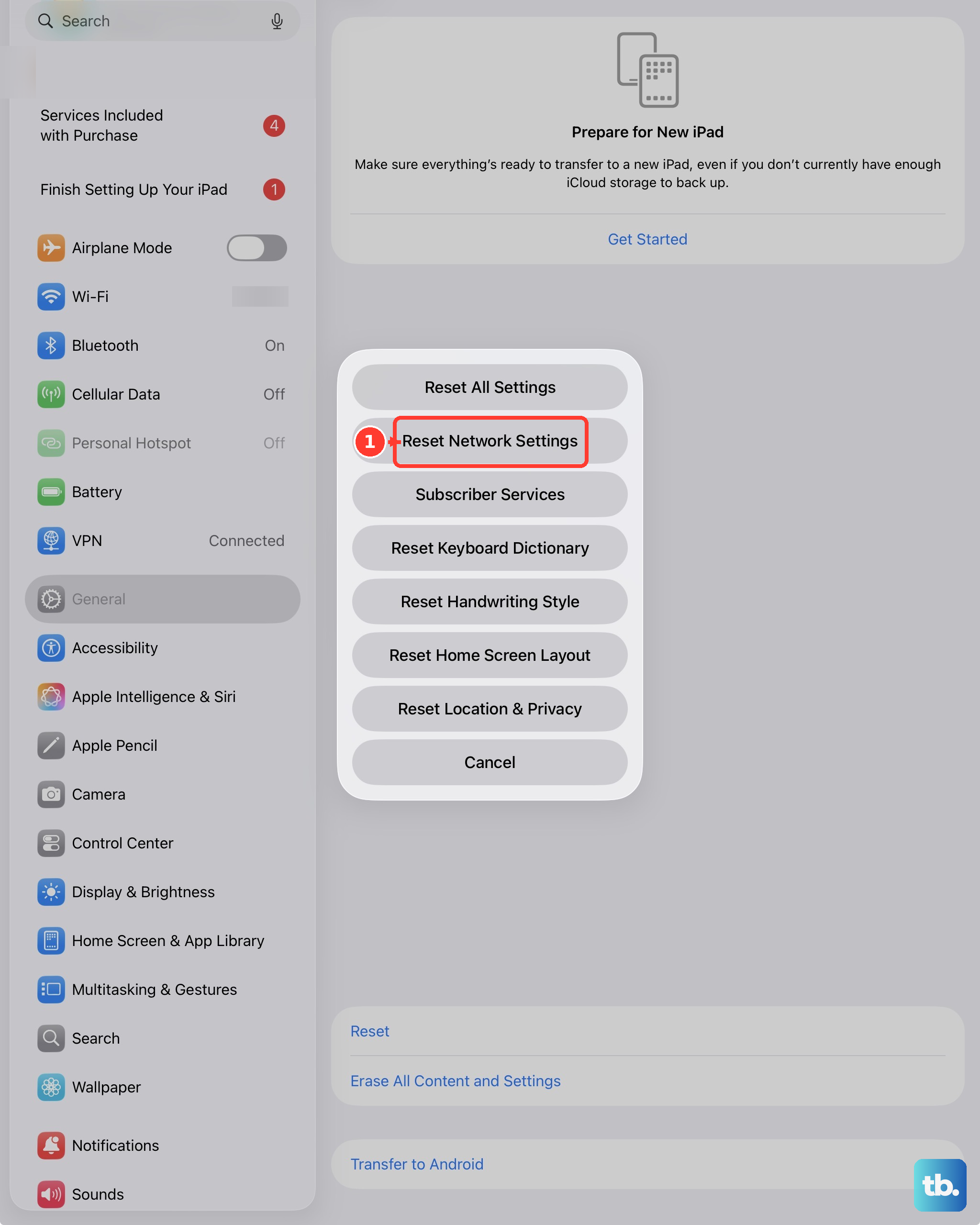
This is a more thorough step for persistent issues. Navigate to Settings > General > Transfer or Reset iPad > Reset. Then, tap Reset Network Settings. This will erase all Wi-Fi networks, passwords, cellular settings, and VPN configurations, returning them to factory defaults.
You'll need to reconnect to your Wi-Fi networks afterward, but this process clears out any corrupted network data that could be interfering with the Messages app's ability to connect. It's a common fix for odd connectivity problems on iPadOS.
Confirm Your SMS/MMS Settings
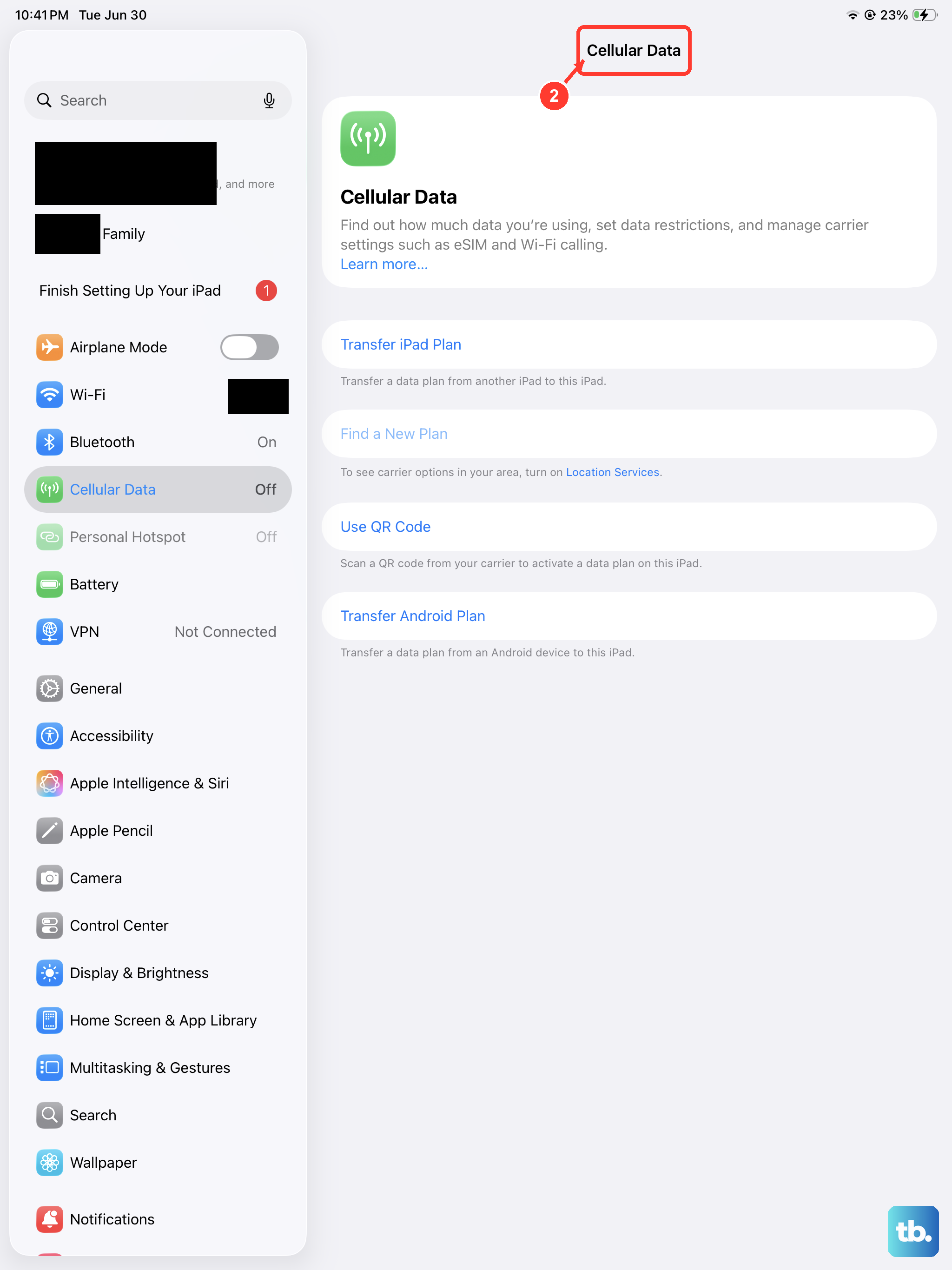
For cellular iPad models to send green bubble texts, specific settings must be enabled. Go back to Settings > Apps > Messages. Ensure SMS is turned on. Below that, also make sure MMS Messaging is enabled if you want to send photos or group texts.
It's also wise to keep Send as SMS switched on. This allows a failed iMessage to automatically resend as a regular text message, giving you a backup delivery method. Double-check that your cellular data is turned on as well, as MMS messages require it.
Update Your Carrier Settings
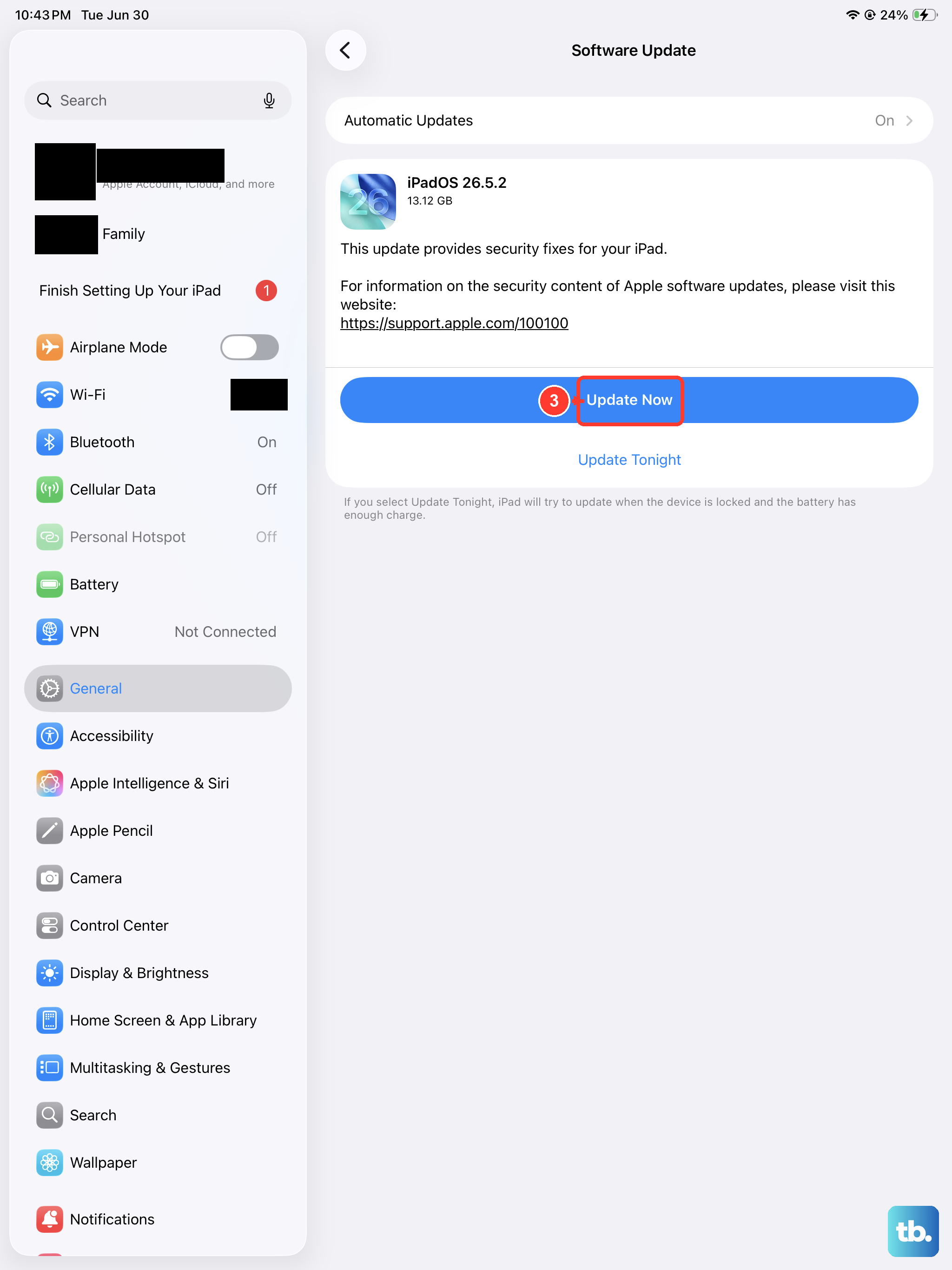
Carrier updates are small files that help your cellular iPad communicate properly with your network provider. To check for one, open Settings > General > About. If an update is available, a prompt will appear on this screen asking you to install it.
These updates can fix carrier-specific bugs related to messaging and data. If you've recently switched SIM cards or carriers, installing the latest carrier profile is an important step. Keeping iPadOS updated through Settings > General > Software Update is just as crucial for overall stability.
Re-insert Your SIM Card
For models with a physical SIM tray, a loose or dirty SIM can cause messaging problems. First, power off your iPad. Locate the SIM tray on the frame and use the SIM eject tool or a paperclip to open it. Carefully remove the SIM card, wait about 30 seconds, then re-insert it and power your iPad back on.
This simple re-seating action can re-establish a clean connection to your carrier's network. If your iPad Air uses an eSIM, you can try toggling your cellular plan off and on in Settings > Cellular instead, which serves a similar purpose.
Contact Your Cellular Carrier
If you've tried everything and your cellular iPad still won't send texts, the problem may be with your account. There could be a provisioning error, a suspended messaging feature, or an outage in your area. Give your carrier's support line a call.
They can check from their end to ensure SMS and MMS services are active on your line. Sometimes, simply having them refresh your connection on their network server is the final fix needed to get everything working again.