
If your iPad is refusing to send photos or videos in messages, it's a surprisingly common hiccup. The issue often comes down to a setting that's easy to miss or a temporary glitch in the connection. I'd start by checking the most likely culprit first.
Go to Settings > Apps > Messages and make sure the MMS Messaging toggle is switched on. If it's already on, try turning it off, waiting a moment, and turning it back on. This quick reset can sometimes kick the service back into gear.
Confirm Your Cellular Data is Active
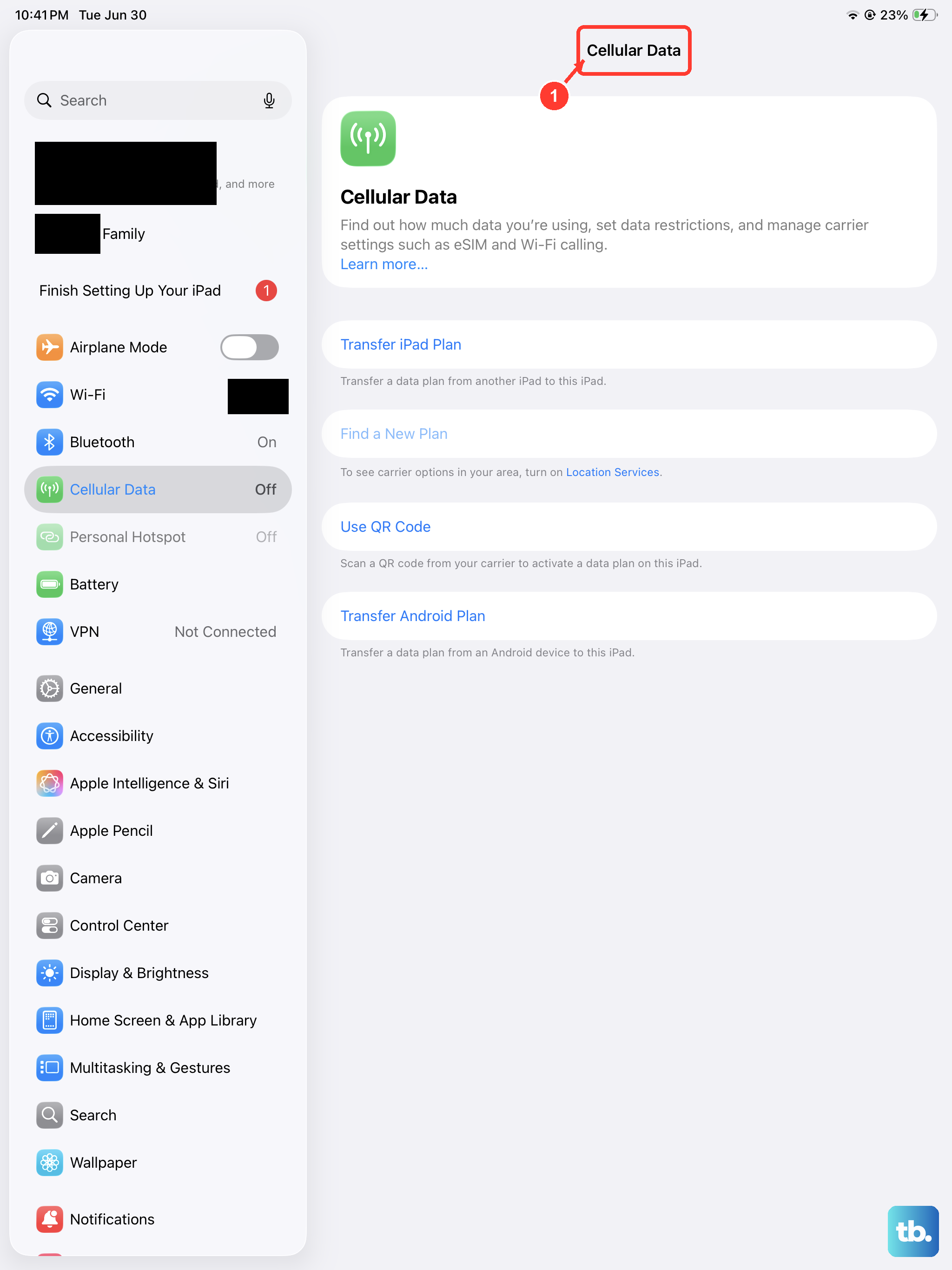
Unlike iMessage, which can use WiFi, standard MMS requires an active cellular data connection to send and receive. Even if you're connected to WiFi, your iPad needs that mobile data link for MMS to work.
Open Settings > Cellular Data and ensure the main Cellular Data switch is green. Then, scroll down to find the Messages app in the list and make sure it's also allowed to use cellular data. If you see the option, try disabling WiFi temporarily to force the iPad to use the cellular network for the message.
Check for a Carrier Settings Update
Your carrier occasionally sends small updates that configure network features like MMS. An outdated carrier profile can break multimedia messaging.
To check, make sure your iPad is connected to the internet, then go to Settings > General > About. If an update is available, a prompt will appear. Installing it only takes a moment and doesn't affect your personal data.
Review Your Message Send & Receive Settings
This is a critical step, especially if you use multiple Apple devices. Your iPad needs to be correctly configured to send and receive messages from your phone number.
Head to Settings > Apps > Messages > Send & Receive. Under "You can be reached by iMessage at," you should see your phone number checked. Under "Start new conversations from," ensure your phone number is selected, not just your email address. MMS typically only works when sending from your carrier-registered number.
Restart Your iPad
A simple restart clears out temporary software bugs that might be hanging up the messaging service. The method depends on your iPad model.
For iPads without a Home button, quickly press and release the Volume button closest to the Top button, then the volume button farthest from the Top button, then press and hold the Top button until you see the Apple logo. For iPads with a Home button, just press and hold both the Home and the Top button until the Apple logo appears.
Update iPadOS
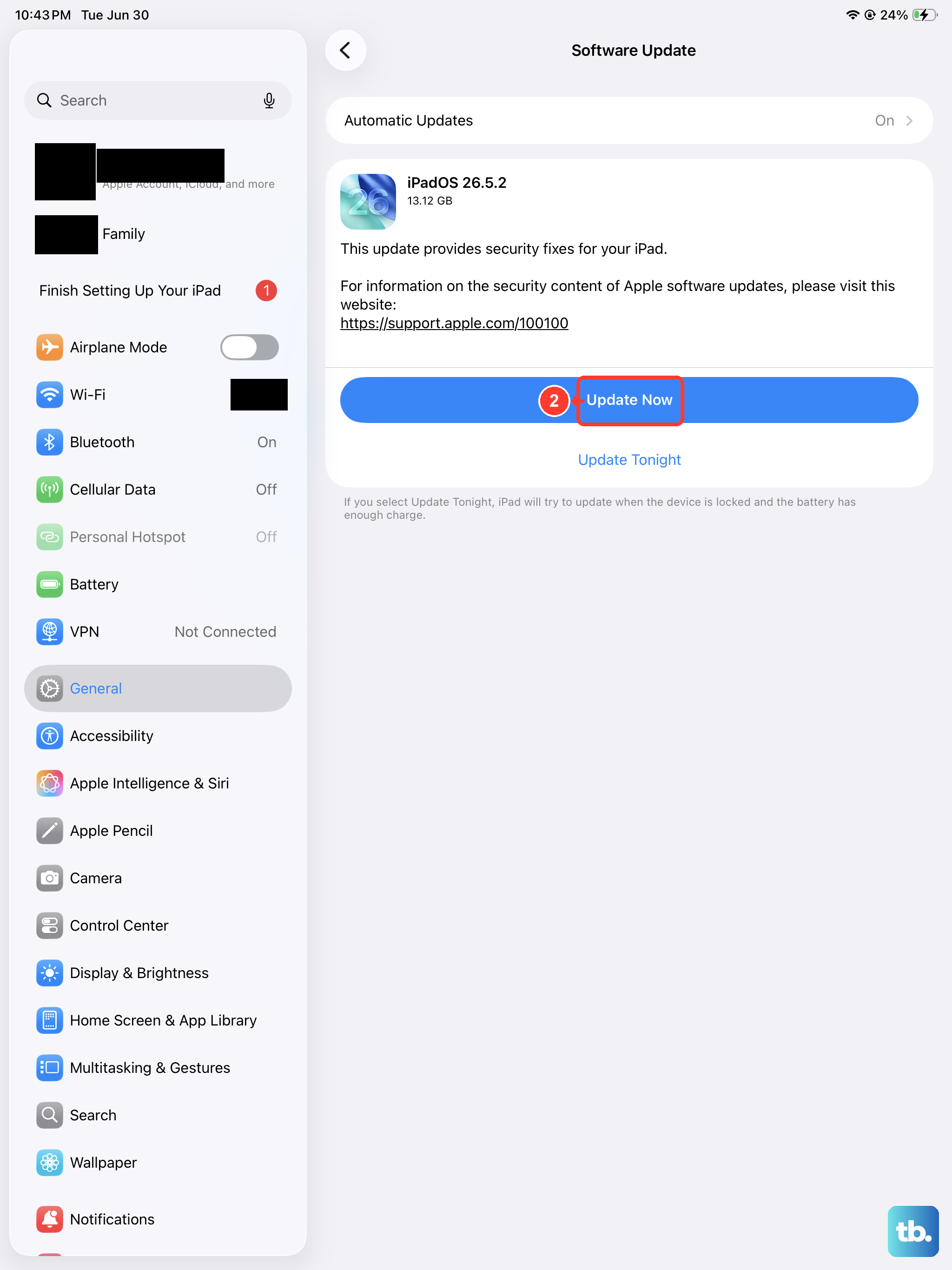
Software updates frequently include fixes for connectivity and messaging issues. Running an older version of iPadOS could be the root of the problem.
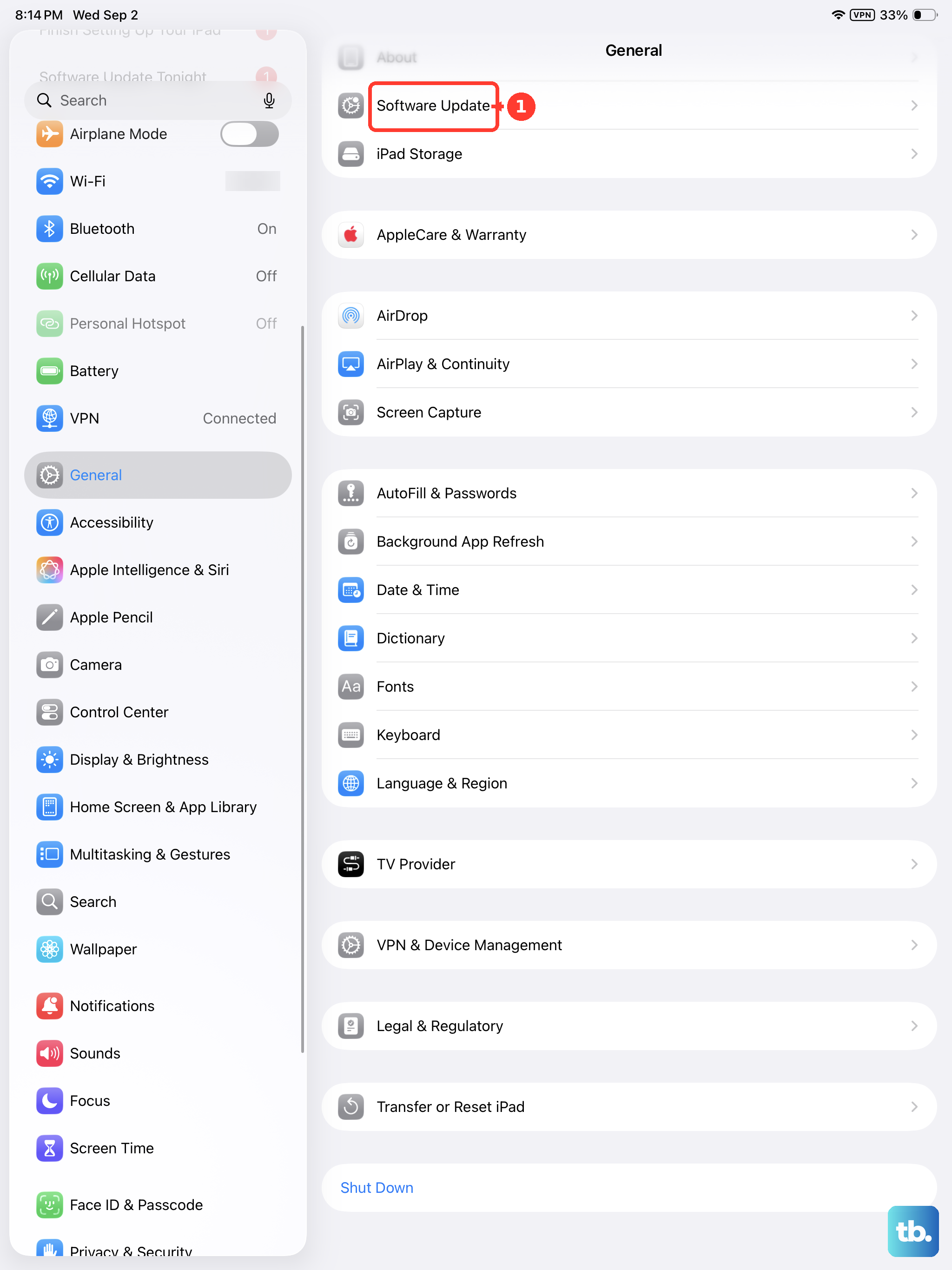
Go to Settings > General > Software Update. If an update is available, tap Download and Install. It's best to do this while connected to a power source and WiFi.
Reset All Network Settings
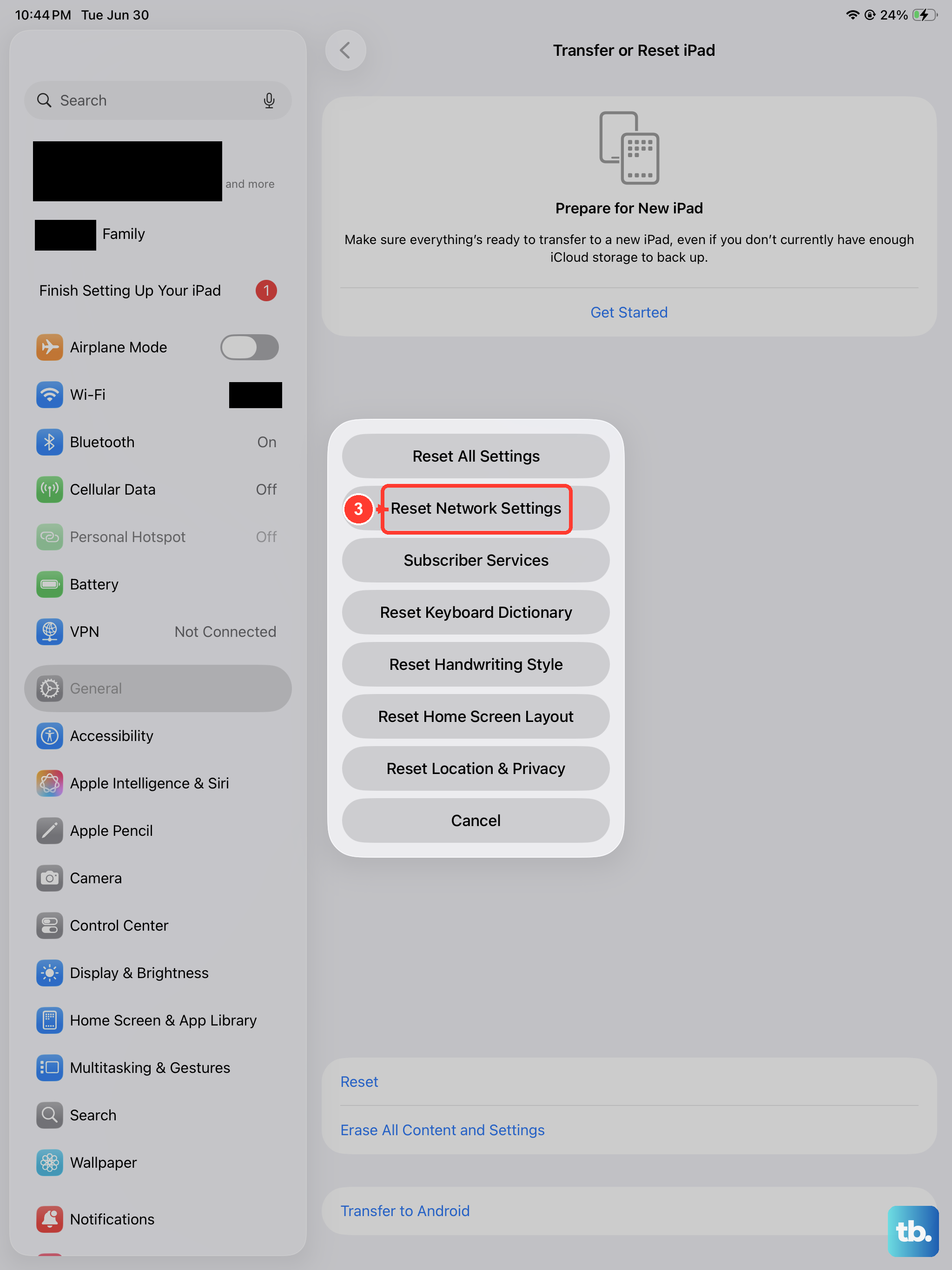
This is a more thorough step that clears all your saved WiFi passwords, cellular settings, and VPN configurations. It often resolves persistent network-related problems, including MMS failures.
Before you start, note that you'll need to re-enter WiFi passwords afterward. Go to Settings > General > Transfer or Reset iPad > Reset. Then, tap Reset Network Settings and enter your passcode to confirm.
Verify the Message Size and Format
Carriers impose strict limits on MMS size, usually between 1MB and 3MB. If you're trying to send a very high-resolution video, the iPad might fail silently.
Try sending a smaller photo first to test. If that works, the original file was likely too large. You can use the editing tools in the Photos app to trim a video or use a lower quality option before sending.
Contact Your Cellular Carrier
If you've tried everything here, the issue might be on your carrier's end. They can verify that MMS is properly enabled on your cellular iPad plan, which is sometimes a separate feature.
They can also check for any network outages in your area and confirm the correct APN (Access Point Name) settings are applied to your device, which is essential for data and MMS services.