
If your iPad Air (2026) is refusing to send photos or videos through text messages, it's a surprisingly common hiccup. On an iPad, MMS relies on your cellular data connection, and a few settings can get in the way. Let's get those messages moving again.
The very first thing to check is your cellular data. MMS won't send over Wi-Fi alone, it needs that active mobile data connection. Swipe down from the top-right corner to open Control Center and make sure the cellular data icon is blue. If you have weak signal, try moving to a different location.
Verify Your iMessage and SMS/MMS Settings
Since iPads use your phone number via iMessage or forward SMS/MMS from your iPhone, the settings need to be aligned. Open the Settings app and tap Messages. First, ensure iMessage is turned on at the top.
Scroll down to the SMS/MMS section. If you're using Text Message Forwarding from an iPhone, make sure that's enabled. Also, verify that MMS Messaging is toggled on. If it's off, your iPad will only send iMessages and standard SMS texts.
Check the Message Itself
Sometimes the issue is with the specific message or recipient. If you're trying to send to a group chat, that requires MMS. Try sending a photo to a single person's phone number instead of an email address to test.
Also, look for the message bubble color. Blue bubbles are iMessages, which send over the internet. Green bubbles are SMS/MMS, which require cellular. If you see "Not Delivered" under a green message, that's your MMS failing.
Restart Your iPad Air
A simple restart can clear out temporary software glitches that might be blocking the messaging service. On your iPad Air (2026), press and quickly release the Volume Up button, then quickly press and release the Volume Down button. Finally, press and hold the Top button until you see the Apple logo appear, then release.
Update iPadOS
An outdated version of iPadOS can have bugs that affect cellular services, including MMS. It's a good habit to check for updates regularly on this model. Go to Settings > General > Software Update.
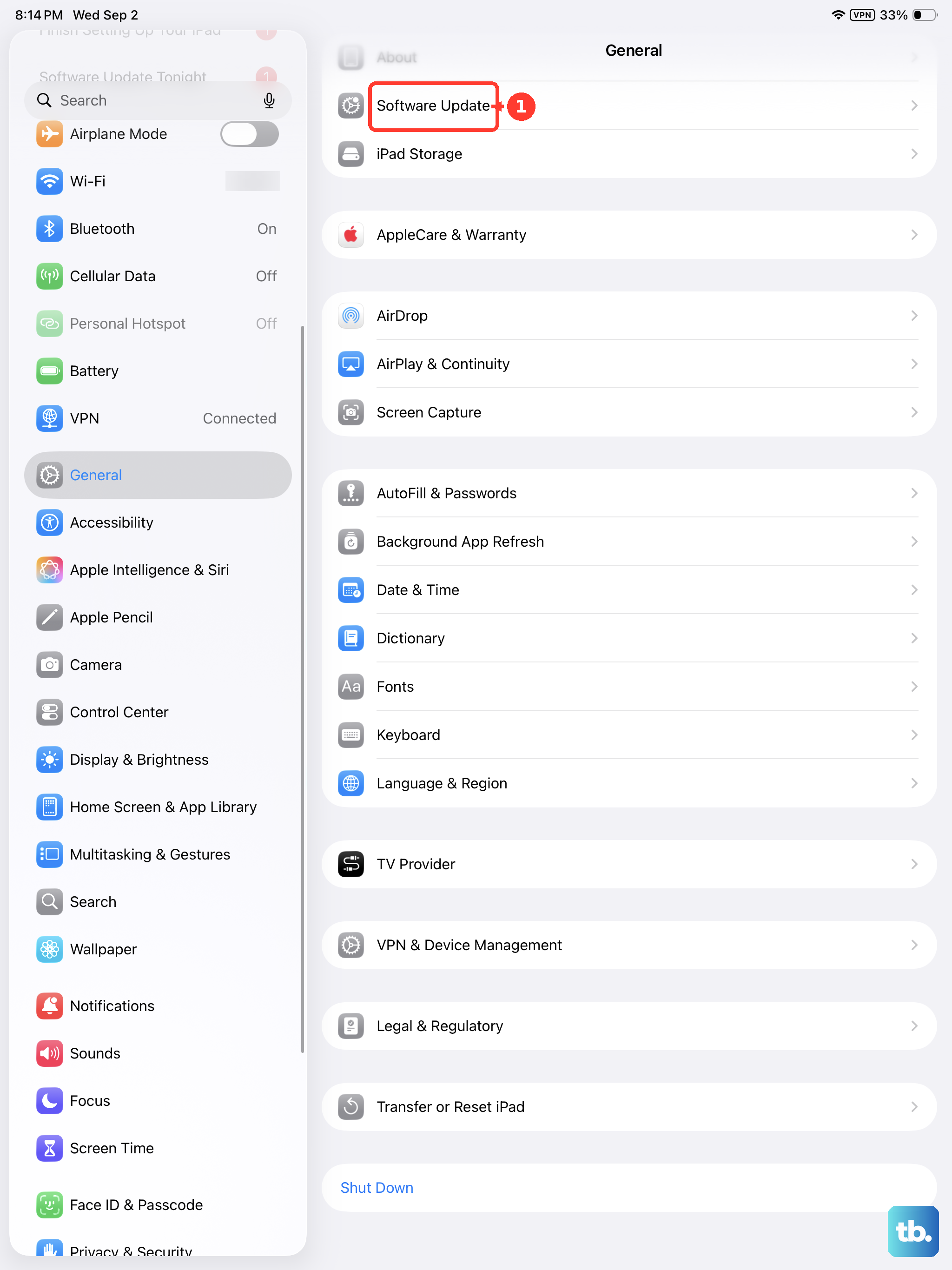
If an update is available, tap Download and Install. I'd recommend doing this while connected to Wi-Fi and plugged in with your USB-C charger. After the update installs, test your MMS again.
Reset Network Settings
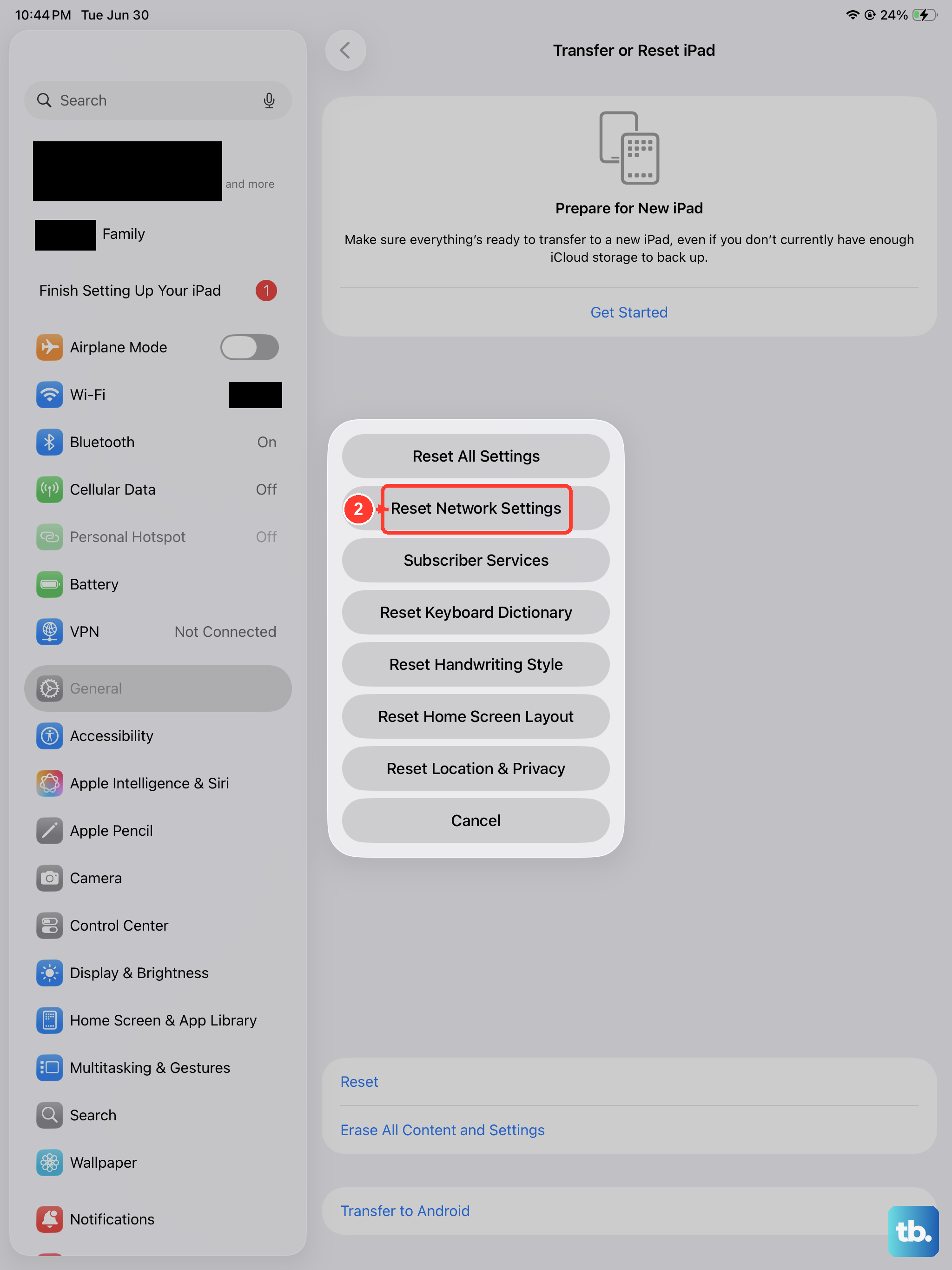
This step clears all your network configurations, including Wi-Fi passwords, VPN settings, and cellular preferences. It often resolves persistent data-related issues. Go to Settings > General > Transfer or Reset iPad.
Tap Reset and then choose Reset Network Settings. You'll need to enter your passcode and confirm. Your iPad will restart, and you'll have to rejoin Wi-Fi networks afterward, but it can clear up the pathway for MMS.
Review Your Cellular Data Plan and APN
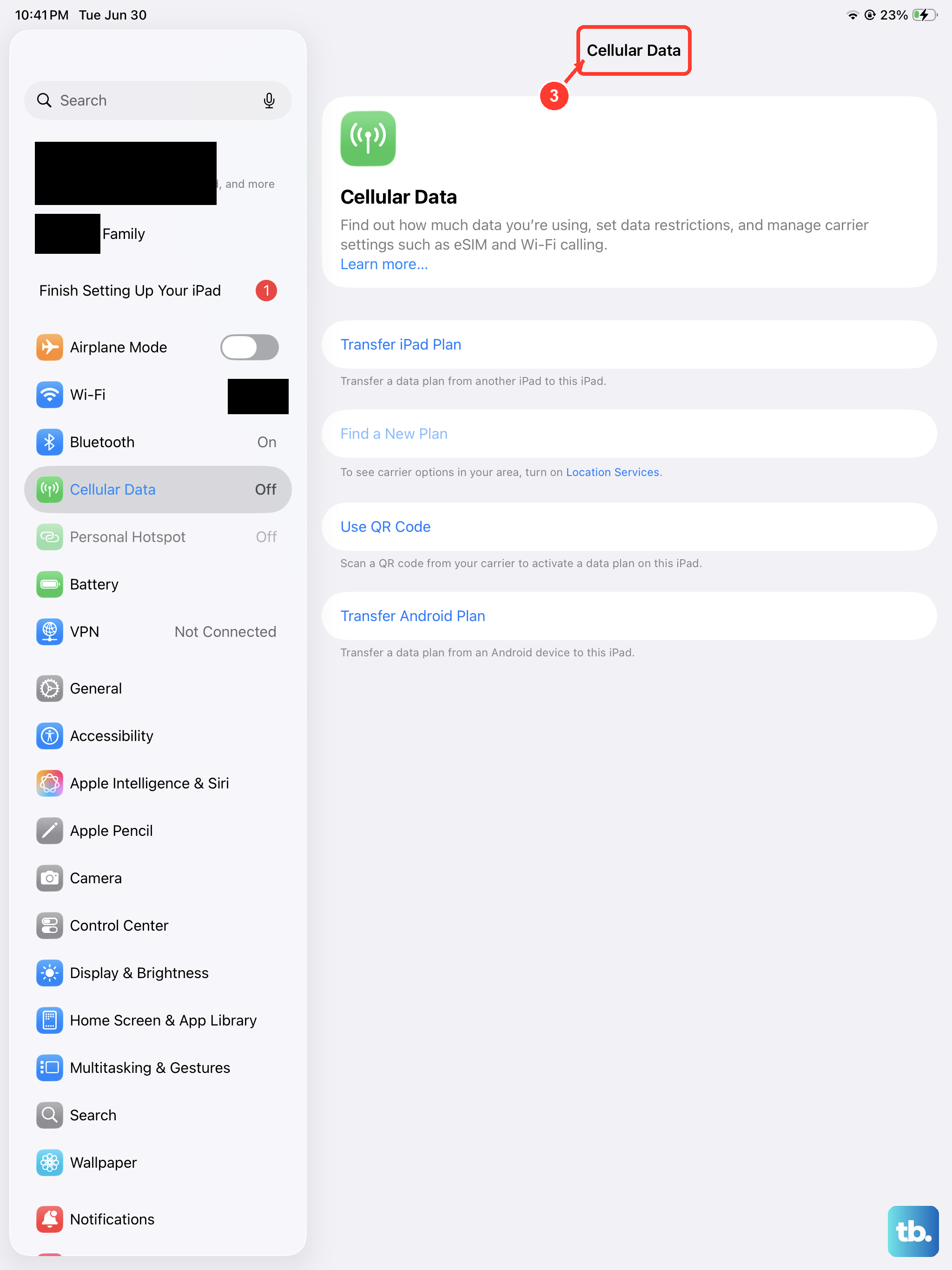
Your cellular plan must include MMS capabilities. Some older or data-only plans might not support it. It's worth a quick call to your carrier to confirm MMS is on your account.
You can also check the Access Point Name (APN) settings, which tell your iPad how to connect to your carrier's network. Go to Settings > Cellular > Cellular Data Network. Your carrier should have automatically configured this, but if the fields are blank, you may need to get the correct APN details from their support site.
Sign Out and Back Into iMessage
A refresh of your iMessage account can sometimes kickstart the connection. Go to Settings > Apps > Messages and tap Send & Receive. Tap your Apple ID at the top and choose Sign Out.
Wait a moment, then sign back in with your Apple ID and password. Make sure your correct phone number and email are checked under "You can be reached by iMessage at." This re-establishes the link Apple uses for messaging.
Check Date & Time Settings
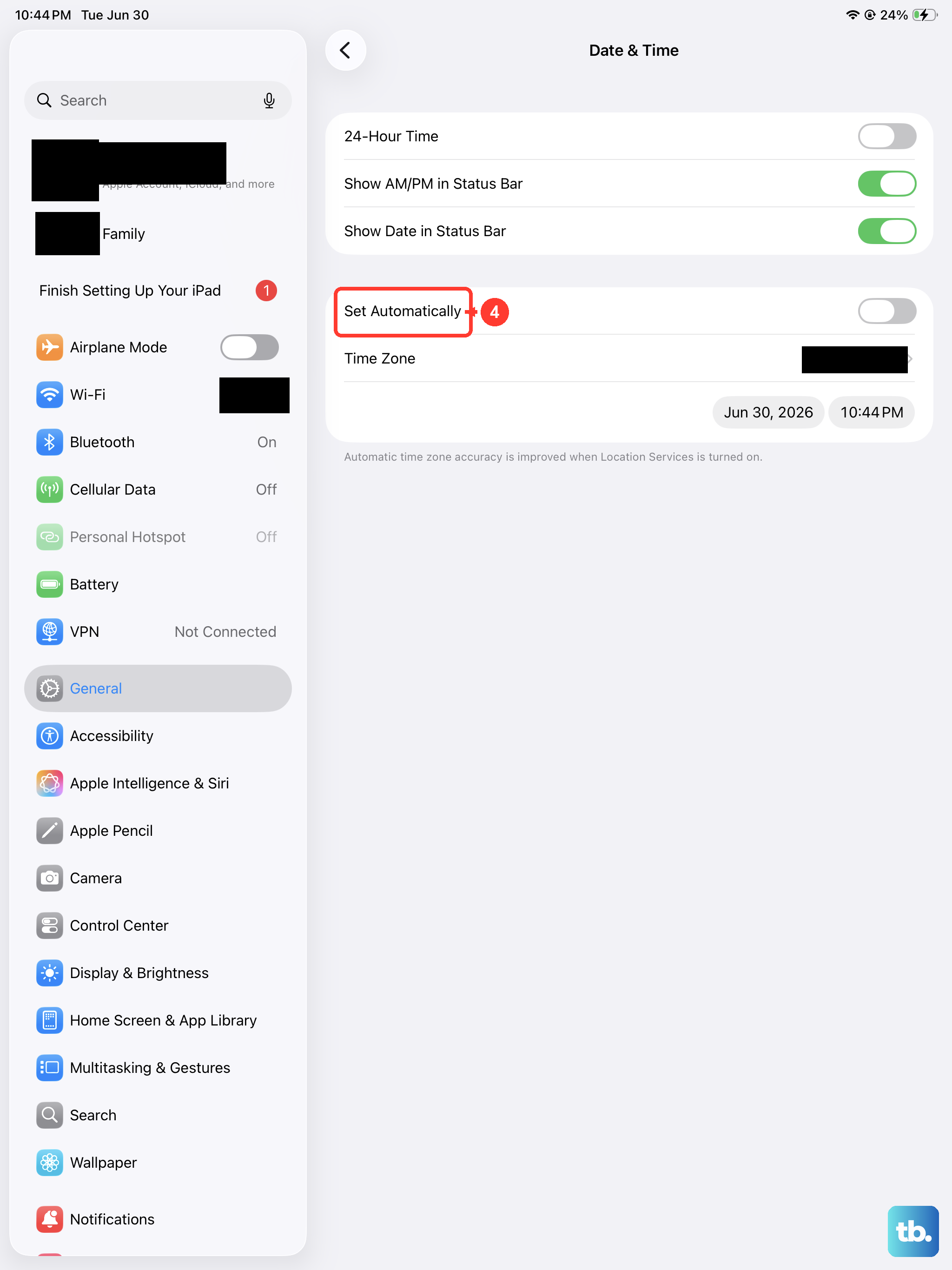
Incorrect date and time settings can cause authentication issues with Apple's servers, affecting iMessage and by extension, SMS/MMS forwarding. Open Settings > General > Date & Time.
Ensure that Set Automatically is turned on. This allows your iPad to get the correct time from the network, which is crucial for services to function properly.