
When photos or videos from friends get stuck as a tiny download button in your Messages app, it's a real nuisance. On your iPad Air (2026), this usually happens because of a cellular data hiccup, a setting that got switched off, or a temporary software glitch.
Let's walk through the fixes to get those pictures and videos showing up.
Start With a Quick Restart
The first thing I'd try is a force restart. It clears out any minor software bugs that might be blocking the download. On your iPad Air, press and quickly release the Volume Up button, then quickly press and release the Volume Down button.
Finally, press and hold the Top button. Keep holding it until you see the Apple logo appear, then let go.
Check Your Cellular Data Connection
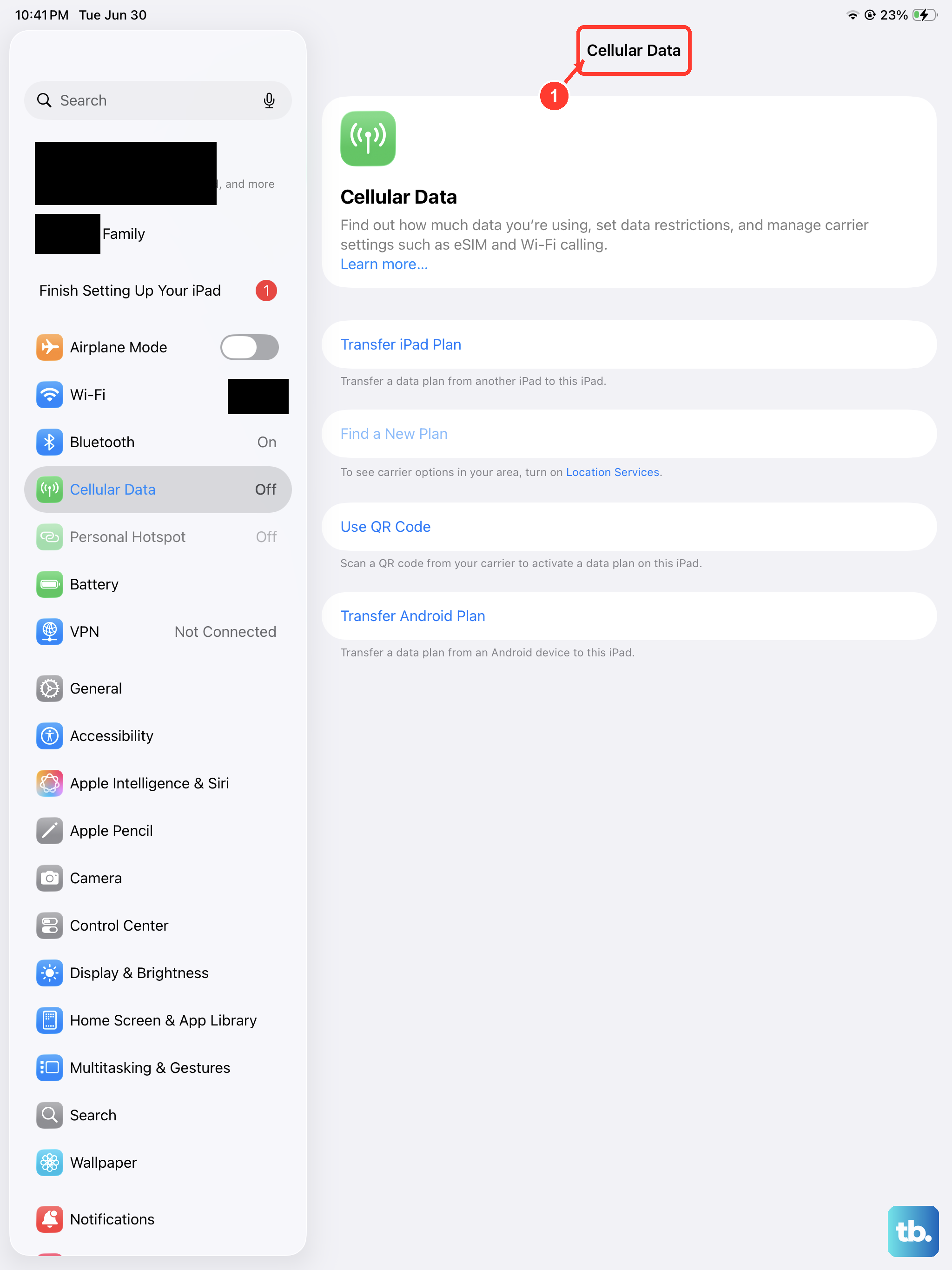
This is the most common culprit. Unlike iMessage, which can use Wi-Fi, standard MMS messages require an active cellular data connection to download. First, make sure Cellular Data is turned on in Settings > Cellular Data.
Also, check that your iPad has a good signal. If you're in a basement or a rural area with weak coverage, the MMS might just be waiting for a better connection. Try moving to a different location.
Verify Your MMS Messaging Setting
There's one key setting in iPadOS that needs to be enabled for MMS to work. Open the Settings app and scroll down to Messages. In the Messages settings, make sure the switch for MMS Messaging is turned on (green).
If this is off, your iPad won't even attempt to download multimedia messages sent from non-Apple devices.
Ensure Send & Receive is Correct
While you're in the Settings > Apps > Messages menu, tap on Send & Receive. This is where your iPad registers which phone numbers and email addresses can be used for iMessage.
For MMS to function correctly, you need to have your cellular phone number checked here under "You can be reached by iMessage at." If only an email address is selected, it can sometimes interfere with standard SMS/MMS delivery.
Toggle Airplane Mode
This is a classic trick to reset your network connection instantly. Swipe down from the top-right corner of your screen to open Control Center and tap the Airplane Mode icon to turn it on.
Wait about 15 seconds, then tap the icon again to turn Airplane Mode off. This forces your iPad to re-establish its connection to the cellular network, which can kickstart a stalled MMS download.
Update Your Carrier Settings
Carrier updates are small files that help your iPad communicate properly with your mobile network. These sometimes install automatically, but it's worth checking.
Go to Settings > General > About. If a carrier update is available, a pop-up notification will appear. Installing it can resolve MMS and other network-related issues.
Check for an iPadOS Update
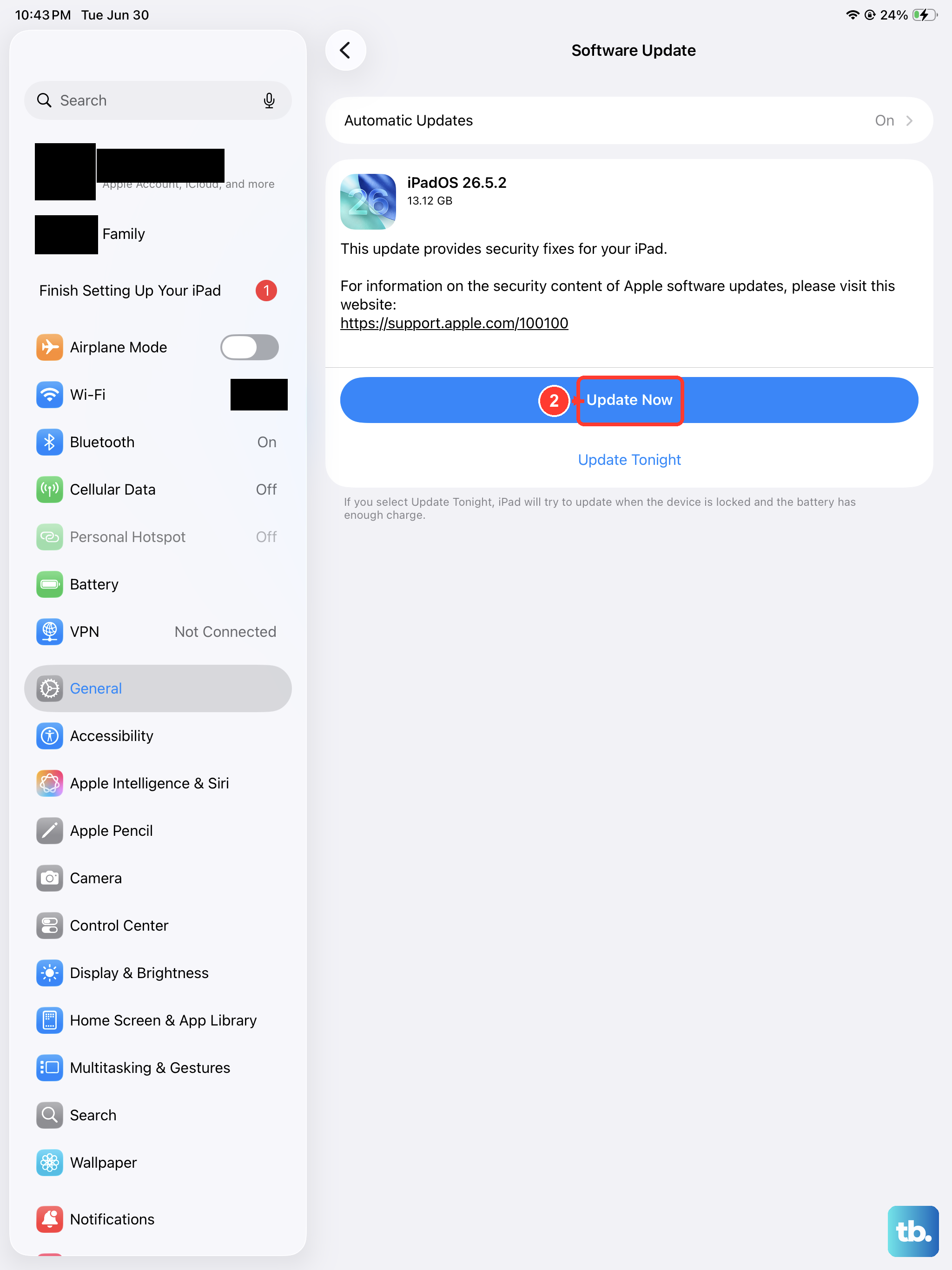
Apple regularly releases iPadOS updates that fix bugs, including ones related to messaging. It's a good habit to check for these regularly on your 2026 model for performance and stability.
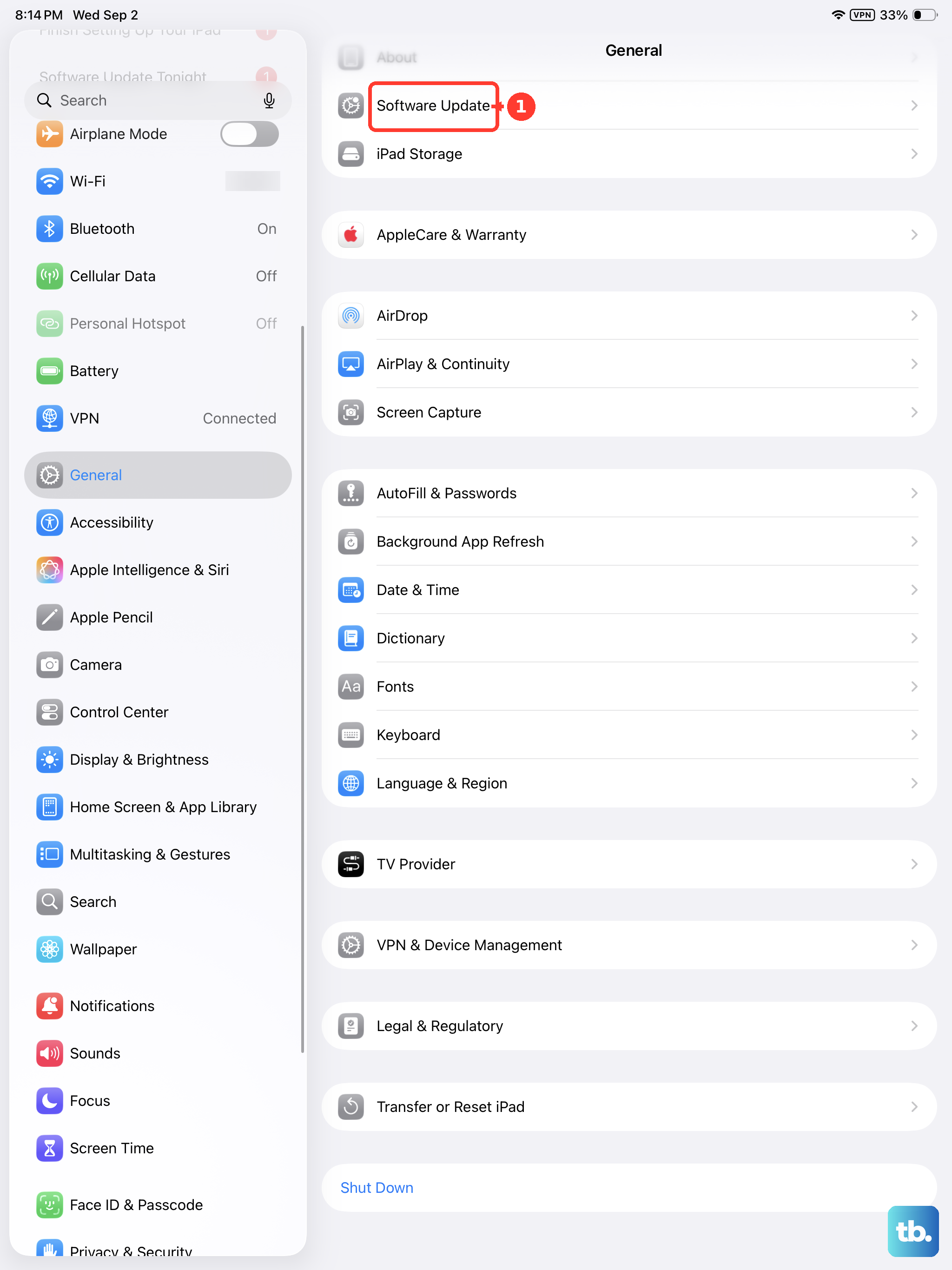
Head to Settings > General > Software Update. If an update is available, download and install it. Make sure your iPad is connected to power and Wi-Fi first.
Reset All Network Settings
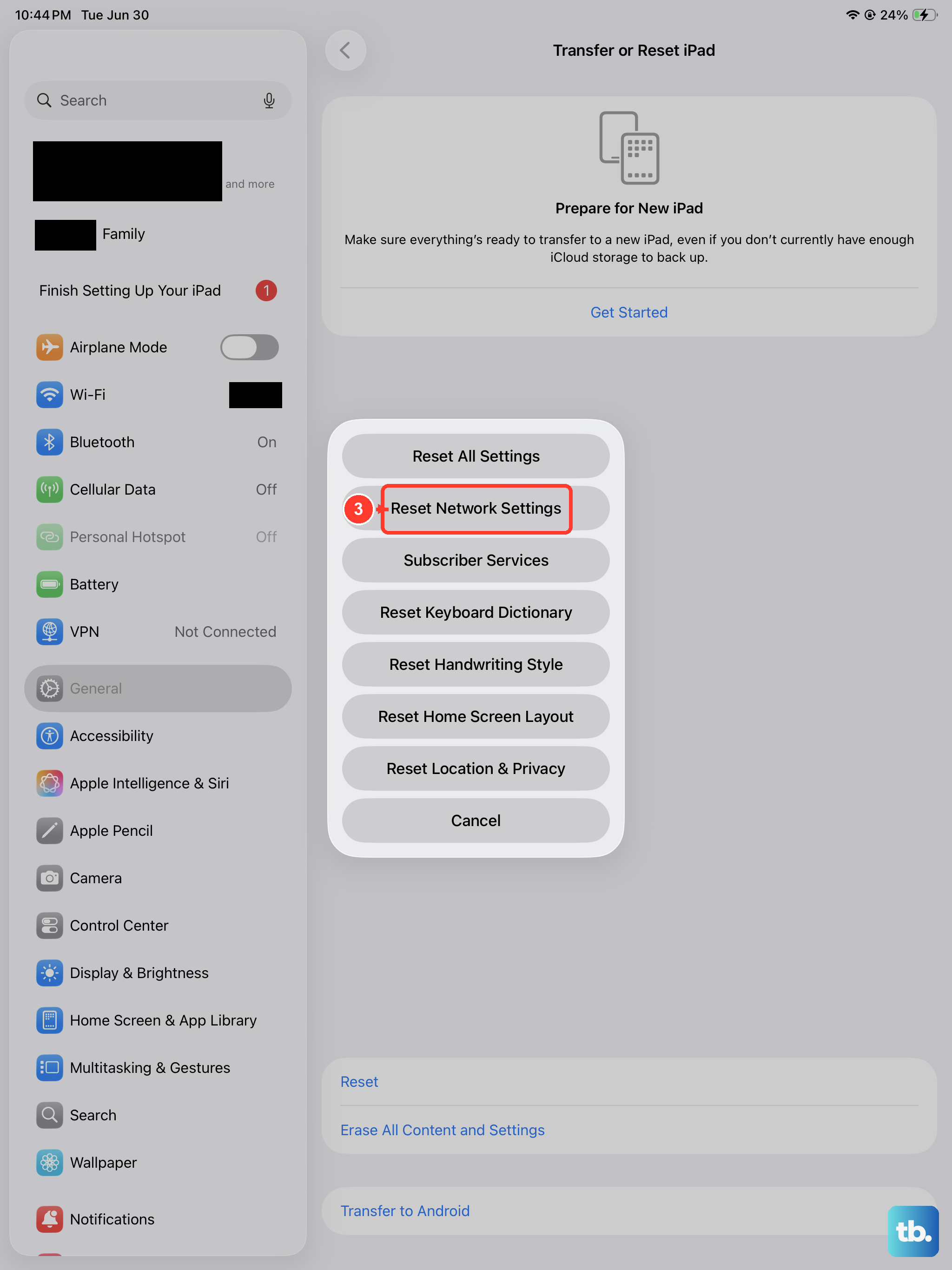
If you're still stuck, this step will clear all your network configurations back to default. Don't worry, it won't delete your personal data like photos or apps.
You will, however, need to re-enter any saved Wi-Fi passwords. Go to Settings > General > Transfer or Reset iPad > Reset. Then, tap Reset Network Settings and confirm.
Contact Your Mobile Carrier
Sometimes the problem is on your carrier's end. They might need to reprovision MMS services on your line or there could be a temporary network issue in your area.
Give them a call or use their online support chat. You can also ask them to confirm your APN (Access Point Name) settings are correct for your iPad Air, though these are typically configured automatically these days.