
When your iPad Air's Personal Hotspot stops sharing your cellular connection, it leaves your laptop or other devices stranded. Whether the hotspot option is missing, other devices can't find it, or connections keep dropping, you can usually get it back online with a few specific checks.
The quickest thing to try is toggling the hotspot off and back on. Head to Settings > Personal Hotspot and turn the switch off. Wait a moment, then turn it back on, ensuring Allow Others to Join is enabled. This simple reset often clears a temporary software hiccup that's preventing the service from starting properly.
Restart Your iPad Air
A full restart is a reliable next step. To restart your iPad Air (2026), press and quickly release the Volume Up button, then press and quickly release the Volume Down button. Finally, press and hold the Top button until you see the Apple logo appear. This process clears out any stuck background processes related to both Wi-Fi and cellular functions.
Verify Your Cellular Data Connection
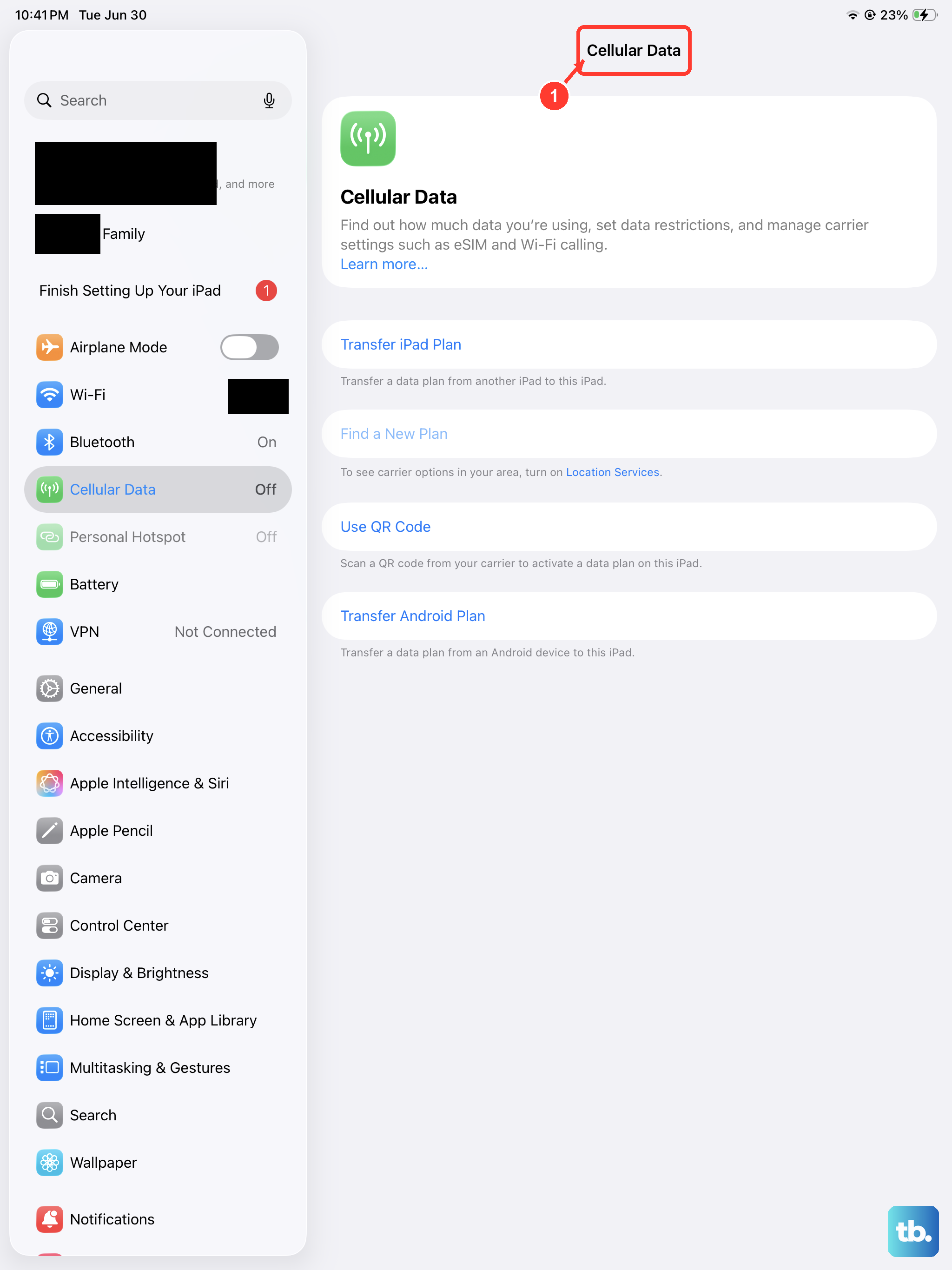
The hotspot feature relies entirely on your iPad's cellular data. First, check that you have a signal. Open Settings > Cellular and make sure Cellular Data
Update iPadOS and Carrier Settings
Software bugs can interfere with hotspot functionality. Go to Settings > General > Software Update to install any available iPadOS updates. These updates frequently include fixes for connectivity issues. While you're there, go to Settings > General > About. If a carrier settings update is available, a prompt will appear; installing it can resolve conflicts between your iPad and your carrier's network.
Reset the Network Configuration
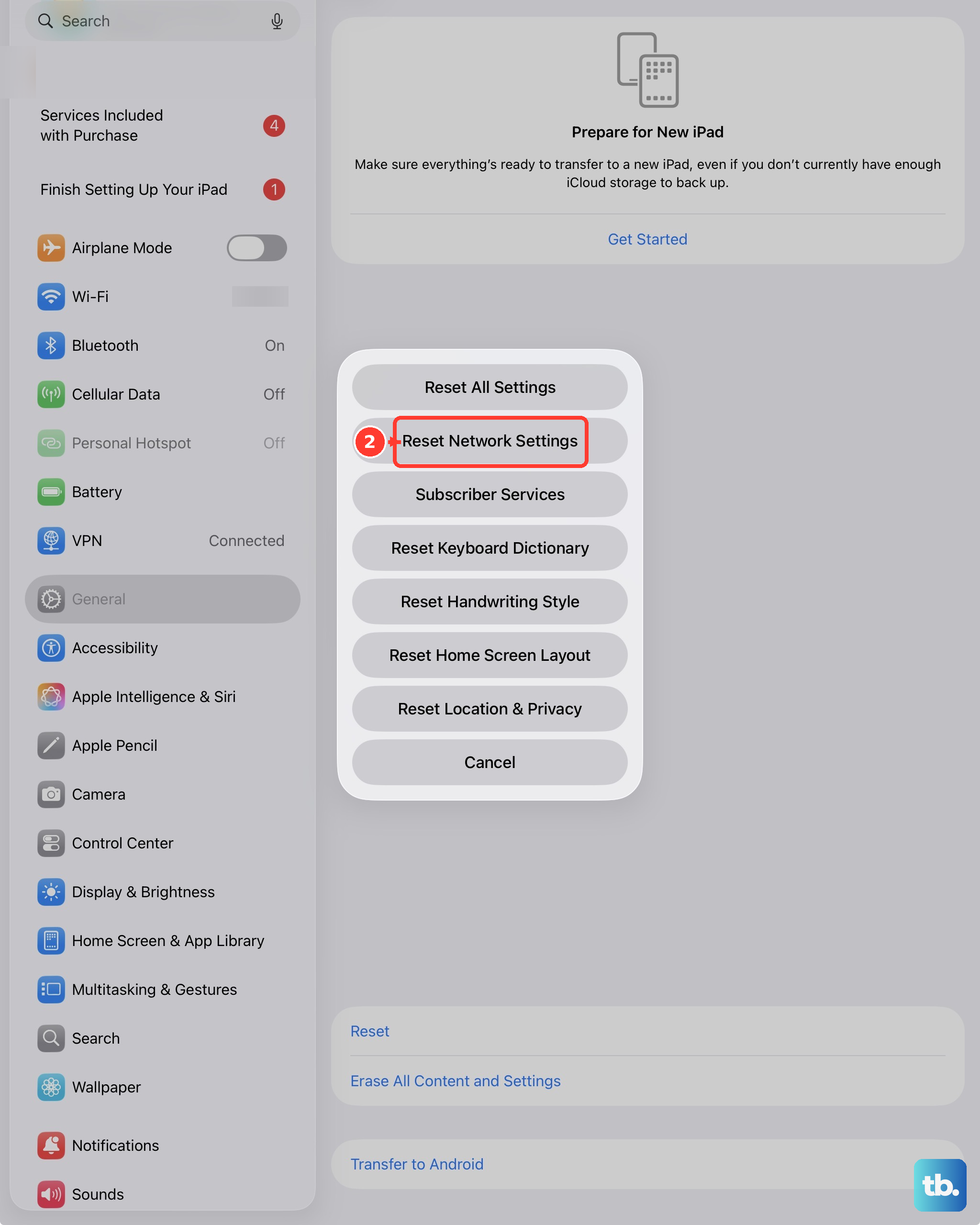
If the problem persists, resetting network settings is a powerful step. Navigate to Settings > General > Transfer or Reset iPad > Reset > Reset Network Settings. This will erase all saved Wi-Fi networks, passwords, VPN settings, and cellular preferences, then reinstall them fresh. You'll need to reconnect to Wi-Fi networks afterward, but it resolves many deep-seated connection problems.
Manage the Connection on the Other Device
Sometimes the issue lies with the device trying to connect, not your iPad. On your laptop or phone, go into its Wi-Fi settings and "forget" your iPad's hotspot network. Then, search for available networks again, select your iPad, and enter the password from scratch. This creates a new, clean connection profile.
Change Your Hotspot's Wi-Fi Password
Generating a new password can force a successful re-authentication. On your iPad, go to Settings > Personal Hotspot > Wi-Fi Password. Enter a new password that is at least 8 characters long, tap Done, and then try connecting your other device using this fresh password. I've seen this bypass authentication errors that a simple toggle doesn't fix.
Use a USB-C Cable for Tethering
If the Wi-Fi hotspot is being stubborn, a wired connection is a great alternative. Connect your iPad Air to your Mac or Windows PC using a USB-C cable. On your iPad, ensure Personal Hotspot is turned on in Settings. Your computer should recognize it as a new network interface almost instantly, providing a stable and often faster connection than Wi-Fi.
Check for Configuration Profiles or VPNs
Configuration profiles installed by an employer, school, or even some security apps can sometimes block hotspot use. Go to Settings > General > VPN & Device Management to see if any profiles are installed. Similarly, an active VPN on your iPad can interfere. Try disabling any VPN temporarily in Settings to see if your hotspot reappears or starts working.
Contact Your Mobile Carrier
If you've tried everything and the hotspot is still not working, the restriction might be on your account. Your carrier could have accidentally disabled the tethering feature, or there might be a provisioning error on their end. A quick call or online chat with their support team can confirm your plan includes Personal Hotspot and that it's active on your line.