
When your iPad Air (2026) GPS stops working, it can leave you stranded in a navigation app or prevent location-based features from functioning. The issue can range from a simple software hiccup in iPadOS 26 to a more stubborn setting that needs adjustment. Let's walk through the most effective ways to get your location services back on track.
Start With a Quick Restart
Before anything else, give your iPad a fresh start. A force restart is often the fastest way to clear out temporary glitches affecting the GPS and other systems. On your iPad Air (2026), you'll press and quickly release the Volume Up button, then quickly press and release the Volume Down button.
Finally, press and hold the Top button. Keep holding it until you see the Apple logo appear on the screen, then let go. This doesn't erase any of your data, it just gives the system a clean slate to work from.
Check Your Location Services Settings
It sounds obvious, but the first place to look is your Location Services menu. Swipe down from the top-right corner to open Control Center and make sure the location icon is highlighted. For a deeper check, open the Settings app and tap on Privacy & Security > Location Services.
Ensure the main Location Services toggle at the top is green. Scroll down and find the app you're having trouble with, like Maps or Google Maps. Tap on it and make sure its permission is set to "While Using the App" or "Always," depending on what you prefer. I've seen this fix the issue more times than I can count.
Toggle Airplane Mode to Reset Connections
Airplane mode is a great tool for resetting all your iPad's wireless radios at once, including the one that helps with GPS. You can activate it quickly from Control Center by tapping the airplane icon. Wait about 15 seconds after enabling it, then tap the icon again to turn it off.
This forces your iPad to re-establish connections to cellular networks (if you have a cellular model) and Wi-Fi, which can help the GPS get a faster and more accurate lock on your position. Give your navigation app another try after doing this.
Verify Your Date, Time, and Time Zone
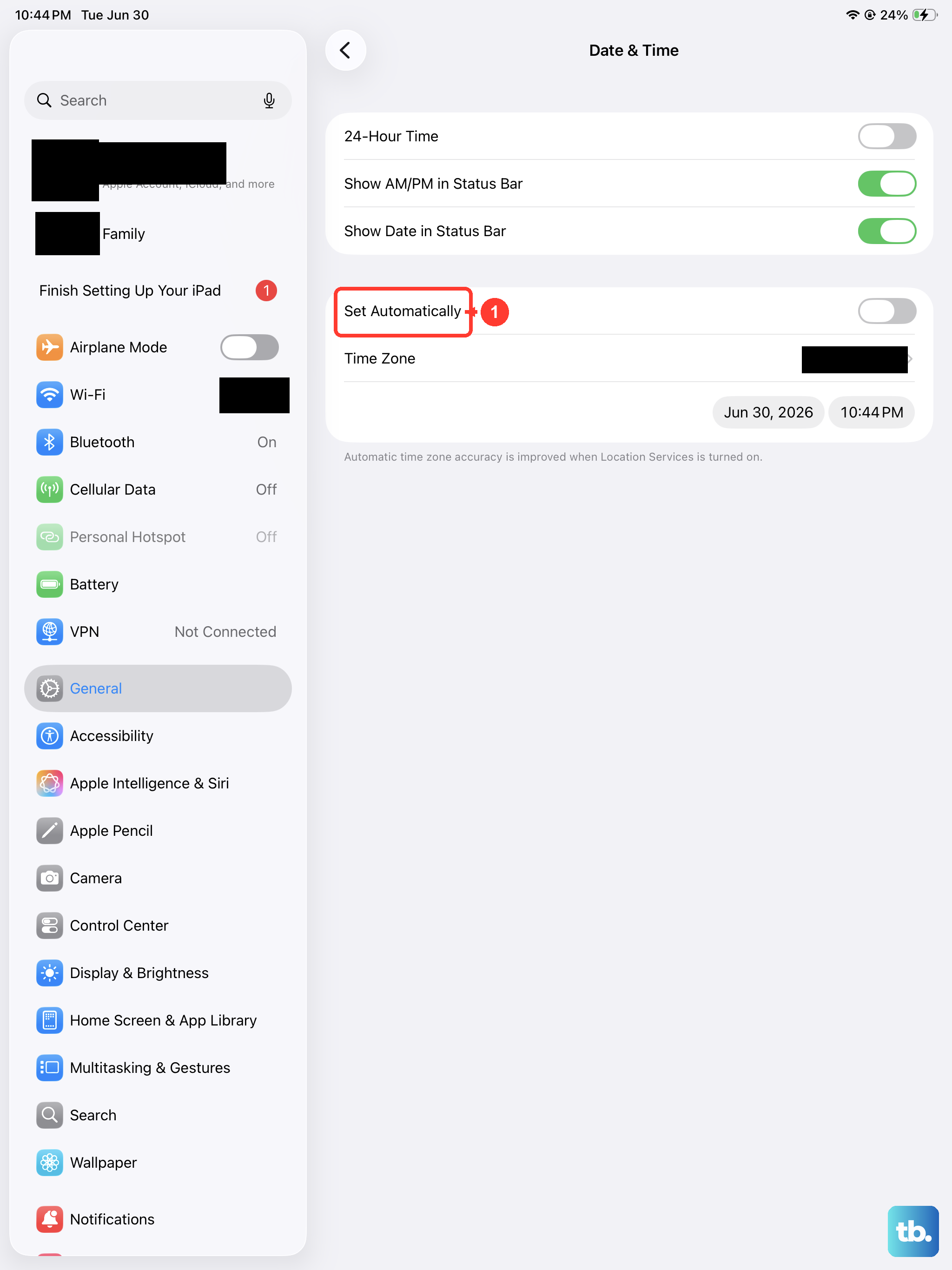
Your iPad's GPS relies on having the correct time and date to communicate properly with satellites. If these are wrong, it can cause location failures. Head to Settings > General > Date & Time.
Make sure the "Set Automatically" option is turned on. This allows your iPad to pull the correct time from the network, which keeps everything in sync for location services to work correctly. If it was off, turning it on might immediately improve your GPS accuracy.
Update Your Apps and iPadOS
An outdated app or system software can be the culprit behind a malfunctioning GPS. Developers frequently release updates that fix bugs and improve compatibility. First, open the App Store, tap your profile icon in the top right, and scroll down to see if any updates are pending for your mapping apps.
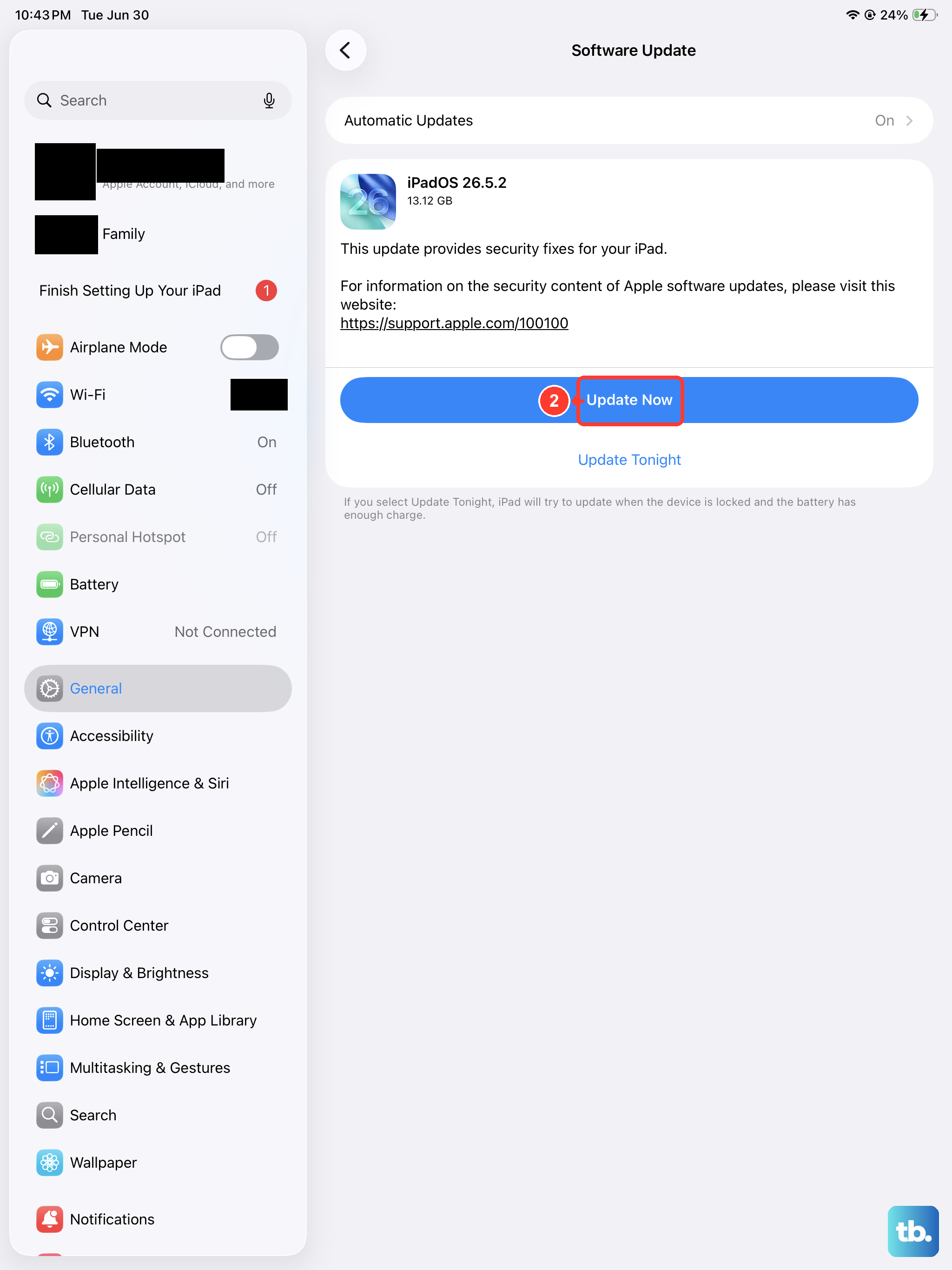
Next, check for a system update. Go to Settings > General > Software Update. If iPadOS 26.1 or a newer version is available, I'd recommend installing it. These updates often contain important fixes for system-level services like GPS.
Reset Your Network Settings
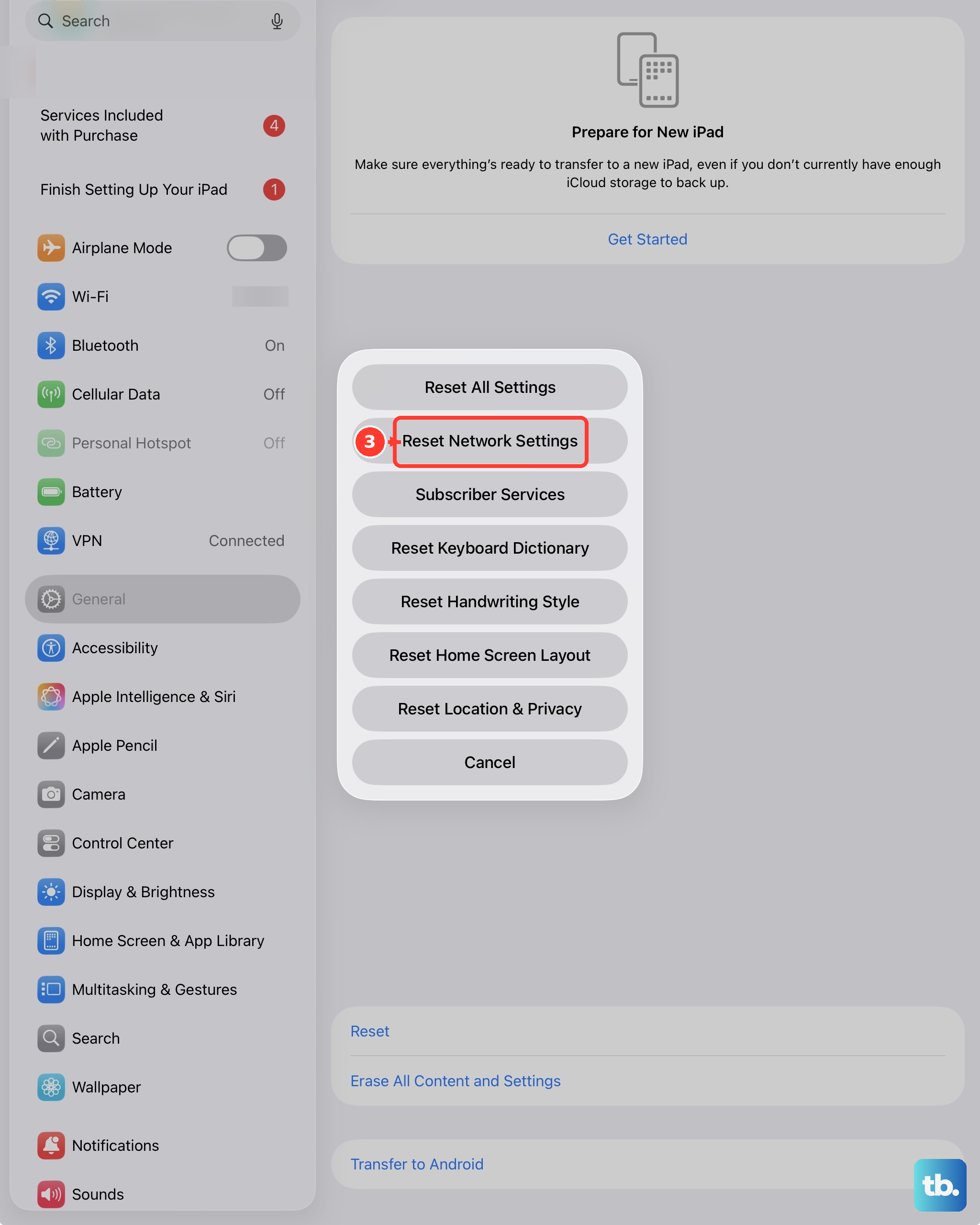
This step can resolve deeper connectivity issues that might be interfering with location data, especially on cellular iPad models. It will erase all your saved Wi-Fi networks, passwords, and cellular settings, so you'll need to rejoin your Wi-Fi afterward.
To do this, navigate to Settings > General > Transfer or Reset iPad. Tap on Reset and then select Reset Network Settings. Enter your passcode if prompted and confirm. After your iPad restarts, try your GPS again.
Check for Physical and Environmental Factors
GPS signals are line-of-sight and can be blocked by physical obstacles. If you're indoors, in a basement, or surrounded by dense trees and tall buildings, your iPad will struggle. Try moving to an open area with a clear view of the sky.
Also, consider any accessories. A thick metal case or a folio cover with a magnetic clasp could potentially interfere with the iPad's internal GPS antenna. Try removing the case temporarily to see if your location lock improves.
Use a Different Mapping Application
To rule out a problem with a specific app, test your GPS with a different one. If Apple Maps isn't working, try downloading Google Maps or Waze from the App Store. Open the new app and see if it can find your location accurately.
If the new app works perfectly, then the issue is isolated to your original application. In that case, try force-closing the problematic app and reopening it. If that doesn't help, you might need to delete and reinstall it.
Review Location-Based System Services
iPadOS has several background system services that use your location to improve functionality. Sometimes, toggling these can help. Go back to Settings > Privacy & Security > Location Services.
Scroll all the way to the bottom and tap on System Services. Here, you can ensure that services like "Networking & Wireless" and "Compass Calibration" are enabled. These assist the GPS in various ways. You can also try turning "Location-Based Apple Ads" off, as some users have reported this can help.
Consider a Full Settings Reset
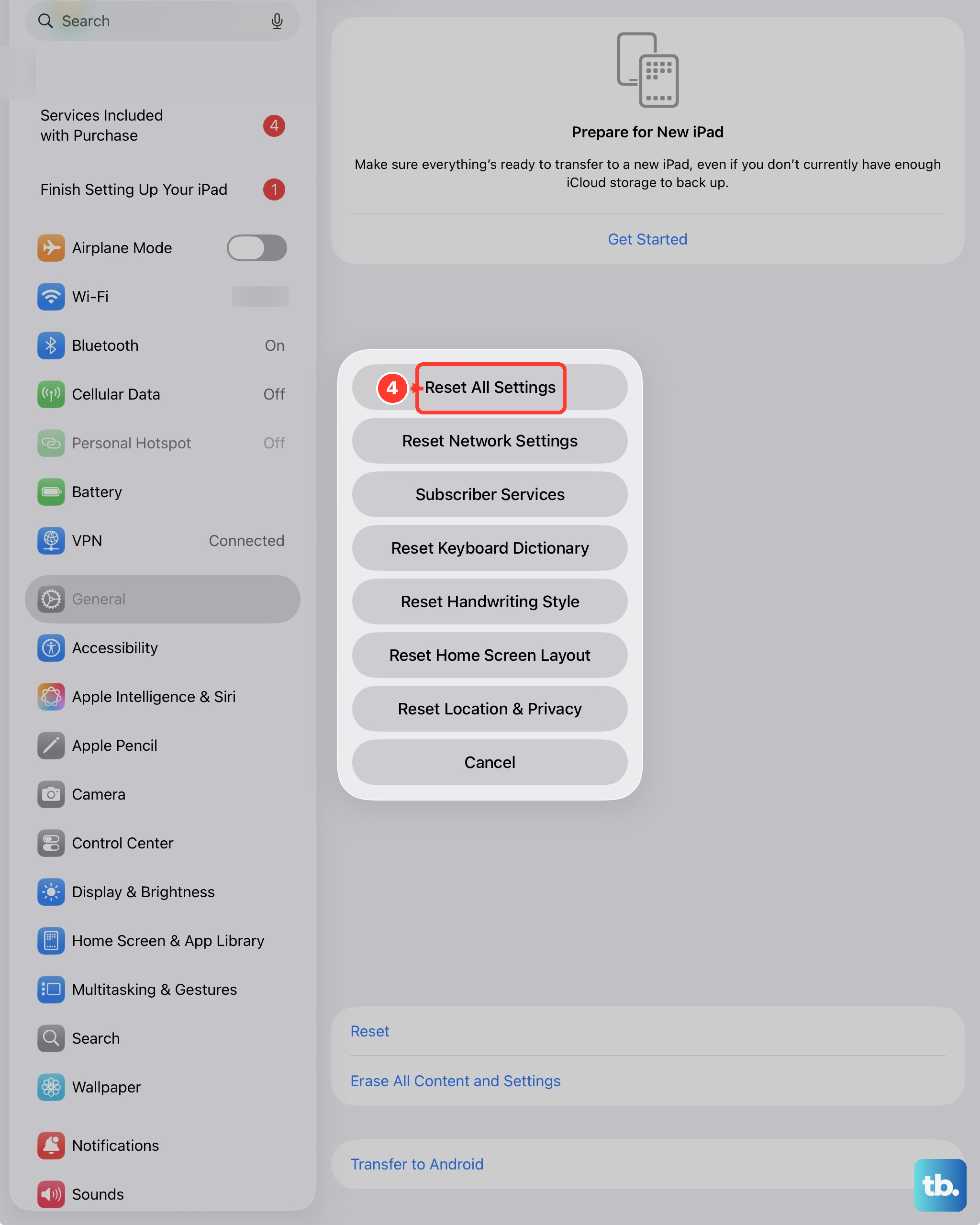
If you've tried everything else and the GPS is still unreliable, a more significant reset is an option. This will restore all your settings to their factory defaults without erasing your personal data, photos, or apps. It's a good last step before considering anything more drastic.
Go to Settings > General > Transfer or Reset iPad. Tap Reset and then choose Reset All Settings. You'll need to re-enter your Wi-Fi passwords and reconfigure preferences like wallpaper and notifications, but it can clear out a persistent software conflict.