
If your iPad Air (2026) camera shows a black screen, the quickest fix is to force restart the tablet. Press and quickly release the Volume Up button, then press and quickly release the Volume Down button. Immediately after, press and hold the Top button until you see the Apple logo appear on the screen.
This doesn't erase any of your data. It just forces the iPadOS system to reload, which can clear out the temporary software glitch that's likely causing the camera app to freeze.
Close and Reopen the Camera App
If the force restart didn't work, the next step is to fully close the Camera app. Swipe up from the bottom of the screen and hold in the middle until you see your app switcher. Find the Camera app preview and swipe it up and off the top of the screen to close it.
Wait a few seconds, then tap the Camera icon on your Home Screen to relaunch it. This gives the app a fresh start and often resolves the black screen issue if it was just a minor crash.
Check for an iPadOS Update
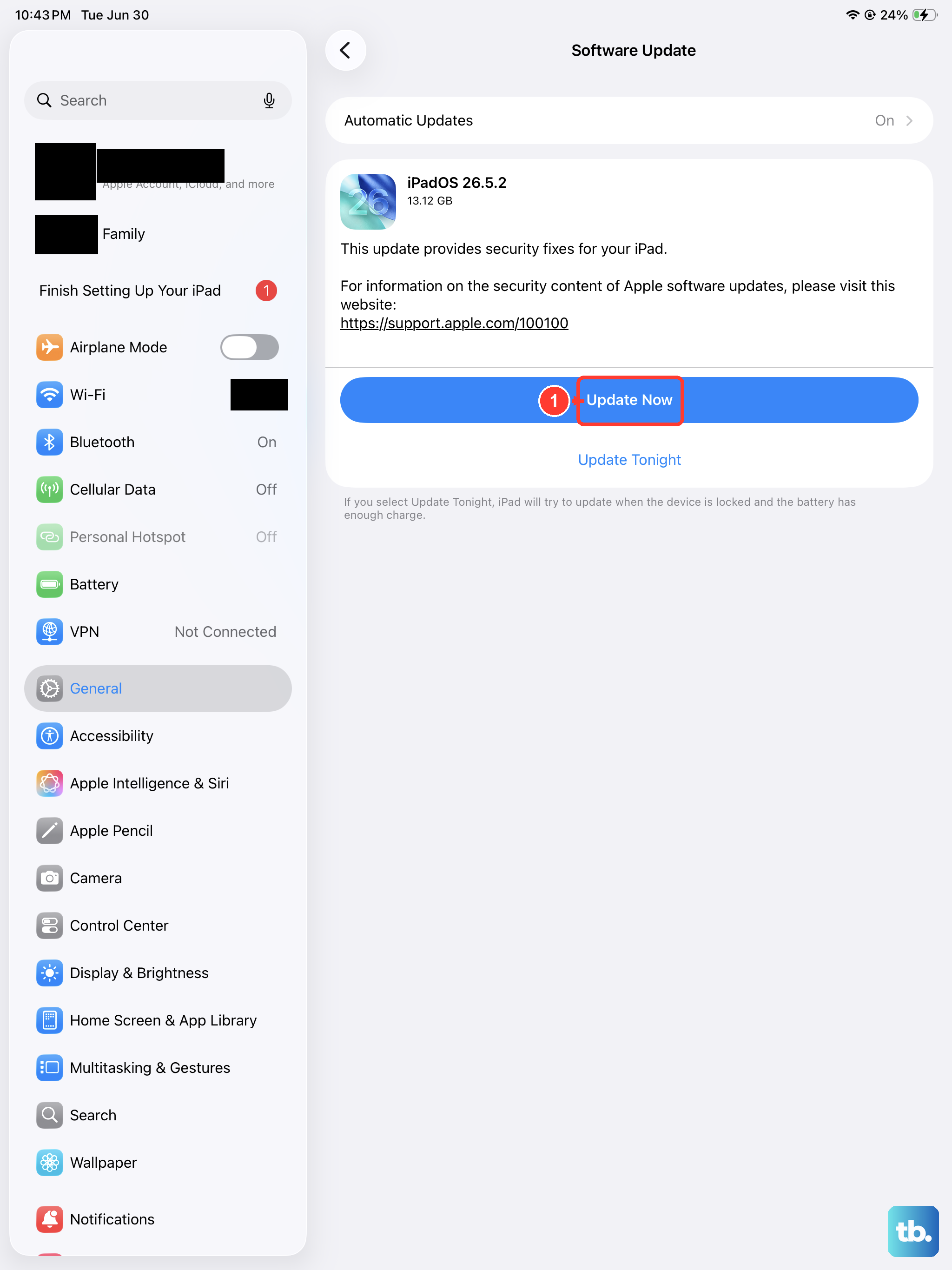
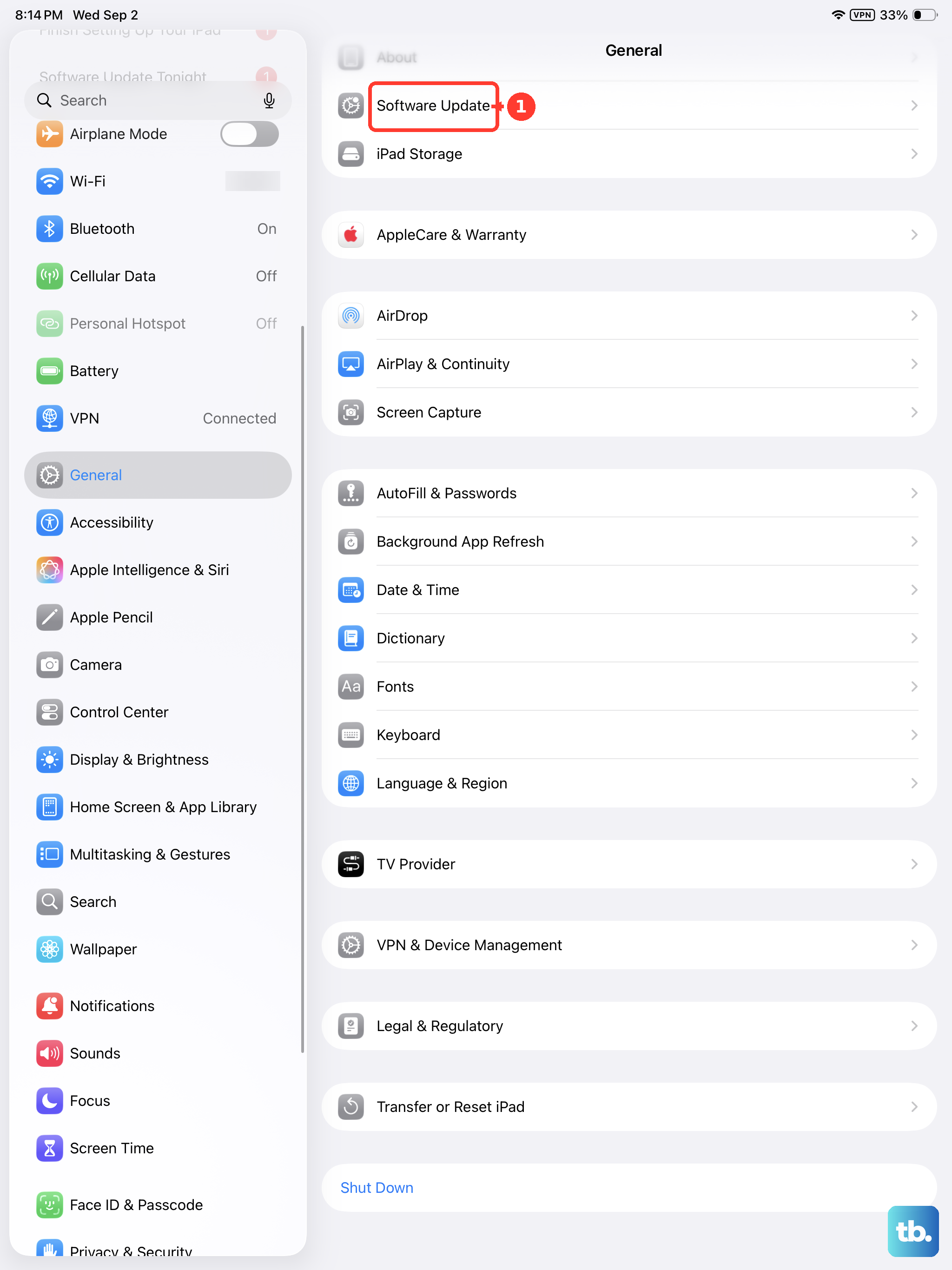
Sometimes, a bug in the operating system itself can cause camera problems. Apple regularly releases updates that include fixes for these kinds of issues. To check, open the Settings app and go to General > Software Update.
If an update is available, I'd recommend installing it. Make sure your iPad is connected to Wi-Fi and has at least 50% battery, or better yet, plug it into its 30W USB-C charger while the update installs. A system restart is part of the update process, which can also help clear the camera problem.
Check App Permissions and Privacy Settings
It's possible the Camera app lost its permission to access your iPad's camera hardware. This can sometimes happen after an update. Go to Settings > Privacy & Security > Camera.
Look for the Camera app in the list and make sure the toggle switch next to it is green and turned on. If it was off, turn it on and then go back to the Camera app to see if it works. Also check the list for any other video calling apps you use, like FaceTime or Zoom, to ensure they have camera access too.
Reset All Settings
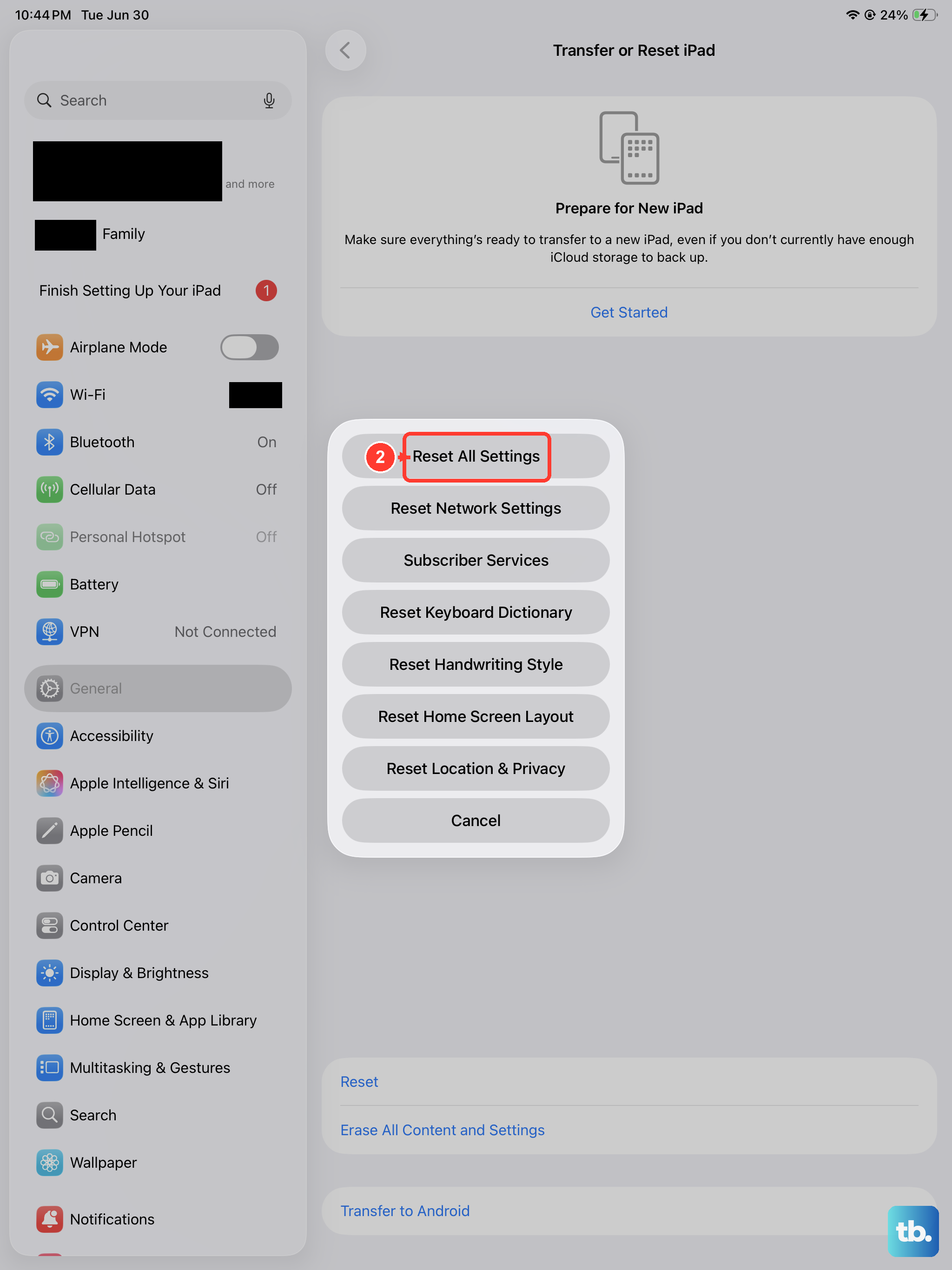
If the black screen persists, a deeper reset might be needed. This will revert all your system settings, like Wi-Fi passwords, wallpaper, and display brightness, back to their factory defaults, but it won't touch your personal data, photos, or apps.
Go to Settings > General > Transfer or Reset iPad. Then, tap Reset and choose Reset All Settings. You'll need to enter your passcode to confirm. After the iPad restarts, you'll have to reconfigure your preferences, but this can eliminate any conflicting settings causing the camera to fail.
Test the Camera in a Different App
To figure out if the problem is with the Camera app itself or the hardware, try using the camera in another application. Open an app like FaceTime, Zoom, or even the Notes app (which can use the camera to scan documents).
If the camera works perfectly in these other apps, then the issue is isolated to the stock Camera app. In that case, you might try offloading and reinstalling it, though since it's a built-in system app, the next iPadOS update is your best permanent fix.
Check for Physical Obstructions and Clean the Lens
Take a close look at the camera lens on the back of your iPad. Is there a clear protective case that might be covering it? Sometimes a case isn't aligned perfectly and can block the lens. Try removing the case and testing the camera again.
Also, gently wipe the camera lens with a soft, dry microfiber cloth. Smudges, fingerprints, or a bit of lint can significantly degrade the image and, in some lighting, might even make the preview look nearly black.
Free Up Storage Space
Your iPad needs a bit of free space to process images and video. If your storage is completely full, the camera app might malfunction or fail to open. Go to Settings > General > iPad Storage to see how much space you have left.
If you're critically low, consider offloading unused apps or moving photos and videos to iCloud. Aim to keep at least a few gigabytes free. After clearing some space, restart your iPad and try the camera again.
Perform a Full Restore via a Computer
This is the most comprehensive software fix and should be your last step before considering a hardware issue. You'll need a Mac or PC with the latest version of Finder or iTunes. Connect your iPad to the computer using its USB-C cable.
Put your iPad into Recovery Mode. Press and quickly release the Volume Up button, then press and quickly release the Volume Down button. Now, press and hold the Top button until you see the recovery mode screen (a cable pointing to a computer icon).
On your computer, you'll see an option to Restore the iPad. This will install a fresh, clean copy of iPadOS. Important warning: this will erase all data and content on your iPad. Make sure you have a recent backup in iCloud or on your computer before proceeding. If the camera works after this restore, you can then restore your data from the backup.