
When your iPad Air (2026) won't connect to your AirPods, keyboard, or car, it can really throw off your workflow. Bluetooth issues on iPadOS 26 are usually software hiccups that you can resolve yourself. I'd start with the basics and work through these steps to get your wireless connections back on track.
Check the Simple Things First
Before you dive into deeper fixes, take a moment to check a few obvious points. Make sure Bluetooth is actually enabled by looking for the blue icon in your Control Center or checking Settings > Bluetooth.
Ensure the accessory you're trying to connect to is charged and in pairing mode. Its instruction manual is the best guide for that. Keep your iPad and the device within a few feet of each other while pairing, as walls and interference can block the signal.
It's also a good idea to test your iPad with a different Bluetooth device. If it connects to one speaker but not another, you've narrowed the problem down to that specific accessory.
Toggle Bluetooth and Restart
The oldest trick in the book is often the most effective. Swipe down from the top-right corner to open Control Center and tap the Bluetooth icon to turn it off. Wait about ten seconds, then tap it again to turn it back on.
If that doesn't do it, a full restart of both devices is the logical next step. For your iPad Air, use the standard restart: go to Settings > General > Shut Down. Power down the Bluetooth accessory as well, then turn everything back on and try pairing again.
Forget and Re-Pair the Device
Sometimes a pairing gets corrupted. The fix is to remove the device from your iPad's memory and start fresh. Open Settings > Bluetooth, find the troublesome device in the "My Devices" list, and tap the info (i) icon next to it.
Tap Forget This Device and confirm. Now, put your accessory back into pairing mode and select it from the "Other Devices" list on your iPad to create a new connection.
Update iPadOS
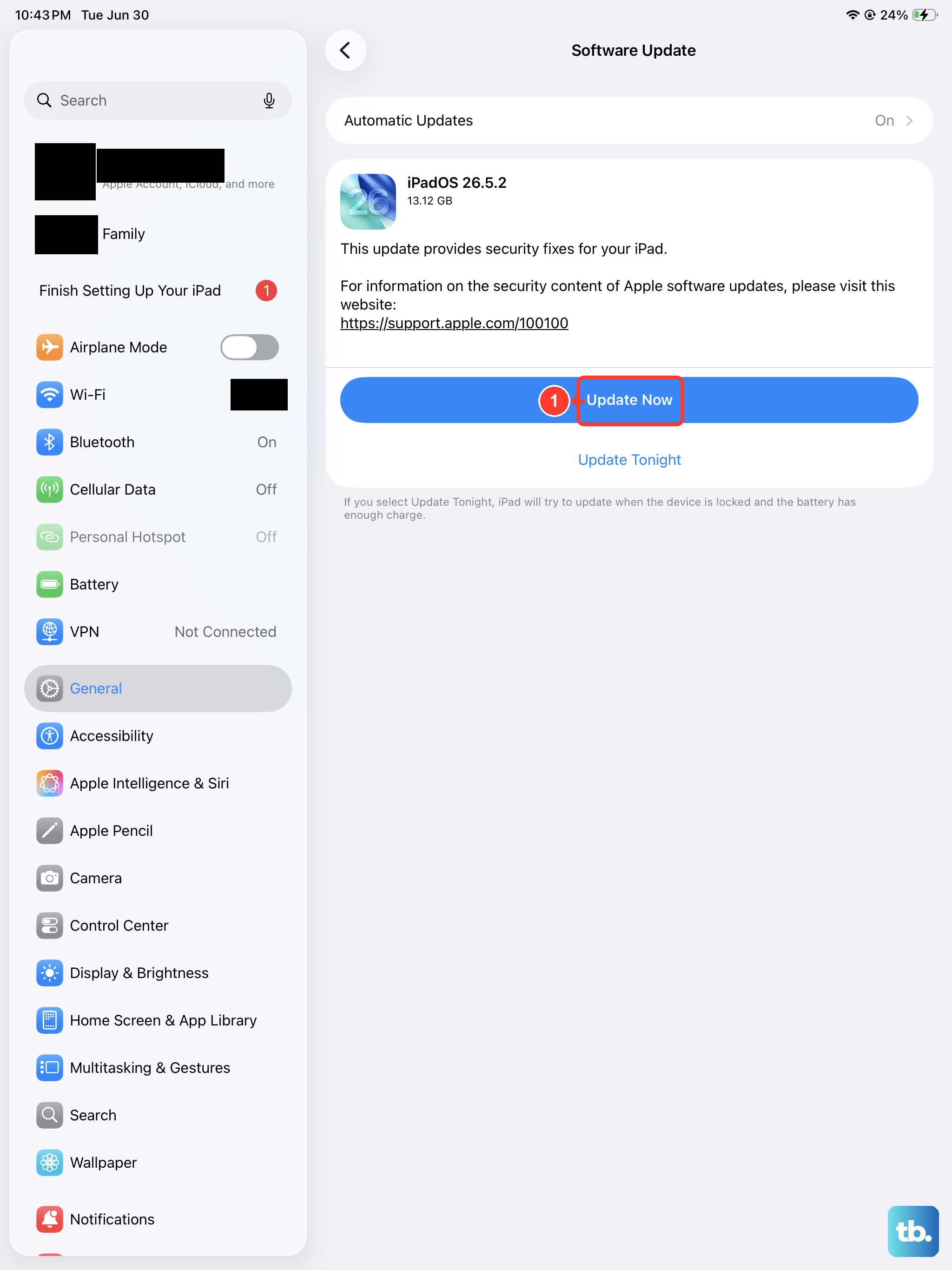
An outdated operating system is a common culprit for Bluetooth bugs, especially with newer accessories. Apple frequently releases updates that include fixes for connectivity issues.
Go to Settings > General > Software Update. If an update is available, I'd recommend installing it. Make sure your iPad is connected to Wi-Fi and has sufficient battery, or better yet, plug it into its 30W USB-C charger during the update process.
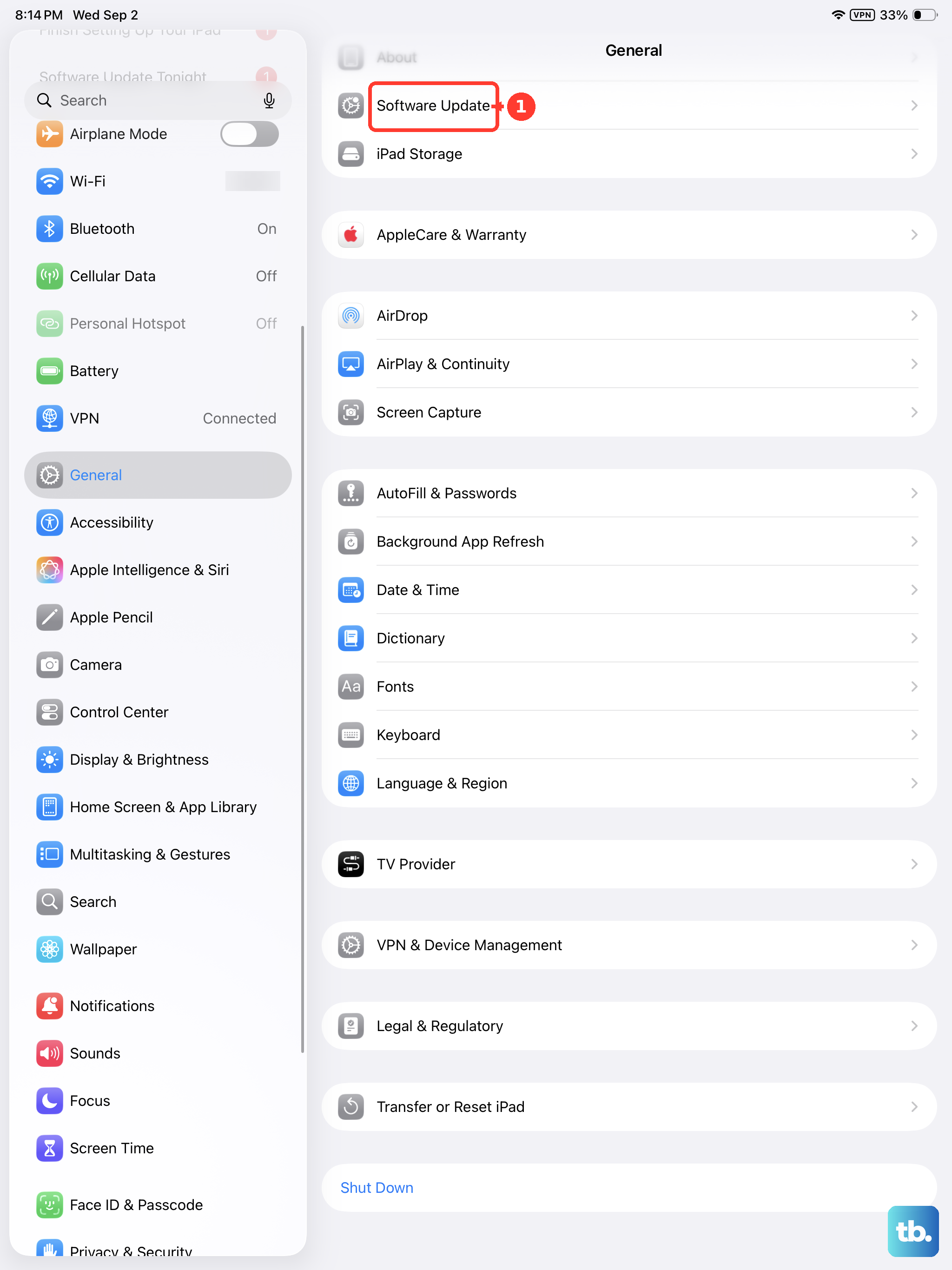
Reset Your Network Settings
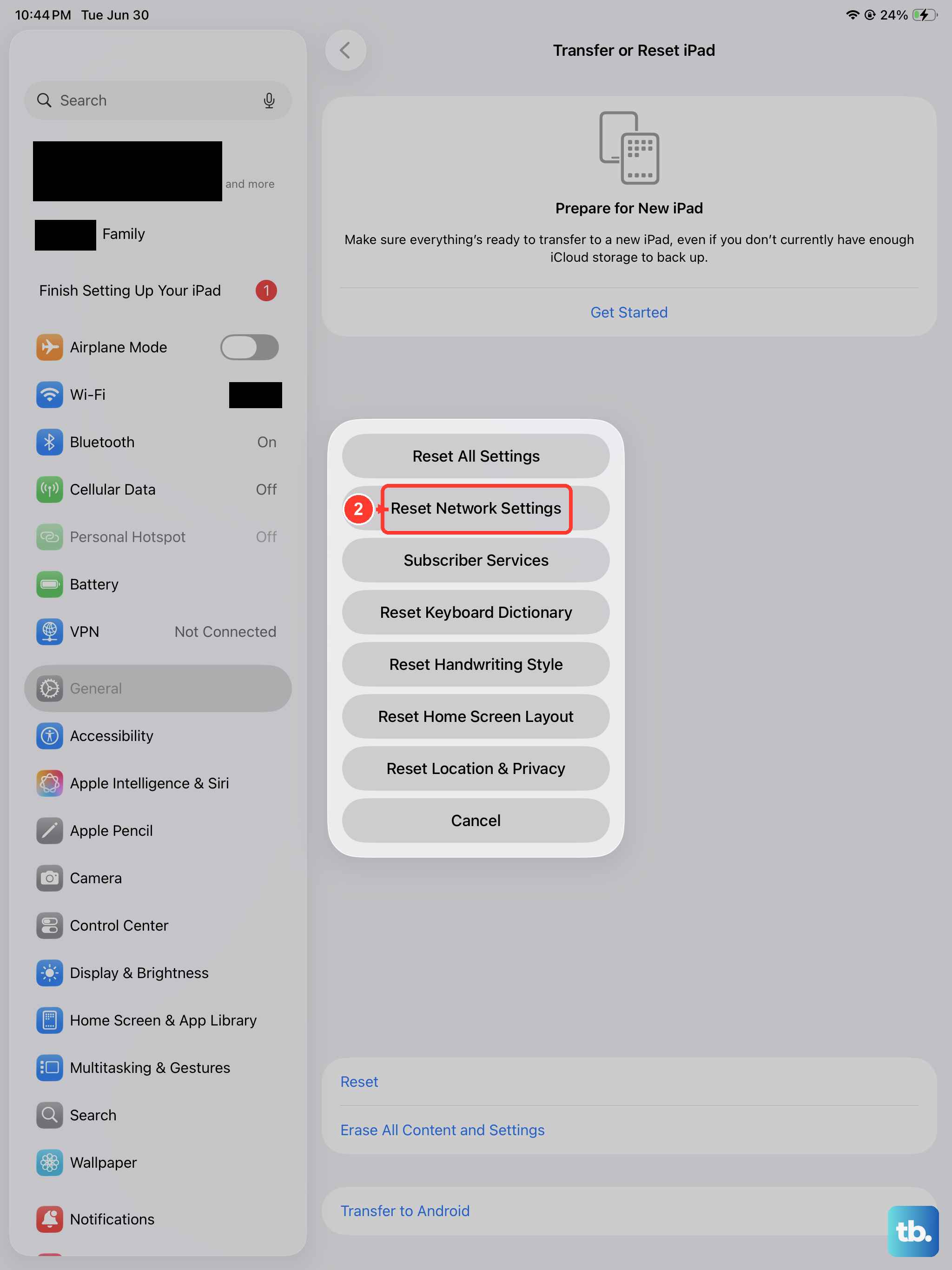
This is a more thorough step that clears all network-related configurations, including Wi-Fi passwords, VPN settings, and Bluetooth pairings. It won't delete your personal data like photos or apps.
Navigate to Settings > General > Transfer or Reset iPad. Tap Reset and then select Reset Network Settings. You'll need to enter your passcode and confirm. After the iPad restarts, you'll have to reconnect to Wi-Fi and re-pair all your Bluetooth devices.
Check for iPadOS Beta Issues
If you're enrolled in the Apple Beta Software Program, you might be running an early version of iPadOS. Beta software is inherently less stable and known to cause peripheral connectivity problems.
You can check by going to Settings > General > Software Update. If you see "Beta Updates" listed, that's likely the cause. You can either wait for a newer beta update that may fix the issue or remove the beta profile to return to the stable public version of iPadOS.
Force Restart Your iPad Air
A force restart is different from a standard shutdown. It clears the device's active memory and can fix temporary system glitches affecting hardware like the Bluetooth radio. For the 2026 iPad Air (which has no Home button), press and quickly release the Volume Up button, then press and quickly release the Volume Down button.
Immediately after, press and hold the Top button. Keep holding it until you see the Apple logo appear on the screen, then release. This won't delete any data.
Review App Permissions
Some apps, especially those for specific accessories like game controllers or styluses, require Bluetooth access. If you denied this permission, the connection might fail. Go to Settings > Privacy & Security > Bluetooth.
You'll see a list of apps that have requested Bluetooth access. Make sure the toggle is enabled for any app related to the device you're trying to connect. For a device like a potential Apple Pencil Pro, its pairing is system-level, but third-party stylus apps would be listed here.
Reset All Settings
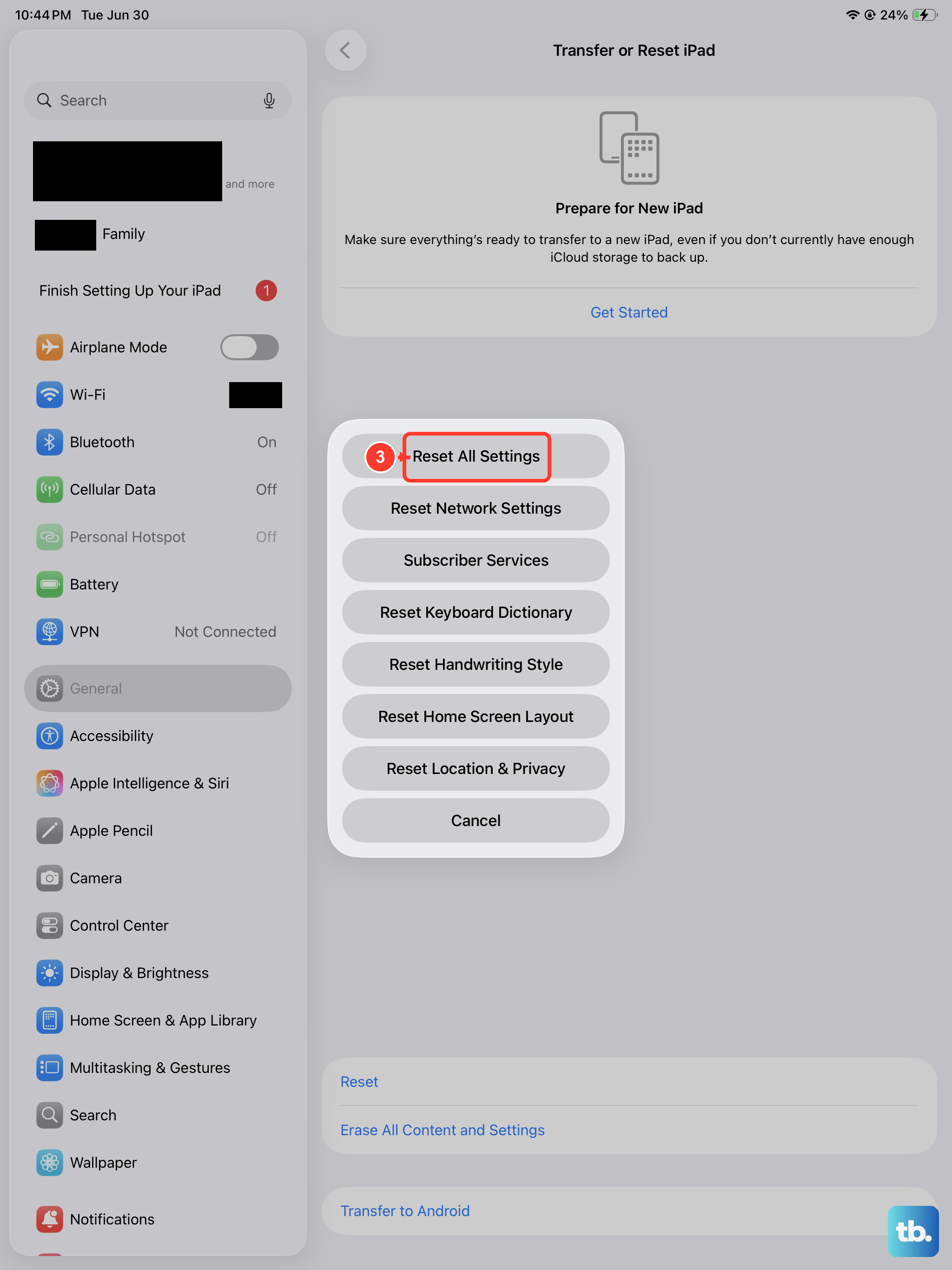
This is a significant step short of a full factory reset. It returns all your preferences, like display brightness, sound settings, and privacy permissions, back to their defaults without erasing your content. It often resolves persistent, obscure software conflicts.
Go to Settings > General > Transfer or Reset iPad > Reset. Choose Reset All Settings. You'll need to enter your passcode. After the reset, you'll have to reconfigure things like your wallpaper and notifications, but your data remains safe.
Pair with a Different Apple ID
This is a specific fix for Apple accessories like AirPods, Magic Keyboard, or AirTag. These devices can be linked to your Apple ID for features like Find My. If there's a conflict with this association, it can prevent pairing.
You need access to another Apple device, like an iPhone or Mac, signed into a different Apple ID. Try pairing the Bluetooth accessory with that device first. After a successful connection, put the accessory back into pairing mode and try connecting it to your iPad Air again. This can clear the previous association.