
Missing notifications on your iPad can mean you're not seeing important messages, emails, or alerts. It's a common hiccup that usually has a simple fix. Let's start with the quickest solution that often works.
First, try a force restart. This clears temporary glitches without deleting any of your data. On your iPad (11th generation), press and quickly release the Volume Up button, then press and quickly release the Volume Down button. Finally, press and hold the Top button until you see the Apple logo appear on the screen.
Check Your Focus Modes
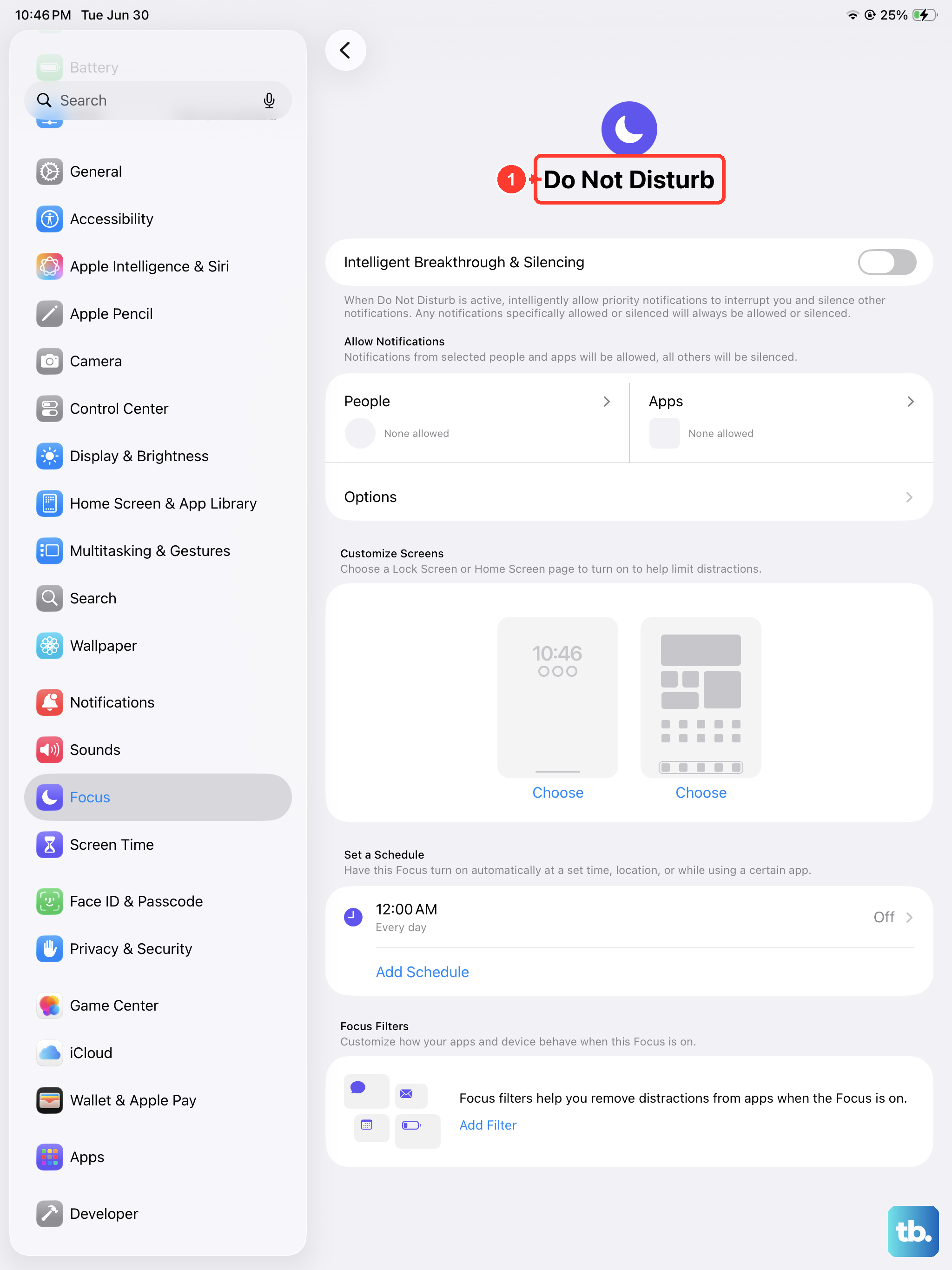
Focus modes are a powerful tool on iPadOS, but they can easily hide notifications if you forget they're on. Swipe down from the top-right corner to open Control Center and look at the Focus tile. If it shows anything other than a moon with a line through it, a Focus is active.
Tap the active Focus icon to turn it off. You can also go into Settings > Focus to see a list of all your modes. Make sure the specific apps you're missing notifications from are allowed to notify you even when a Focus is on.
Review Notification Settings for the App
Sometimes, the notification settings for a specific app get changed or don't carry over correctly after an update. Open the Settings app on your iPad and scroll down until you see the list of installed apps.
Find the app that's not showing alerts (like Messages, Mail, or Slack) and tap on it. Then, tap Notifications. Make sure "Allow Notifications" is toggled on at the very top. Below that, check that the alert style is set to something other than "None," and that sounds and badges are enabled if you want them.
Disable Scheduled Notification Summary
The Notification Summary is a feature that bundles less urgent alerts to deliver them at set times of day. If an app is included in your Summary, you won't get instant notifications from it. Go to Settings > Notifications > Scheduled Summary.
Here, you can turn off the Scheduled Summary entirely by toggling it off. If you want to keep using it, tap on the schedule and review the list of apps included. Remove any apps you need instant alerts from by tapping the minus (-) button next to them.
Check Do Not Disturb and Silent Mode
These are two separate but related settings. First, check that the physical mute switch on the top edge of your iPad isn't flipped down, putting it in silent mode. When it's down, you won't hear alert sounds, though banners will still appear.
Next, open Control Center by swiping down from the top-right. If the crescent moon icon is highlighted, Do Not Disturb is on. Tap it to turn it off. You can also check its schedule in Settings > Focus > Do Not Disturb.
Restart the Problem App
A simple app restart can clear out a temporary software snag. Swipe up from the bottom of the screen and pause in the middle to enter the App Switcher. Find the app's preview card and swipe it up and off the top of the screen to close it completely.
Wait a few seconds, then tap the app's icon on your Home Screen to relaunch it. This gives it a fresh start and can often resolve notification delivery issues that are isolated to that one app.
Update iPadOS
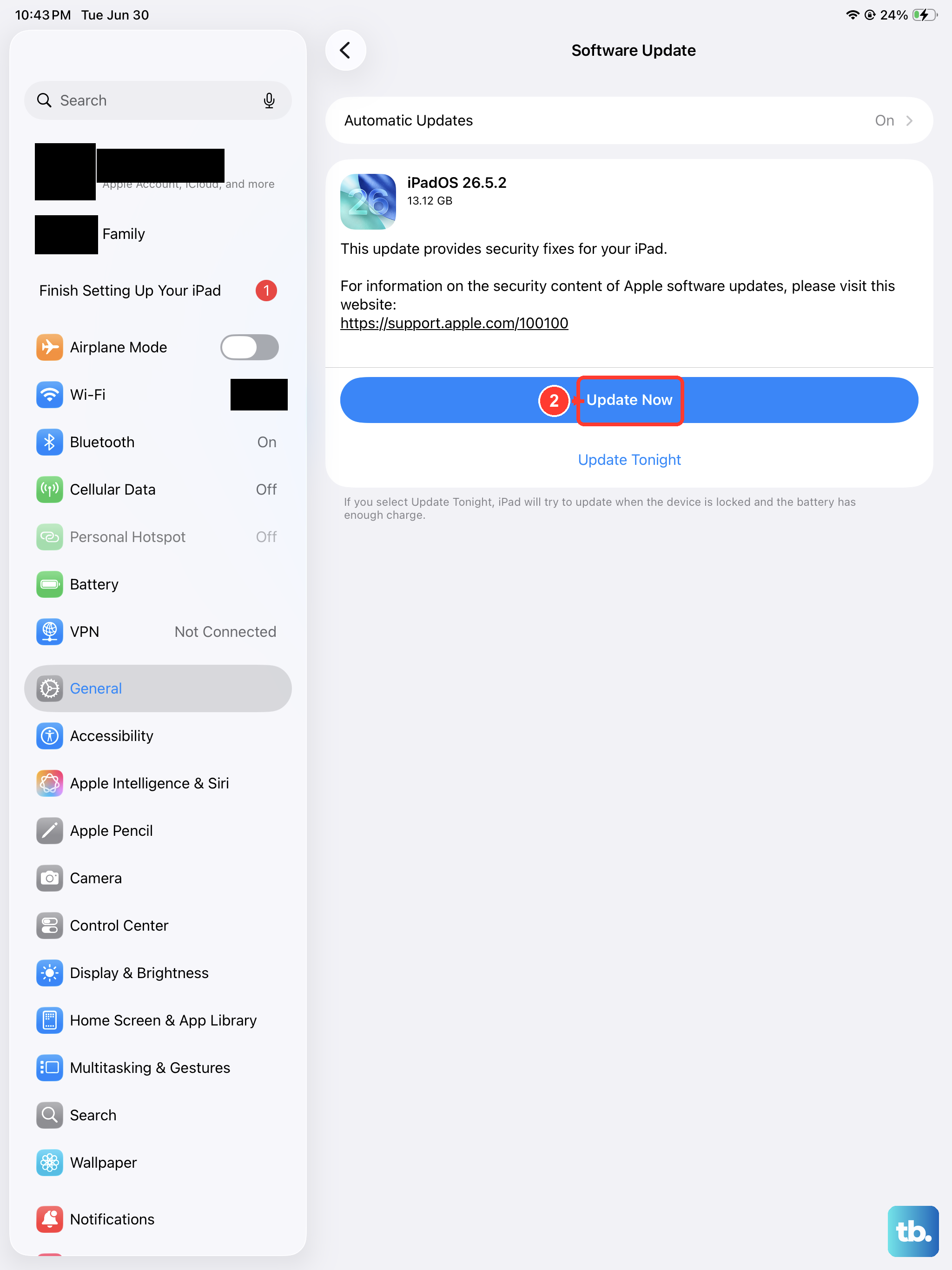
Software updates frequently include bug fixes for notification delivery and system stability. Keeping your iPad (11th generation) on the latest version of iPadOS is one of the best ways to prevent these kinds of issues.
Go to Settings > General > Software Update. Your iPad will check for available updates. If one is listed, I'd recommend installing it. It's a good practice to have a recent iCloud or computer backup first, just in case.
Reset All Settings
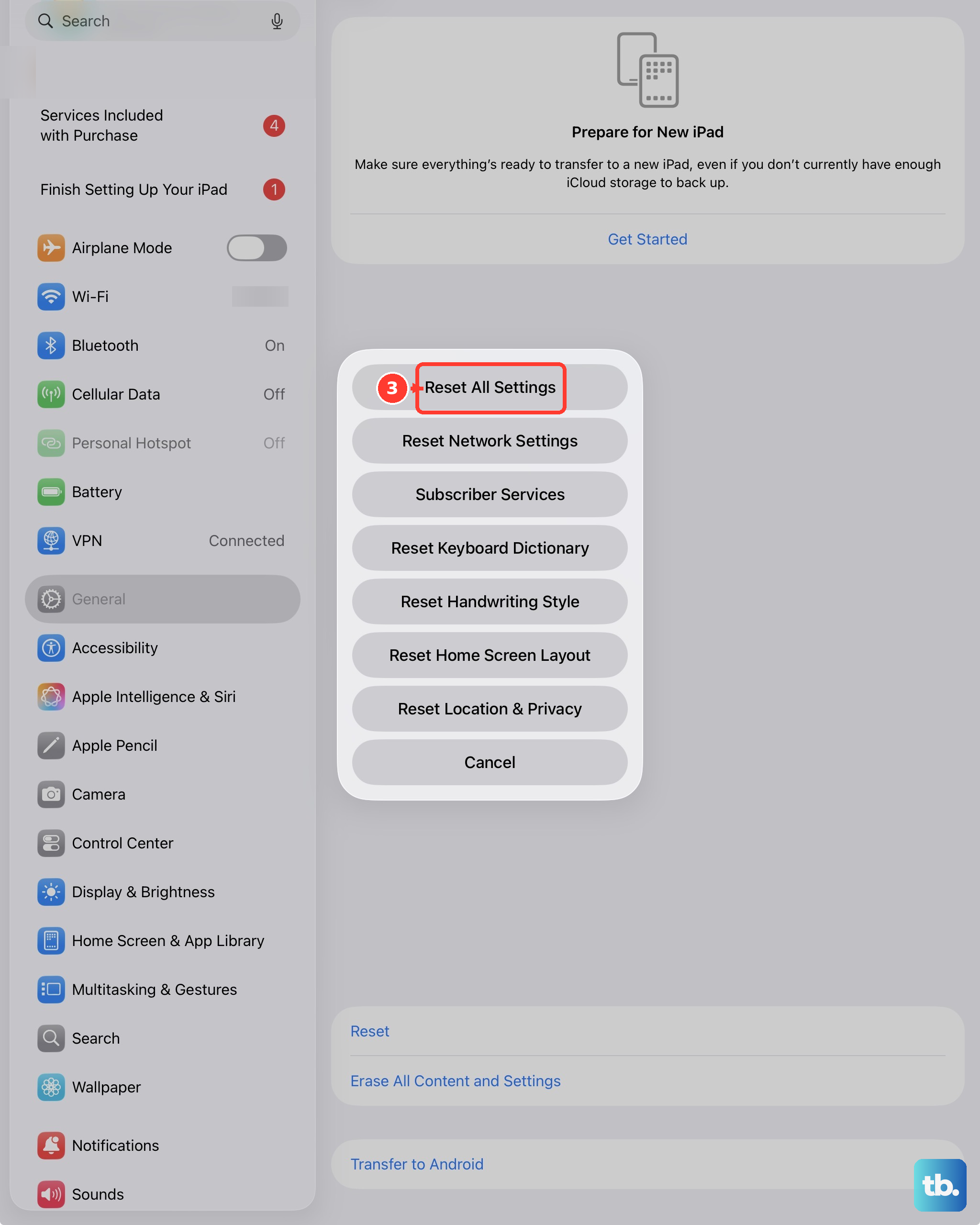
This is a more thorough step that resets every system setting on your iPad back to its factory defaults. It won't delete any of your personal data, apps, or media, but you will have to reconfigure things like Wi-Fi passwords, wallpaper, and privacy permissions.
To do this, navigate to Settings > General > Transfer or Reset iPad. Then, tap Reset and choose Reset All Settings. Enter your passcode if prompted and confirm. Your iPad will restart, and you can test if notifications are working again.
Check for App-Specific Notification Issues
Some apps, especially messaging apps, have their own internal settings that can affect notifications. For example, in an app like WhatsApp or Telegram, there might be a "mute" setting for specific chats or a battery-saving mode within the app itself.
It's worth opening the problematic app and digging through its own settings menu. Look for sections labeled "Notifications," "Sounds," "Privacy," or "Data Usage." Sometimes toggling a setting off and back on inside the app itself can re-establish the connection.
Review Background App Refresh
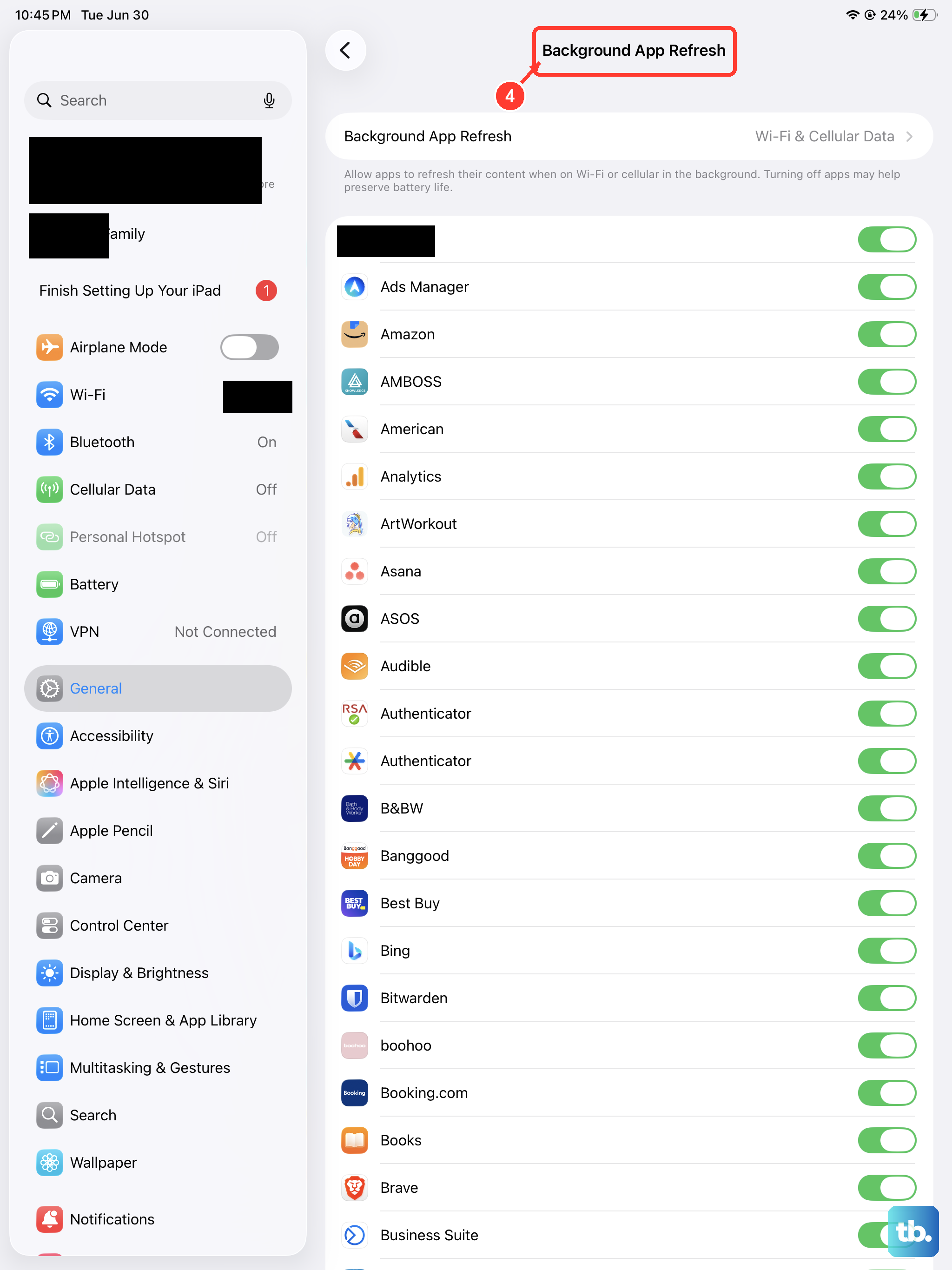
Background App Refresh allows apps to check for new content even when you're not using them, which is crucial for timely notifications. If it's disabled globally or for a specific app, notifications can be delayed.
Go to Settings > General > Background App Refresh. You can set it to "Wi-Fi & Cellular Data" or just "Wi-Fi." More importantly, scroll down the list and ensure the toggle is enabled (green) for the app that's having trouble.
Sign Out and Back Into Your Apple ID
Since many notification services are tied to your Apple ID, a glitch in that connection can cause problems. This sign-out process is safe but will temporarily disable iCloud services like Mail, Contacts, and iMessage on the device.
Go to Settings and tap your name at the top. Scroll all the way down and tap Sign Out. You'll be asked if you want to keep a copy of your iCloud data on the iPad; you can say yes. After restarting your iPad, go back to Settings and sign in with your Apple ID again.