
When your iPad's keyboard stops responding or the on-screen keys won't pop up, it can stop your work cold. Most keyboard problems can be fixed in a few simple steps, whether you use the on-screen keyboard, a Magic Keyboard or a third-party Bluetooth model.
Restart Your iPad
Start here. A restart clears temporary software glitches that can affect the keyboard. The steps depend on your iPad model.
On an iPad without a Home button, press and hold either volume button and the Top button until the power off slider appears. Drag the slider, wait about 30 seconds, then press and hold the Top button until you see the Apple logo. On an iPad with a Home button, press and hold the Top button until the slider appears, then do the same.
If your iPad is frozen and won't respond, force restart it. Without a Home button, press and quickly release the volume button closest to the Top button, press and quickly release the volume button farthest from it, then press and hold the Top button until the Apple logo appears. With a Home button, press and hold the Home button and Top button together until you see the Apple logo. After it restarts, open an app like Notes to check whether the keyboard works.
Check Your Keyboard Connection and Power
If you use a physical keyboard, connection problems are a common cause. First make sure your keyboard actually supports your iPad model, because Magic Keyboard and Smart Keyboard models only work with specific iPads.
For a Magic Keyboard, Magic Keyboard Folio, Smart Keyboard or Smart Keyboard Folio, detach it from your iPad. Wipe the Smart Connector on both the keyboard and the iPad with a soft, lint-free cloth, take off any other case or cover, then reconnect the keyboard. If it still doesn't respond, restart your iPad.
For Bluetooth keyboards, go to Settings > Bluetooth and check that your keyboard is listed and connected. If it's connected but not working, tap the info (i) icon next to it and choose Forget This Device. Then put the keyboard back into pairing mode and reconnect it from the Bluetooth menu.
Also check the battery. A Bluetooth keyboard with a dead or very low battery may connect but fail to register key presses.
Close and Reopen Your App
Sometimes the problem is the app you're using rather than the keyboard. To fully close an app, swipe up from the bottom of the screen and pause in the middle (or double-click the Home button on iPads that have one) to see your open apps.
Swipe up on the app's preview to close it, then tap the app icon to reopen it fresh. This can clear a temporary conflict that stops the keyboard from appearing.
Toggle Off and On the On-Screen Keyboard
If the on-screen keyboard is missing, check whether a physical keyboard is connected. While one is attached, iPad uses it for typing and keeps the on-screen keys out of the way.
To bring the on-screen keyboard back, tap a text field, tap the Keyboard Shortcut button in the shortcuts bar at the bottom of the screen, then tap Show Keyboard. If you don't see the shortcuts bar, disconnect the physical keyboard or switch it off, then tap the text field again.
Update iPadOS
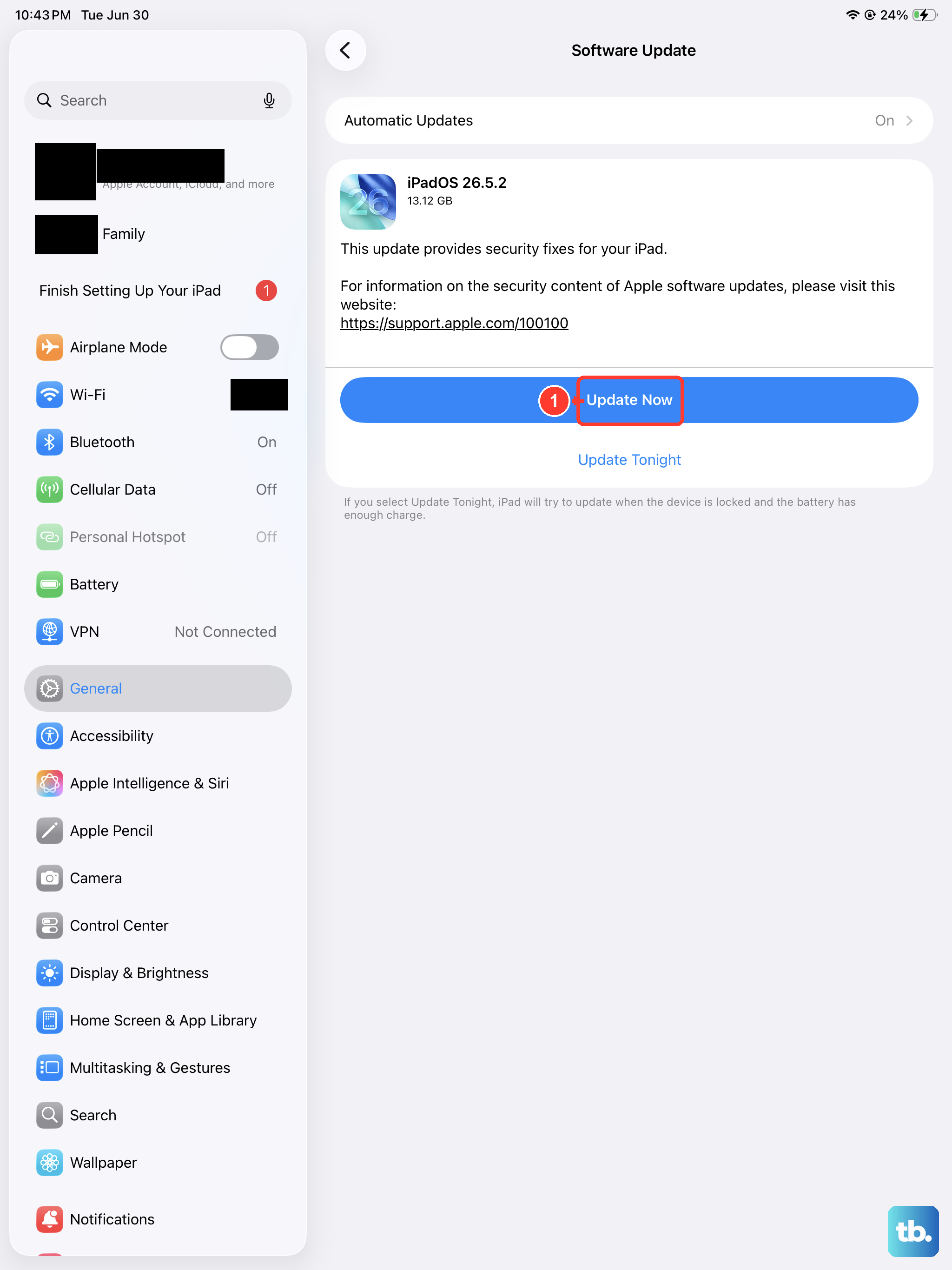
Outdated software can cause all sorts of bugs, including keyboard problems, and Apple regularly releases updates that fix them. Apple also lists updating iPadOS as a fix when a Magic Keyboard or Smart Keyboard won't respond.
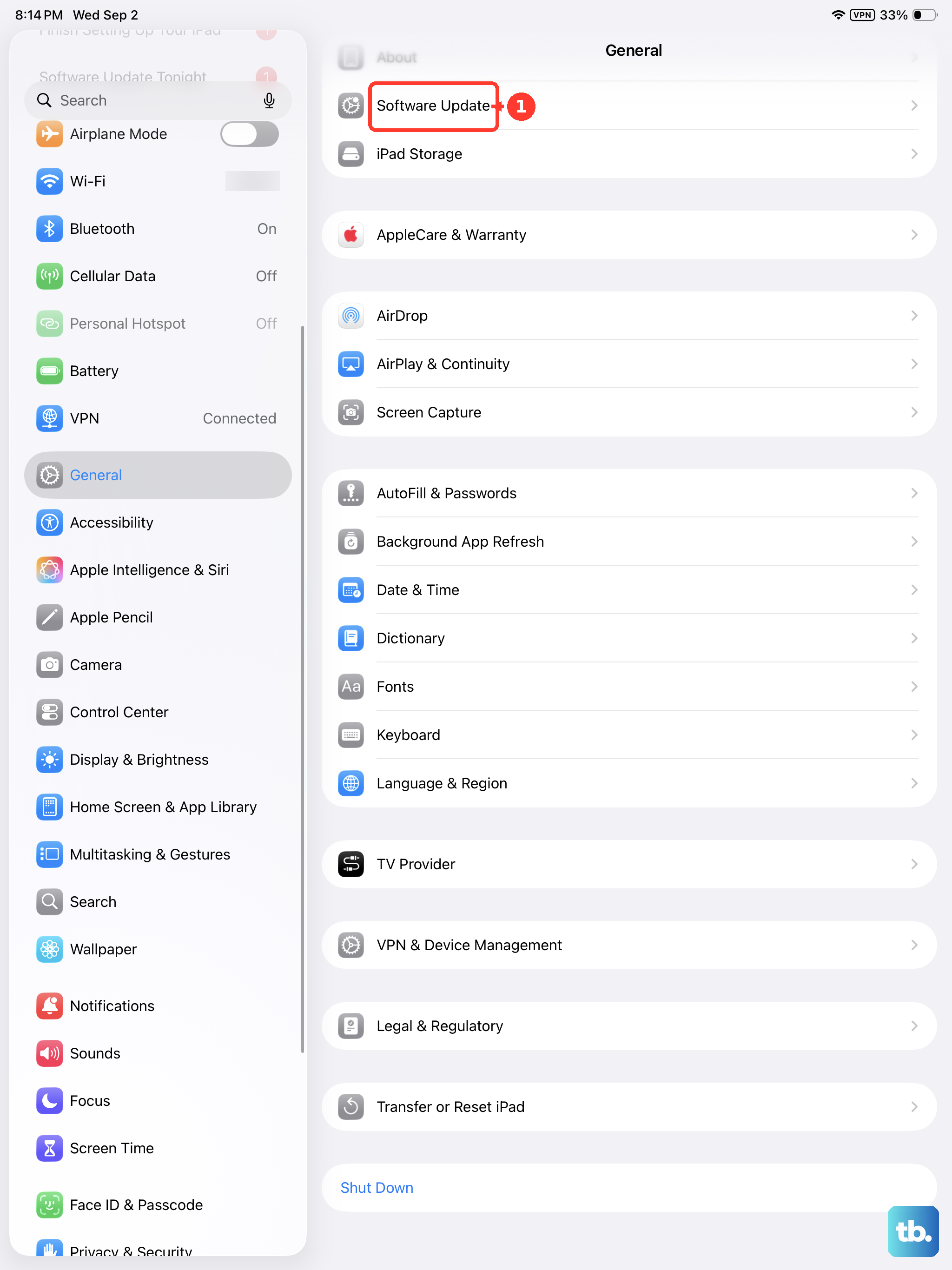
Back up your iPad, plug it into power and connect to Wi-Fi. Then go to Settings > General > Software Update. If an update is available, tap Update Now or Download and Install and follow the onscreen instructions.
Reset the Keyboard Dictionary
Your iPad adds words to its keyboard dictionary when you reject its suggestions as you type. If autocorrect keeps suggesting wrong or odd words, resetting the dictionary erases only the words you've added this way. Your other keyboard settings, apps, photos and data are not affected.
Go to Settings > General > Transfer or Reset iPad > Reset, then tap Reset Keyboard Dictionary. Enter your passcode to confirm. Afterward, you'll need to teach the keyboard any custom words again, and it's worth checking that your text replacements are still there.
Check for Accessibility Settings
Some accessibility features can change how keyboard input behaves, so make sure nothing is turned on by accident. Head to Settings > Accessibility.
Check Touch > AssistiveTouch and turn it off temporarily to test your keyboard. Then open the keyboard settings in Accessibility and make sure Full Keyboard Access, Sticky Keys and Slow Keys are off unless you use them. Slow Keys in particular adds a delay before a key press registers, which can look like a broken keyboard.
Try a Different Keyboard App
If the built-in Apple keyboard is giving you trouble, you can download an alternative from the App Store. Gboard and SwiftKey are popular options.
After installing one, go to Settings > General > Keyboard > Keyboards > Add New Keyboard and select the keyboard you installed. When you type, tap the globe icon in the bottom-left corner of the keyboard to switch between keyboards.
Reset All Settings
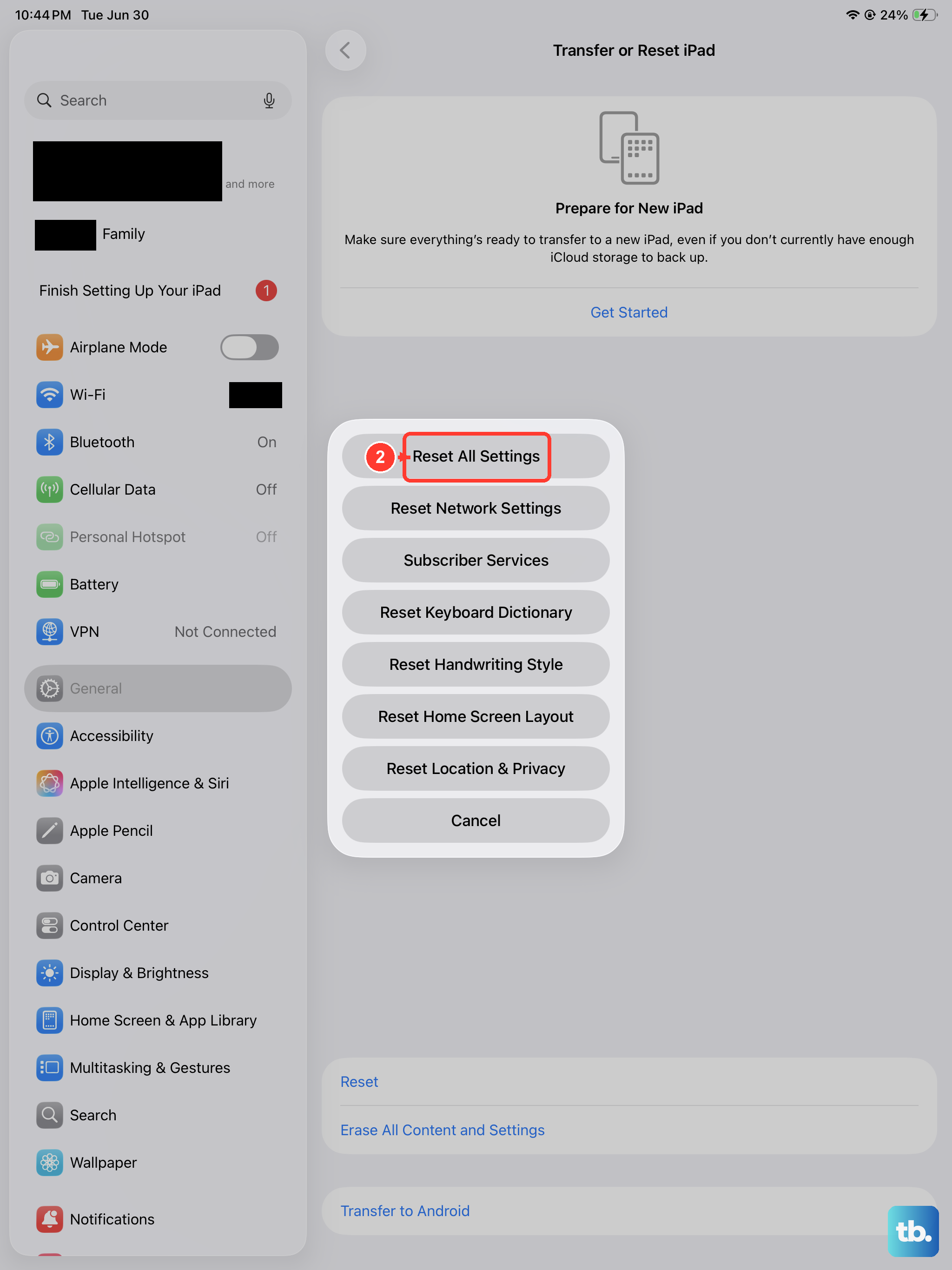
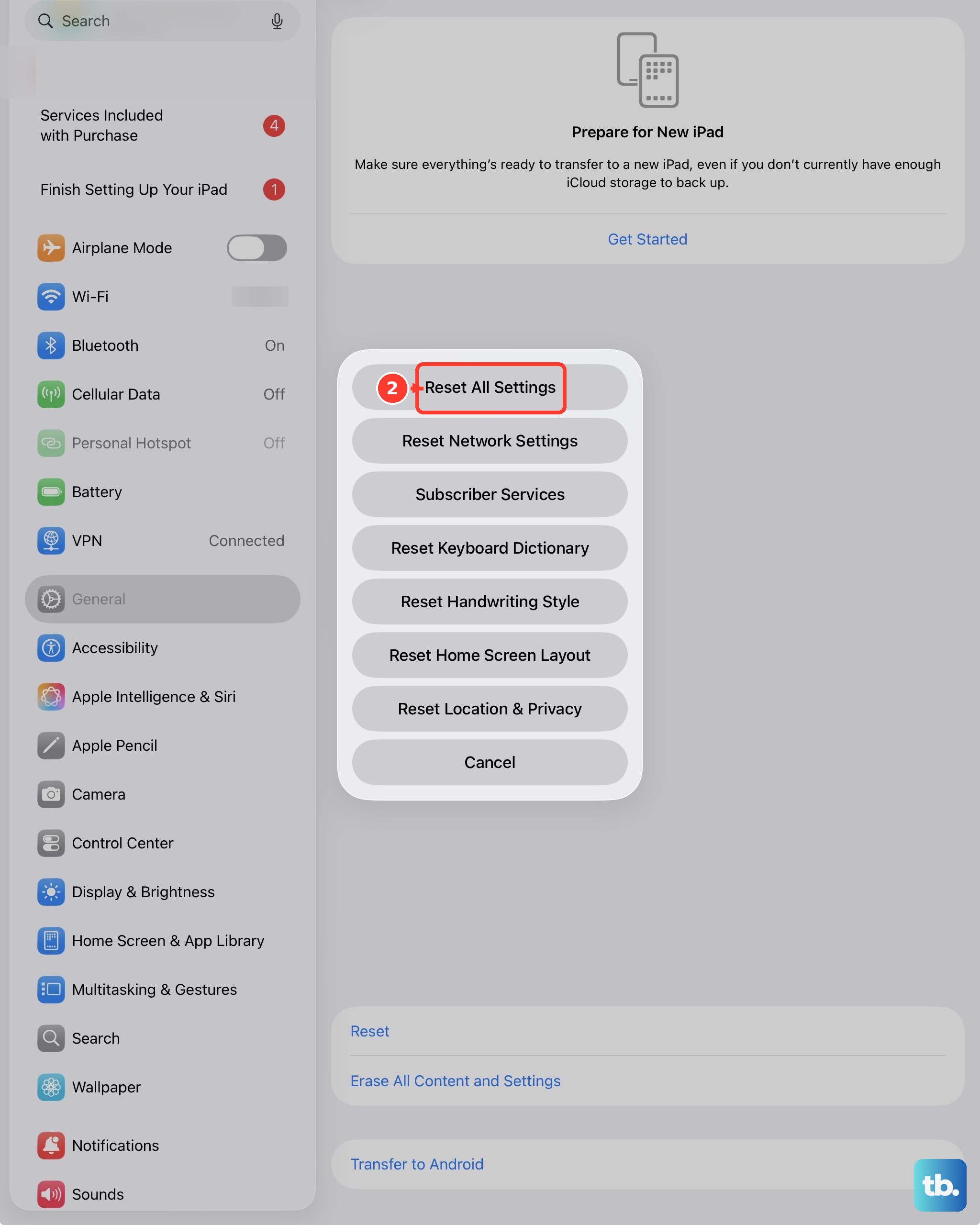
Try this if nothing else has worked. It resets all settings, including network settings, the keyboard dictionary, location and privacy settings, and removes Apple Pay cards. No data or media are deleted, but you'll need to re-enter Wi-Fi passwords and set your preferences again.
Go to Settings > General > Transfer or Reset iPad > Reset, then choose Reset All Settings. Don't tap Erase All Content and Settings, which deletes everything. Enter your passcode when prompted and confirm, then test the keyboard before you change settings back.
If your Magic Keyboard or Smart Keyboard still won't connect after all of this, contact Apple Support.