
If your iPad (11th generation) camera isn't working, start with a simple restart. Press and hold the top button and either volume button until the power slider appears, then drag it to turn off. Wait about 30 seconds, then press the top button again to turn it back on. I've seen this fix work for most temporary software glitches that cause the camera app to freeze or show a black screen.
Before digging into settings, open a quick online camera test in your browser. If the preview shows a live picture, the camera hardware works and the issue is with app permissions or configuration.
Key Points
- Force Restart Your iPad: This is the most effective first step for unresponsive cameras or apps.
- Check for iPadOS Updates: Outdated software is a common cause of camera malfunctions.
- Close and Reopen the Camera App: A simple app refresh can clear up many issues.
- Check App Permissions: Make sure the app you're using has permission to access the camera.
- Clean the Camera Lens: Smudges and dirt can block the lens and cause blurry or dark images.
- Check for Physical Damage or Obstructions: Inspect the lens for cracks and remove any case that might be blocking it.
- Reset All Settings: This can fix deeper software conflicts without erasing your data.
- Check for Overheating: Your iPad will disable the camera if it gets too hot to protect its components.
- Contact Apple Support: If all else fails, there may be a hardware issue that needs professional diagnosis.
Once your iPad boots back up, open the Camera app from the Home Screen to see if it's working.
Force Restart Your iPad
If a normal restart didn't help, try a force restart. This clears the device's memory and can fix more stubborn freezes. On your iPad (11th generation), quickly press and release the Volume Up button, then quickly press and release the Volume Down button.
Immediately after, press and hold the Top button. Keep holding it until you see the Apple logo appear on the screen, then let go. This process takes about 10-15 seconds.
Your iPad will restart. This is different from a normal shutdown and often resolves issues where an app or system process has become completely unresponsive.
Check for iPadOS Updates
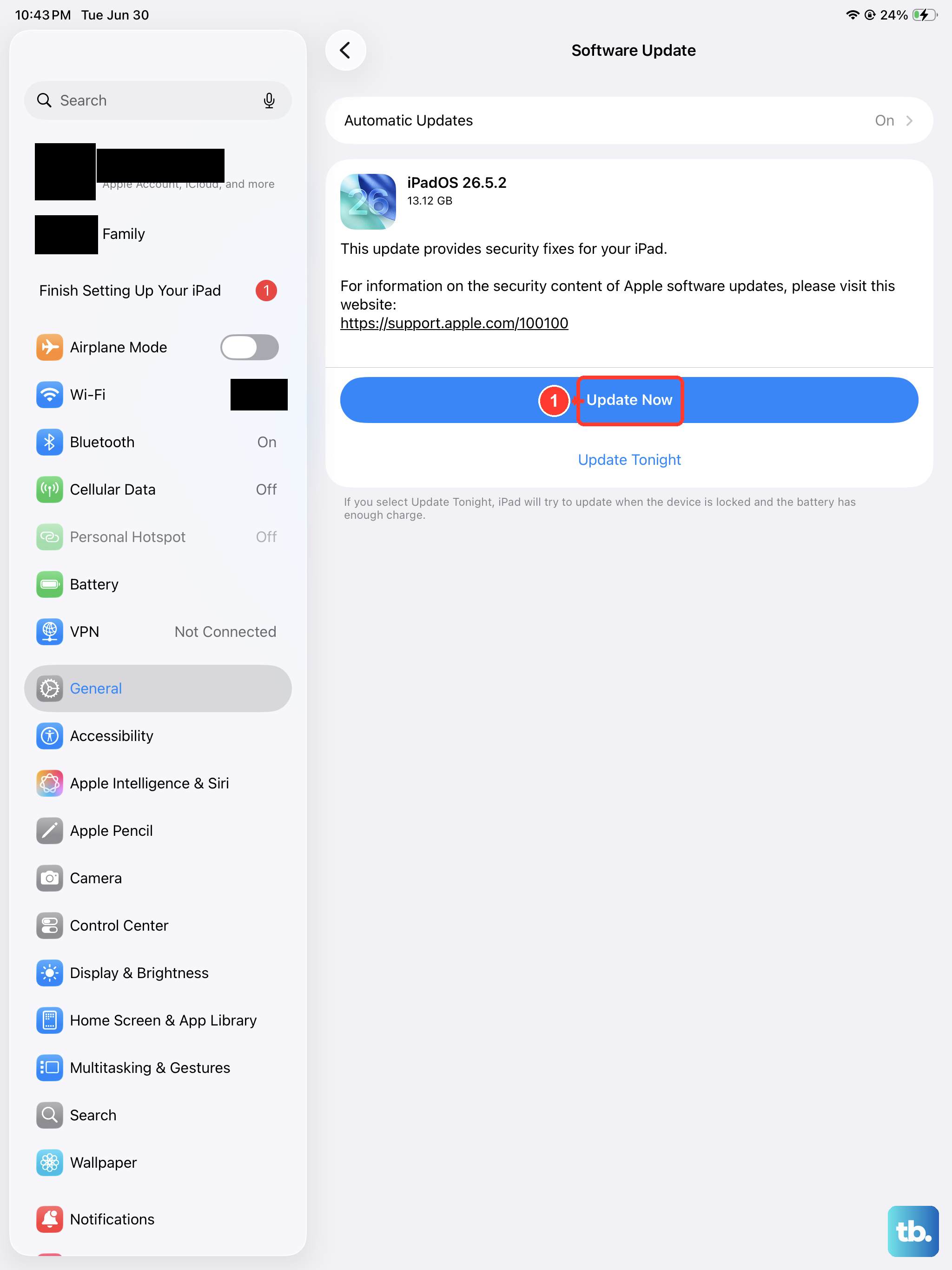
Outdated software is a frequent culprit for camera problems. Apple regularly releases updates that fix bugs and improve compatibility. Open the Settings app and go to General > Software Update.
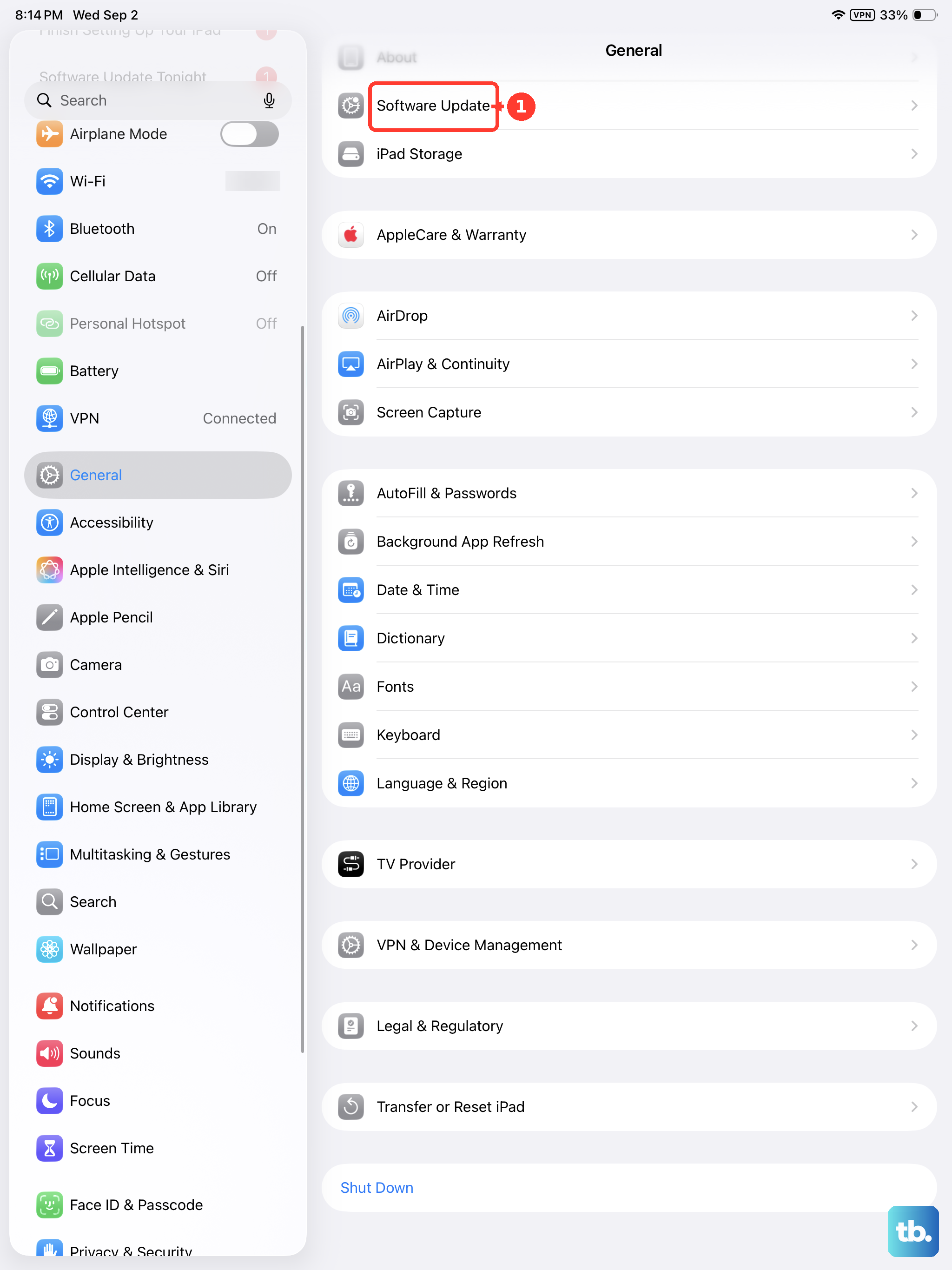
Your iPad will check for any available updates. If one is listed, tap Download and Install. Make sure your iPad is connected to Wi-Fi and has at least 50% battery, or is plugged into power using a 20W USB-C charger.
After the update installs and your iPad restarts, test the camera again. Software updates often include patches for camera-related issues that were introduced in earlier versions of iPadOS.
Close and Reopen the Camera App
Sometimes the Camera app itself gets stuck. To fully close it, swipe up from the bottom of the screen and pause in the middle to enter the App Switcher. Find the Camera app preview and swipe it up and off the top of the screen to close it.
Wait a moment, then tap the Camera icon on your Home Screen to relaunch it. This gives the app a fresh start and clears any temporary data that was causing it to malfunction.
If you were using the camera within another app like Zoom or Instagram, try closing that app completely using the same method, then reopening it to see if the camera works there.
Check App Permissions
The app you're trying to use might not have permission to access the camera. This is a common issue with third-party apps after an update. Go to Settings > Privacy & Security > Camera.
You'll see a list of all apps that have requested camera access. Find the app you're having trouble with, like FaceTime or TikTok, and make sure the switch next to it is turned on (green).
If it was off, turn it on, then go back to the app and try the camera again. If it was already on, try turning it off and back on to reset the permission.
Clean the Camera Lens
It sounds simple, but a dirty lens is a very common reason for poor photo quality. Gently wipe the camera lens on the back of your iPad with a soft, lint-free microfiber cloth.
Check for any smudges, fingerprints, or dust. Avoid using window cleaners, household sprays, or compressed air, as these can damage the lens coating. For stubborn spots, you can slightly dampen the corner of the cloth with water.
Also, make sure your fingers aren't accidentally covering the lens when you hold the iPad. The lens is in the top corner, so adjust your grip if needed.
Check for Physical Damage or Obstructions
Take a close look at the camera lens. Do you see any cracks, deep scratches, or signs of impact? Even a small crack can disrupt the camera's ability to focus and let in light.
Next, check your iPad case. Some cases, especially rugged ones or those not designed specifically for the 11th generation model, can have a lip that partially covers the camera bump. Try removing the case entirely and testing the camera without it.
Also, check if you have any screen protectors or camera lens protectors installed. While rare, a poorly aligned lens protector can definitely obstruct the camera's view.
Reset All Settings
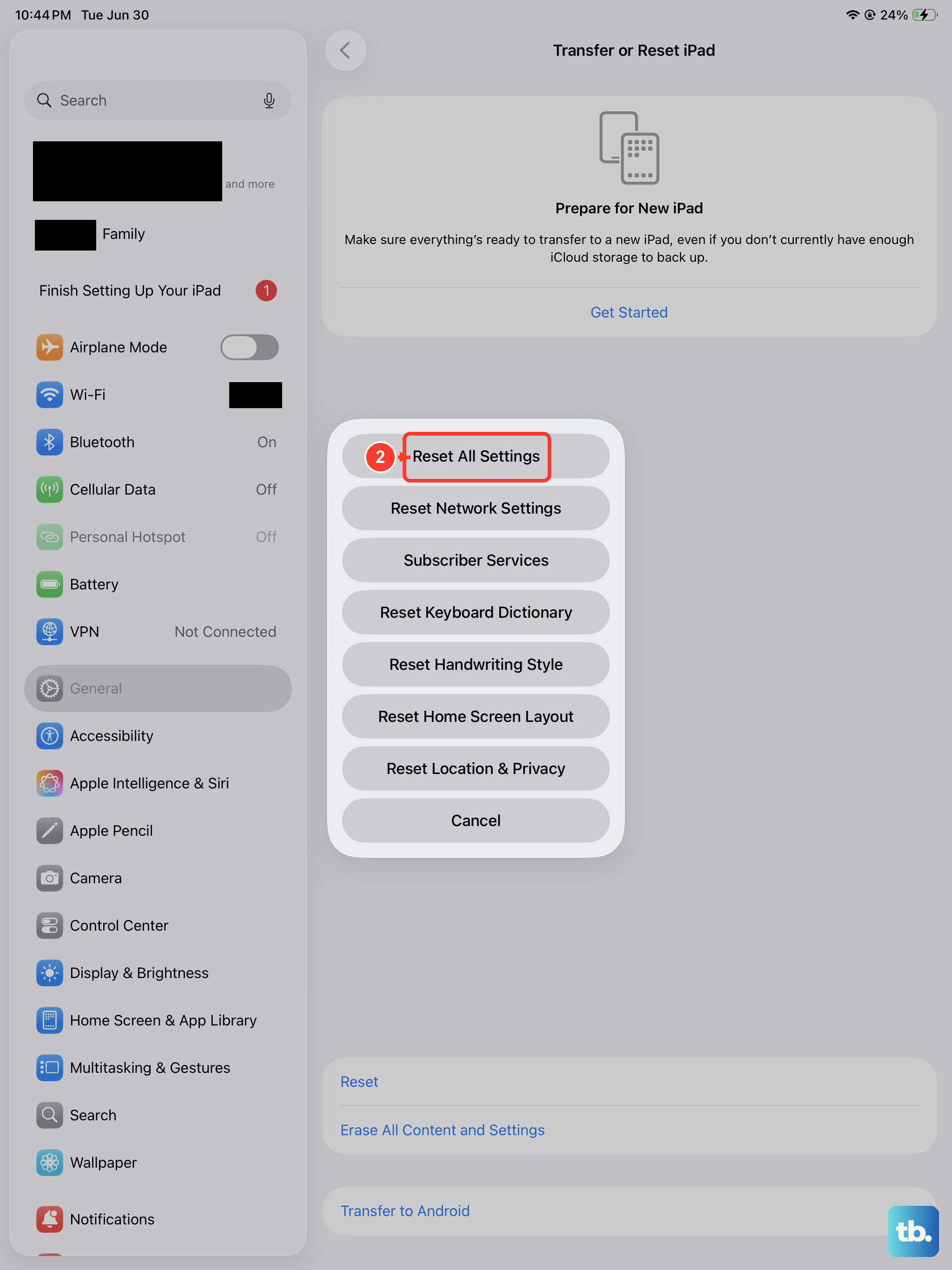
This is a stronger step that can fix weird software conflicts, but it won't delete your photos, apps, or personal data. It will reset things like your Wi-Fi passwords, wallpaper, and display settings back to default.
To do this, go to Settings > General > Transfer or Reset iPad. Then, tap Reset and choose Reset All Settings. You'll need to enter your passcode to confirm.
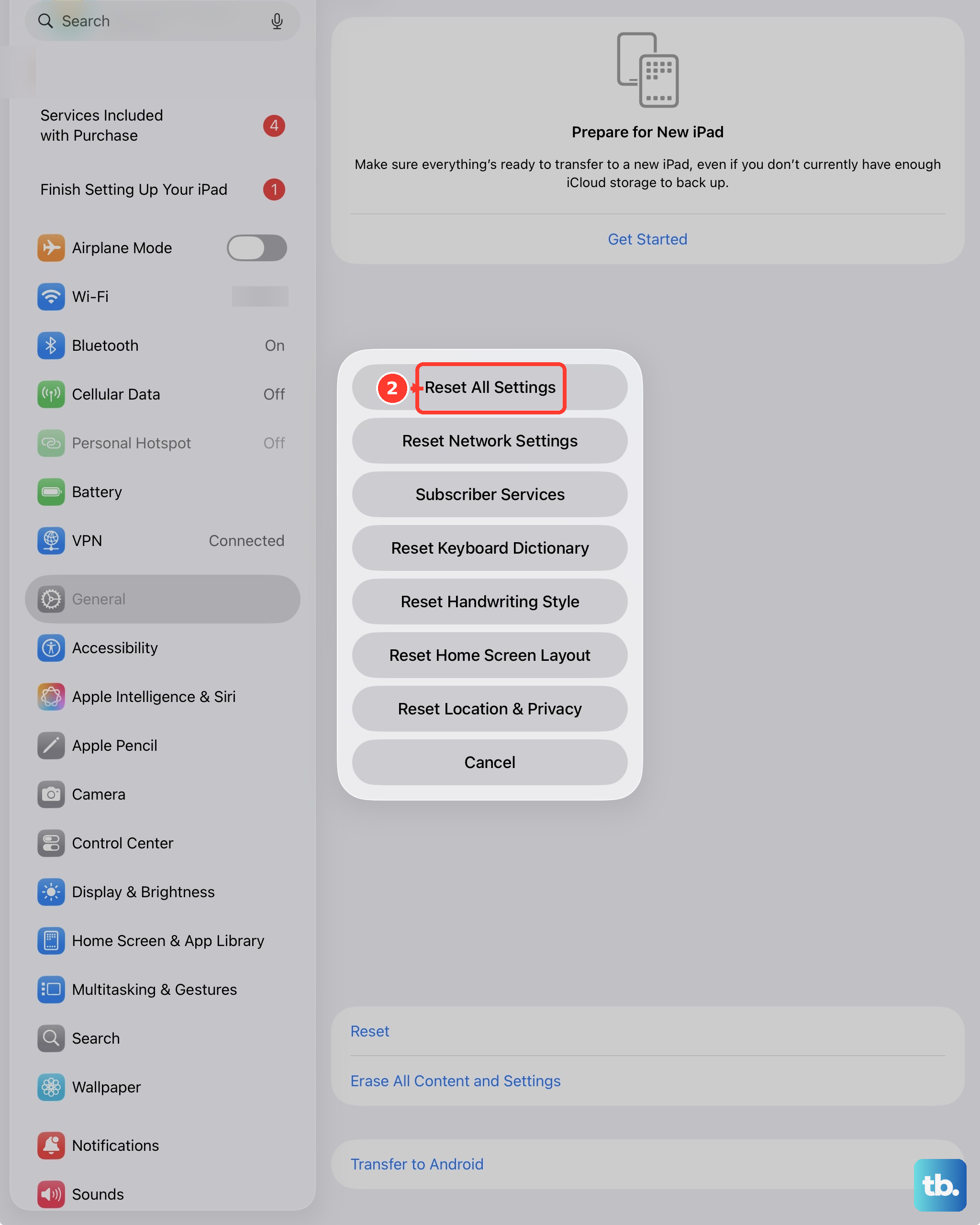
After the reset is complete, your iPad will restart. You'll need to reconnect to Wi-Fi and adjust any settings you had customized, but then you can test the camera immediately.
Check for Overheating
Your iPad has built-in protection that will temporarily disable certain features, including the camera, if it gets too hot. This can happen if you leave it in direct sunlight, use graphics-intensive apps for a long time, or charge it while using a demanding app.
If you see a temperature warning on the screen or the iPad feels very warm to the touch, turn it off and let it cool down in a shaded, well-ventilated area. Remove any case to help it cool faster.
Once it's back to a normal temperature, the camera function should return automatically. Using your iPad in a cooler environment and avoiding direct sun can prevent this from happening again.