
If your iPad 10th Generation won't turn on, the first thing to try is a force restart. This is the go-to fix for an unresponsive screen. Press and quickly release the Volume Up button, then press and quickly release the Volume Down button. Finally, press and hold the Top button until you see the Apple logo appear. Hold it through the screen going black and wait for the logo. This can clear out a temporary software hang that's preventing a normal boot.
Check Your Charger and Cable
Your iPad might simply have a completely drained battery. The 10th Gen model has a large battery, and using a weak charger can make it seem like it's not charging at all. Plug it into a wall outlet with a known-good 20W (or higher) USB-C Power Delivery charger and a high-quality USB-C cable.
Let it charge undisturbed for at least an hour. The screen may stay black for several minutes even when connected to power if the battery was fully depleted. I'd recommend using the official 20W Apple USB-C power adapter or a certified third-party one for the fastest, most reliable charge.
Inspect the USB-C Port
Take a close look at the USB-C port on the bottom of your iPad. Lint, dust, or debris can get packed in there, preventing the cable from making a proper connection. Shine a flashlight into the port and see if you can spot any obstruction.
If you see anything, carefully use a dry, soft-bristled brush (like a clean, new toothbrush) or a can of compressed air to gently clean it out. Never use metal objects like paperclips, as you can easily damage the delicate pins inside the port.
Try a Different Power Source
Sometimes the issue isn't your iPad, but the outlet or power strip you're using. Unplug your charger and try a different wall socket in another room. Also, try a different USB-C power adapter and cable if you have them available.
It's worth noting that charging from a computer's USB port often doesn't provide enough power to wake a deeply drained iPad 10th Generation. For troubleshooting, always use a wall charger. This model does not support wireless charging, so you must use the wired USB-C connection.
Connect to a Computer
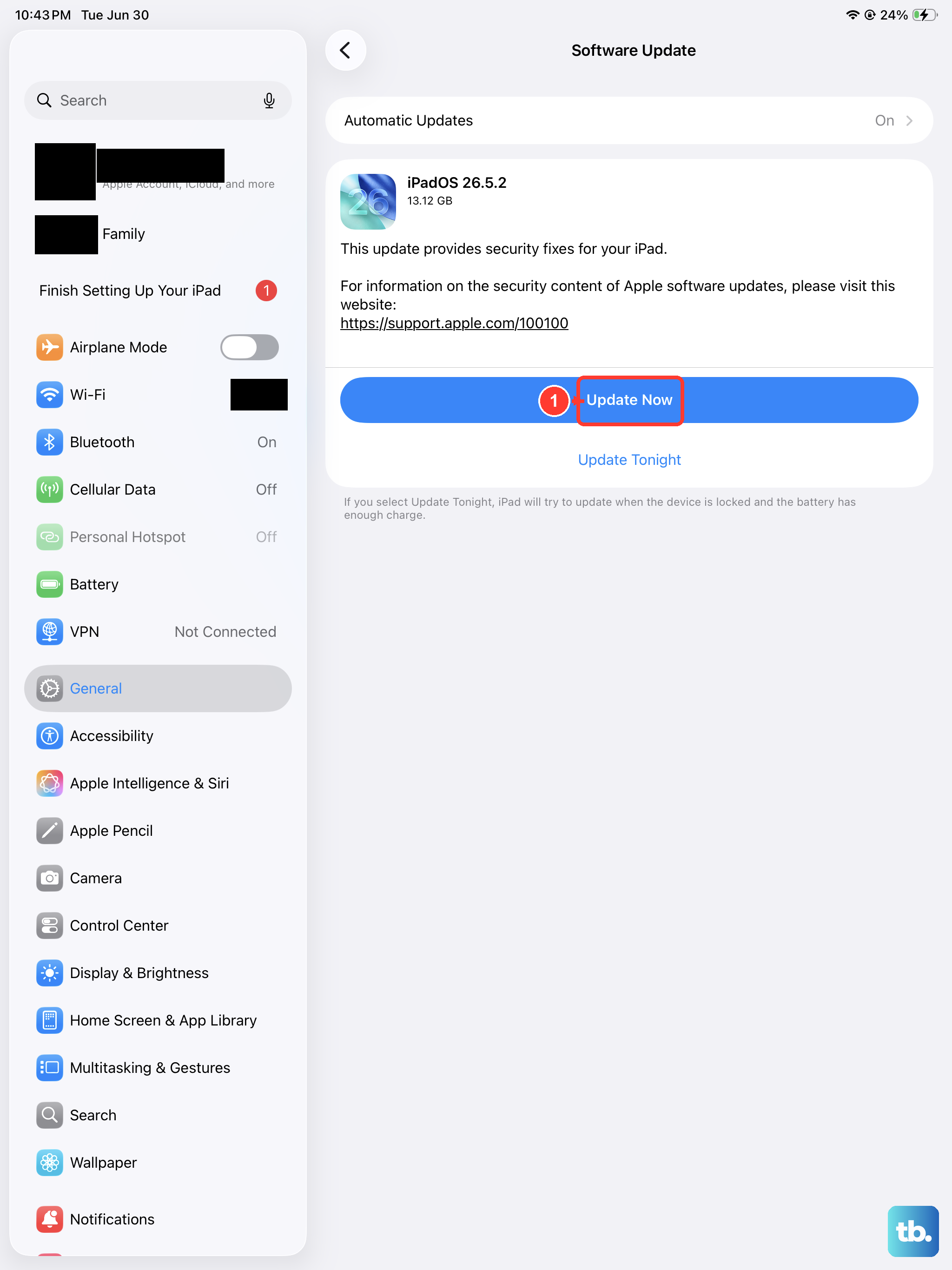
Grab a USB-C cable and connect your iPad to a Mac or a Windows PC with iTunes installed. A completely dead iPad might still be recognized by a computer. Listen for the connection sound on a Mac or check if iTunes or the Finder pops up.
If your computer detects the iPad in recovery mode, it will give you options to update or restore it. This can be a way to revive it if a software update failed. If you see this screen, choosing "Update" first is the safest option, as it tries to reinstall iPadOS without erasing your data.
Perform a Recovery Mode Restore
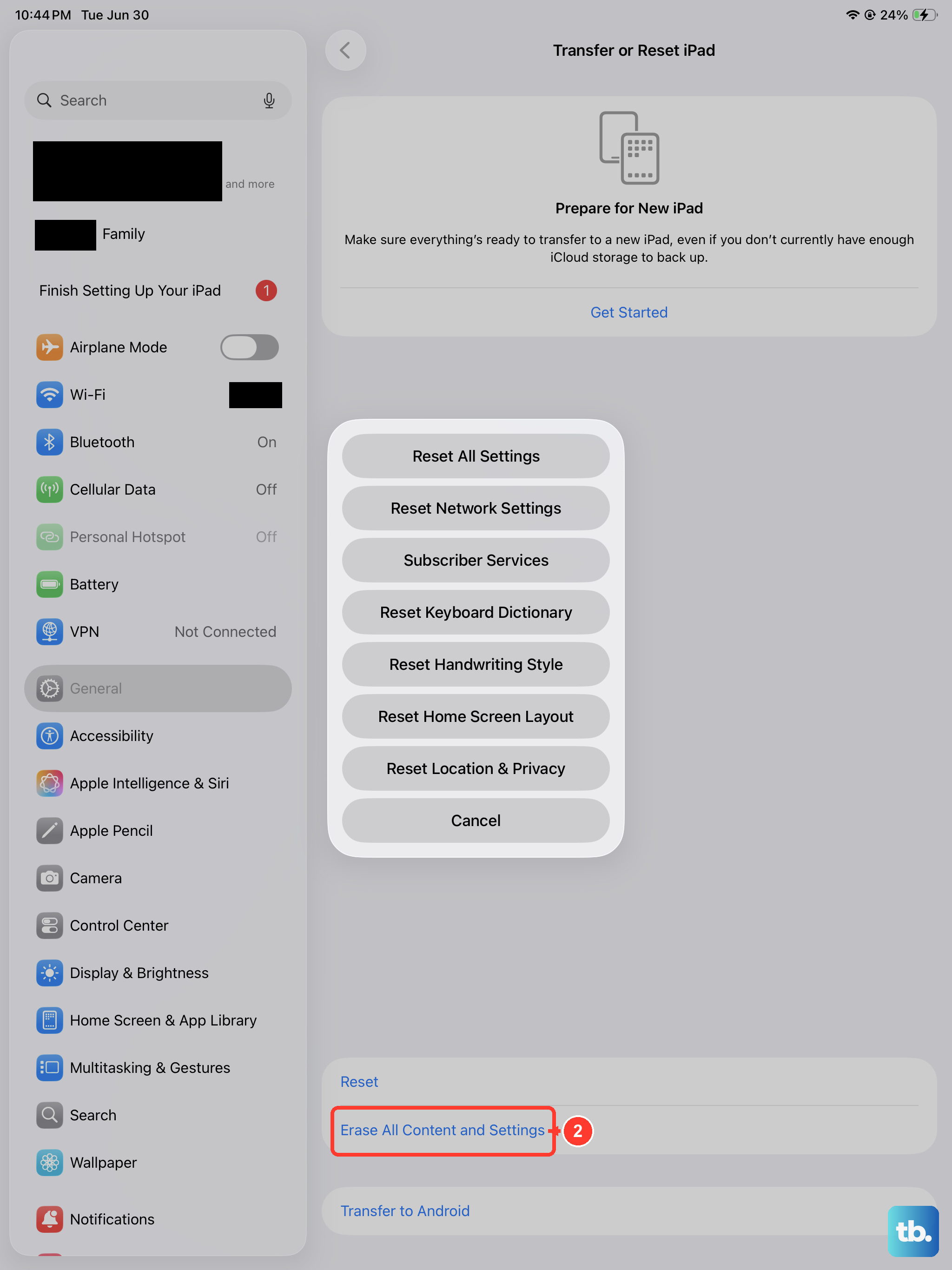
If the force restart did nothing and the computer connection isn't working, you may need to put the iPad into recovery mode manually. First, make sure your Mac or PC is ready with the latest version of iTunes or macOS.
Press and release the Volume Up button, then press and release the Volume Down button. Now, immediately press and hold the Top button. Don't let go when you see the Apple logo. Keep holding until you see the recovery mode screen (a cable pointing to a computer icon). At this point, you can release the button.
On your computer, you'll be prompted to restore or update the iPad. Again, try "Update" first. If that fails, "Restore" is the final step. Be aware that a restore will erase all content and settings on the device, so it's a last resort.
Consider Display and Hardware Issues
In rare cases, a hardware problem could be at fault. If you dropped your iPad recently, the display could be damaged internally even if the glass isn't cracked. The 10th Gen model has a non-laminated display, which means there's a small air gap between the glass and the screen itself.
While this design choice can make the screen feel less premium, it doesn't typically cause a complete failure to turn on. If you suspect physical damage, and your iPad is still under warranty or AppleCare+, contacting Apple Support would be the next logical step.
Environmental Factors
Extreme temperatures can cause an iPad to shut down and refuse to turn on until it returns to a normal operating range. If your iPad was left in a very hot car or out in the cold, bring it inside to a room-temperature environment and let it sit for 30 minutes before trying to charge it or force restart it again.
Also, check for any visible signs of liquid damage. The iPad 10th Generation is not waterproof. Look for a red liquid contact indicator (LCI) in the SIM card tray slot or any corrosion around the USB-C port. Liquid damage often requires professional repair.