
When the on-screen keyboard on your iPad mini (7th generation) decides to hide, it can really stop you in your tracks. This issue can pop up in any app where you need to type, from Messages to Safari. The good news is there are several straightforward ways to coax it back.
Force Close and Reopen Your App
Start with the app you're trying to type in. A temporary glitch in that specific app is often the culprit. Swipe up from the bottom of the screen and pause in the middle to enter the App Switcher.
Find the app's preview card and swipe it all the way up and off the top of the screen to close it. Then, go back to your Home Screen and tap the app's icon to reopen it. Try tapping a text field again to see if the keyboard appears.
Restart Your iPad mini
A simple restart clears out temporary software hiccups that might be affecting system-wide functions like the keyboard. It's a quick fix that works more often than you'd think.
Press and hold the Top button and either volume button until the power-off slider appears. Drag the slider, wait about 30 seconds for the device to turn off, then press and hold the Top button again until you see the Apple logo.
Check for a Software Update
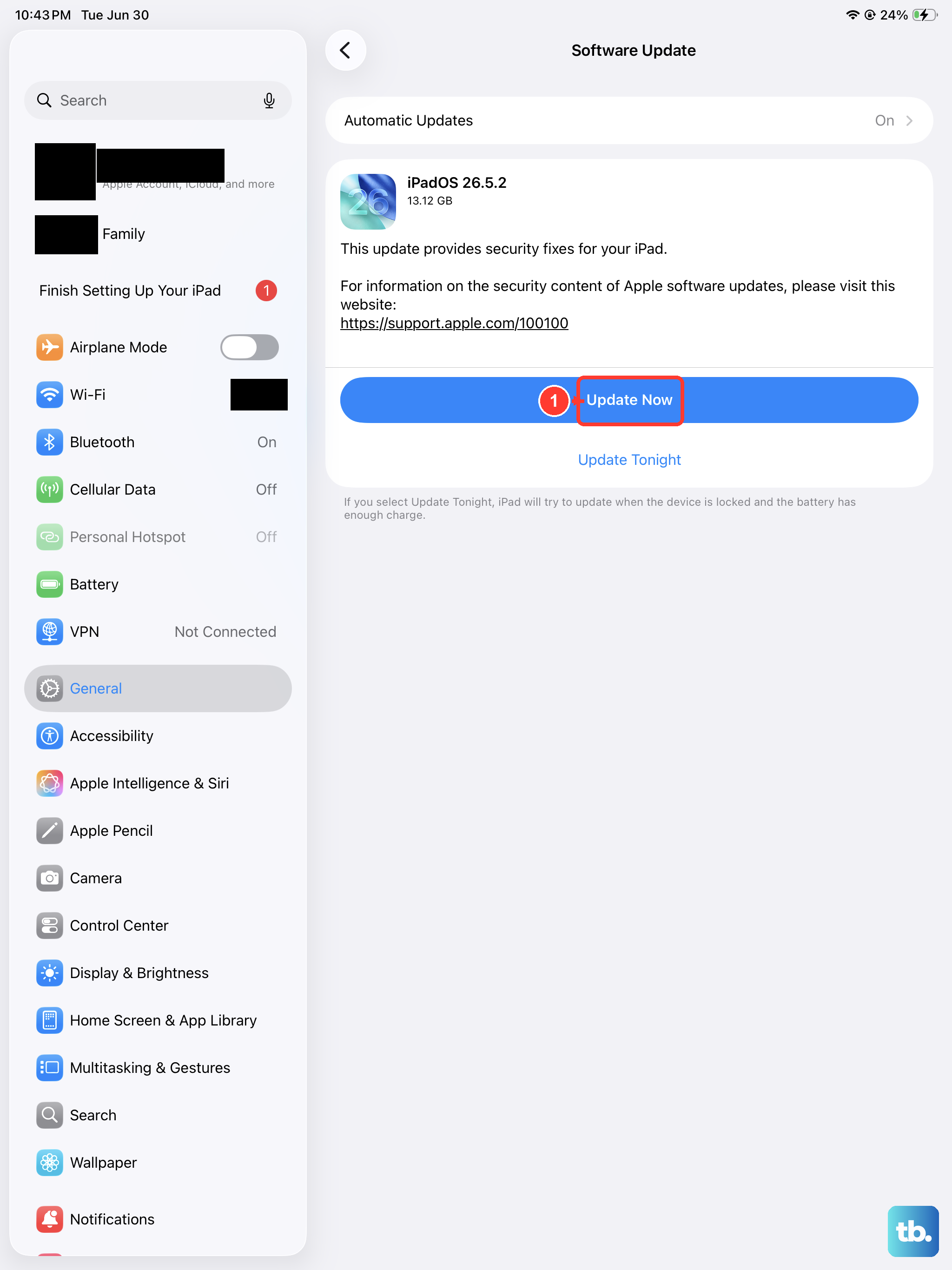
Running an outdated version of iPadOS 26 can lead to bugs, including keyboard problems. Apple frequently releases updates with patches for these kinds of issues.
Open the Settings app and go to General > Software Update. Your iPad will check for any available updates. If one is listed, tap Download and Install. I'd recommend doing this over a Wi-Fi connection and while your iPad is charging.
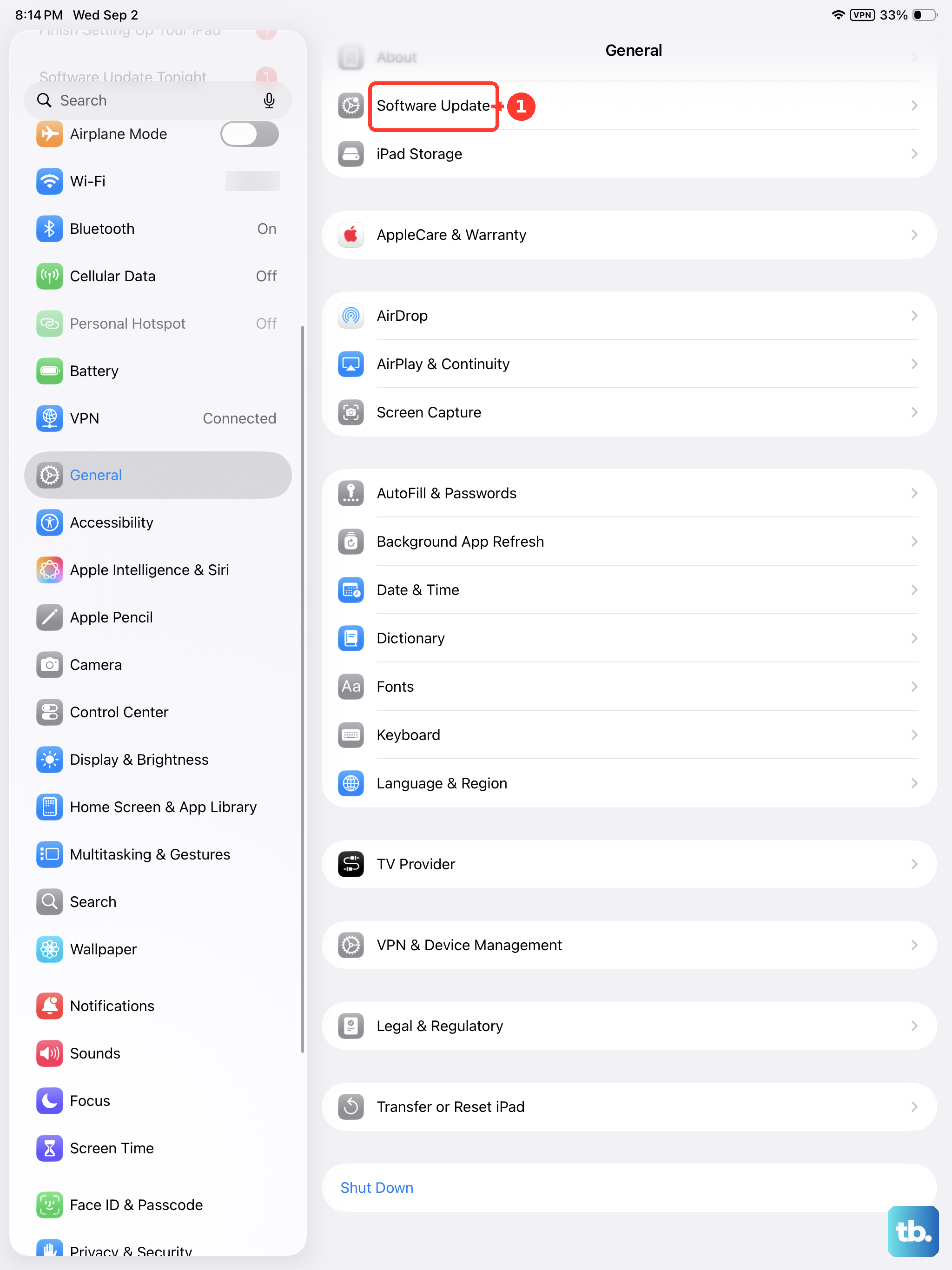
Toggle Off and On the Keyboard
You can manually disable and re-enable the built-in keyboard in your settings. This essentially gives it a fresh start. Head to Settings > General > Keyboard.
Tap Keyboards at the top. You'll see a list including "English (US)" or your primary language. Swipe left on that keyboard and tap Delete. Don't worry, this doesn't delete the language. Just tap Add New Keyboard and select it again from the list.
Reset All Settings
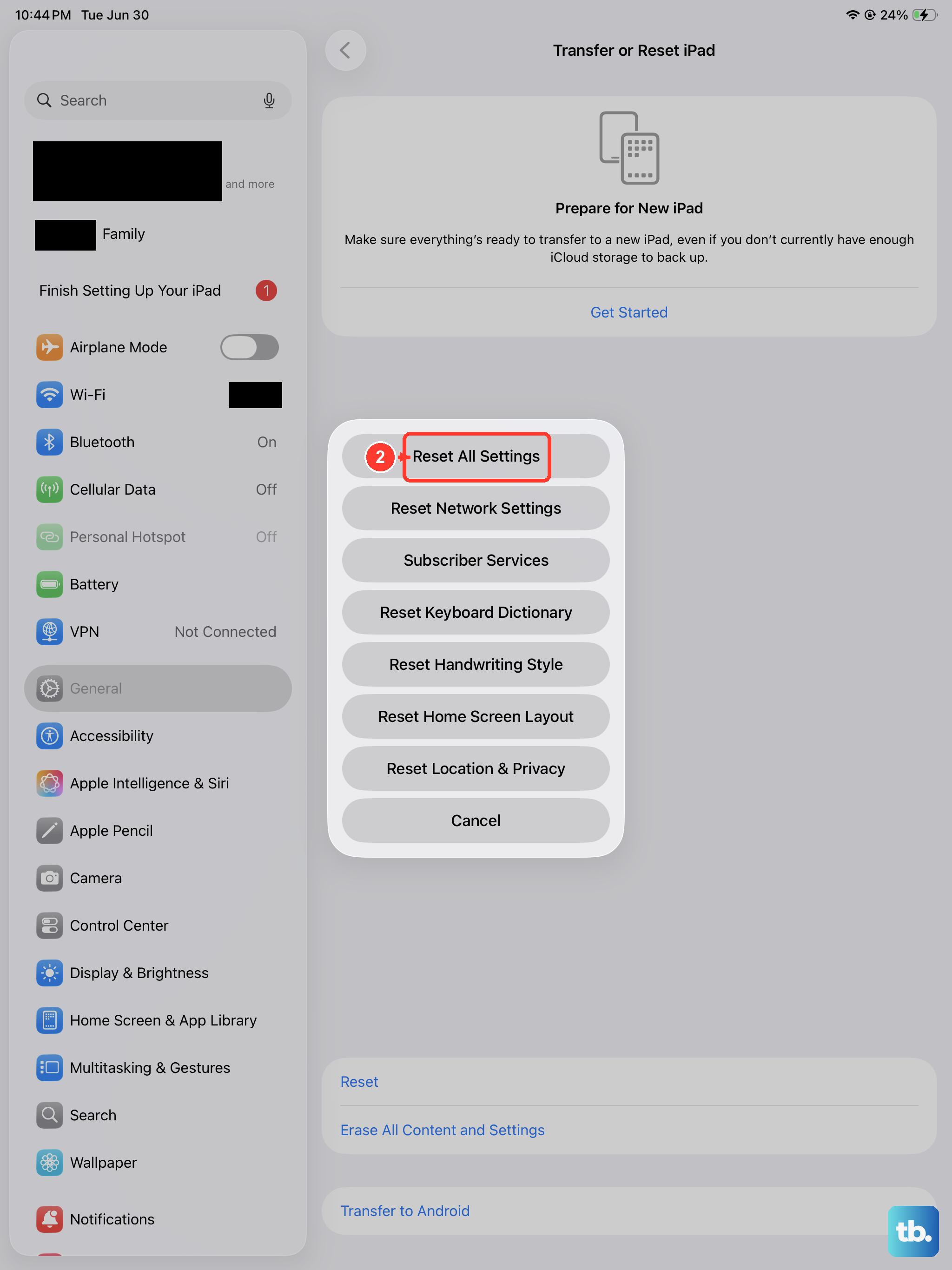
If the keyboard is still missing, a deeper reset can help. This will revert all your system settings (like Wi-Fi passwords, wallpaper, and privacy permissions) back to their defaults without touching your personal data, photos, or apps.
Go to Settings > General > Transfer or Reset iPad. Tap Reset at the bottom, and then choose Reset All Settings. You'll need to enter your passcode to confirm. After the iPad restarts, you'll need to reconfigure things like your Wi-Fi, but it often resolves persistent interface issues.
Check for a Physical Keyboard Connection
Your iPad mini might think it's connected to a physical keyboard. If you have a Magic Keyboard or Smart Keyboard Folio, make sure it's disconnected. Also, check your Bluetooth settings.
Go to Settings > Bluetooth. Look under "My Devices" for any keyboards. If you see one connected, tap the info (i) icon next to it and select Disconnect. This should immediately bring the on-screen keyboard back in any text field.
Perform a Force Restart
When a standard restart doesn't cut it, a force restart can clear more stubborn system caches. It's a safe procedure that doesn't delete any data.
Quickly press and release the Volume Up button. Quickly press and release the Volume Down button. Then, press and hold the Top button. Keep holding it until you see the Apple logo appear, then let go.
Try a Third-Party Keyboard from the App Store
As a workaround, you can install an alternative keyboard. Apps like Gboard or SwiftKey are free and available on the App Store. After installing one, you need to enable it.
Go to Settings > General > Keyboard > Keyboards > Add New Keyboard. Select the third-party keyboard from the list. You can then tap and hold the globe or emoji icon on the default keyboard to switch to the new one.