
It's a strange feeling when your iPad 10th Generation sits silently during a FaceTime call or a phone call forwarded from your iPhone. You might see the notification pop up, but you never hear the ring. This usually comes down to a few specific settings on your iPad, and the fixes are pretty straightforward.
Check Silent Mode and Volume
The iPad 10th generation has a Top button/Touch ID and volume buttons, not a physical Ring/Silent side switch above the volume buttons. Skip the side-switch check and use the volume and sound settings below instead.
Next, unlock your iPad and press the volume up button a few times. The volume for the ringer and alerts is separate from media volume, so you need to adjust it while you're on the home screen or in an app like Settings. You can also go to Settings > Sounds and drag the "Ringer and Alerts" slider all the way to the right.
Turn Off Focus Modes
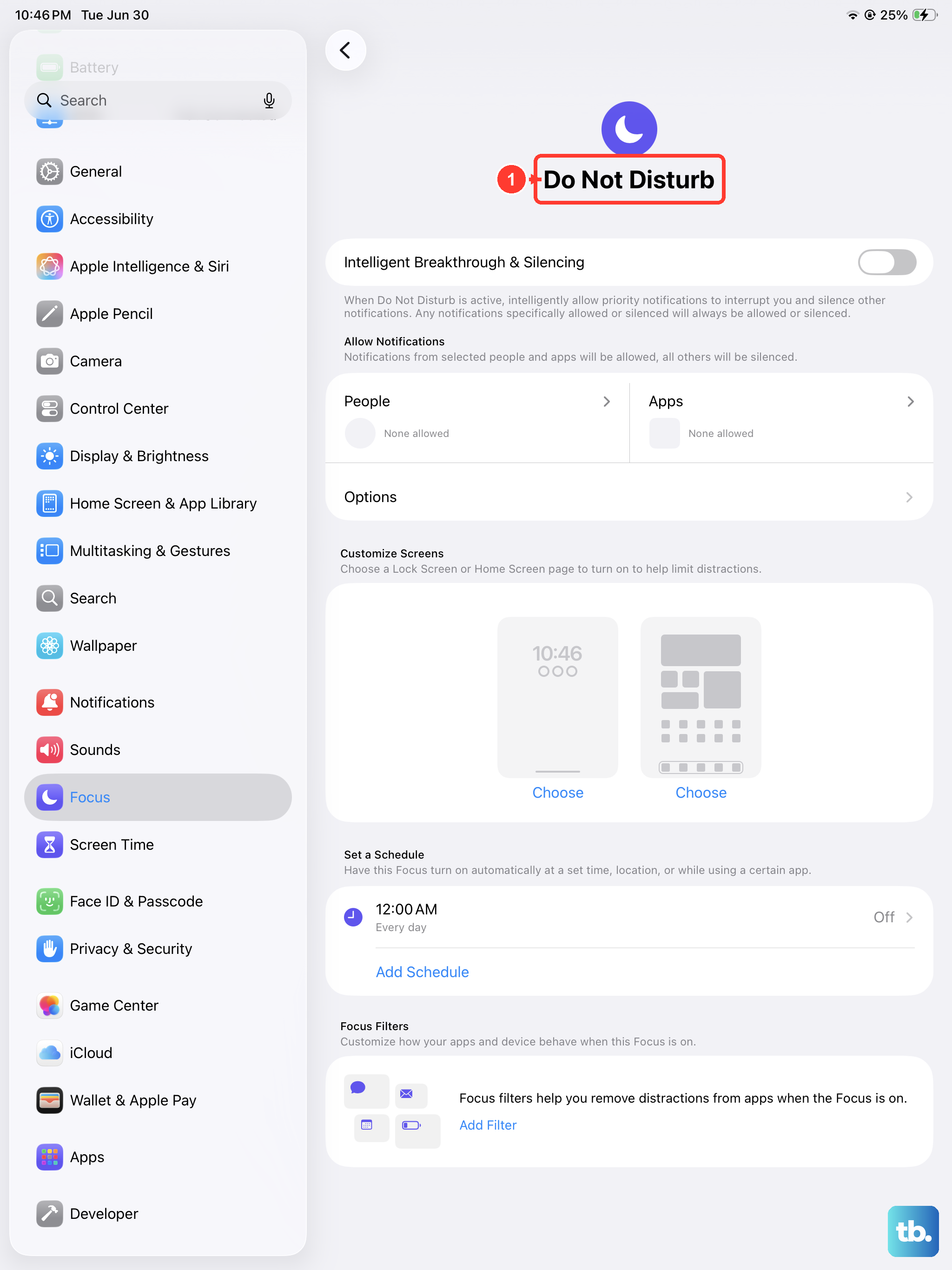
Focus modes like Do Not Disturb, Sleep, or Work will silence all incoming call rings. Swipe down from the top-right corner to open Control Center. If you see a moon, crescent, or other Focus icon highlighted, tap it to turn that Focus off.
For a more thorough check, go to Settings > Focus. Look at each Focus profile (Do Not Disturb, Personal, etc.) and make sure they are all toggled off. Also, check the "Turn On Automatically" section underneath each one to make sure a schedule or location-based rule isn't activating it without you realizing.
Disconnect Bluetooth Accessories
If your iPad is connected to a Bluetooth speaker, headphones, or a car stereo, incoming call audio will route there by default. This means your iPad itself won't make a sound. The quickest fix is to turn Bluetooth off entirely to test.
Swipe into Control Center, tap the Bluetooth icon to disconnect, or go to Settings > Bluetooth and toggle it off. Try a test call afterward to see if the ring now comes from the iPad's speakers.
Review Call Forwarding and Silence Settings
If you use carrier Call Forwarding on a Wi-Fi + Cellular iPad, check it in Settings instead of inside the Phone app. Go to Settings > Apps > Phone > Call Forwarding and make sure Call Forwarding is off. Apple notes that Call Forwarding on iPad depends on cellular service and carrier network type.
For Phone calls, go to Settings > Apps > Phone and check the setting for screening or silencing unknown numbers. Choose Never if you want the iPad to ring for unsaved numbers; the Silence option sends calls from unsaved numbers to voicemail.
Change Your Ringtone
Sometimes the specific sound file for your ringtone can get corrupted. Switching to a different one can kick the system back into gear. Go to Settings > Sounds > Ringtone.
Pick a new tone from the list, maybe one of the classic ones like "Opening" or "Strum", and then have a friend give you a test call. I've seen this simple switch resolve weird silent call issues after an iPadOS update.
Check App Notifications and Permissions
This is crucial for apps like FaceTime, WhatsApp, or Skype. If the app doesn't have permission to send notifications, you won't hear a peep. Go to Settings > Notifications and find the calling app in the list.
Tap on it and make sure "Allow Notifications" is on. Also, check that "Sounds" is enabled within the notification style options. While you're there, it's a good idea to check the Phone app's notification settings too.
Restart and Update Your iPad
A simple restart clears out temporary software glitches that can affect sound. On an iPad without a Home button, press and hold either volume button and the Top button until the power-off slider appears, drag the slider, wait 30 seconds, then press and hold the Top button until you see the Apple logo.
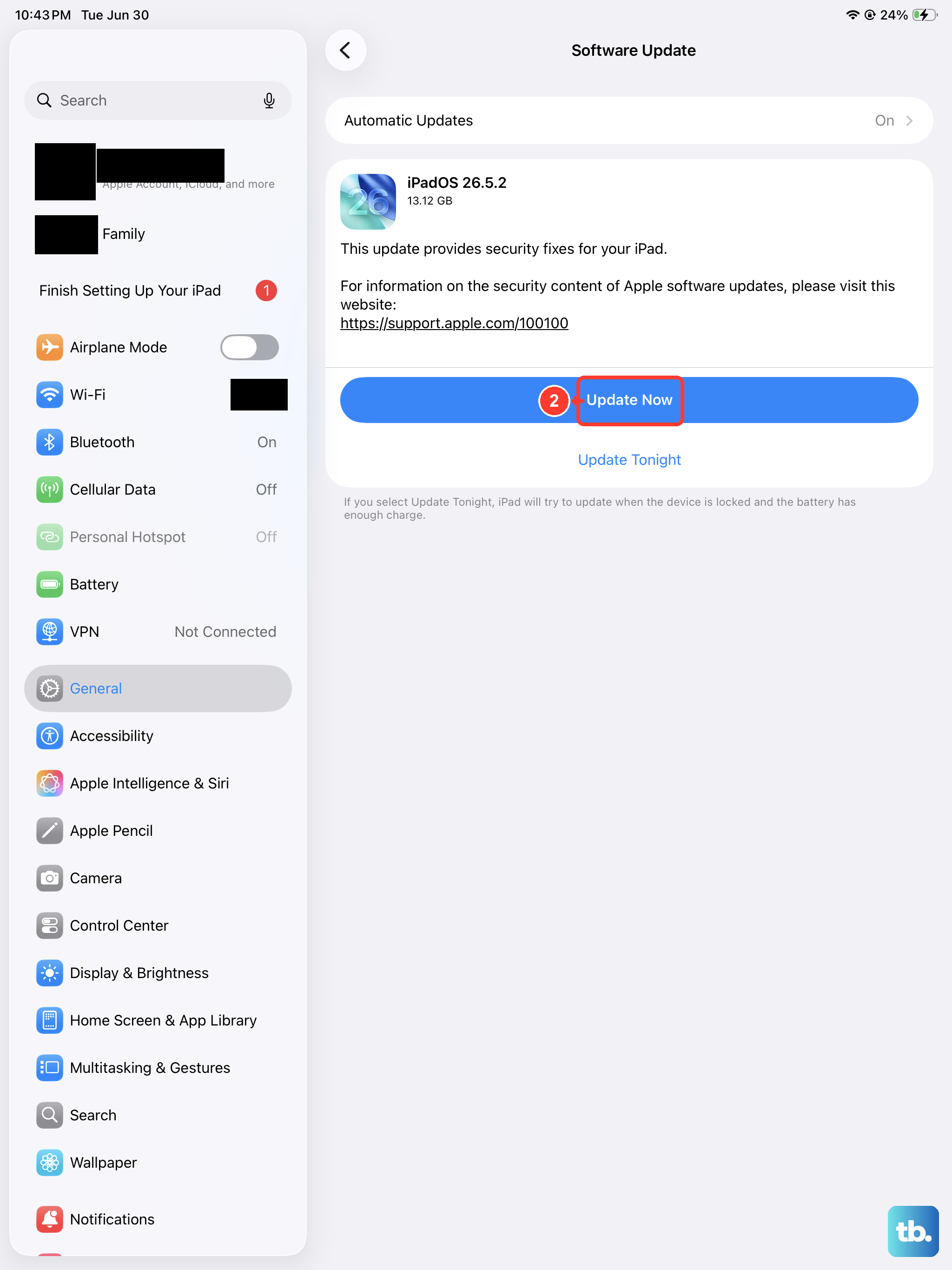
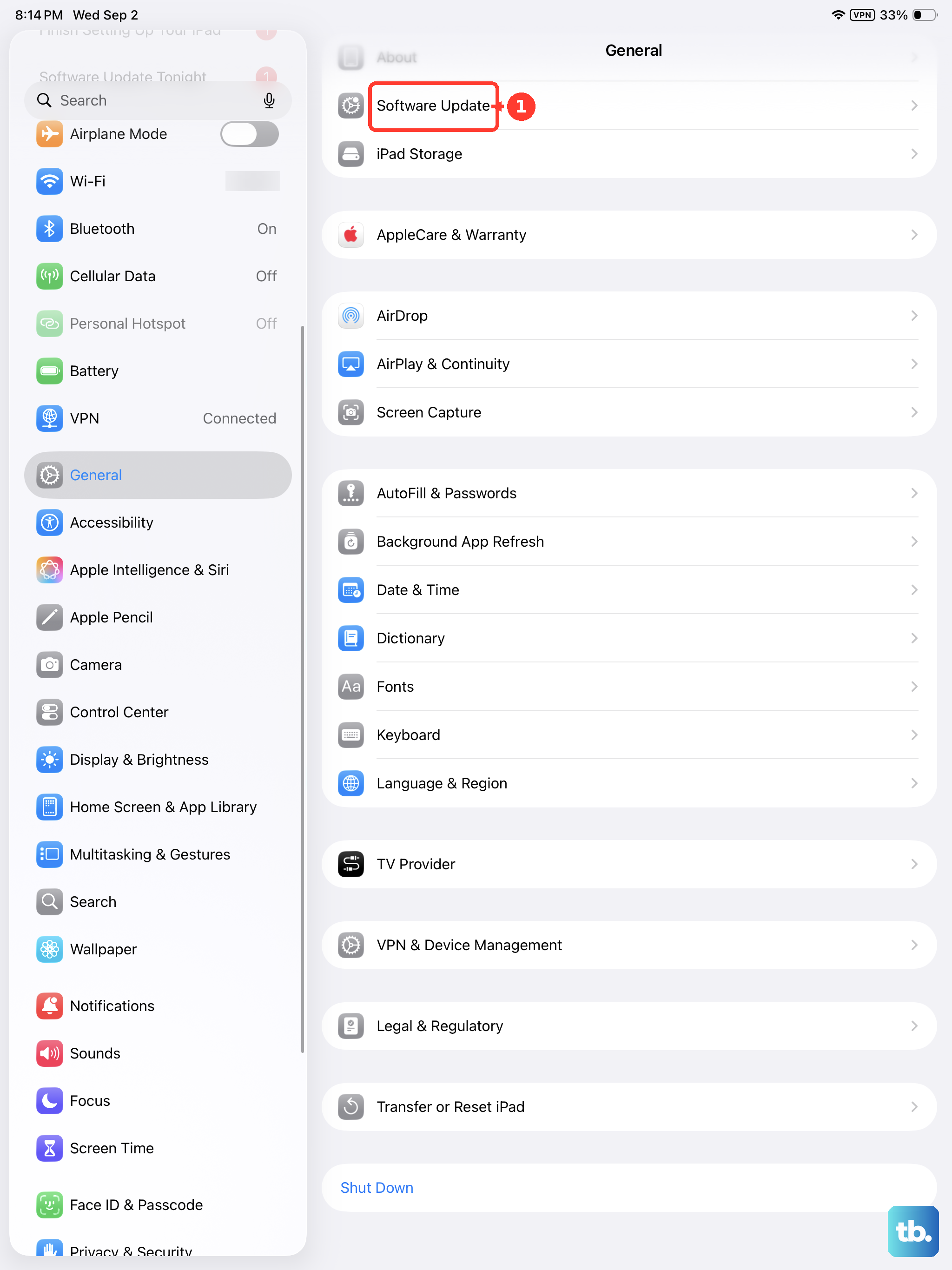
If the problem started after a recent change, check for an available iPadOS update. Connect to Wi-Fi, go to Settings > General > Software Update, and install any available update. The Software Update screen shows the currently installed iPadOS version and whether a newer version is available.
Reset Relevant Settings
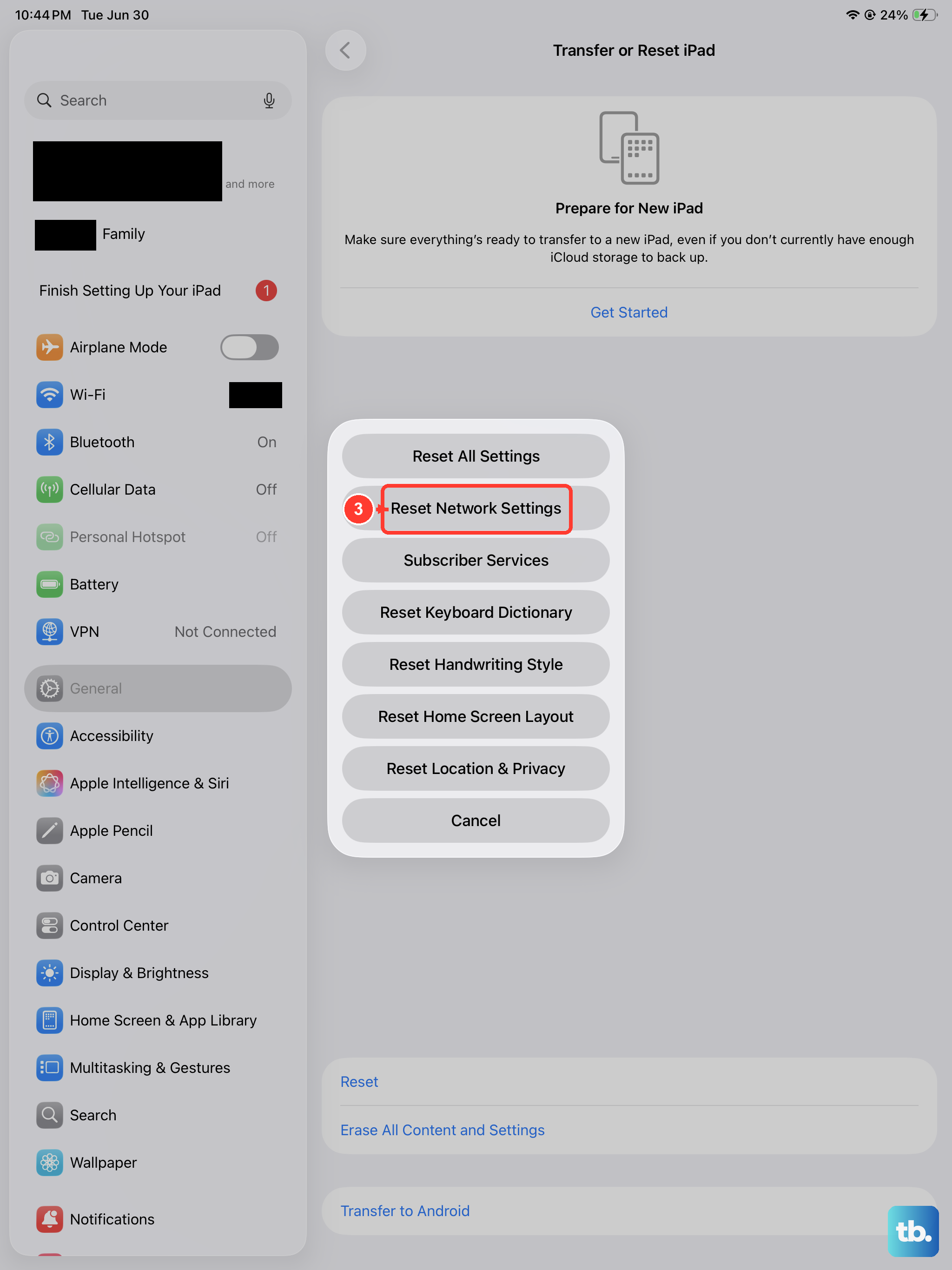
If you're still not hearing rings, you can reset specific settings without losing your data. Go to Settings > General > Transfer or Reset iPad and tap "Reset."
Try "Reset All Settings" first. This will revert your sound, network, and privacy settings back to default, which often solves persistent audio issues. You'll need to re-enter your Wi-Fi passwords and reconfigure things like Focus modes afterward.
If calls over cellular data or Wi-Fi are the problem, "Reset Network Settings" is the better choice. This clears all network configurations and can fix call routing problems.