


If your Android phone shows "Connection Problem or Invalid MMI Code" when you dial something like *#21# or *135#, don't panic. This is one of those errors that looks scarier than it actually is. It usually comes down to a network hiccup, a SIM card issue, or your phone's software getting confused about how to process USSD codes.
The fixes below work on Samsung Galaxy, Google Pixel, OnePlus, Motorola, and basically any Android phone running Android 12 through Android 16. Start from the top and work your way down.
What's an MMI Code (And Why It Fails)
An MMI (Man-Machine Interface) code is a string of numbers and symbols, usually starting with * or #, that talks directly to your carrier or phone system. Think of checking your balance, forwarding calls, or running diagnostics. They've been around forever, and they still work on most networks.
The error pops up when your phone can't complete that request. Could be a bad signal, a SIM that's not seated right, a dual-SIM conflict, or even your carrier migrating to VoLTE and quietly dropping support for legacy USSD commands.
1. Toggle Airplane Mode
This is the first thing to try because it works more often than you'd expect. Pull down your notification shade, tap Airplane Mode, wait about 15 seconds, then tap it again to turn it off. This forces your phone to drop and re-establish the connection to your carrier's network.
Try your MMI code again right after the signal bars come back. If it works, you're done.
2. Restart Your Phone
A full restart clears out temporary glitches in the telephony stack that a simple airplane toggle might miss. Hold the power button, tap Restart, and try the code again once your phone boots back up.
3. Add a Comma or Plus Sign to the Code
This is an old trick that still works in 2026. Some carriers need a slight delay before processing the USSD command, and adding a comma at the end forces that pause.
So if your code is *2904*7#, try dialing *2904*7#, instead. You can also try adding a plus sign at the beginning: *+2904*7#. Long-press the asterisk (*) key on your dial pad to get the comma, or long-press 0 for the plus sign.
4. Disable One SIM (Dual-SIM Phones)
Dual-SIM phones are a common source of this error. Your phone might be trying to route the MMI code through the wrong SIM slot, especially if one SIM doesn't have an active data plan.
Go to Settings > Connections > SIM Manager (or SIM Cards & Mobile Networks on some phones). Disable the SIM you're not using for the code, then try again. If it works, you've found the culprit.
5. Set Your Network Mode to Auto
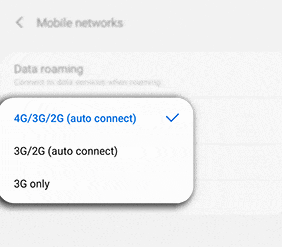
If you've manually locked your phone to 5G or LTE only, certain MMI codes won't go through because they rely on older 3G or 2G channels to execute.
Head to Settings > Connections > Mobile Networks > Network Mode and select 5G/LTE/3G/2G (Auto Connect). This lets your phone pick the right network type for the command.
6. Clear the Phone App Cache
Your phone's dialer app stores cached data that can sometimes get corrupted, causing it to misread or strip symbols from your MMI codes.
Go to Settings > Apps > Phone (or Dialer). Tap Storage & Cache, then hit Clear Cache. If that doesn't help, try Clear Data too. Restart and test the code again.
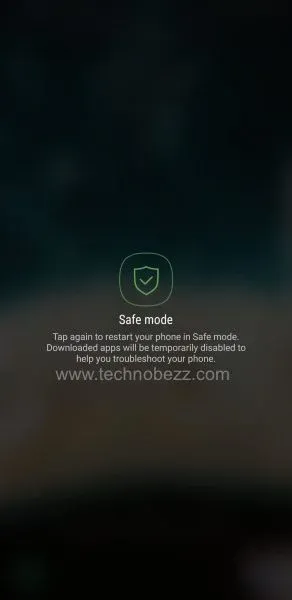
7. Boot Into Safe Mode
A third-party app (call blockers, security apps, or custom dialers) might be interfering with USSD processing. Safe Mode disables all third-party apps so you can test this.
Power off your phone, then power it back on while holding Volume Down. Keep holding until you see "Safe Mode" in the corner of the screen. Now try your MMI code. If it works in Safe Mode, one of your installed apps is the problem. Uninstall recent apps one by one until you find it.
8. Check Your SIM Card
A loose, dirty, or damaged SIM card is one of the most overlooked causes. Pop your SIM tray out, gently clean the gold contacts with a soft cloth, and reinsert it firmly. While you're at it, check for any visible scratches or chips on the SIM.
If you have another phone handy, test the SIM in that device. If the SIM card error follows the SIM, it's time to get a replacement from your carrier.
9. Use the Service Menu to Enable SMS Over IMS
This one's a bit more advanced but can solve stubborn cases. Open your dialer and type *#*#4636#*#* to access the service menu. Tap Phone Information, then look for and tap SMS over IMS to enable it.
Not every phone has this option (many newer devices have removed it), but if yours does, it allows USSD commands to route through the IMS layer instead of the legacy circuit-switched path. Worth trying if nothing else has worked.
10. Reset APN Settings
Incorrect APN (Access Point Name) settings can interfere with how your phone communicates with your carrier, including USSD requests.
Go to Settings > Connections > Mobile Networks > Access Point Names. Tap the three-dot menu and select Reset to Default. If your carrier requires custom APN values, you'll need to re-enter those after the reset.
11. Reset Network Settings
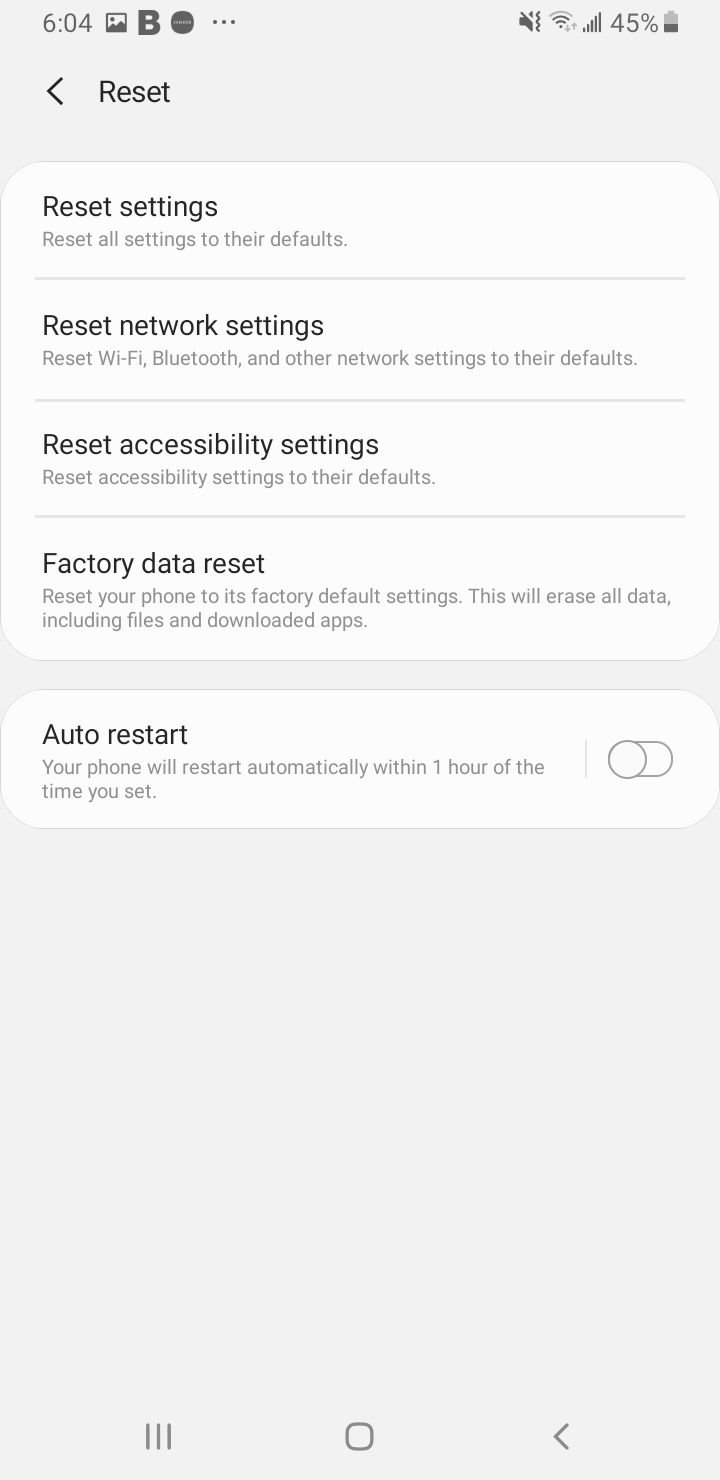
This wipes all your saved WiFi passwords, Bluetooth pairings, and mobile network configurations, but it's effective when something deeper is broken in your connectivity stack.
Go to Settings > General Management > Reset > Reset Network Settings. Your phone will restart, and you'll need to reconnect to WiFi networks. But your MMI codes should work again.
12. Update Your Phone's Software
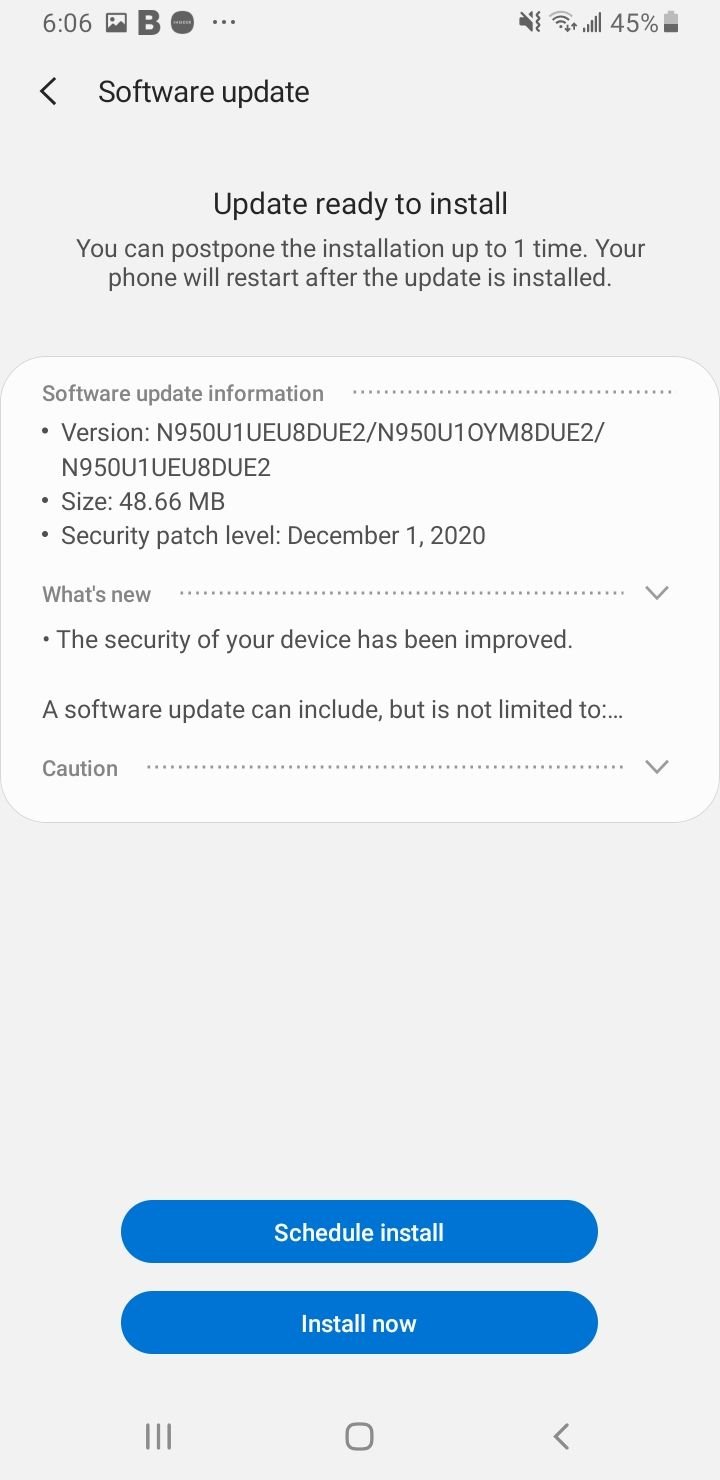
Bugs in the telephony or IMS layer of Android can break MMI code processing. Samsung, Google, and other manufacturers have shipped fixes for exactly this issue in recent security patches.
Go to Settings > Software Update and check for anything pending. Install it, restart, and try again. If you're running a custom ROM or rooted firmware, make sure your radio firmware matches your system version.
13. Factory Reset (Last Resort)
If you've tried everything above and the error persists, a factory reset will wipe your phone clean and remove any deep software conflicts. Back up your data first (photos, contacts, app data) because everything gets erased.
Go to Settings > General Management > Reset > Factory Data Reset. After the reset, set up your phone as new and test the MMI code before restoring your backup. This tells you whether the issue was software-related.
14. Contact Your Carrier
Sometimes the problem isn't your phone at all. Your carrier might have restrictions on certain USSD codes, or they may have migrated your line to VoLTE/WiFi Calling infrastructure that doesn't support legacy MMI commands anymore.
Call your carrier's support line and ask them to check whether your account has any blocks on USSD services. Also ask if they've recently made network changes. In some cases, they can issue a new SIM or reset your network profile from their end, which fixes the issue immediately.
See also: How to Fix the SIM Card Not Provisioned MM2 Error
FAQ
Why does my Android keep showing "Invalid MMI Code"?
The most common causes are entering the code wrong, carrier restrictions, network glitches, SIM problems, or third-party app conflicts. On dual-SIM phones, the inactive slot frequently triggers this error.
Will Safe Mode delete my apps or data?
No. Safe Mode only temporarily disables third-party apps. Everything comes back when you restart normally.
Do MMI codes still work on 5G networks?
Some do, some don't. As carriers move to VoLTE and 5G standalone networks, certain legacy USSD codes get deprecated. If a code that used to work suddenly stops, your carrier may have dropped support for it on their new infrastructure.
How do I know if my SIM card is the problem?
Put your SIM in a different phone and try the same code. If it fails there too, the SIM or your carrier account is the issue. If it works in another phone, the problem is with your device's software or settings.