
Keeping your Redmi Note 14 Pro updated is the best way to ensure it runs smoothly and securely. With Android 14 and Xiaomi's HyperOS, updates bring new features, camera improvements, and essential patches that protect your data. I'd make checking for updates a regular habit.
Check for System Updates
Open your phone's Settings app and scroll down to About phone. Tap on it, then select HyperOS version. On this screen, you'll see a button to Check for updates. Give it a tap, and your phone will connect to Xiaomi's servers to see if anything new is available for your device.
If an update is ready, you'll see a prompt to download it. Make sure your phone is connected to a stable Wi-Fi network and has more than 50% battery, or better yet, plug it into a charger. The 45W HyperCharge is perfect for this, keeping the phone powered during the installation process.
Install an Available Update
Once the download is complete, tap Install now. Your Redmi Note 14 Pro will restart and begin the installation. This process can take several minutes, so don't interrupt it. The phone will reboot once or twice on its own, which is completely normal.
For larger updates, like a move to a new Android version, the phone might optimize all your apps after the first boot. This can take a while, but it's a one-time process. Just leave the phone alone and let it finish.
Set Up Automatic Updates
You can have your phone handle the download part automatically. After you check for updates in the About phone section, look for three dots in the top right corner and tap them. Select Update settings from the menu that appears.
Here, you can toggle on Auto-download over Wi-Fi. With this enabled, your Redmi Note 14 Pro will quietly download updates when you're connected to Wi-Fi and charging. You'll still get a notification to approve and schedule the installation, so you're always in control.
What to Do If an Update Fails
Sometimes a download gets stuck or an installation fails. The first thing to try is a simple force restart. Press and hold the Power button for about 15 seconds until you feel the phone vibrate and see the Redmi logo appear. This can clear a temporary glitch.
If the update won't download, try switching to a different Wi-Fi network. You can also go to Settings > Apps > Manage apps, search for the Updater app, tap on it, and then select Clear data. This resets the update app and often resolves download errors.
Update Your Apps from the Play Store
System updates are crucial, but your apps need love too. Open the Google Play Store and tap your profile icon in the top right. Go to Manage apps & device, and under the "Updates available" section, tap Update all.
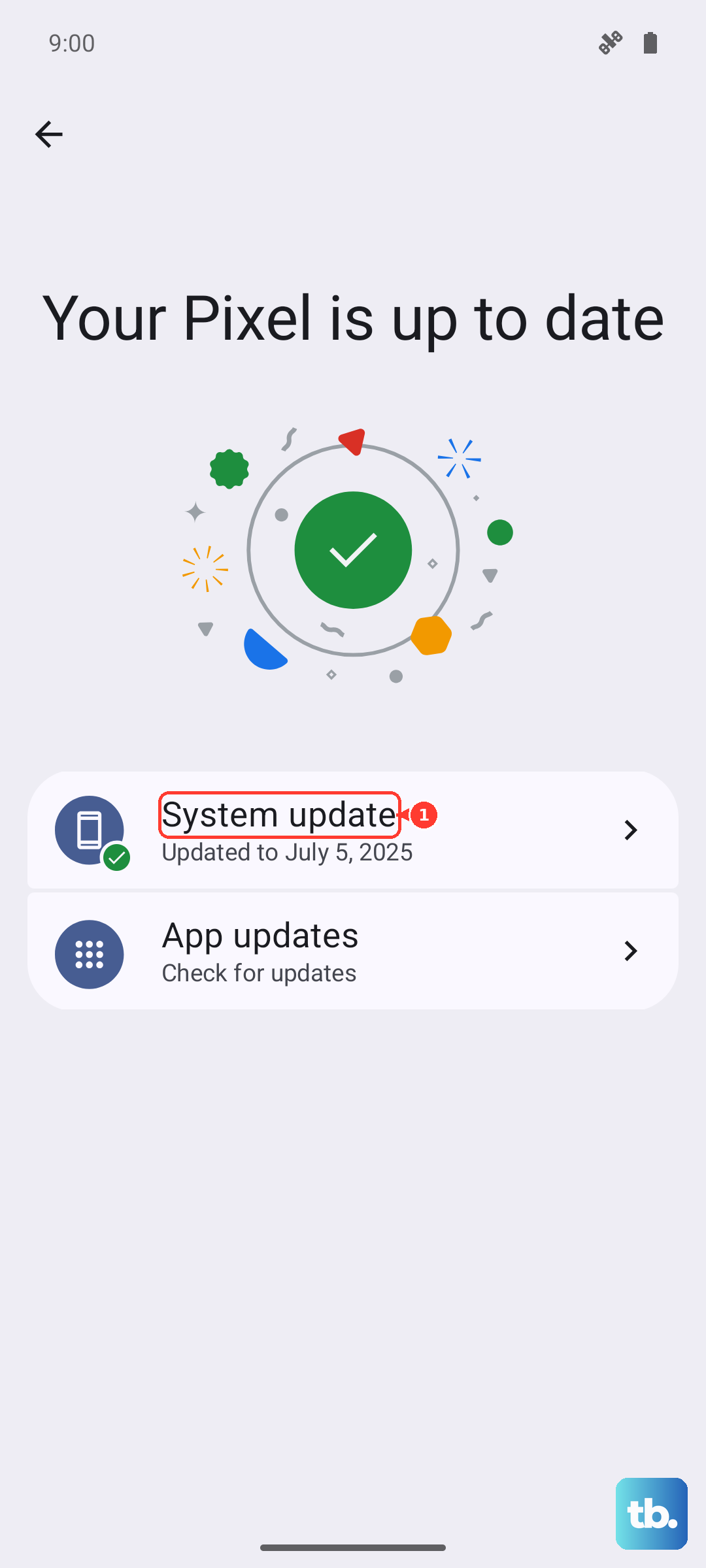
Keeping apps updated can fix bugs, improve performance, and is just as important for security as the OS update. This is especially true for the camera app, as updates can speed up processing in modes like Night mode.
Check for Google Play System Updates
Android has a modular system that Google can update independently. To check for these, go to Settings > Security & privacy. Scroll down and tap on More security settings. Here, you'll find an option for Google Play system update.
Tap it to check for updates. These are smaller, more frequent updates that patch core Android components and enhance security without needing a full system rollout from Xiaomi. It's a good secondary check to run every so often.
Verify Your Update Was Successful
After installing an update, you can confirm everything went through. Head back to Settings > About phone and look at the HyperOS version and Android version. The security patch date should also be recent, reflecting the latest update you installed.
This is also where you can see your exact build number. If you ever need to reference your software version for support, this is the information you'll provide. It's a quick way to be sure your phone is on the latest available software.