
That "No SIM card detected" message on your Redmi Note 14 Pro can stop you in your tracks. It's a common hiccup that usually comes down to a few simple things you can check yourself. Let's start with the most likely fix.
First, give your phone a quick restart. Press and hold the power button until the power menu pops up, then tap restart. If the screen is unresponsive, you can force a restart by holding the power button down for about 15 seconds until you feel it vibrate and see the Redmi logo.
While you're at it, swipe down from the top of your screen to open the quick settings panel. Tap the airplane mode icon to turn it on, wait ten seconds, and then tap it again to turn it off. This forces your phone's modem to reconnect to the network from scratch, which often clears up temporary glitches.
Check the SIM Card and Tray
If a restart didn't help, the next step is a physical check. Power your phone off completely. Use the SIM ejector tool that came in the box to pop out the tray. Carefully remove the SIM card and take a close look at the gold contacts.
You're looking for any scratches, discoloration, or dirt. Gently wipe the contacts with a clean, dry microfiber cloth. Blow into the SIM card slot on the phone to dislodge any dust, but don't use compressed air as it can push debris further in. Reinsert the SIM, making sure it's seated correctly in the tray with the notched corner aligned.
The best way to rule out a bad SIM is to test it in another phone. If it doesn't work there either, you'll need to contact your carrier for a replacement. They can usually issue a new one quickly.
Verify SIM Settings in HyperOS
Sometimes the software just needs a nudge. Open your Settings app and go to SIM cards & mobile networks. Tap on the SIM card that's giving you trouble. Make sure the switch at the top for that SIM is toggled on.
While you're in this menu, look for the Preferred network type option. Set it to 5G/4G/3G/2G (auto) if it isn't already. This ensures your phone can connect to any available network technology. I've seen phones get stuck trying to connect to a weak 5G signal when a stronger 4G one is available, causing detection issues.
Update Your Software
Software bugs in HyperOS or the base Android 14 can sometimes interfere with the modem. It's always worth checking for an update. Go to Settings > About phone > System update.
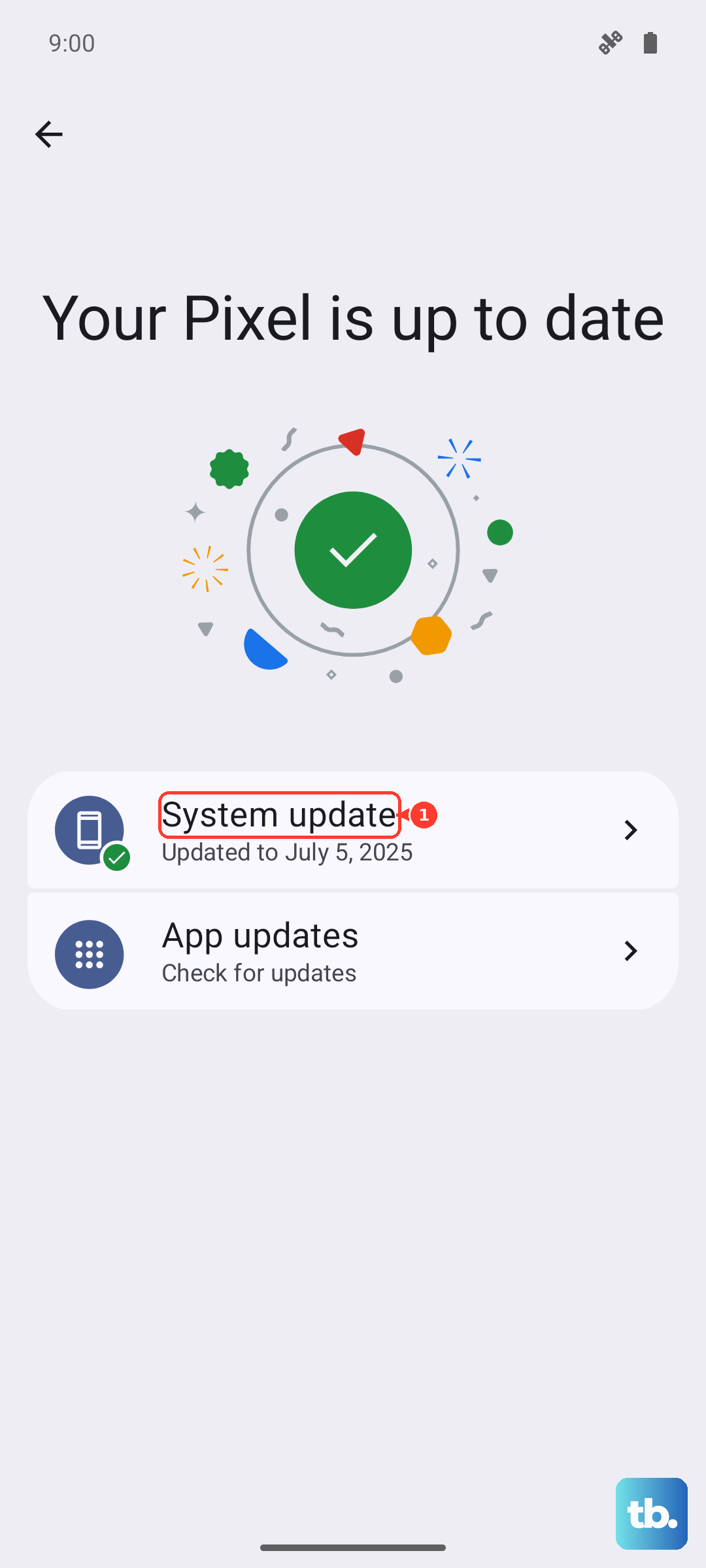
Tap "Check for updates" and install anything that's available. After the update finishes, your phone will restart. This process can also help with other known quirks, like the slow camera processing in night mode that some users have reported.
Reset Your Network Settings
This is a more thorough step that clears out all your saved Wi-Fi passwords, Bluetooth pairings, and mobile network configurations. It won't touch your personal photos or apps, but you will have to reconnect to Wi-Fi networks afterward.
To do this, navigate to Settings > Additional settings > Backup & reset. Tap on Reset network settings. Confirm your choice, and your phone will reboot. This often resolves persistent network-related problems.
Check and Reset APN Settings
Incorrect Access Point Name (APN) settings can prevent your phone from registering on your carrier's network properly, which might show up as a SIM detection error. Go back to Settings > SIM cards & mobile networks.
Select your problematic SIM, then tap on Access Point Names (APN). If you see multiple entries, look for one with your carrier's name. Tap the three dots in the top right corner and select Reset to default. Your phone will refresh the settings. If you had to manually enter APN details before, you may need to add them back in.
Try Manual Network Selection
Your phone usually picks a network automatically, but sometimes this process fails. You can manually tell it which carrier to use. In the SIM cards & mobile networks menu, tap on your SIM and look for Network operators or a similar option.
Tap Search now. After a moment, a list of available networks in your area will appear. Select your carrier's name from the list. Your phone will attempt to register. If it succeeds, you should see signal bars appear.
Clear Cache for System Apps
Cached data for system services can become corrupted. You can clear this cache without losing any personal information. Go to Settings > Apps > Manage apps.
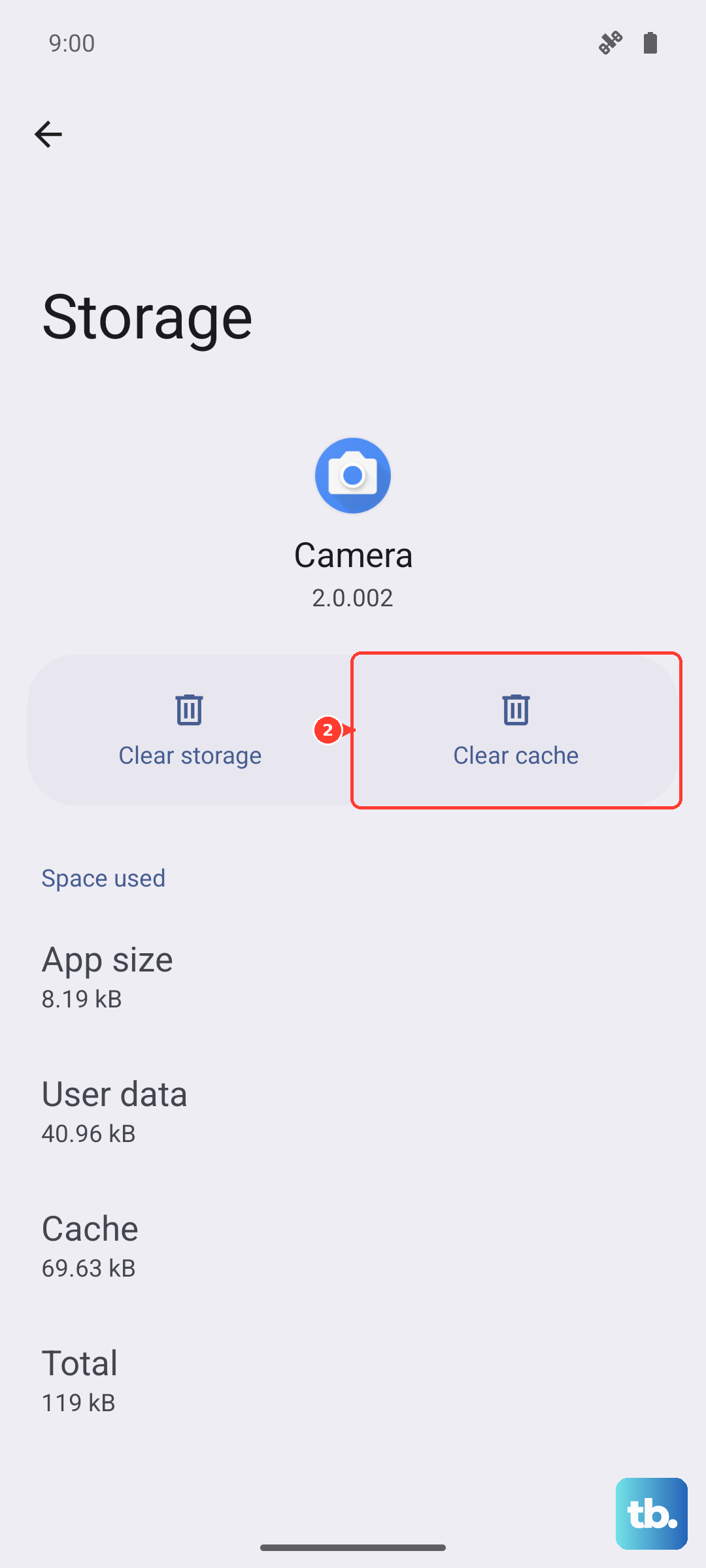
Tap the three dots in the top right and select Show system apps. Now, look for apps related to the phone or SIM. Key ones to check are Phone Services, SIM Toolkit, and Carrier Services. Tap on each one, go to Storage usage, and tap Clear cache. Do not tap "Clear data" for these system apps.
Consider a Factory Reset
If you've tried everything else and the SIM works in another phone, a deeper software issue might be the cause. A factory reset will wipe your phone back to its out-of-the-box state, so this is a last resort. You must back up everything important first.
To back up, go to Settings > Additional settings > Backup & reset > Local backup. Create a backup to your internal storage. Once that's done, in the same "Backup & reset" menu, select Erase all data (factory reset). Follow the prompts to complete the reset. After the phone reboots, you can restore your backup during the setup process.
If the SIM is still not detected after a factory reset, the issue is likely hardware-related. It could be a problem with the SIM tray reader or the phone's internal antenna connections. At that point, contacting Xiaomi support or visiting an authorized service center for a diagnosis would be the next step.