If videos on your OnePlus Open are stuttering, freezing, or dropping frames, it can really ruin the experience on those beautiful displays. The good news is this is usually a software hiccup you can fix yourself without too much trouble.
Before assuming the panel is at fault, run a quick Hz test in your browser. It measures the refresh rate your screen is actually running at, which often is not what the spec sheet promises.
I'd start by figuring out if the problem is with streaming or videos stored on your phone. If it's only happening on YouTube or Netflix, it's likely a network or app issue. If it happens with local files too, then we're looking at something with the phone's system or storage.
Restart Your OnePlus Open
This is the classic first step for a reason. A simple restart clears out temporary glitches in memory and refreshes all the background services. Just press and hold the power button until the power menu appears, then tap restart.
If the screen is completely frozen and you can't access the menu, you'll need to force a restart. Press and hold the power button for about 10 seconds or until you feel the phone vibrate and see the OnePlus logo appear. This forces a hard reboot.
Check Your Network Connection
For streaming apps, a weak or unstable connection is the most common culprit. The large inner display is fantastic for video, but it also means you might notice every little buffer or skip. Try switching between Wi-Fi and your mobile data to see if the problem follows you.
If you're on Wi-Fi, try moving closer to your router. You can also try forgetting the network in your settings and reconnecting, as this often clears up connection issues. Go to Settings > Wi-Fi, tap on your network, and select "Forget."
Update Your Apps and OxygenOS
Outdated apps, especially video players and streaming services, can have bugs that cause playback issues. Head to the Google Play Store, tap your profile icon, and go to "Manage apps & device" to see all available updates.
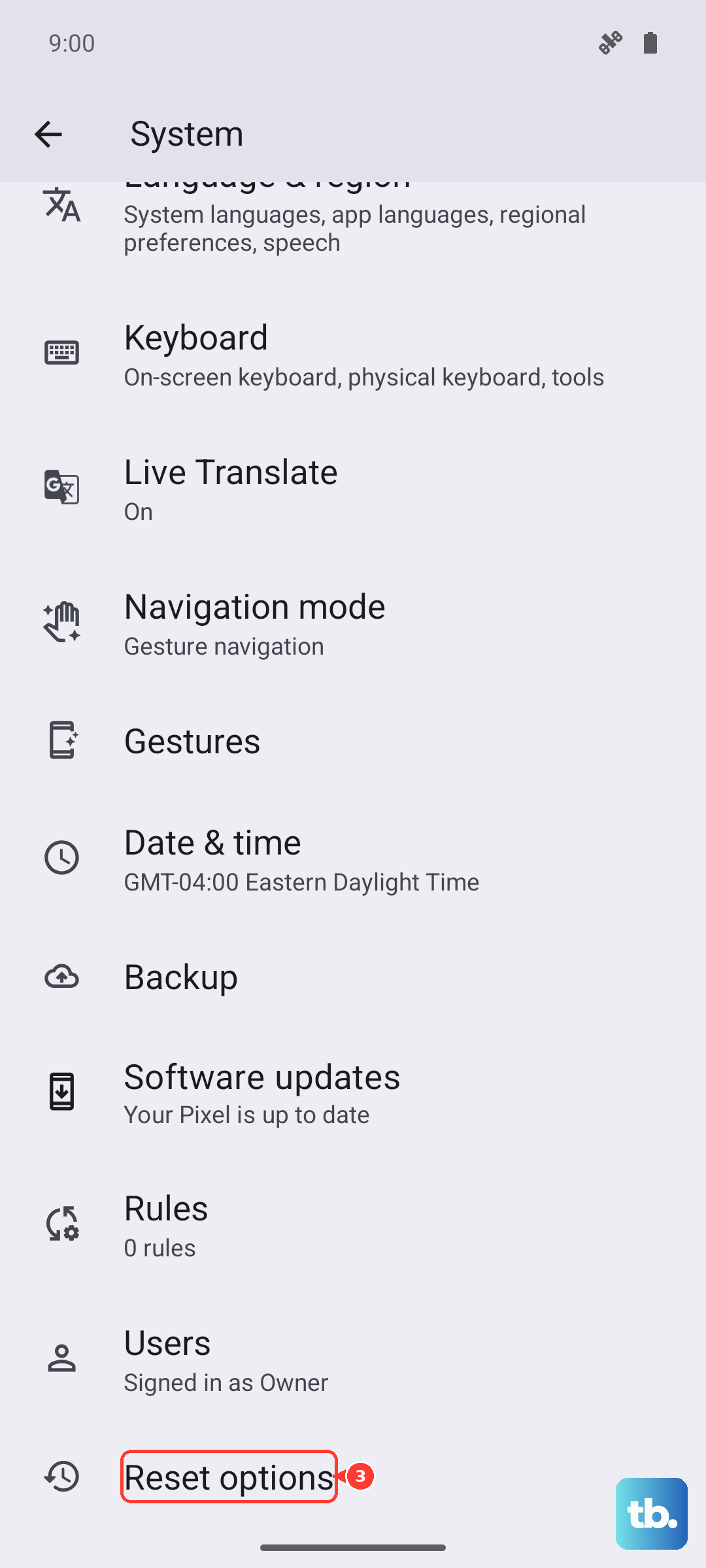
More importantly, check for a system update. OnePlus regularly pushes out OxygenOS updates that fix performance bugs. Go to Settings > About device > OxygenOS version and tap on the top banner to check for an update. Installing the latest software can resolve a lot of these stuttering problems.
Free Up Storage Space on Your Phone
When your phone's storage is nearly full, it struggles to read and write data efficiently, which can absolutely cause video lag. The OnePlus Open doesn't have expandable storage, so managing space is key.
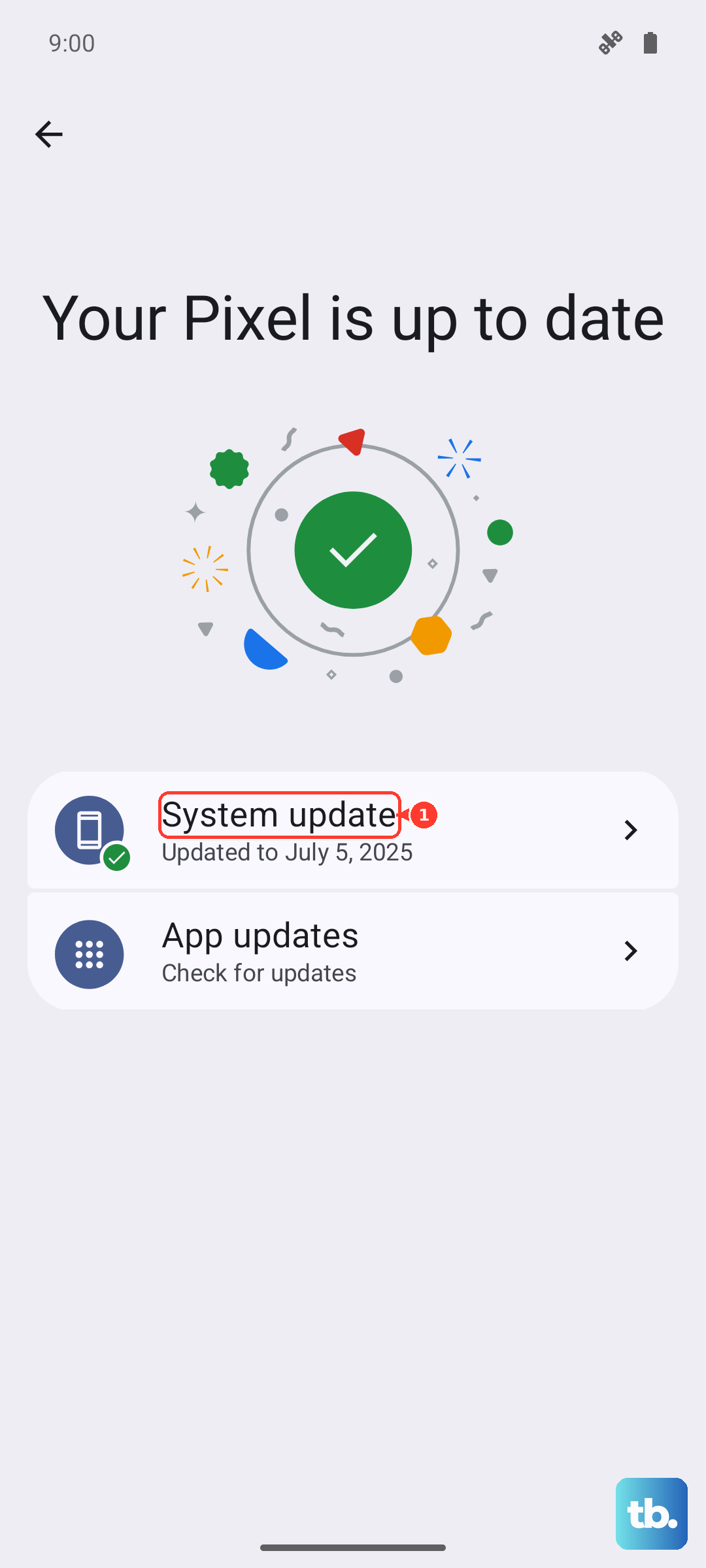
Go to Settings > Storage to see what's taking up room. Look for old downloads, cached data from apps, and large video files you might have forgotten about. Clearing the cache for your video apps can also help without deleting your personal data.
Close Background Apps and Check Performance Mode
Having too many apps running in the background can eat up RAM and CPU resources, leaving less power for smooth video decoding. Swipe up from the bottom and hold to enter the recent apps view, then swipe away everything you're not using.
Also, check which performance mode you're in. Go to Settings > Battery > Performance mode. If it's set to "Low Power Mode" or "Power Saver," the system is intentionally limiting performance to save battery, which can affect video playback. Switch it to "High Performance" or "Balanced" while watching videos.
Try a Different Video Player App
Sometimes the issue is isolated to a specific app. If Netflix is stuttering but YouTube is fine, the problem is with Netflix. Try using a different video player for local files, like VLC from the Play Store, which has its own robust decoding software.
This helps us figure out if the problem is with the app's code or with the phone's ability to play video files in general. If VLC plays the same file smoothly, then you know the issue is with your default gallery app.
Check for Overheating
The OnePlus Open's powerful chipset can get warm during extended use, especially when unfolded and the larger display is active. If the phone gets too hot, it will throttle performance to cool down, which can cause stuttering.
If the phone feels very warm to the touch, give it a break to cool down. Avoid using it while it's charging with the 67W SUPERVOOC charger, as fast charging generates additional heat. Try watching video with the phone unfolded on a table instead of in your hands for better airflow.
Disable Any Battery Optimization for Video Apps
Android's battery optimization is great for longevity, but it can sometimes be too aggressive and interrupt apps that need to run continuously, like a video stream. You can exclude specific apps from this optimization.
Go to Settings > Apps > [Your Video App, e.g., YouTube] > Battery. Here, set the battery usage to "Unrestricted." This tells the system not to put the app to sleep in the background, which can prevent playback issues.
Reset App Preferences or Clear App Data
If a single app is the problem, you can reset its preferences without losing your account login. Go to Settings > Apps > [Problem App] > Storage & cache. Tap "Clear cache" first. If that doesn't work, you can try "Clear storage" or "Clear data," but be warned this will log you out and reset the app to its default settings.
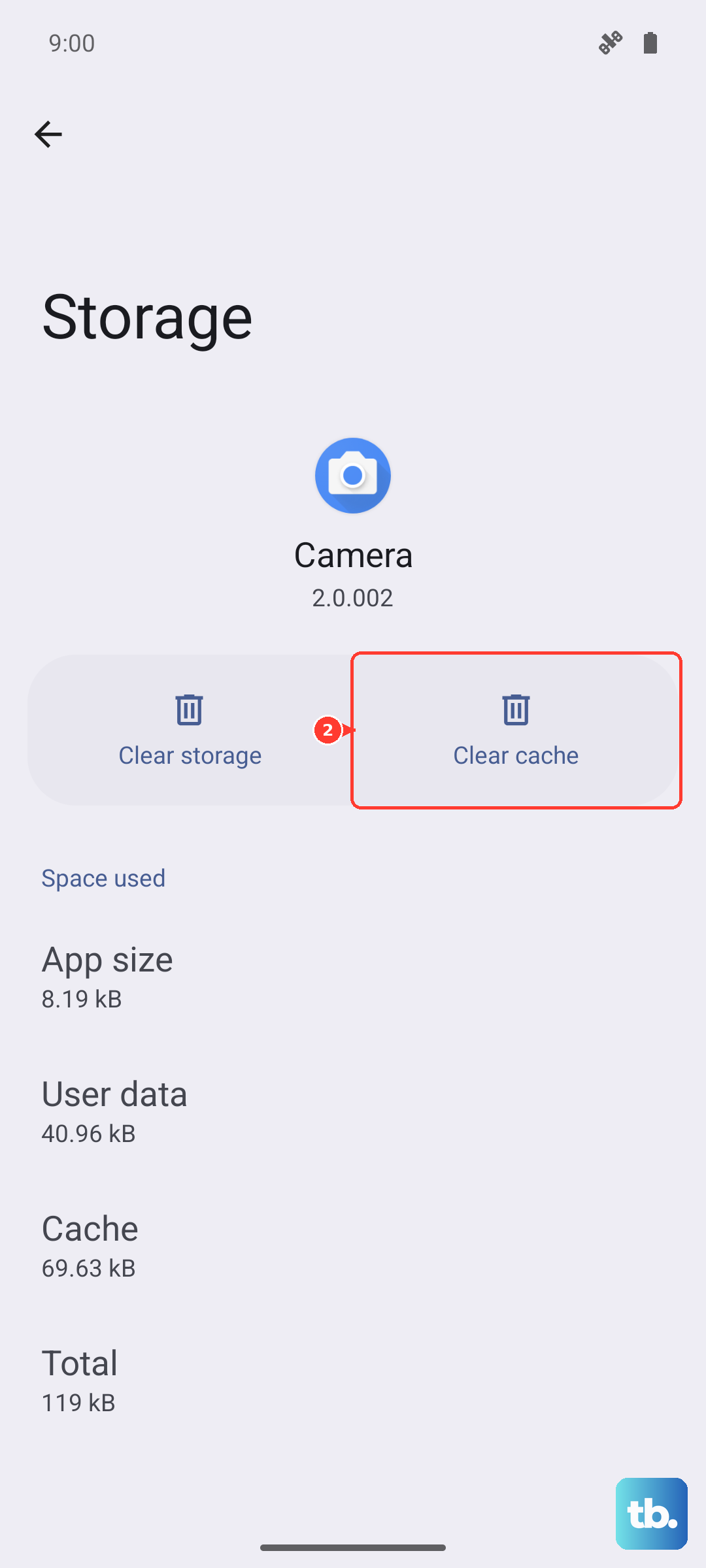
For a broader fix that won't delete your data, you can reset all app preferences. Go to Settings > System > Reset options > Reset app preferences. This resets permissions, background restrictions, and notification settings for all apps.
Consider a Factory Reset
If you've tried everything else and the stuttering persists across every app, a software issue deep within the system might be the cause. A factory reset will wipe your phone back to its out-of-the-box state.
This is a last resort. Before you do this, make absolutely sure you have a complete backup of your data. You can back up to your Google account and also use OnePlus' own backup tool in the settings. Once ready, go to Settings > System > Reset options > Erase all data (factory reset).