
Keeping your iPhone 17 on the latest version of iOS 26 is the best way to ensure you have the newest features and the strongest security. Apple's updates are frequent, and the process is generally straightforward. I'd start with the over-the-air method, as it's the simplest for most people.
Update Over Wi-Fi
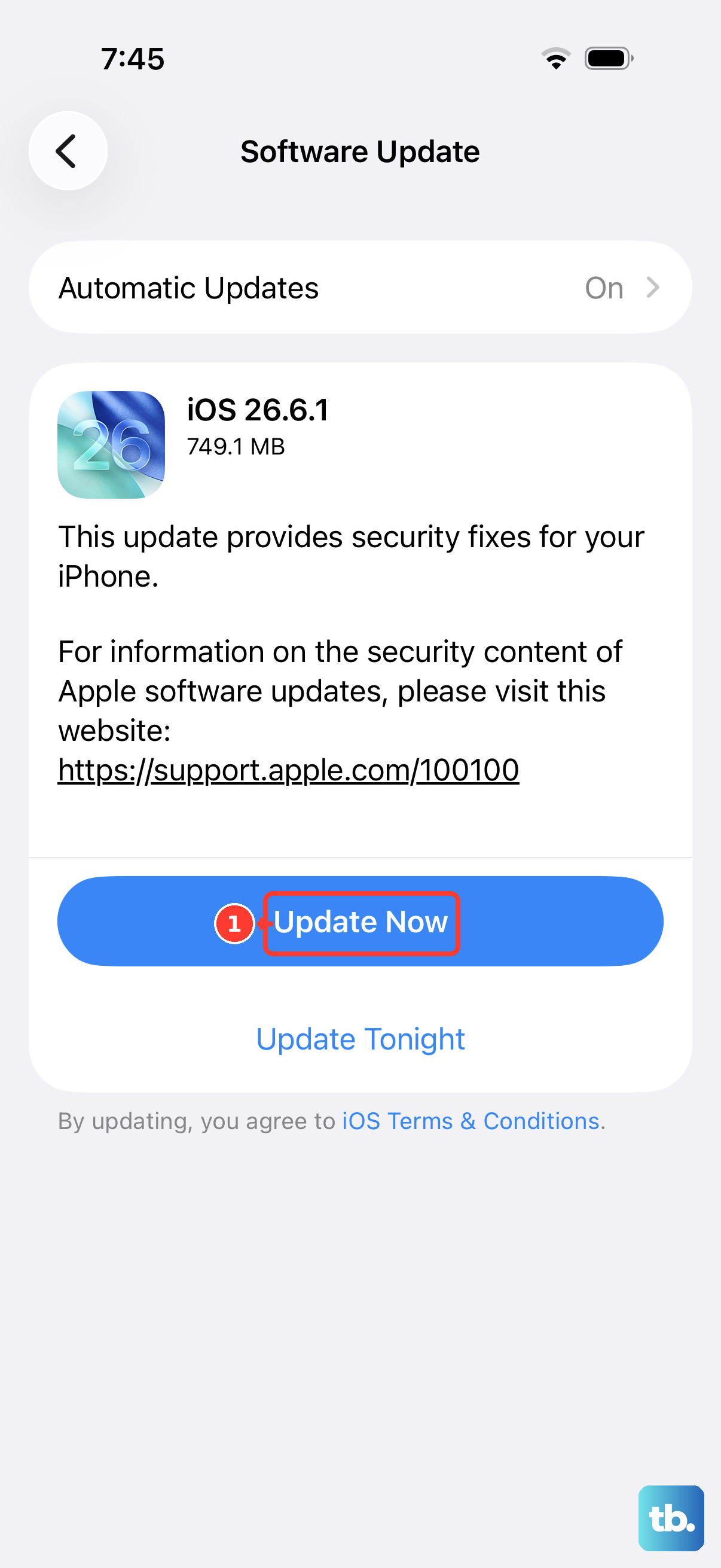
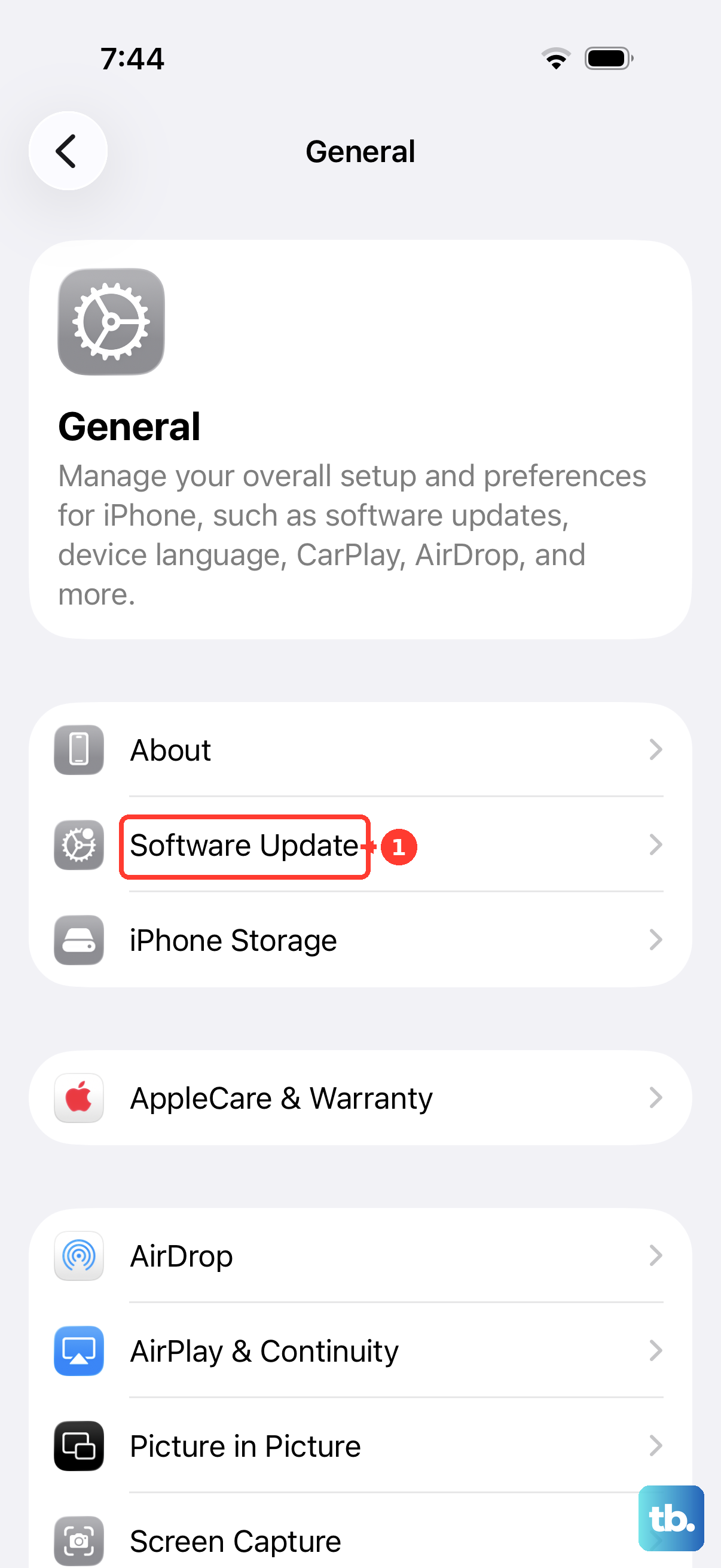
Open Settings and go to General > Software Update. Your iPhone 17 will check for any available updates. If one is found, you'll see details about what's new in iOS 26. Tap Download and Install to begin.
Make sure your phone is connected to a stable Wi-Fi network and has at least 50% battery, or better yet, plug it into a 30W USB-C charger. The download can be large, especially for major point releases. The phone will restart automatically to complete the installation.
Enable Automatic Updates
To have updates handled for you, go to Settings > General > Software Update > Automatic Updates. Turn on both Download iOS Updates and Install iOS Updates. With this enabled, your iPhone 17 will download updates in the background and install them overnight while it's charging and on Wi-Fi.
You'll still get a notification before the installation happens, giving you a chance to delay it if you need to.
Update Using a Mac or PC
If the over-the-air update fails or you're low on storage, updating via a computer is a reliable alternative. Connect your iPhone 17 to your computer using a USB-C cable. On a Mac with macOS or a Windows PC, open Finder or iTunes, select your device, and click Check for Update.
Click Download and Update when prompted. This method is great because the computer handles the download, bypassing any storage limitations on the phone itself.
Fix a Stuck Update
If the update seems frozen on the Apple logo or a progress bar, a force restart usually clears it. On the iPhone 17, quickly press and release the Volume Up button, then quickly press and release the Volume Down button. Finally, press and hold the Side button until you see the Apple logo appear.
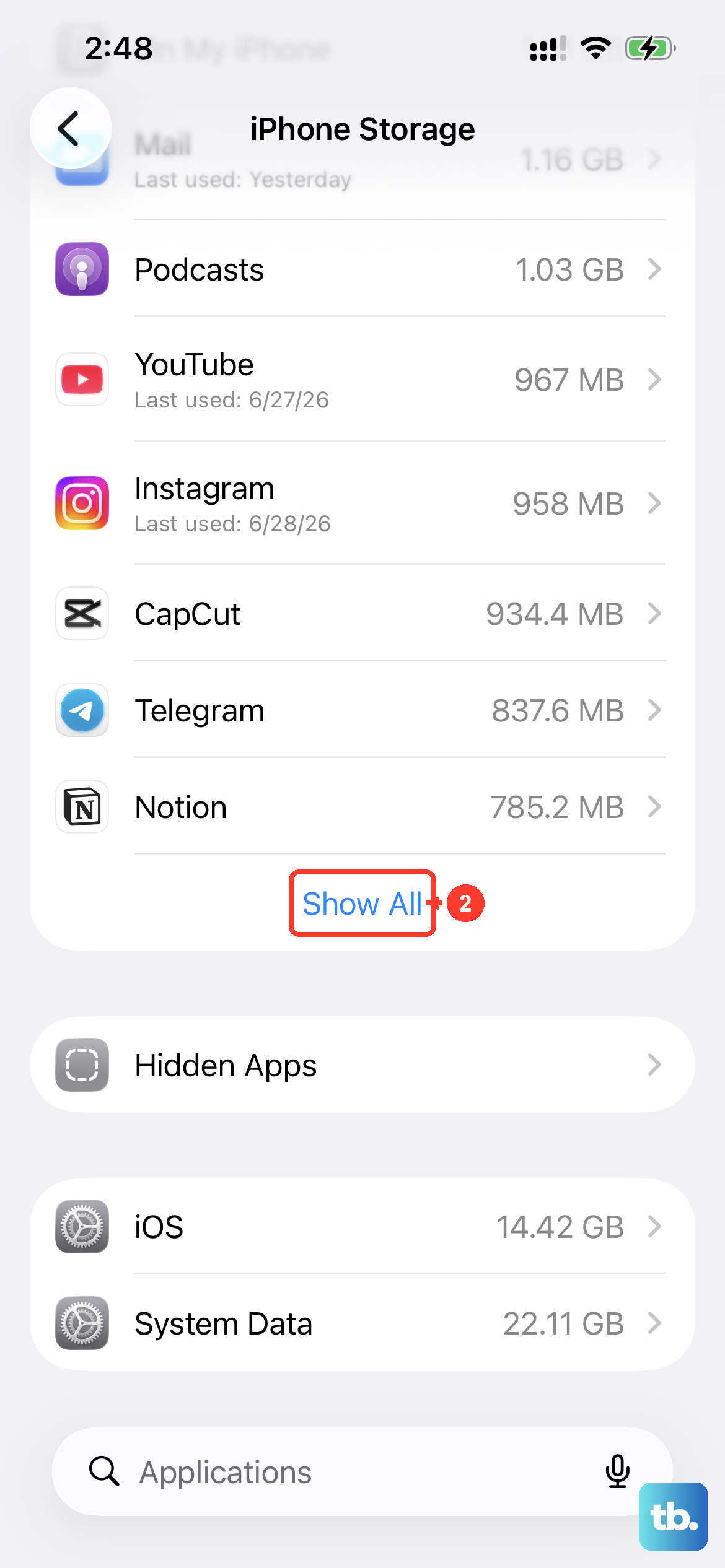
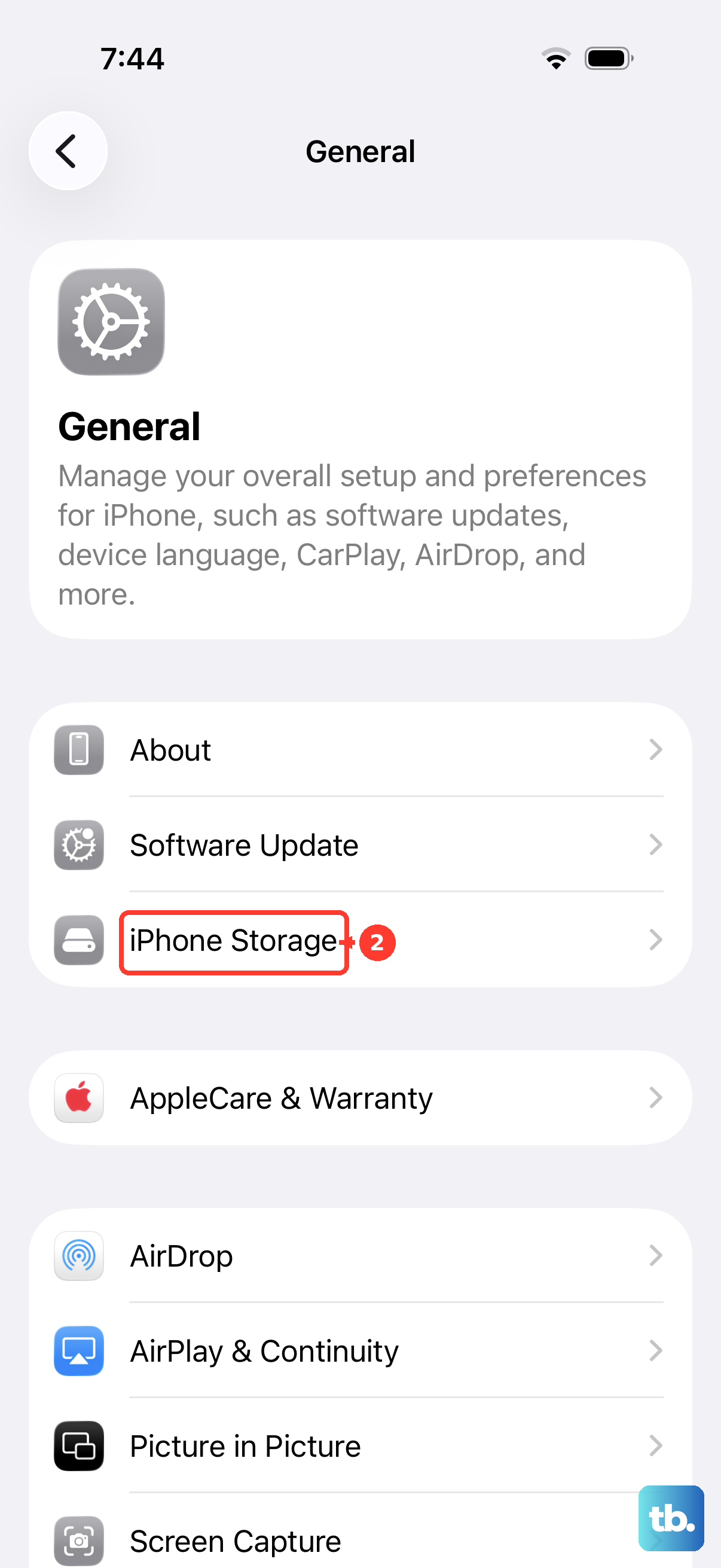
For persistent errors like "Unable to Verify Update," try switching to a different Wi-Fi network. You can also go to Settings > General > iPhone Storage, find the partially downloaded update file, and delete it before attempting the download again.
Check Your iOS Version
It's useful to know exactly which build of iOS 26 you're running. Go to Settings > General > About and look for the "Software Version" entry. This information is handy when checking if a specific security patch or feature has been applied to your device.
Prepare Before Updating
Always back up your iPhone 17 before installing any update. The easiest way is to go to Settings > [Your Name] > iCloud > iCloud Backup and tap Back Up Now. This ensures your data is safe if anything unexpected happens during the installation process.
Also, make sure you have several gigabytes of free space on your phone. Major iOS updates sometimes require it, even for the over-the-air installation method.
Why Updates Matter for iPhone 17
Updates for iOS 26 aren't just about new emojis. They contain critical security patches that protect your personal data from newly discovered threats. Apple also uses these updates to refine performance and battery management specifically for the iPhone 17's hardware.
Staying current means you're getting the most stable and secure experience possible from your phone.