
Keeping your iPad updated is the best way to get new features, fix bugs, and patch security vulnerabilities. Apple releases major iPadOS updates annually, with smaller point updates arriving every few weeks to address specific issues. Here's how to make sure your tablet is running the latest software.
Check for Updates Over Wi-Fi
This is the standard method for most people. Open the Settings app and navigate to General > Software Update. Your iPad will automatically check for available updates. If one is found, you'll see the version number, a description, and the Download and Install button.
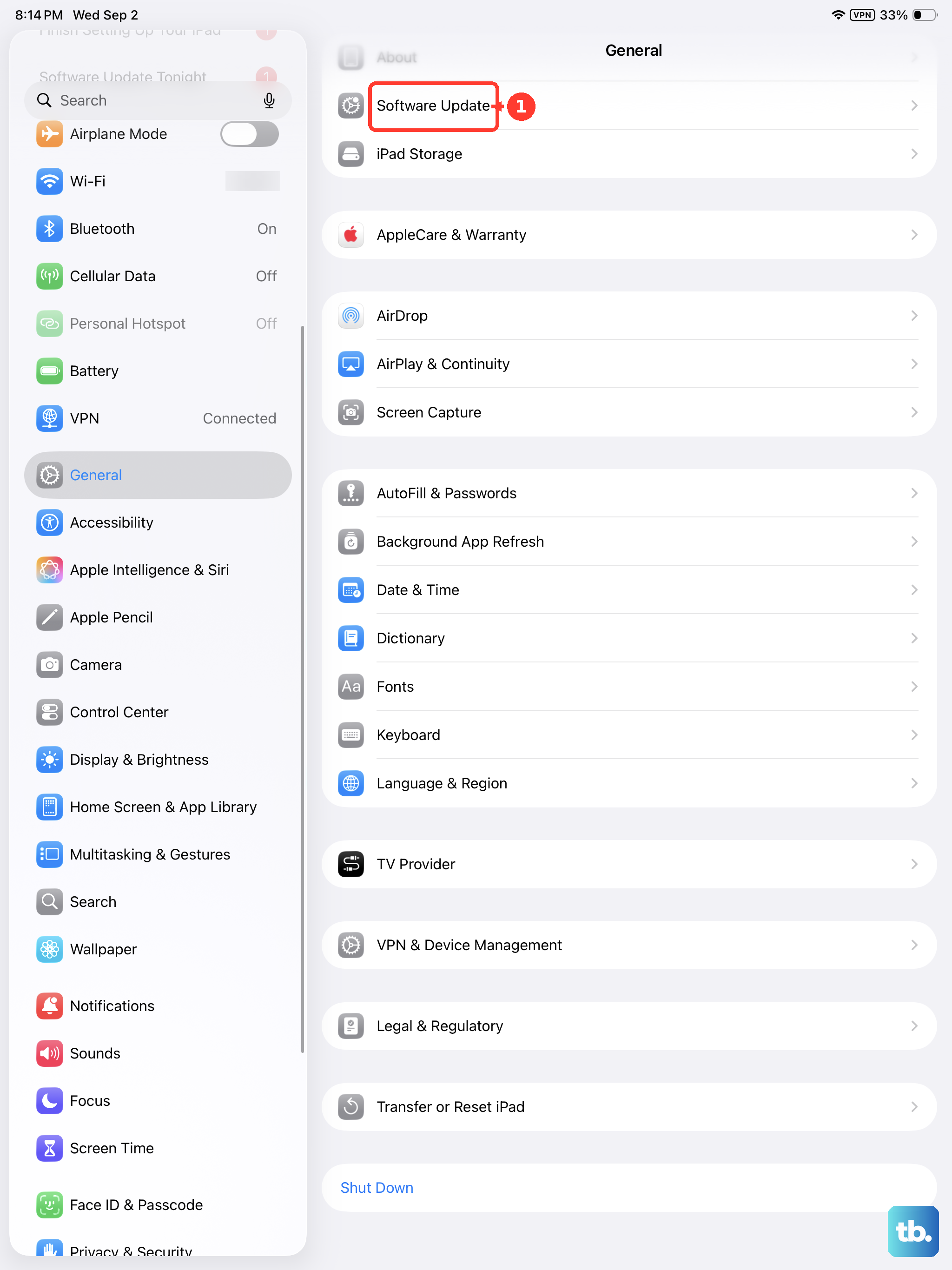
Make sure your iPad is connected to a stable Wi-Fi network and has at least 50% battery life, or better yet, is plugged into a charger. I'd recommend using at least a 20W USB-C charger, as the small 5W iPhone charger will take forever to charge an iPad, especially during an update. The download size can range from a few hundred megabytes for minor updates to several gigabytes for a full iPadOS release.
Enable Automatic Updates
If you prefer a hands-off approach, you can set your iPad to update itself. Go to Settings > General > Software Update > Automatic Updates. Here, you can toggle on both Download iPadOS Updates and Install iPadOS Updates.
With this enabled, your iPad will download updates in the background and install them overnight when it's connected to power and Wi-Fi. You'll still get a notification before the installation happens, giving you a chance to postpone it if needed.
Update Using a Mac or PC
If the over-the-air update fails, gets stuck, or if your iPad doesn't have enough free storage, updating via a computer is a reliable alternative. Connect your iPad to your Mac or Windows PC using a USB-C cable.
On a Mac with macOS Catalina or later, open Finder, select your iPad from the sidebar, and click Check for Update. On a Windows PC or older Mac, open iTunes, select your device, and click the same button. If an update is available, click Download and Update. This method is great because the computer handles the download, bypassing storage limitations on the iPad itself.
Fix a Stuck or Failed Update
If your iPad freezes on the Apple logo or a progress bar during an update, a force restart usually resolves it. For iPads without a Home button, quickly press and release the Volume Up button, then the Volume Down button, then press and hold the Top button until you see the Apple logo.
For iPads with a Home button, press and hold both the Home button and the Top button until the logo appears. If the update still won't complete, connect to a computer and try the Finder/iTunes method. If you see errors like "Unable to Check for Update," try a different Wi-Fi network or delete the downloaded update file by going to Settings > General > iPad Storage, finding the update file, and tapping Delete Update.
Check Your Current iPadOS Version
It's helpful to know what version you're currently running. Go to Settings > General > About and look for the Software Version entry near the top. This is useful for confirming an update installed correctly or for checking if a specific feature or security patch is available for your model.
Prepare Your iPad Before Updating
Before any major update, it's a smart habit to create a fresh backup. Go to Settings > [Your Name] > iCloud > iCloud Backup and tap Back Up Now. This ensures your data is safe if anything goes wrong during the installation process.
Also, if you use a USB-C hub or have a keyboard case like the Magic Keyboard attached, try disconnecting it while the update installs. Some accessories can draw power or cause detection issues that might interfere with the update process.
Why Updates Are Important for iPad
Every iPadOS update includes critical security patches that protect your tablet and your data from newly discovered threats. Beyond security, updates deliver performance improvements, battery life optimizations, and access to new apps and features designed for the iPad's larger screen. Staying current ensures you get the most out of your device.