
Keeping your iPad Pro (M4) on the latest iPadOS 26 software is the best way to ensure it runs smoothly and securely. Updates bring new features, fix bugs, and patch vulnerabilities that could affect your device. Apple typically releases major updates annually, with smaller point updates arriving every few weeks to address specific issues.
Check for Updates Over Wi-Fi
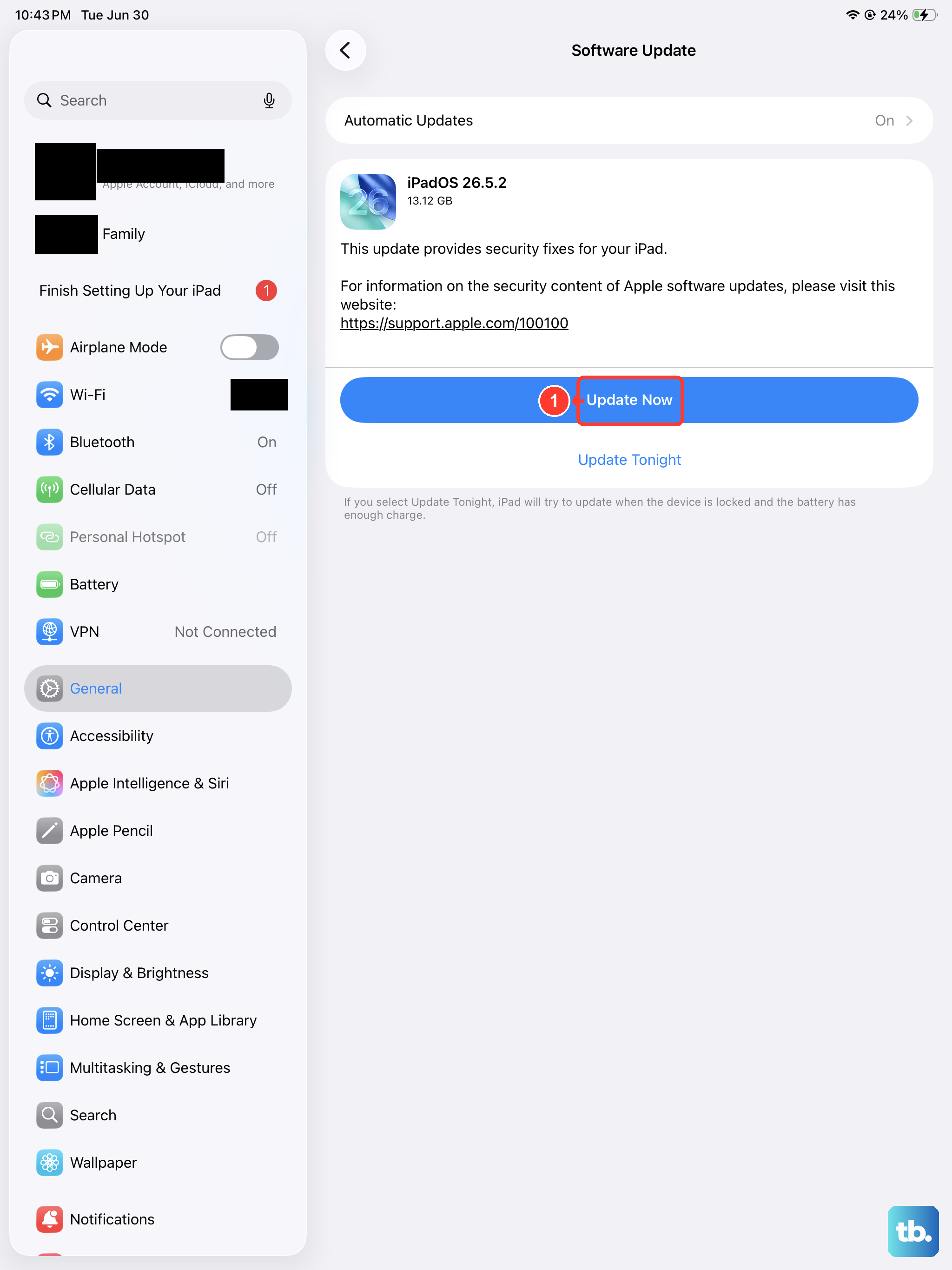
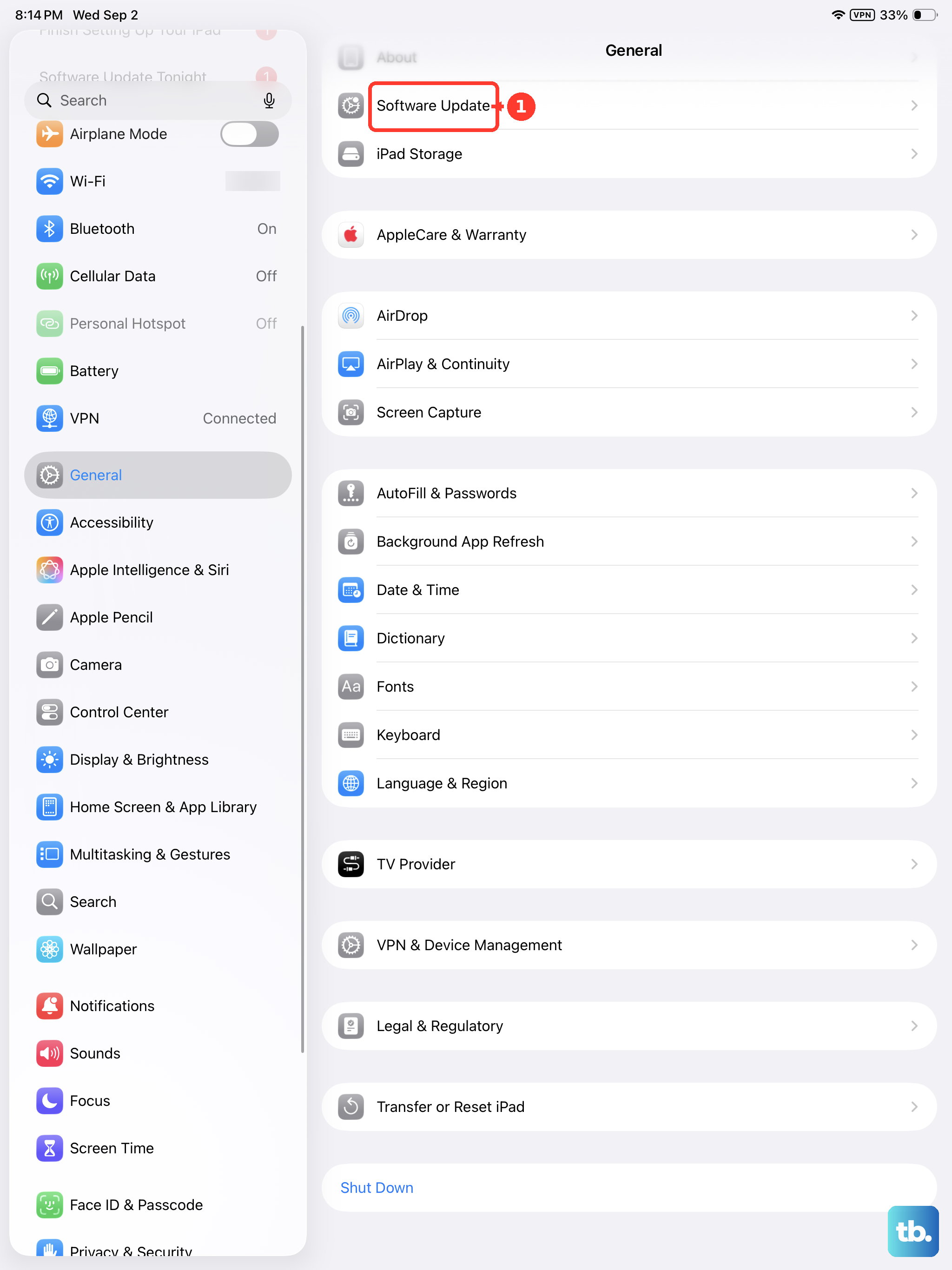
The simplest way to update is directly on your iPad. Open the Settings app and navigate to General > Software Update. Your iPad Pro will automatically check for any available updates. If one is found, you'll see the version number, the download size, and a brief description of what's included. Tap Download and Install to proceed.
Before starting, ensure your iPad is connected to a stable Wi-Fi network and has at least 50% battery life, or better yet, is plugged into a charger. I'd recommend using a 30W or higher USB-C PD charger to keep it powered during the process. The installation will require a restart, so don't be alarmed when the screen goes black and the Apple logo appears.
Enable Automatic Updates
If you'd rather not manually check, you can set your iPad to handle updates automatically. Go to Settings > General > Software Update > Automatic Updates. Here, you can toggle on Download iPadOS Updates and Install iPadOS Updates.
With these enabled, your iPad Pro will download updates in the background when connected to Wi-Fi and power. It typically schedules the installation overnight. You'll still receive a notification before the install happens, giving you a chance to delay it if you're in the middle of something important.
Update Using a Mac or PC
Sometimes an over-the-air update can get stuck, fail due to storage constraints, or encounter verification errors. Using a computer is a reliable fallback. Connect your iPad Pro to a Mac or Windows PC using a high-quality, Apple-certified USB-C cable.
On a Mac with macOS Catalina or later, open a Finder window and select your iPad from the sidebar. On a Windows PC or older Mac, you'll use iTunes. Click on Check for Update, and if one is available, select Download and Update. This method is particularly useful because the computer handles the download, bypassing any storage limitations on the iPad itself.
If an Update Gets Stuck or Fails
A failed update can be worrying, but it's usually fixable. If the screen is stuck on the Apple logo or a progress bar isn't moving, try a force restart. Quickly press and release the Volume Up button, then quickly press and release the Volume Down button. Immediately after, press and hold the Power button until you see the Apple logo appear, then release.
If you see an error message like "Unable to Verify Update," check your internet connection first. Try switching to a different Wi-Fi network. You can also go to Settings > General > iPad Storage, find any partially downloaded update file, and delete it. This clears the slate so you can attempt the download again from scratch.
Verify Your Current iPadOS Version
It's helpful to know exactly which software version you're running. To check, go to Settings > General > About. Look for the "Software Version" entry near the top of the list. This information is useful for troubleshooting or confirming you've received a specific update that includes a feature or fix you were waiting for.
Prepare Your iPad Before Updating
It's a smart habit to create a fresh backup before installing any major software update. The easiest way is via iCloud. Go to Settings > [Your Name] > iCloud > iCloud Backup and tap Back Up Now. Ensure your iPad is connected to Wi-Fi and power until the backup completes.
Also, take a moment to ensure you have enough free storage on your device for the update to download and unpack. If you're tight on space, offloading unused apps or moving photos to iCloud can free up the necessary room. This simple prep work can save you from potential headaches.
The Importance of Staying Updated
Regular updates are crucial for your iPad's security. Each release includes patches for vulnerabilities that could be exploited by malware. Beyond that, updates often contain optimizations that can improve battery life and overall performance on your M4 chip. While it might be tempting to postpone, keeping current is one of the best things you can do for your device's health and your data's safety.