
If your iPad isn't showing alerts for new messages, emails, or app updates, you're missing out on what makes the device so convenient. The fixes are usually straightforward, and I'd start with the simplest ones first.
Check Your Focus Modes
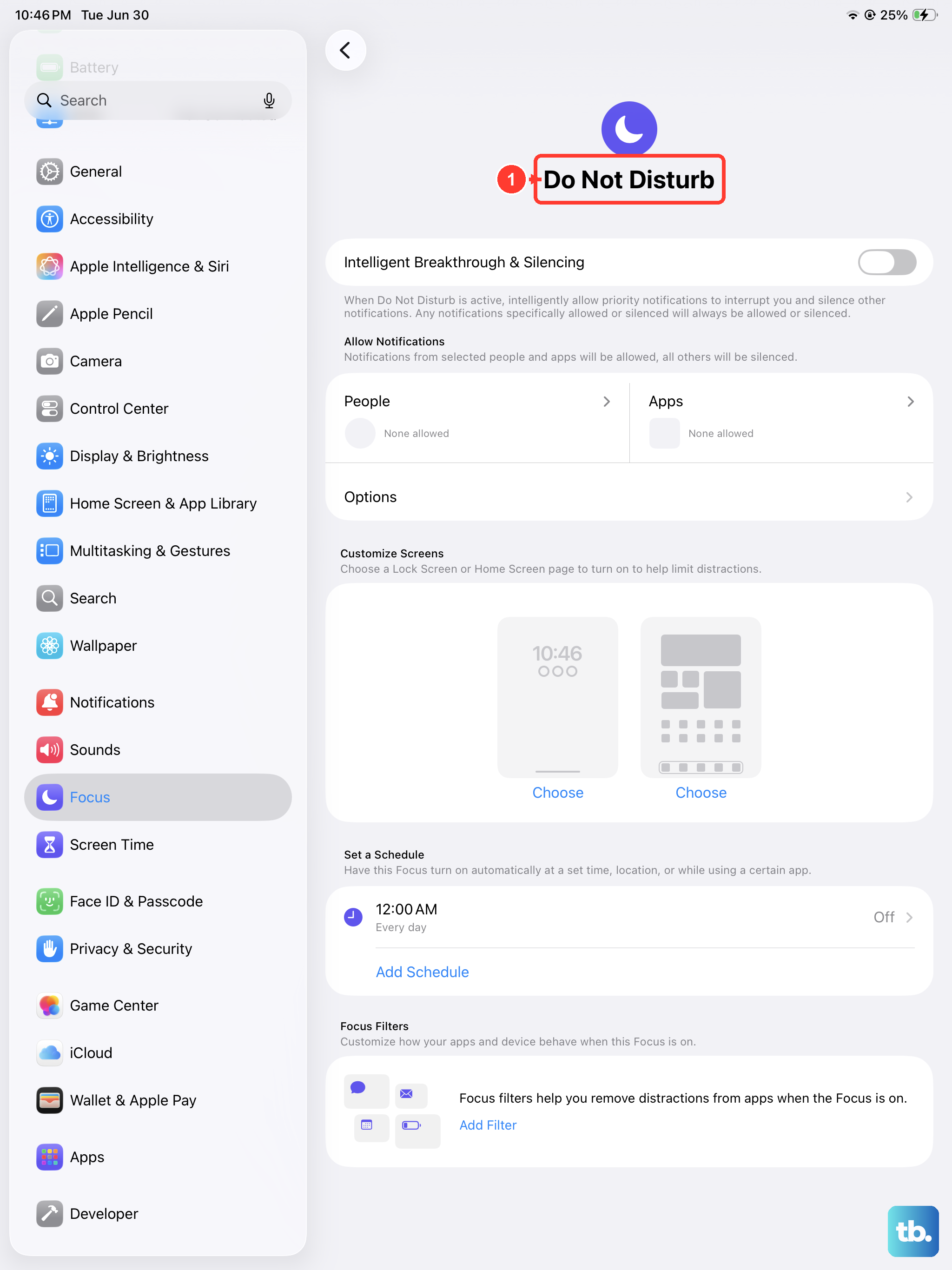
Focus modes can silence notifications from specific apps or people and may turn on automatically on a schedule. Swipe down from the top-right corner to open Control Center and look at the Focus tile. If any mode like Do Not Disturb, Work, or Sleep is active, tap Focus, then tap the active mode to turn it off.
You can also check and customize which apps are allowed through by going to Settings > Focus. Select the active mode and review the "Allowed Notifications" section to make sure your important apps aren't being silenced.
Restart Your iPad
A simple restart can help with temporary software glitches that interrupt notifications. For iPads without a Home button, press and hold the top button and either volume button until the Power Off slider appears, then drag it. Once the iPad turns off, press and hold the top button until the Apple logo appears.
If you have an iPad with a Home button, press and hold the top button until the slider appears, then drag it. Once the iPad turns off, press and hold the top button until the Apple logo appears. See if your alerts start coming through.
Review Notification Settings for the App
Sometimes, the settings for a specific app get changed, either by accident or after an update. Open Settings > Notifications, then select the app that's not alerting you under Notification Style.
Make sure "Allow Notifications" is toggled on at the very top. Under Alerts, choose where notifications should appear: Lock Screen, Notification Center, or Banners. You can also enable sounds and badges here. I've seen this fix it more times than I can count.
Check Do Not Disturb and Scheduled Summary
Check the schedules that can silence or delay your notifications. First, go to Settings > Focus > Do Not Disturb. Make sure it's not scheduled to turn on automatically at certain times.
Next, go to Settings > Notifications > Scheduled Summary. This feature bundles non-urgent alerts for delivery at set times. For an app included in the summary, you can select Immediate Delivery under Notification Delivery in its notification settings. You can turn it off entirely or just remove the problematic app from the summary list.
Disable Announce Notifications with Siri
If you use AirPods or other headphones, check your "Announce Notifications" settings as well as the app's notification settings. To check, go to Settings > Notifications > Announce Notifications.
You can toggle this off completely, or go into each app's settings here and disable it individually. Then check whether the app's alerts appear where you expect them, including on the Lock Screen or in Notification Center.
Update iPadOS
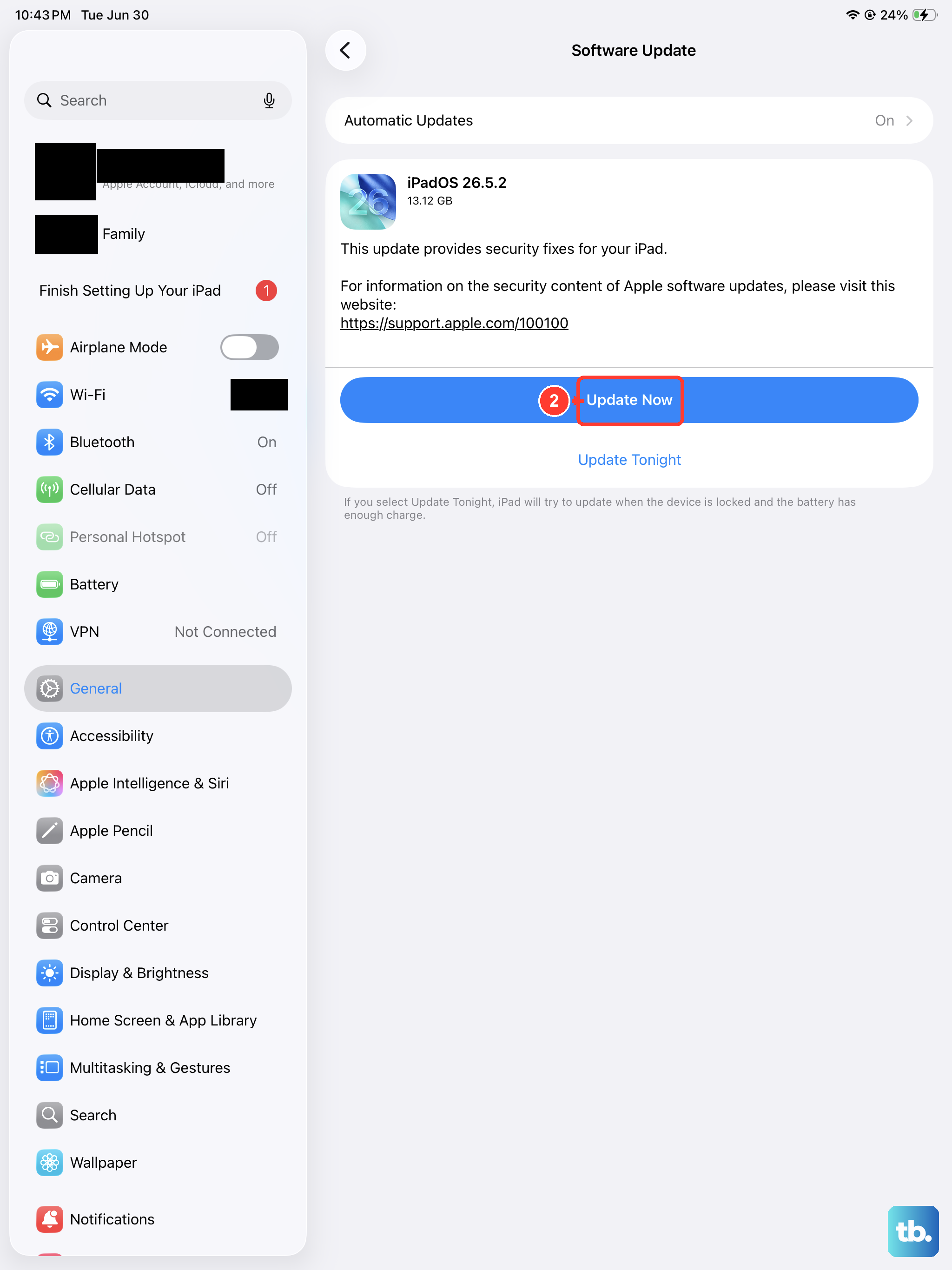
Apple frequently releases updates that squash bugs, including ones related to notifications. Open Settings > General > Software Update. If an update is available, install it. It's a good idea to plug your iPad in and connect to Wi-Fi first.
Back up your iPad before updating. If an update is available, tap Download and Install and follow the onscreen instructions.
Reset All Settings
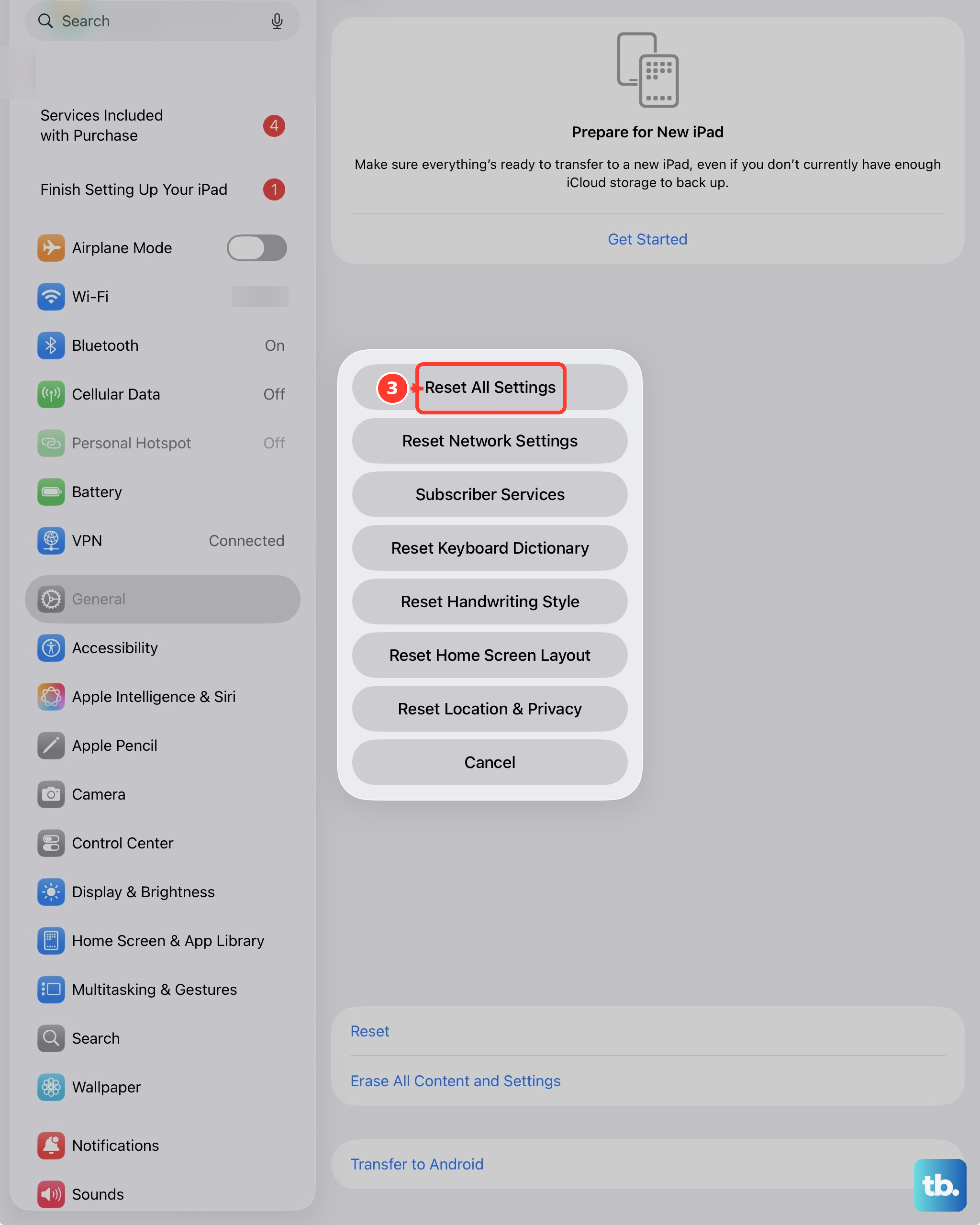
This is a more thorough step that resets every system setting on your iPad back to factory defaults. It won't delete your apps, photos, or personal data, but you will need to reconfigure things like Wi-Fi passwords, wallpaper, and privacy permissions.
To do it, go to Settings > General > Transfer or Reset iPad. Tap Reset, then choose Reset All Settings. Your iPad will restart. After it boots up, test your notifications immediately before changing any other settings.
Check for Physical Interruptions
This might sound obvious, but check Settings > Sounds and turn off Silent Mode. Check the volume slider under Ringtone. If Match Ringtone Volume is off under Alerts and System Sounds, check that section's volume slider too.
If you use a case or keyboard cover, try removing it and check that the buttons can move freely. A case or cover can accidentally press and hold a button.
Sign Out and Back Into Your Apple Account
If alerts from Apple services are affected, check that you're signed in to the correct Apple Account before trying to sign out and back in. Go to Settings > tap your name at the top > scroll all the way down and tap Sign Out.
You'll need your password and you'll be asked if you want to keep a copy of your data on the iPad. Choose to keep data, then restart the iPad. After it restarts, go back to Settings and sign in with your Apple Account again. Then check whether alerts from the affected Apple services arrive.
Check App-Specific Notification Servers
For apps like Gmail, Outlook, or Slack, the problem might be on their end. Try opening the problematic app and checking for any in-app alerts about connectivity or login status. Sometimes you need to manually refresh the app or even re-authenticate your account.
It's also worth a quick web search for "[App Name] notification issues" to see if there's a known service outage. A service outage may delay alerts until the company fixes it.
Erase and Set Up Your iPad Again
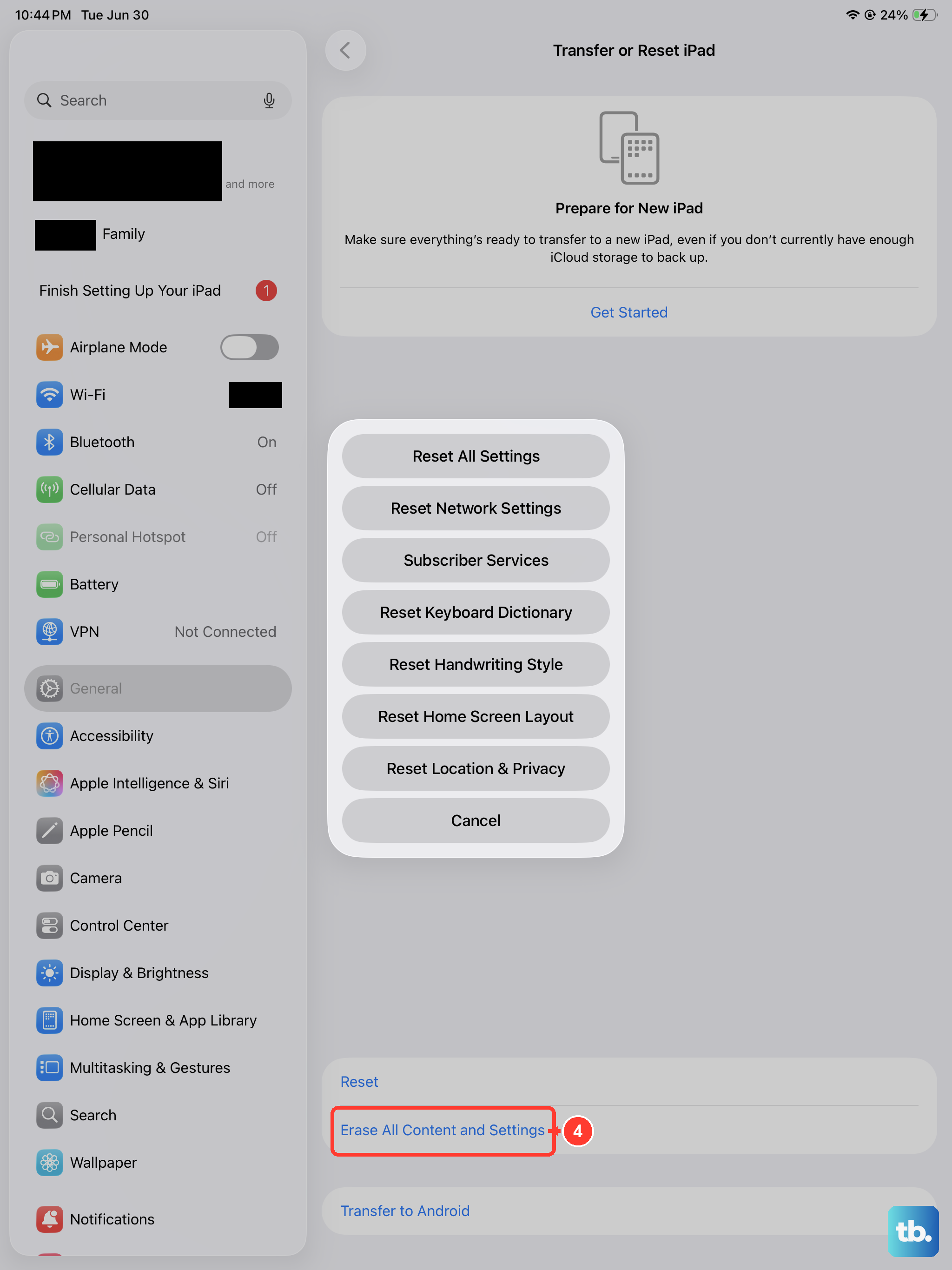
If you've tried everything else, erasing the iPad and setting it up again is a last resort. This removes all your content and settings, so make a backup before proceeding. Go to Settings > General > Transfer or Reset iPad > Erase All Content and Settings.
Warning, this will completely wipe your iPad. Make sure you have a recent iCloud or computer backup first. After erasing, set the iPad up as new without restoring from a backup. Check notification settings for your apps on the fresh setup, then test whether their alerts arrive.