
Keeping your Google Pixel 9 Pro updated is the best way to get the latest AI features, camera improvements, and essential security patches. Google is known for delivering timely updates directly to its Pixel lineup, so the process is usually straightforward.
Check for the Update
Open your Settings app and scroll down to System > System update. Your Pixel 9 Pro will immediately check with Google's servers for any available updates. If one is found, you'll see a button to download and install it.
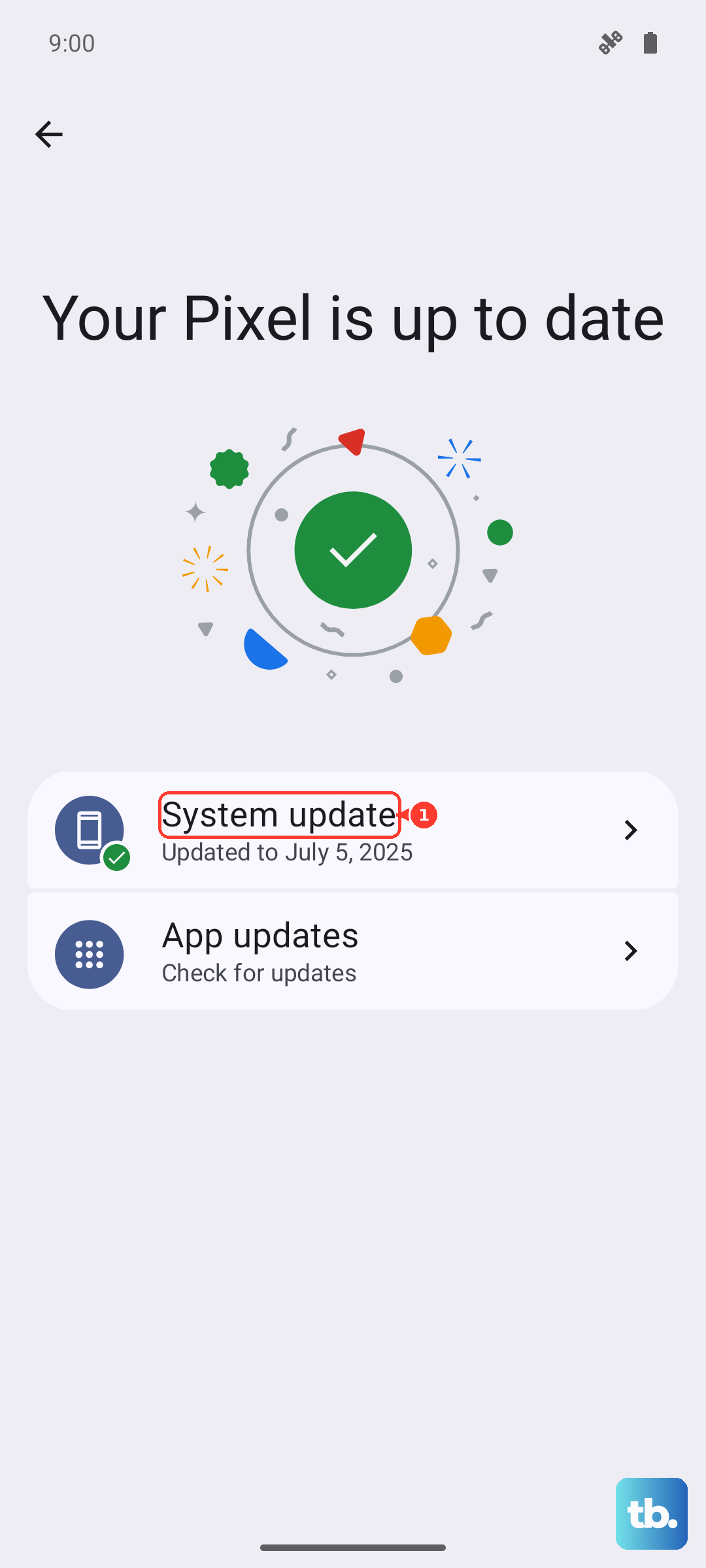
Make sure your phone is connected to a Wi-Fi network and has at least a 50% charge, or better yet, plug it in. Major Android version updates, like moving to Android 15, are much larger than the monthly security patches.
Enable Automatic Updates
To make sure you never miss a critical security patch, you can set your phone to handle updates automatically. From the System update screen, tap the gear icon in the top right corner.
Here, you can toggle on Auto-download over Wi-Fi. With this enabled, your Pixel 9 Pro will download updates in the background when you're on Wi-Fi. You'll still get a notification to restart and install it, so you're always in control.
What to Do If an Update Fails
If the download gets stuck or the installation fails, a simple force restart often clears the glitch. Press and hold the Power button for about 30 seconds until you feel the phone vibrate and the Google logo appears.
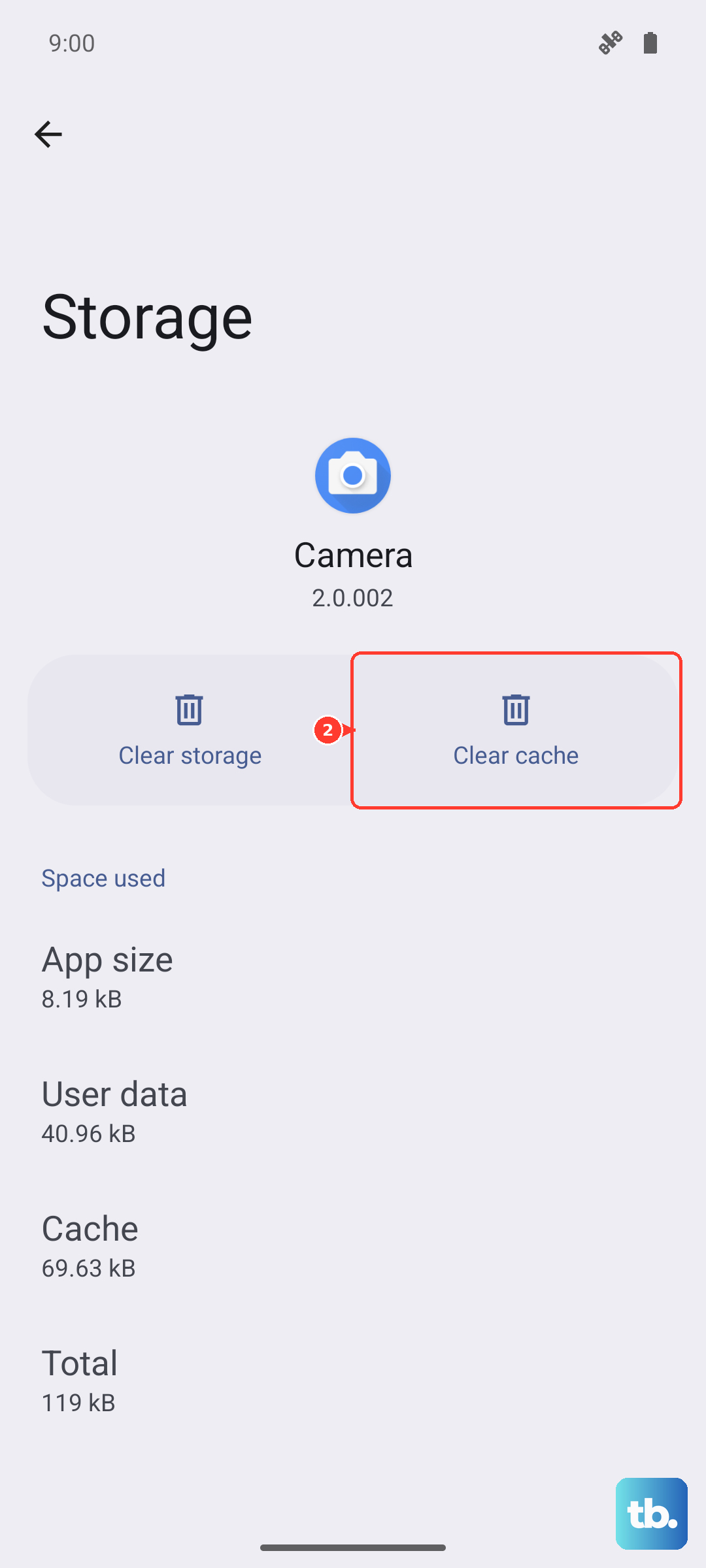
If that doesn't work, a poor internet connection could be the culprit. Try switching to a different Wi-Fi network. For persistent download issues, you can also clear the cache for the Google Play Store app via Settings > Apps > See all apps > Google Play Store > Storage & cache > Clear cache.
Update Using Android Flash Tool (Advanced)
If an over-the-air update is completely failing, you can manually install the factory image using your computer. This is a more technical process, but Google provides the official Android Flash Tool website for this purpose.
You'll need a USB-C cable and to enable USB debugging on your phone in the Developer Options. The web-based tool walks you through unlocking the bootloader and flashing the latest Android build. I'd only recommend this if you're comfortable with technical steps and have backed up your data, as it can erase your phone.
Verify Your Current Software Version
It's good to know exactly what's running on your phone. Go to Settings > About phone and look at the Android version and Android security update.
This screen tells you if you're on the latest monthly patch. For the Pixel 9 Pro, you should see "Android security update" with a date no older than the previous month, as Google typically releases patches at the beginning of each month.
Don't Forget Your Apps
System updates are crucial, but your apps need love too. Open the Google Play Store, tap your profile picture in the top right, and select Manage apps & device.
Under the "Updates available" section, you can tap Update all. Keeping apps updated ensures compatibility with the latest Android version and fixes bugs that could cause battery drain on your Pixel 9 Pro.
Check for Google Play System Updates
This is an important layer that sometimes gets overlooked. Google can update core parts of the Android system directly through the Play Store, independent of the monthly security patch.
To check, go to Settings > Security & privacy > System & updates > Google Play system update. Tap "Check for update" and install any available updates. These are smaller, modular updates that can enhance security and functionality.
Regular updates are particularly important for the Pixel 9 Pro's unique AI and camera features. Updates often include improvements for the Tensor G4 chip's performance, refinements to the fingerprint sensor, and new capabilities for tools like Magic Eraser in Google Photos.